***
slug: /home/account/api-create
title: Creating API access tokens
description: >-
This topic explains how to create API access tokens. These are required to
authenticate with the LaunchDarkly REST API and are one of the options to
authenticate with the LaunchDarkly CLI.
keywords: 'api, api key, token, access, cli, ldcli'
---------------------------------------------------
## Overview
This topic explains how to create API access tokens. These are required to authenticate with the [LaunchDarkly REST API](/api) and are one of the options to authenticate with the [LaunchDarkly CLI](/home/getting-started/ldcli).
Only you have access to the secret values of tokens you create. Other account members cannot access them. Administrators can delete your tokens, but cannot view their values.
You can create an API access token from the Authorization page.
By default, API tokens are personal tokens. You can choose to create a service token instead during the token creation workflow.
Your API access token is visible one time, immediately after you create it. If you leave or refresh the page where the token is displayed, it will be obscured and no longer visible. You must copy and store new access tokens somewhere secure before you leave the creation page, or you will lose access to the tokens.
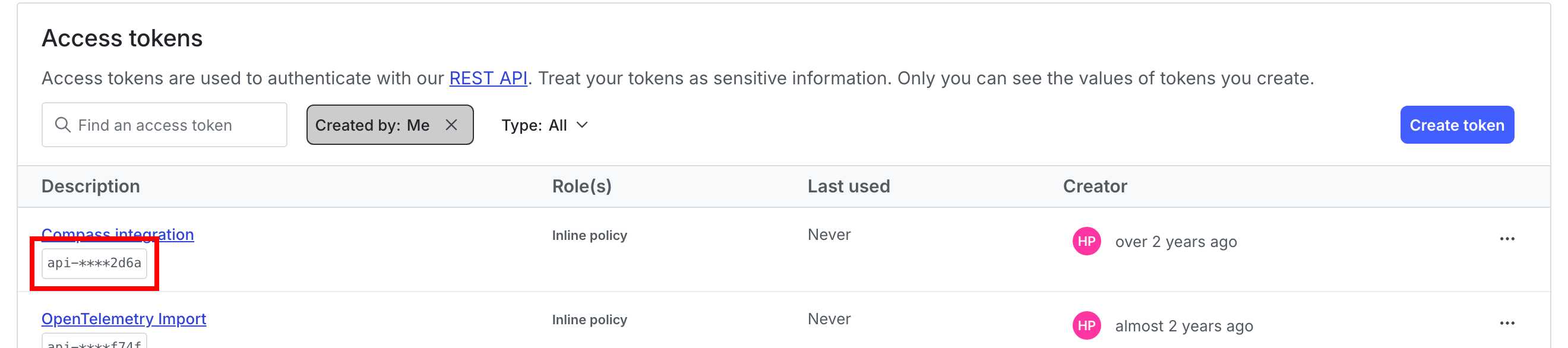
Here is a screenshot of the "Access tokens" section of the **Authorization** page:
## Create access tokens
To create an access token:
1. Click the **gear** icon in the left sidenav to view Organization settings.
2. Click **Authorization**.
3. In the "Access tokens" section, click **Create token**. The "Create an access token" panel appears.
4. Give your token a human-readable **Name**.
5. Assign a **Role** to the token by choosing one from the menu.
* Select Reader, Writer, Admin, or Owner if you want to use a base role.
* Select **Custom** to choose another role, either one you've created or one provided by LaunchDarkly. This option is available only if your LaunchDarkly subscription includes custom roles.
* Select **Inline policy** to create a role policy that applies only to this token. To learn more, read [Create policies for roles](/home/account/roles/role-create#create-policies-for-roles). This option is available only if your LaunchDarkly subscription includes custom roles.
6. Select the **API version** to assign to your token. By default, API requests you send using this token will use this API version. To learn more, read [Versioning](/api#versioning).
7. (Optional) Select the **This is a service token** checkbox if you wish to create a service token. This feature is only available to customers on Enterprise plans.
8. Click **Save token**. The new token appears in the **Authorization** page.
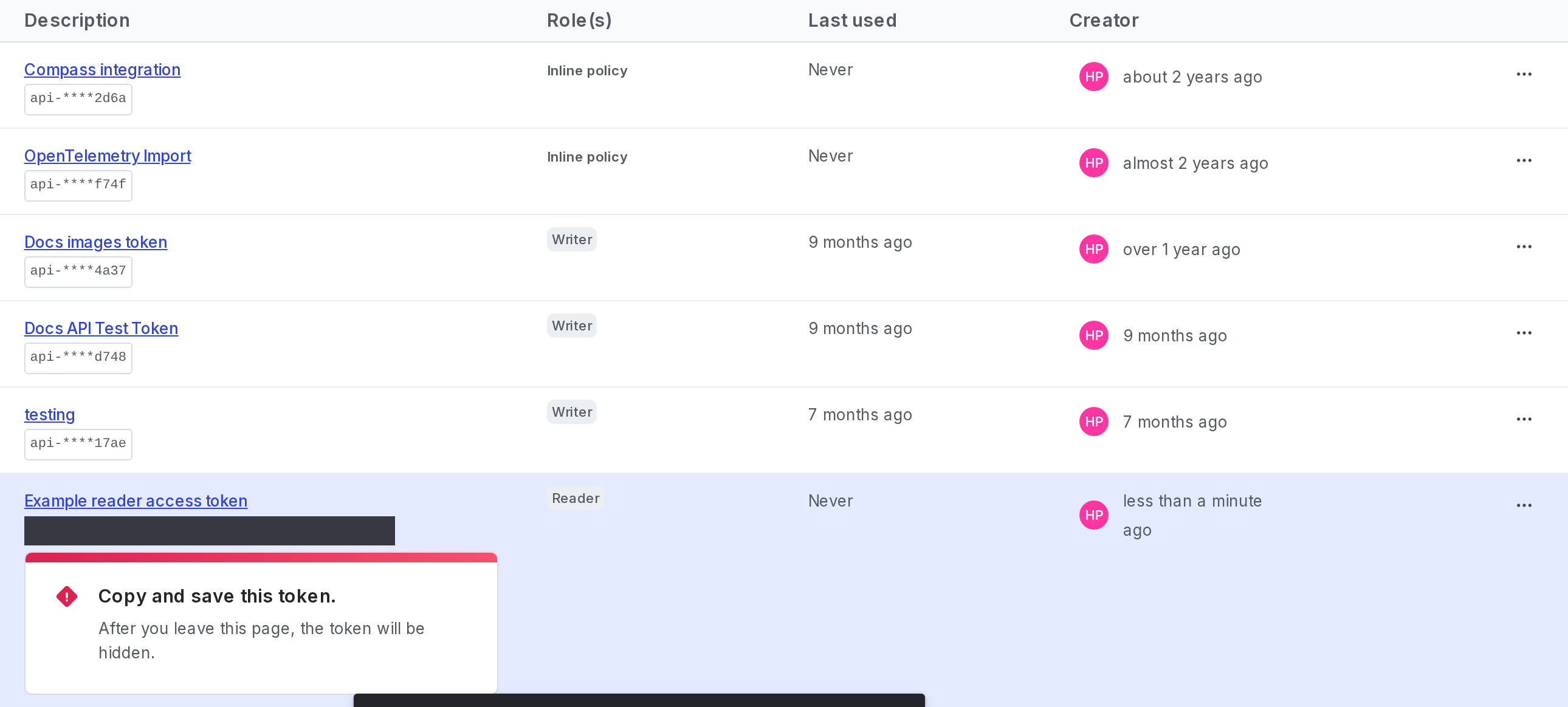
9. Copy and save the token somewhere secure. After you leave this page, the token is obscured:
} iconPosition="left">
You can also use the REST API: [Create access token](/api/access-tokens/post-token)
After you create a token, you can clone or delete it. You can also reset the secret values of your tokens, or adjust the scope of your personal tokens.
By default, LaunchDarkly allows you to create 200 service tokens per account. You can create more upon request. To learn more, read [How to right size when you are over LaunchDarkly system resource count limits](https://support.launchdarkly.com/hc/en-us/articles/12319971362075-How-to-right-size-when-you-are-over-LaunchDarkly-system-resource-count-limits).