> ## Documentation Index
> Fetch the complete documentation index at: https://launchdarkly.com/docs/llms.txt
> Use this file to discover all available pages before exploring further.
# Support options
This topic explains LaunchDarkly's support options, including how to use enhanced support, and how to allow LaunchDarkly to use generative AI for Support tickets.
## Enhanced support
Enhanced support allows us to view your account as a read-only member. This makes it easier for us to investigate issues in your LaunchDarkly account and help resolve them.
Enhanced support helps us troubleshoot issues such as:
* Unexpected behavior on your **Feature flags** list
* Understanding events on the **Live events** page
* Missing contexts from your **Contexts** list
* Missing flag updates
You must have an Admin role to enable enhanced support. You can enable and disable enhanced support at any time. We may ask you to follow this procedure when you contact us for help.
### Enable enhanced support
To enable enhanced support:
1. Click the **gear** icon in the left sidebar to view Organization settings.
2. Click **Security** and scroll to the "Enable enhanced support" section.
3. Check **Enable enhanced support**.
4. Choose the duration for the enhanced support:
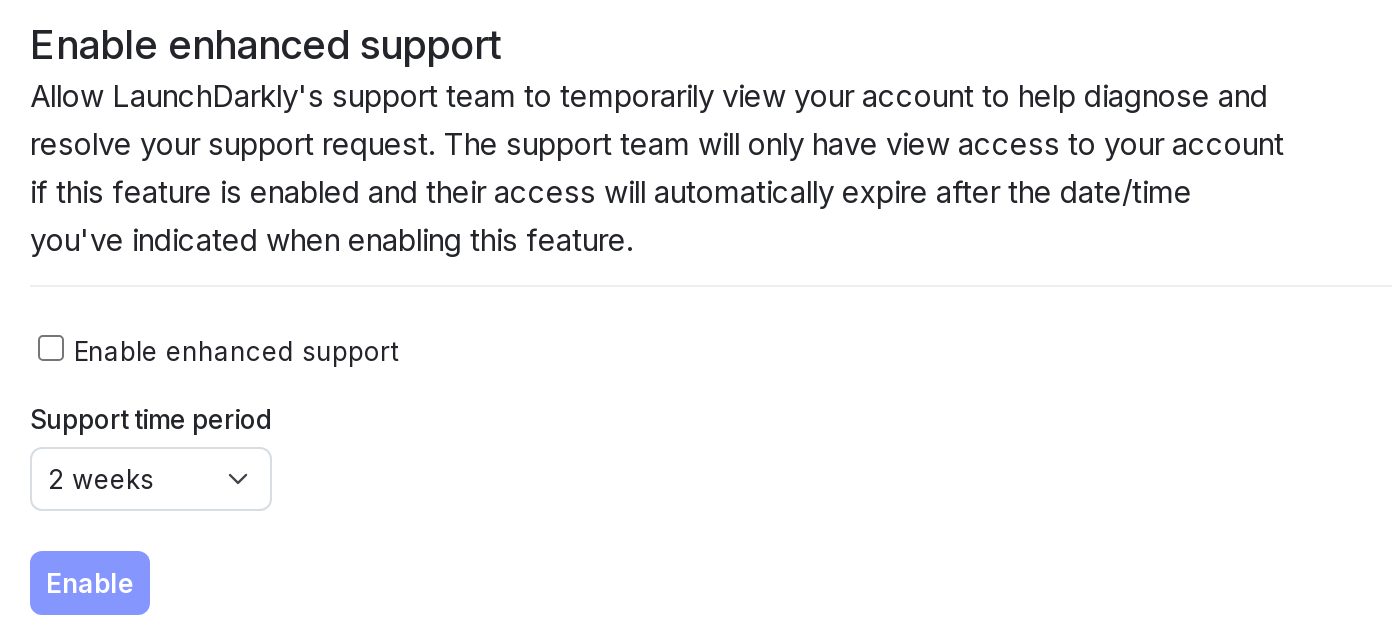 5. Click **Enable**.
Enhanced support is now enabled, and will automatically expire after the duration you chose.
### Disable enhanced support
You can manually disable enhanced support before the expiration date you chose.
To manually disable enhanced support:
1. Click the **gear** icon in the left sidebar to view Organization settings.
2. Click **Security** and scroll to the "Enable enhanced support" section.
3. Click **Disable enhanced support**.
Enhanced support is now disabled.
## Generative AI for Support tickets
Generative AI for Support tickets lets LaunchDarkly automatically analyze, tag, and label your Support tickets based on their content. This helps us process Support tickets more efficiently. You can enable and disable generative AI for Support tickets at any time.
This option is not available for some LaunchDarkly accounts, depending on your account contract.
To enable generative AI for Support tickets:
1. Click the **gear** icon in the left sidebar to view Organization settings.
2. Click **Security** and scroll to the "Enable support generative AI use cases" section.
3. Check **Allow LaunchDarkly Support to use generative AI**.
4. Click **Update**.
Generative AI is now enabled.
To disable generative AI for Support tickets, uncheck the **Allow LaunchDarkly Support to use generative AI** box and click **Update**.
5. Click **Enable**.
Enhanced support is now enabled, and will automatically expire after the duration you chose.
### Disable enhanced support
You can manually disable enhanced support before the expiration date you chose.
To manually disable enhanced support:
1. Click the **gear** icon in the left sidebar to view Organization settings.
2. Click **Security** and scroll to the "Enable enhanced support" section.
3. Click **Disable enhanced support**.
Enhanced support is now disabled.
## Generative AI for Support tickets
Generative AI for Support tickets lets LaunchDarkly automatically analyze, tag, and label your Support tickets based on their content. This helps us process Support tickets more efficiently. You can enable and disable generative AI for Support tickets at any time.
This option is not available for some LaunchDarkly accounts, depending on your account contract.
To enable generative AI for Support tickets:
1. Click the **gear** icon in the left sidebar to view Organization settings.
2. Click **Security** and scroll to the "Enable support generative AI use cases" section.
3. Check **Allow LaunchDarkly Support to use generative AI**.
4. Click **Update**.
Generative AI is now enabled.
To disable generative AI for Support tickets, uncheck the **Allow LaunchDarkly Support to use generative AI** box and click **Update**.