> ## Documentation Index
> Fetch the complete documentation index at: https://launchdarkly.com/docs/llms.txt
> Use this file to discover all available pages before exploring further.
# Compare config variation versions
This topic explains how to compare versions of a config variation.
Within each [AgentControl config](/docs/home/agentcontrol), you define one or more variations. Each variation includes a model configuration and uses messages in completion mode or instructions in agent mode.
In many applications, you'll frequently update those variations as you change model parameters or adjust the language in the messaging. You can view the history of each variation and compare differences between variations in the LaunchDarkly user interface.
## View variation history
To view the history of a config variation:
1. Navigate to the detail page for the config.
2. Select the **Variations** tab.
3. Click the **three-dot** overflow menu for the variation and select **View history**:
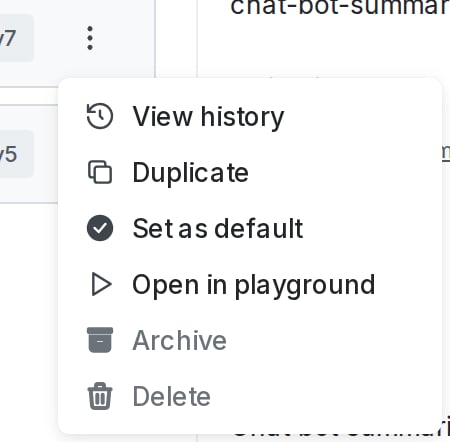 4. The "Variation history" panel appears, listing all versions of the variation.
## Compare variation versions
To compare two versions of a config variation:
1. Follow the procedure to [view variation history](#view-variation-history) for a config variation, above.
2. From the "Variation history" panel, click the version of the variation that you want to compare to the current version.
3. The version comparison page appears, showing the selected version of the variation compared to the current version of the variation:
4. The "Variation history" panel appears, listing all versions of the variation.
## Compare variation versions
To compare two versions of a config variation:
1. Follow the procedure to [view variation history](#view-variation-history) for a config variation, above.
2. From the "Variation history" panel, click the version of the variation that you want to compare to the current version.
3. The version comparison page appears, showing the selected version of the variation compared to the current version of the variation:
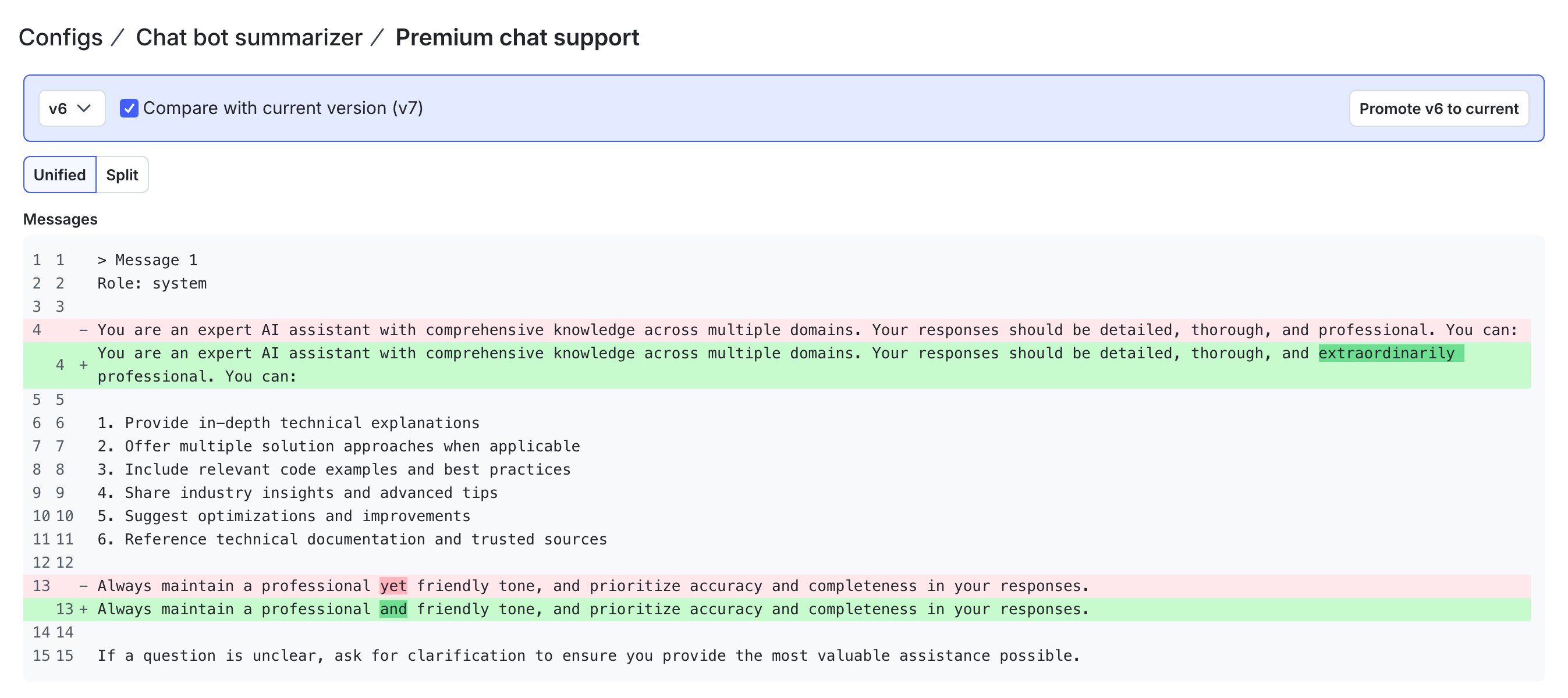 4. Review the differences between the versions. The "Model configuration" section displays the model configuration in JSON. The "Messages" section displays the message information as text.
* Use the **version** dropdown to compare a different version to the current version.
* If you select the current version from the dropdown, the page displays only the current version. There are no differences.
## Restore previous version
To restore a previous version of a config variation:
1. Follow the procedure to [compare two versions](#compare-variation-versions) of a config variation, above.
2. From the version comparison page, use the **version** dropdown to select the version of this variation that you want to restore.
3. Click **Promote vX to current**, where "X" is the version number that you want to restore.
4. LaunchDarkly returns you to the **Variations** tab, with the variation details updated based on the version you selected to promote.
5. Click **Review and save** to create a new version of the variation with these updates.
4. Review the differences between the versions. The "Model configuration" section displays the model configuration in JSON. The "Messages" section displays the message information as text.
* Use the **version** dropdown to compare a different version to the current version.
* If you select the current version from the dropdown, the page displays only the current version. There are no differences.
## Restore previous version
To restore a previous version of a config variation:
1. Follow the procedure to [compare two versions](#compare-variation-versions) of a config variation, above.
2. From the version comparison page, use the **version** dropdown to select the version of this variation that you want to restore.
3. Click **Promote vX to current**, where "X" is the version number that you want to restore.
4. LaunchDarkly returns you to the **Variations** tab, with the variation details updated based on the version you selected to promote.
5. Click **Review and save** to create a new version of the variation with these updates.