> ## Documentation Index
> Fetch the complete documentation index at: https://launchdarkly.com/docs/llms.txt
> Use this file to discover all available pages before exploring further.
# Manage AgentControl
This topic explains how to view and manage AgentControl.
All of your configs within a project appear on the **AgentControl** list. Creating a new config adds it to the list in all environments within your project. Deleting a config removes it from all environments in the project.
You can also use the REST API: [List configs](/docs/api/agentcontrol/list-ai-configs)
To learn how to create a new config, read [Create configs](/docs/home/agentcontrol/create).
## View configs
Use the search bar to find a config by name, key, or description. By default, the most recently created configs appear first.
### Filter configs
You can filter the list of AgentControl configs to view only those that share a particular, project-wide attribute. To filter your configs, use the **Filters** menu at the top of the **AgentControl** list:
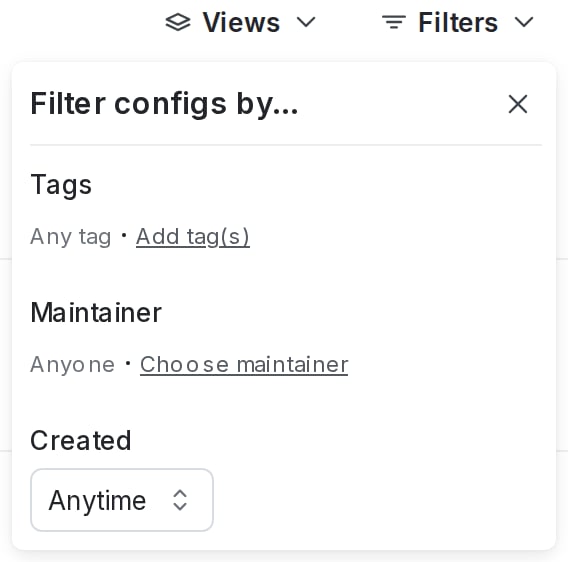 Within a project, you can filter by:
* Tags
* Maintainer
* Creation date
To filter your configs:
1. Click **Filters**.
2. Choose an attribute for a filtering option. The **AgentControl** list automatically updates.
3. (Optional) Click **Filters** again and choose an additional attribute. Repeat as many times as needed.
### Remove filters
To clear filters, click **Filters**, then click **Clear**.
### Sort configs
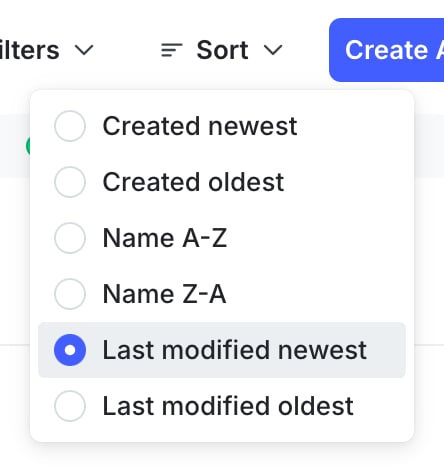
You can sort the list of visible configs by creation date, by name, or by last modified date. To sort the **AgentControl** list, click **Sort** and choose a sorting option:
Within a project, you can filter by:
* Tags
* Maintainer
* Creation date
To filter your configs:
1. Click **Filters**.
2. Choose an attribute for a filtering option. The **AgentControl** list automatically updates.
3. (Optional) Click **Filters** again and choose an additional attribute. Repeat as many times as needed.
### Remove filters
To clear filters, click **Filters**, then click **Clear**.
### Sort configs
You can sort the list of visible configs by creation date, by name, or by last modified date. To sort the **AgentControl** list, click **Sort** and choose a sorting option:
 ## Delete configs
You can delete a config when you no longer need it.
If you delete a config, all of its variations and targeting rules are permanently removed. Should it be requested again, the fallback value defined in code will be returned for all contexts. Remove any references to the config from your application code before you delete it.
**Deleted AgentControl cannot be recovered**
If you delete a config, you cannot restore it. Be absolutely certain you do not need the config before you delete it.
To delete a config:
1. Navigate to the detail page for the config you want to delete.
2. In the right sidebar, click the **trash can** icon to open the "Delete this config?" dialog.
3. Click **Delete config**.
The config is deleted permanently.
You can also use the REST API: [Delete config](/docs/api/agentcontrol/delete-ai-config)
## Delete configs
You can delete a config when you no longer need it.
If you delete a config, all of its variations and targeting rules are permanently removed. Should it be requested again, the fallback value defined in code will be returned for all contexts. Remove any references to the config from your application code before you delete it.
**Deleted AgentControl cannot be recovered**
If you delete a config, you cannot restore it. Be absolutely certain you do not need the config before you delete it.
To delete a config:
1. Navigate to the detail page for the config you want to delete.
2. In the right sidebar, click the **trash can** icon to open the "Delete this config?" dialog.
3. Click **Delete config**.
The config is deleted permanently.
You can also use the REST API: [Delete config](/docs/api/agentcontrol/delete-ai-config)