> ## Documentation Index
> Fetch the complete documentation index at: https://launchdarkly.com/docs/llms.txt
> Use this file to discover all available pages before exploring further.
# Viewing context kinds
This topic explains how to view context kinds in LaunchDarkly.
## View context kinds
You can view and manage the context kinds list by navigating to the **Contexts** list and clicking the **gear** icon on the right.
The context kinds list includes all of the built-in and manually created context kinds within your project.
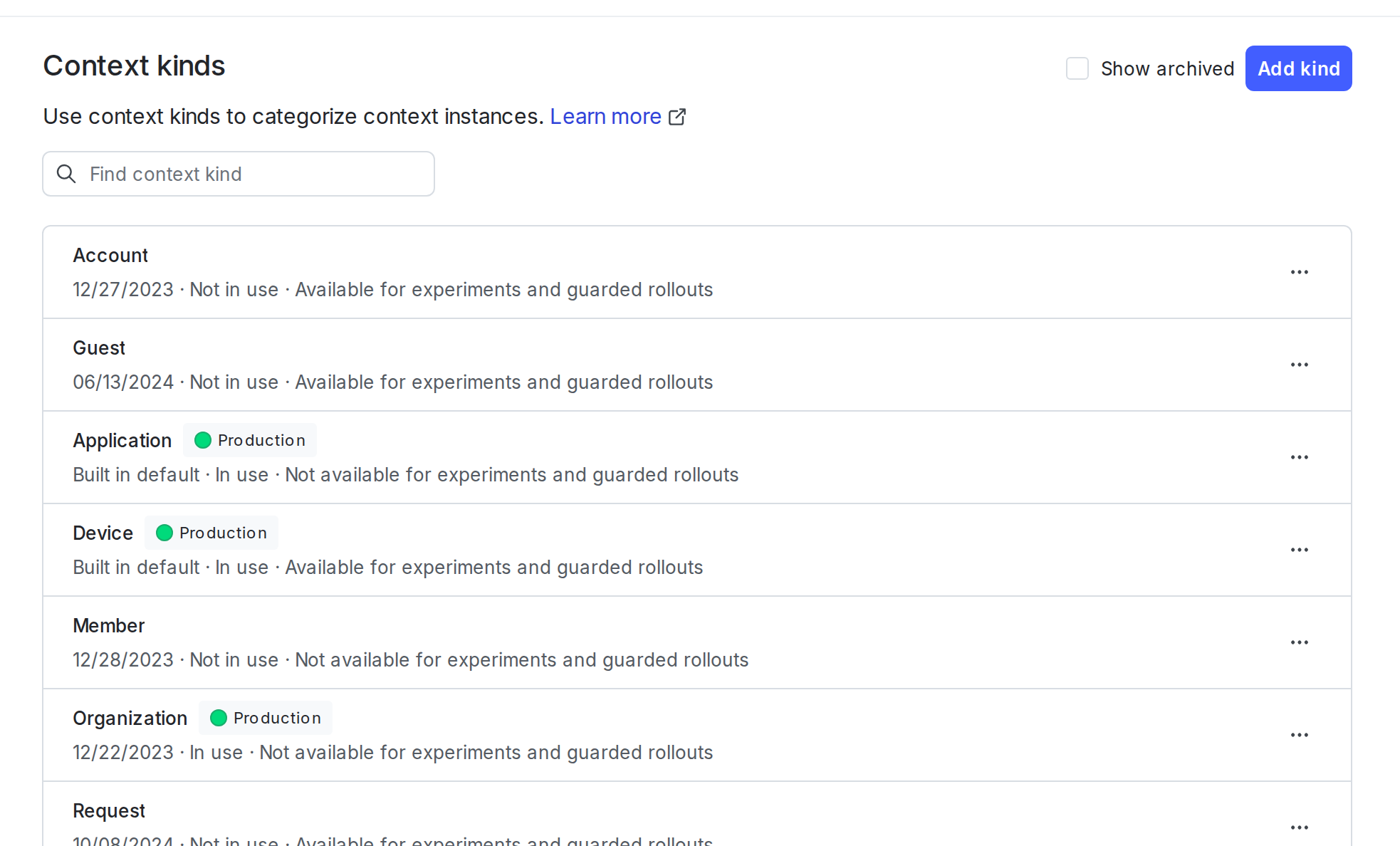 Each context kind description includes:
* The kind's name.
* The kind's creation date.
* Whether or not the kind is in use. A context kind is considered in use if an SDK has ever sent a context with this kind to LaunchDarkly.
* Whether or not the kind is available for use in experiments and guarded rollouts. "Available" means you can use this context kind as a randomization unit. To learn more, read [Randomization units](/docs/home/experimentation/randomization).
You can filter contexts by selecting the associated context kind in the **Contexts** list. To learn more, read [Filtering the Contexts list](/docs/home/flags/contexts-list-filtering).
**Contexts appear individually in the Contexts list**
Your application may evaluate a feature flag using a [multi-context](/docs/home/flags/multi-contexts). A multi-context includes multiple context kinds in a single evaluation. For example, your application may send a single multi-context with "user," "organization," and "device" context kinds, all in one evaluation call in the LaunchDarkly SDK. When you do this, all three individual contexts appear separately in your **Contexts** list. You can use the context kind filters to search for them separately.
You can view the context kind for a particular context on the context details page, in the "Attributes" section. Similarly, you can view the context kind for a context instance on the instance details page, in the "Attributes" section. To learn more, read [The context details page](/docs/home/flags/context-details).
You can also use the REST API: [Get context kinds](/docs/api/contexts/get-context-kinds)
## Archived context kinds
Archived context kinds are automatically hidden from the list. To display them, select the **Show archived** checkbox.
Each context kind description includes:
* The kind's name.
* The kind's creation date.
* Whether or not the kind is in use. A context kind is considered in use if an SDK has ever sent a context with this kind to LaunchDarkly.
* Whether or not the kind is available for use in experiments and guarded rollouts. "Available" means you can use this context kind as a randomization unit. To learn more, read [Randomization units](/docs/home/experimentation/randomization).
You can filter contexts by selecting the associated context kind in the **Contexts** list. To learn more, read [Filtering the Contexts list](/docs/home/flags/contexts-list-filtering).
**Contexts appear individually in the Contexts list**
Your application may evaluate a feature flag using a [multi-context](/docs/home/flags/multi-contexts). A multi-context includes multiple context kinds in a single evaluation. For example, your application may send a single multi-context with "user," "organization," and "device" context kinds, all in one evaluation call in the LaunchDarkly SDK. When you do this, all three individual contexts appear separately in your **Contexts** list. You can use the context kind filters to search for them separately.
You can view the context kind for a particular context on the context details page, in the "Attributes" section. Similarly, you can view the context kind for a context instance on the instance details page, in the "Attributes" section. To learn more, read [The context details page](/docs/home/flags/context-details).
You can also use the REST API: [Get context kinds](/docs/api/contexts/get-context-kinds)
## Archived context kinds
Archived context kinds are automatically hidden from the list. To display them, select the **Show archived** checkbox.
