> ## Documentation Index
> Fetch the complete documentation index at: https://launchdarkly.com/docs/llms.txt
> Use this file to discover all available pages before exploring further.

# Filtering the Contexts list

<View title="Developer" />

<View title="Federal docs" />

<View title="EU docs" />

This topic explains how to filter contexts on the **Contexts** list. You can filter contexts on the **Contexts** list by context kind, name, key, or attribute.

## Filter contexts

To filter contexts:

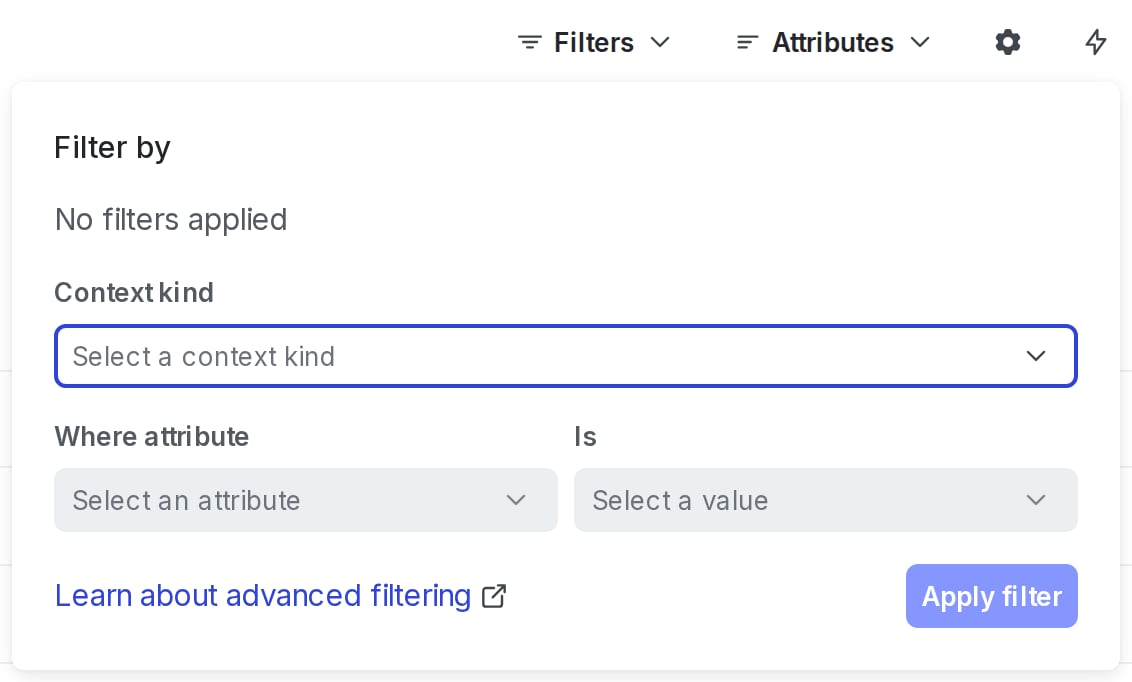
1. Click the **filter** icon and filter the list by context kind or attribute:

<Frame caption="The &#x22;Filter by&#x22; dialog on the &#x22;Contexts&#x22; list.">
  <img src="https://mintcdn.com/launchdarkly/-b7nPh0oyigf6iW7/images/auto/contexts-list-kind.auto.png?fit=max&auto=format&n=-b7nPh0oyigf6iW7&q=85&s=6beafb62d61e939f9ca0ffdf3dee7835" alt="The &#x22;Filter by&#x22; dialog on the &#x22;Contexts&#x22; list." width="1132" height="682" data-path="images/auto/contexts-list-kind.auto.png" />
</Frame>

2. Alternatively, in the filter field, enter all or the beginning of a context kind, name, key, or attribute.

* To filter by an attribute for a specific context kind, separate the context kind and its attribute with a period (`.`). For example, to search the "state" attribute of "user" contexts, use `user.state`.
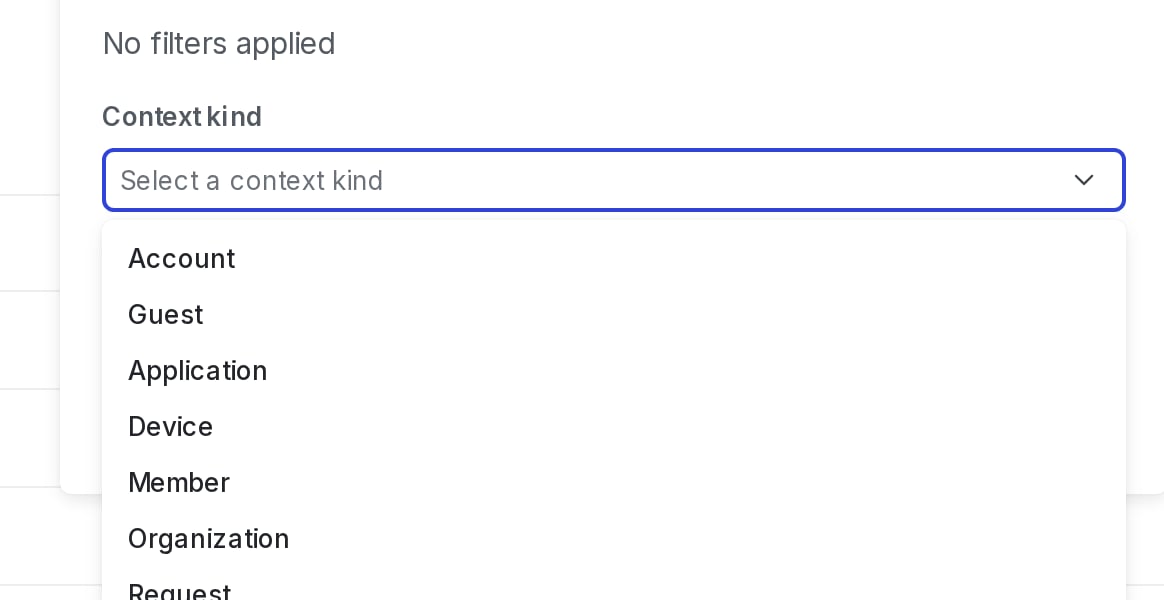
<Frame caption="A search query for &#x22;user&#x22; context kinds.">
  <img src="https://mintcdn.com/launchdarkly/-b7nPh0oyigf6iW7/images/auto/contexts-filter-context-kind.auto.png?fit=max&auto=format&n=-b7nPh0oyigf6iW7&q=85&s=b60a253b2586a363b90f44706b003744" alt="A search query for &#x22;user&#x22; context kinds." width="1164" height="600" data-path="images/auto/contexts-filter-context-kind.auto.png" />
</Frame>

3. Press enter. Only contexts with matching attribute values now display on the **Contexts** list.
<Card icon="https://mintcdn.com/launchdarkly/YIC2H8XW-fomhquw/assets/icons/openapi-logo.svg?fit=max&auto=format&n=YIC2H8XW-fomhquw&q=85&s=dd9578a9668a86e1a8b8c314921f204c" horizontal width="2500" height="2452" data-path="assets/icons/openapi-logo.svg">
  You can also use the REST API: [Search for contexts](/docs/api/contexts/search-for-contexts)
</Card>

## Advanced filter strings

In addition to filtering by context kind, name, or attribute, you can create advanced filter strings to search for specific values in specific fields.

This table contains examples of advanced filter strings and what they search for:

<table>
  <thead>
    <tr>
      <th>Filter string</th>
      <th>Description</th>
    </tr>
  </thead>

  <tbody>
    <tr>
      <td>
        <code>location equals Springfield</code>
      </td>

      <td>
        Searches for all context kinds for a location attribute with the value of "Springfield"
      </td>
    </tr>

    <tr>
      <td>
        <code>organization.location anyOf \["Springfield","Midway"]</code>
      </td>

      <td>
        Searches for all organization contexts that have a location attribute with the value of "Springfield" or "Midway"
      </td>
    </tr>

    <tr>
      <td>
        <code>device.type startsWith "Samsung"</code>
      </td>

      <td>
        Searches for all device contexts that have a type attribute that starts with "Samsung"
      </td>
    </tr>
  </tbody>
</table>

## Elements of a filter string

A filter string contains three elements:

* **Field**: The field is the first part of the filter string. It is a field in the contexts that you want to filter based on.
  * If you're searching an attribute for a specific context kind, separate the context kind and its attribute with a period (`.`).
  * Field names are always strings. If they appear within double quotes (`"`), then they are encoded as if they were a JSON string. Unquoted strings must escape commas `,`, pipes `|`, parentheses `()`, exclamation points `!`, slashes `\`, and whitespace by prefixing the character with `\`.
* **Operator**: The operator is the second part of the filter string. It describes the conditions by which the filter identifies the match value. To learn about all of the available operators, view the ["Operators" table below](#operators).
* **Match value**: The match value is the third part of the filter string. It describes the values that the filter will identify.
  * A match value must be formatted as a JSON value or an unquoted string.
  * Unquoted strings must escape commas `,`, pipes `|`, parentheses `()`, exclamation points `!`, slashes `\`, and whitespace by prefixing the character with `\`.

### Operators

This table lists all of the available operators and related examples:

<table>
  <thead>
    <tr>
      <th>Operator</th>
      <th>Description</th>
      <th>Example</th>
    </tr>
  </thead>

  <tbody>
    <tr>
      <td>
        <code>after</code>
      </td>

      <td>
        Returns true if any of the values in a field, which should be dates, are after or equal to the provided datetime. Valid match values should be numbers in unix epoch milliseconds, or date time strings in RFC-3339 format.
      </td>

      <td>
        <code>user.signup after "2022-09-21T19:03:15+00:00"</code>
      </td>
    </tr>

    <tr>
      <td>
        <code>anyOf</code>
      </td>

      <td>
        Returns true if any of the values in a field match any of the values in the match value. This operator is only available for the following fields: <code>applicationId</code>, <code>id</code>, <code>key</code>, <code>kind</code>, <code>kindKey</code>, <code>kindKeys</code>.
      </td>

      <td>
        <code>applicationId anyOf \[44]</code><br />
        <code>kind anyOf \["device","org"]</code><br />
        <code>key anyOf \[1,2,3,4]</code><br />
      </td>
    </tr>

    <tr>
      <td><code>before</code></td>
      <td>Returns true if any of the values in a field, which should be dates, are before or equal to the provided datetime. Valid match values should be numbers in unix epoch milliseconds, or date time strings in RFC-3339 format.</td>

      <td>
        <code>user.signup before "2022-09-21T19:03:15+00:00"</code>
      </td>
    </tr>

    <tr>
      <td>
        <code>contains</code>
      </td>

      <td>
        Returns true if all the match values are also found in the values of the field. This operator is only available for the following fields: <code>kindKeys</code>, <code>kinds</code>.
      </td>

      <td>
        <code>kindKeys contains \["Sandy","Jesse"]</code><br />
        <code>kinds contains \["s"]</code><br />
      </td>
    </tr>

    <tr>
      <td>
        <code>equals</code>
      </td>

      <td>
        Returns true if there is an exact match on the entire field.
      </td>

      <td>
        <code>organization.number equals 44</code><br />
        <code>"kind" equals "device"</code><br />
        <code>device.option equals true</code><br />
        <code>organization.number equals \[1,2,3,4]</code><br />
        <code>user.name equals \["Sandy", "Jesse"]</code>
      </td>
    </tr>

    <tr>
      <td>
        <code>exists</code>
      </td>

      <td>
        Returns true if the field matches the specified existence. For example, if you pass <code>true</code> and the field exists, this returns the context. This operator is available for <code>name</code> and for custom attributes.
      </td>

      <td>
        <code>organization.name exists true</code><br />
        <code>device.option exists false</code><br />
      </td>
    </tr>

    <tr>
      <td>
        <code>notEquals</code>
      </td>

      <td>
        Returns true if there is not an exact match on the entire field.
      </td>

      <td>
        <code>organization.number notEquals 44</code><br />
        <code>"user.name" notEquals Sandy</code><br />
        <code>device.option notEquals true</code><br />
        <code>organization.number notEquals \[1,2,3,4]</code><br />
        <code>user.name notEquals \["Sandy", "Jesse"]</code><br />
      </td>
    </tr>

    <tr>
      <td>
        <code>startsWith</code>
      </td>

      <td>
        Returns true if the value in a field, which should be a singular string, begins with the provided substring.
      </td>

      <td>
        <code>user.name startsWith San</code><br />
        <code>device.os startsWith "iOS"</code>
      </td>
    </tr>
  </tbody>
</table>

## Save filtered contexts lists

You can create shortcuts to filtered contexts lists, and save them in the left sidebar to return to at any time. When you create a shortcut, it is only visible to you.

To create a shortcut to a filtered contexts list:

1. In the left sidebar, click **Code**. The CodeControl menu appears.
2. Click **Contexts**.
3. Add your desired environments to the **Contexts** list following the instructions in [Open environments](/docs/home/account/environment#open-environments).
4. Add any context filters you need such as kind or attribute.
5. Click the **bolt** icon above the **Contexts** list to create a shortcut:

<Frame caption="The Contexts list with the bolt icon called out.">
  <img src="https://mintcdn.com/launchdarkly/A4UXoRTW8ATNw4yq/images/auto/list-shortcut-callout.auto.png?fit=max&auto=format&n=A4UXoRTW8ATNw4yq&q=85&s=e85f5fa2910fb1fb0e7978abfed0f4b8" alt="The Contexts list with the bolt icon called out." width="208" height="136" data-path="images/auto/list-shortcut-callout.auto.png" />
</Frame>

6. Add a **Name** for your shortcut.
7. (Optional) Choose an **Icon** to represent your shortcut in the left sidebar.
8. Click **Save**.

Your shortcut appears in the left sidebar.
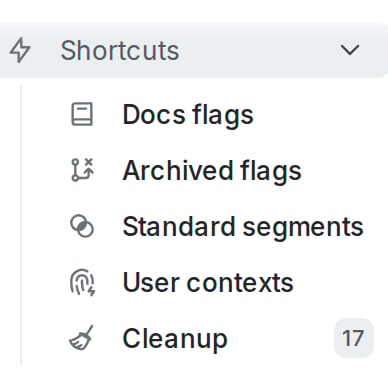
<Frame caption="A list of shortcuts in the left sidebar.">
  <img src="https://mintcdn.com/launchdarkly/A4UXoRTW8ATNw4yq/images/auto/shortcuts.auto.png?fit=max&auto=format&n=A4UXoRTW8ATNw4yq&q=85&s=4f1b66ce1fa65d48c6736926e3c7df7d" alt="A list of shortcuts in the left sidebar." width="388" height="390" data-path="images/auto/shortcuts.auto.png" />
</Frame>