> ## Documentation Index
> Fetch the complete documentation index at: https://launchdarkly.com/docs/llms.txt
> Use this file to discover all available pages before exploring further.
# Following flags
This topic explains how to follow flags.
When you follow a flag, you will receive an email notification, and, if applicable, a notification in the LaunchDarkly Slack app, when someone makes a targeting change to that flag. Notifications are environment-specific, so you must follow a flag in each environment you want notifications for.
If you have the LaunchDarkly Slack app installed, you will automatically receive notifications in Slack about any changes to flags you have followed. To learn more about the Slack app, read [Slack](/docs/integrations/slack).
To follow a flag:
1. In the left sidebar, click **Code**. The CodeControl menu appears.
2. Click **Flags**.
3. Click on the name of the flag you want to follow. The flag's **Targeting** tab opens.
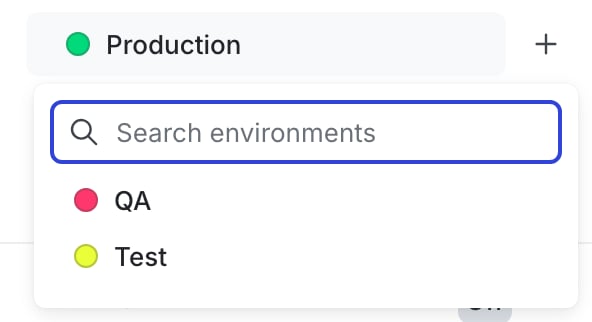
4. Click on the name of the environment you want to follow the flag in.
* If the environment you want is not displayed, click the **+** to display the list of environments, and select the environment you want.
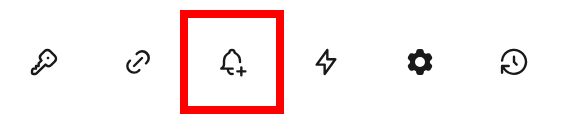
 5. Click on the **Follow flag** icon.
 You can also use the REST API: [Add a member as a follower of a flag](/docs/api/follow-flags/add-a-member-as-a-follower-of-a-flag-in-a-project-and-environment), [Remove a member as a follower of a flag](/docs/api/follow-flags/remove-a-member-as-a-follower-of-a-flag-in-a-project-and-environment)