> ## Documentation Index
> Fetch the complete documentation index at: https://launchdarkly.com/docs/llms.txt
> Use this file to discover all available pages before exploring further.
# Targeting segments
This topic explains how to target a segment in a flag rule. If you have many flags that need to target the same group of users or other contexts, we recommend that you [create a single segment](/docs/home/flags/segments-create) for your flags to target. This lets you manage targeting for that group in one place instead of recreating identical rules in each flag.
## Target segments
To target a segment within a flag rule:
1. Navigate to the **Targeting** tab for the flag.
2. If the flag is off and the rules are hidden, click **View targeting rules**.
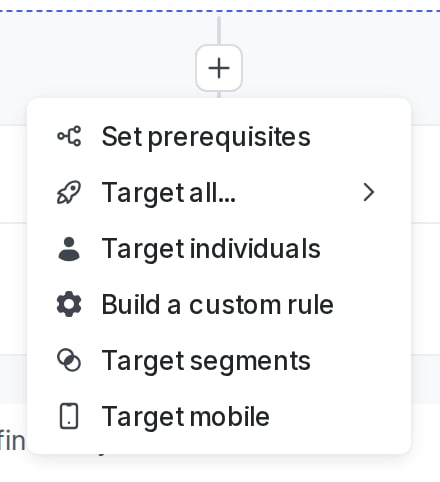
3. Click the **+** button between existing rules.
4. Select "Target segments":
 5. (Optional) Enter a name for the rule.
6. In the **Operator** menu, select whether you want contexts in these segments or not in these segments to match the targeting rule.
7. In the **Segments** menu, enter or select the segments you want to target.
Segment conditions use OR logic. If you select more than one segment in a "Context is in Segments" condition, the condition matches if the context is a member of any one of the selected segments.
8. (Optional) Click the **+** to add additional clauses to your targeting rule.
9. From the **Select...** menu, choose a rollout option:
* a single variation to serve
* a manual [percentage rollout](/docs/home/releases/percentage-rollouts)
* a [progressive rollout](/docs/home/releases/progressive-rollouts)
* a [guarded rollout](/docs/home/releases/guarded-rollouts)
* an [experiment](/docs/home/experimentation)
10. Click **Review and save**. The "Save changes" dialog appears.
11. Review your targeting changes, [add comments](/docs/home/releases/comments), or [request approval](/docs/home/releases/approvals) as needed.
12. (Optional) Click **Test run** to preview the percentage of contexts that will receive each flag variation.
13. Click **Save changes**.
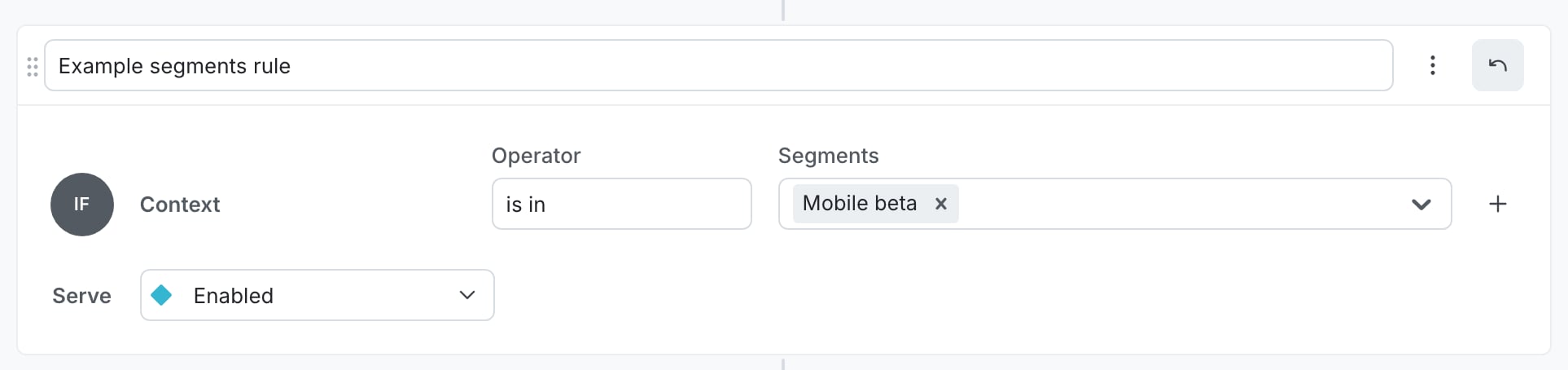
Here is an example of a targeting rule for segments:
5. (Optional) Enter a name for the rule.
6. In the **Operator** menu, select whether you want contexts in these segments or not in these segments to match the targeting rule.
7. In the **Segments** menu, enter or select the segments you want to target.
Segment conditions use OR logic. If you select more than one segment in a "Context is in Segments" condition, the condition matches if the context is a member of any one of the selected segments.
8. (Optional) Click the **+** to add additional clauses to your targeting rule.
9. From the **Select...** menu, choose a rollout option:
* a single variation to serve
* a manual [percentage rollout](/docs/home/releases/percentage-rollouts)
* a [progressive rollout](/docs/home/releases/progressive-rollouts)
* a [guarded rollout](/docs/home/releases/guarded-rollouts)
* an [experiment](/docs/home/experimentation)
10. Click **Review and save**. The "Save changes" dialog appears.
11. Review your targeting changes, [add comments](/docs/home/releases/comments), or [request approval](/docs/home/releases/approvals) as needed.
12. (Optional) Click **Test run** to preview the percentage of contexts that will receive each flag variation.
13. Click **Save changes**.
Here is an example of a targeting rule for segments:
 ## Target from within a segment
You can also target a segment starting from the segment itself. Here's how:
1. Navigate to the segment you want to target.
2. Click **Target this segment**. A "Target this segment with a flag rule" dialog appears.
3. Select the flag where you want to use the segment.
4. Click **Target this segment**.
You are taken to the flag's targeting page to complete the segment targeting rule.
## Target from within a segment
You can also target a segment starting from the segment itself. Here's how:
1. Navigate to the segment you want to target.
2. Click **Target this segment**. A "Target this segment with a flag rule" dialog appears.
3. Select the flag where you want to use the segment.
4. Click **Target this segment**.
You are taken to the flag's targeting page to complete the segment targeting rule.