> ## Documentation Index
> Fetch the complete documentation index at: https://launchdarkly.com/docs/llms.txt
> Use this file to discover all available pages before exploring further.
# Warehouse native metrics
**Warehouse native metrics are not available in federal environments**
To learn more, read LaunchDarkly in federal environments.
This topic explains how to configure a warehouse native metric for use in an experiment. Warehouse native metrics are metrics that measure events stored in an external warehouse, such as Snowflake.
## Prerequisites
Before you can create a warehouse native metric, you must configure a [warehouse native Experimentation integration](/docs/home/warehouse-native/warehouses) and create at least one metric data source for the integration. To learn more, read [Metric data sources](/docs/home/warehouse-native/metric-data-sources). You can optionally create a new data source when you create a new metric.
### Warehouse native metric requirements
Warehouse native metrics must be [custom metrics](/docs/home/metrics/custom-metrics) or [ratio metric](/docs/home/metrics/ratio-metrics).
Experiments that use warehouse native metrics cannot use:
* [Clicked or tapped metrics](/docs/home/metrics/click)
* [Page viewed metrics](/docs/home/metrics/pageview)
* [Metric groups](/docs/home/metrics/metric-groups)
* LaunchDarkly hosted metrics that measure events from LaunchDarkly SDKs
## Create a warehouse native metric
To create a warehouse native metric:
1. Open the **Data** section and navigate to the **Metrics** list.
2. Click **Create metric**. The "Create metric" dialog appears.
3. Select either **Simple** or **Ratio** as the metric structure.
4. Select a configured warehouse integration from the **Define metric using** menu.
5. Select an existing data source from **Metric data source**, or click **Create metric data source** to create a new one.
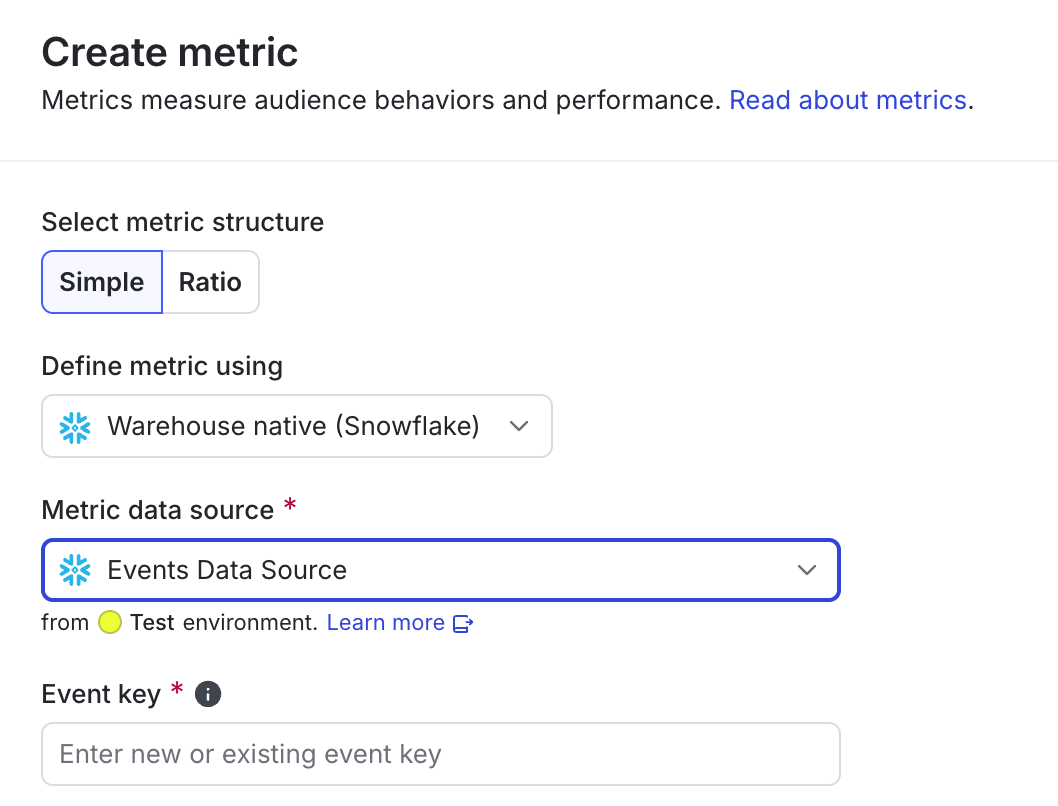 6. Enter a new or existing event key to use for creating the metric.
7. (Optional) Use the **Filter by event properties** field to create a filter query to choose the specific events you want to select for this metric. This field is available only for metrics created from Snowflake data sources. To learn more, read [Filtering custom metric events](/docs/home/metrics/event-filters).
8. Finish creating the metric by continuing the procedure as described in [custom conversion binary](/docs/home/metrics/custom), [custom conversion count](/docs/home/metrics/custom-count), [custom numeric](/docs/home/metrics/custom-numeric), or [ratio metric](/docs/home/metrics/ratio-metrics).
You can now [create an experiment](/docs/home/warehouse-native/creating) by selecting this metric.
6. Enter a new or existing event key to use for creating the metric.
7. (Optional) Use the **Filter by event properties** field to create a filter query to choose the specific events you want to select for this metric. This field is available only for metrics created from Snowflake data sources. To learn more, read [Filtering custom metric events](/docs/home/metrics/event-filters).
8. Finish creating the metric by continuing the procedure as described in [custom conversion binary](/docs/home/metrics/custom), [custom conversion count](/docs/home/metrics/custom-count), [custom numeric](/docs/home/metrics/custom-numeric), or [ratio metric](/docs/home/metrics/ratio-metrics).
You can now [create an experiment](/docs/home/warehouse-native/creating) by selecting this metric.