> ## Documentation Index
> Fetch the complete documentation index at: https://launchdarkly.com/docs/llms.txt
> Use this file to discover all available pages before exploring further.
# Google Cloud Pub/Sub
**This integration is not available in federal environments**
To learn more, read LaunchDarkly in federal environments.
This topic explains how to create a Google Cloud Pub/Sub destination.
Google Cloud Pub/Sub destinations let you export all of the flag evaluation and event data generated by LaunchDarkly SDKs into a Google Cloud Pub/Sub topic. This export behavior is referred to as *publishing*.
## Prerequisites
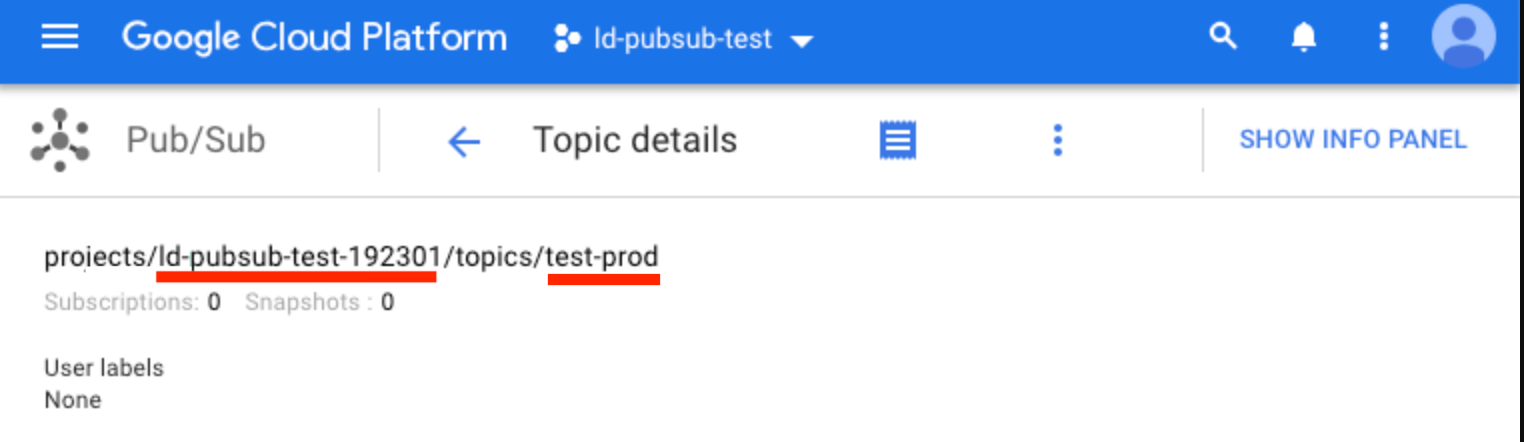
In order for LaunchDarkly to send events to your Google Cloud Pub/Sub topic, you need the `projectId` and `topicId` for the Google Cloud Pub/Sub topic to which you want us to publish.
Find this information in the [Google Cloud Pub/Sub topic list](https://console.cloud.google.com/cloudpubsub/topicList).
In this example, the `projectId` is `ld-pubsub-test-192301` and the `topicId` is `test-prod`:
 **One Data Export destination per environment**
You can configure only one Data Export destination per LaunchDarkly environment, regardless of destination kind. If you need more than one Data Export destination for the same data, configure them in different environments.
## Grant publish access to LaunchDarkly
After you identify the Pub/Sub topic you wish to publish to, you must grant the LaunchDarkly Google Cloud Service Account publish access to that topic.
To grant publish access:
1. Navigate to the [Pub/Sub topic list](https://console.cloud.google.com/cloudpubsub/topicList) in your Google Cloud Console.
2. Select a topic by clicking the checkbox next to each topic name. When you choose a topic, **Permissions** options appear.
3. Enter the LaunchDarkly Service Account email, `prod-event-recorder@firehose-publish.iam.gserviceaccount.com`, into the **Add Members** field.
4. Click the **Select a Role** menu and choose "Pub/Sub Publisher."
5. Click **Add**.
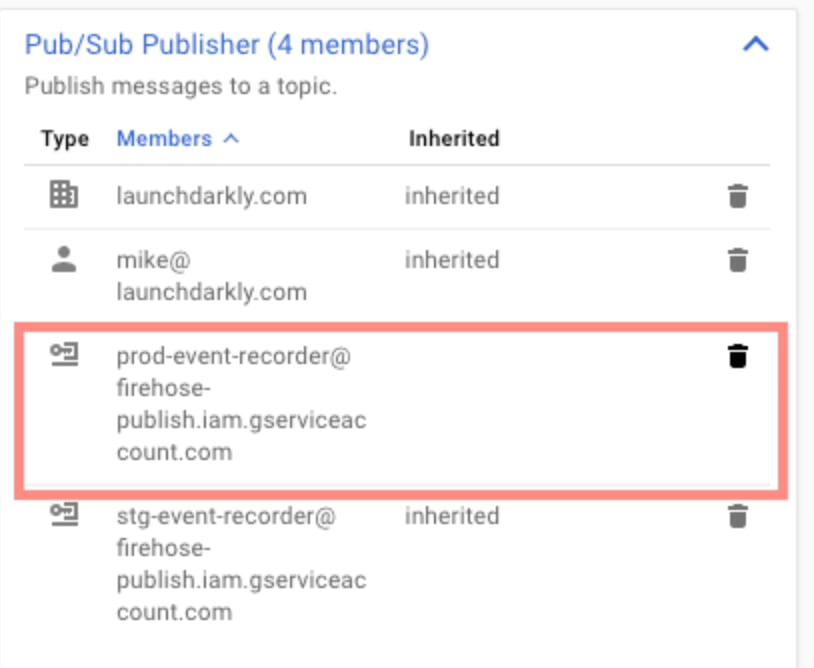
Verify that the LaunchDarkly Service account email is a Pub/Sub Publisher. If you configured your account correctly, the LaunchDarkly Service Account email appears as a Pub/Sub Publisher.
Here is the Pub/Sub topic list:
**One Data Export destination per environment**
You can configure only one Data Export destination per LaunchDarkly environment, regardless of destination kind. If you need more than one Data Export destination for the same data, configure them in different environments.
## Grant publish access to LaunchDarkly
After you identify the Pub/Sub topic you wish to publish to, you must grant the LaunchDarkly Google Cloud Service Account publish access to that topic.
To grant publish access:
1. Navigate to the [Pub/Sub topic list](https://console.cloud.google.com/cloudpubsub/topicList) in your Google Cloud Console.
2. Select a topic by clicking the checkbox next to each topic name. When you choose a topic, **Permissions** options appear.
3. Enter the LaunchDarkly Service Account email, `prod-event-recorder@firehose-publish.iam.gserviceaccount.com`, into the **Add Members** field.
4. Click the **Select a Role** menu and choose "Pub/Sub Publisher."
5. Click **Add**.
Verify that the LaunchDarkly Service account email is a Pub/Sub Publisher. If you configured your account correctly, the LaunchDarkly Service Account email appears as a Pub/Sub Publisher.
Here is the Pub/Sub topic list:
 ## Connect the Pub/Sub topic to LaunchDarkly
The final step is to connect your topic to LaunchDarkly. To do this:
1. In LaunchDarkly, click the **gear** icon in the left sidebar to view Organization settings.
2. Click **Integrations** and find "Google Cloud Pub/Sub."
3. Click **Add integration.** The "Create a destination" panel appears.
4. (Optional) Enter a **Name** for the destination.
5. Choose an environment from the **Environment** menu.
6. Enter the **Topic** ID.
7. Enter the **Project** ID.
8. Click **Save destination**.
## Test a Google Cloud Pub/Sub destination
After you save the destination, send a test event to confirm that the destination is configured properly.
To send a test event:
1. Navigate to the **Integrations** page and find "Google Cloud Pub/Sub."
2. Click into the "GoogleCloud Sub/Pub" section to display a list of destinations.
3. Click the **pencil** icon next to the destination you want to test. The "Edit destination" panel appears.
4. In the "Send a test event" section, click **Send event**.
5. If you have configured the destination correctly, an event is logged in the Google Cloud Pub/Sub destination.
## Enable Data Export for flags and environments
After you create a Data Export destination, you must start sending flag or environment event data to it. You can enable Data Export for individual flags, or for all the flags in an environment.
To learn more, read [Export event data for flags and environments](/docs/integrations/data-export#export-event-data-for-flags-and-environments).
## Delete a Google Cloud Pub/Sub destination
You can delete a Data Export destination from the **Integrations** screen.
To delete a destination:
1. Navigate to the **Integrations** page and find "Google Cloud Pub/Sub."
2. Click into the "GoogleCloud Sub/Pub" section to display a list of destinations.
3. Click the **pencil** icon next to the destination you wish to delete. The "Edit destination" panel appears.
4. Click **Delete destination**.
## Connect the Pub/Sub topic to LaunchDarkly
The final step is to connect your topic to LaunchDarkly. To do this:
1. In LaunchDarkly, click the **gear** icon in the left sidebar to view Organization settings.
2. Click **Integrations** and find "Google Cloud Pub/Sub."
3. Click **Add integration.** The "Create a destination" panel appears.
4. (Optional) Enter a **Name** for the destination.
5. Choose an environment from the **Environment** menu.
6. Enter the **Topic** ID.
7. Enter the **Project** ID.
8. Click **Save destination**.
## Test a Google Cloud Pub/Sub destination
After you save the destination, send a test event to confirm that the destination is configured properly.
To send a test event:
1. Navigate to the **Integrations** page and find "Google Cloud Pub/Sub."
2. Click into the "GoogleCloud Sub/Pub" section to display a list of destinations.
3. Click the **pencil** icon next to the destination you want to test. The "Edit destination" panel appears.
4. In the "Send a test event" section, click **Send event**.
5. If you have configured the destination correctly, an event is logged in the Google Cloud Pub/Sub destination.
## Enable Data Export for flags and environments
After you create a Data Export destination, you must start sending flag or environment event data to it. You can enable Data Export for individual flags, or for all the flags in an environment.
To learn more, read [Export event data for flags and environments](/docs/integrations/data-export#export-event-data-for-flags-and-environments).
## Delete a Google Cloud Pub/Sub destination
You can delete a Data Export destination from the **Integrations** screen.
To delete a destination:
1. Navigate to the **Integrations** page and find "Google Cloud Pub/Sub."
2. Click into the "GoogleCloud Sub/Pub" section to display a list of destinations.
3. Click the **pencil** icon next to the destination you wish to delete. The "Edit destination" panel appears.
4. Click **Delete destination**.