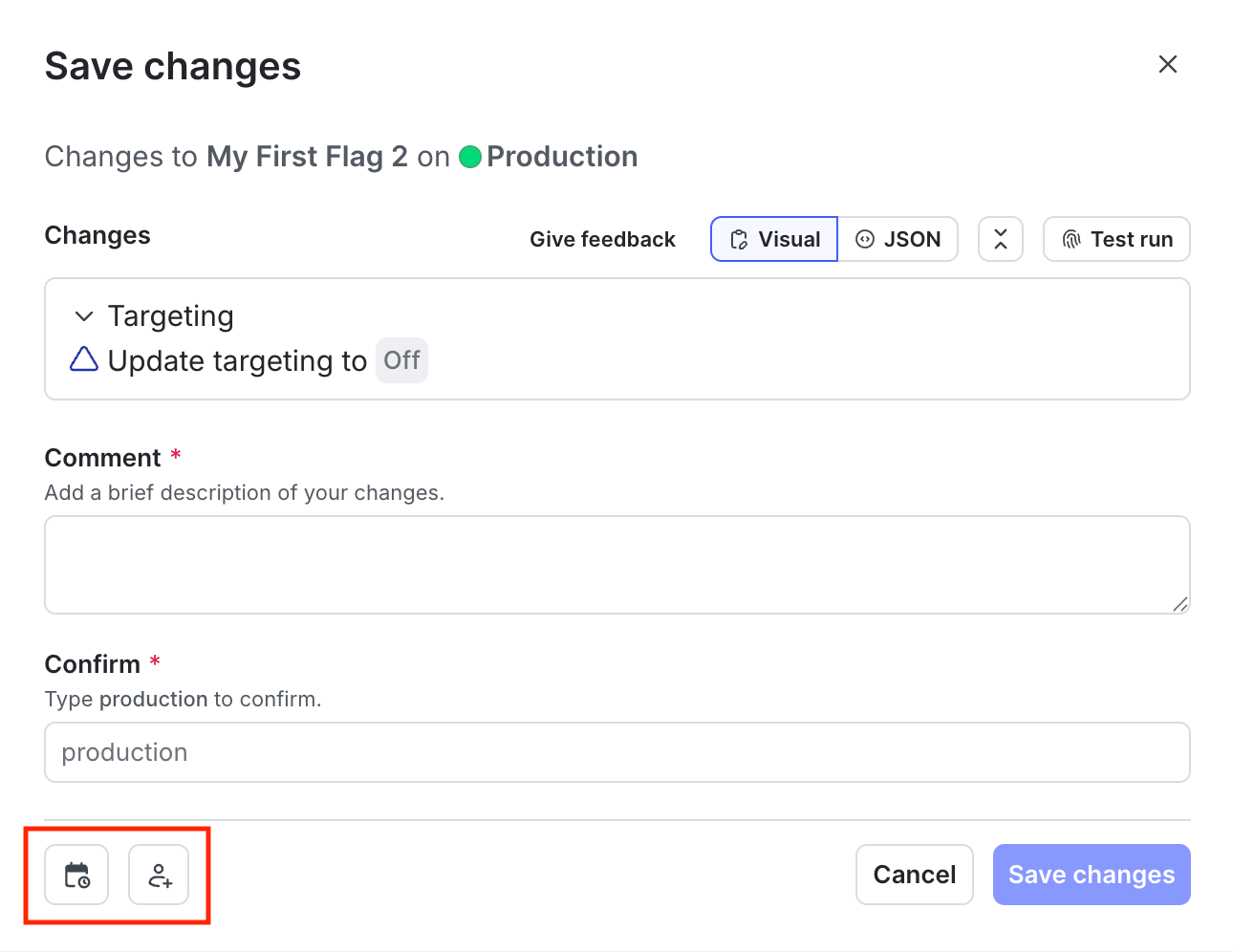
 5. Enter a **Comment** to add details that help your reviewers understand the changes you made.
6. Click **Request approval**.
7. The approvers for feature flag and experiment changes receive a notification.
## View and approve approval requests in ServiceNow
The approver for a change can view and, if using manual approvals, approve the request in ServiceNow.
To view and approve the change request in ServiceNow:
1. In LaunchDarkly, click the "Pending changes" section in the right sidebar of the flag or experiment. The "Pending changes" panel opens.
5. Enter a **Comment** to add details that help your reviewers understand the changes you made.
6. Click **Request approval**.
7. The approvers for feature flag and experiment changes receive a notification.
## View and approve approval requests in ServiceNow
The approver for a change can view and, if using manual approvals, approve the request in ServiceNow.
To view and approve the change request in ServiceNow:
1. In LaunchDarkly, click the "Pending changes" section in the right sidebar of the flag or experiment. The "Pending changes" panel opens.
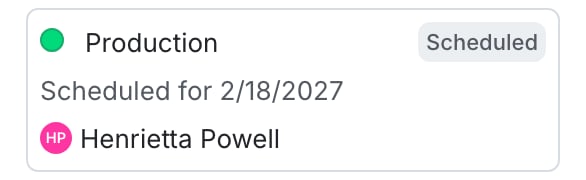 2. Next to the request you want to view, click **View**. The "Review request" screen appears.
3. Click **Review in ServiceNow**. The change request screen in ServiceNow appears:
2. Next to the request you want to view, click **View**. The "Review request" screen appears.
3. Click **Review in ServiceNow**. The change request screen in ServiceNow appears:
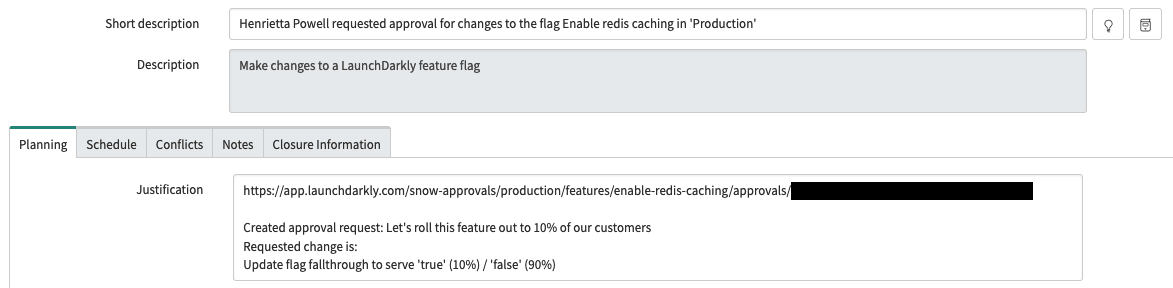 4. View or approve the request in ServiceNow. When the ServiceNow approval conditions are met, ServiceNow changes the state to "Implement."
* Alternatively, if ServiceNow changes the state to "Canceled," LaunchDarkly changes the approval request status to "Declined."
5. Apply the approved changes:
* If your LaunchDarkly environment's approval settings specify to **Automatically apply changes in LaunchDarkly**, then no further action is required. LaunchDarkly applies the changes when the associated ServiceNow change request is approved.
* If your LaunchDarkly environment's approval settings do not specify to automatically apply changes, then you must apply the changes manually. You can do this within LaunchDarkly by clicking **Apply Changes** in the "Pending changes" panel.
After you apply the approved changes, the ServiceNow change request state changes to "Review."
If you delete the approval request in LaunchDarkly, the ServiceNow change request state changes to "Canceled."
LaunchDarkly uses ServiceNow state values from the ServiceNow APIs to determine if a change has been approved or denied in ServiceNow. To learn more, search for "State model and transitions" in [ServiceNow's documentation](https://www.servicenow.com/docs/) and choose the article for your ServiceNow version.
Here is a table explaining the standard ServiceNow states and the equivalent LaunchDarkly approval statuses:
4. View or approve the request in ServiceNow. When the ServiceNow approval conditions are met, ServiceNow changes the state to "Implement."
* Alternatively, if ServiceNow changes the state to "Canceled," LaunchDarkly changes the approval request status to "Declined."
5. Apply the approved changes:
* If your LaunchDarkly environment's approval settings specify to **Automatically apply changes in LaunchDarkly**, then no further action is required. LaunchDarkly applies the changes when the associated ServiceNow change request is approved.
* If your LaunchDarkly environment's approval settings do not specify to automatically apply changes, then you must apply the changes manually. You can do this within LaunchDarkly by clicking **Apply Changes** in the "Pending changes" panel.
After you apply the approved changes, the ServiceNow change request state changes to "Review."
If you delete the approval request in LaunchDarkly, the ServiceNow change request state changes to "Canceled."
LaunchDarkly uses ServiceNow state values from the ServiceNow APIs to determine if a change has been approved or denied in ServiceNow. To learn more, search for "State model and transitions" in [ServiceNow's documentation](https://www.servicenow.com/docs/) and choose the article for your ServiceNow version.
Here is a table explaining the standard ServiceNow states and the equivalent LaunchDarkly approval statuses:
| ServiceNow state | LaunchDarkly approval status |
|---|---|
| New | Needs review |
| Implement | Approved |
| Review | Completed |
| Canceled | Declined |
| Approval request field in ServiceNow | Description |
|---|---|
short\_description |
A brief summary of what is being requested. This is automatically generated and includes the LaunchDarkly member name, flag or experiment name, and environment. The [change request screen in ServiceNow](#view-and-approve-approval-requests-in-servicenow), above, shows an example. |
justification |
A more detailed summary of what is being requested. This includes a link back to the LaunchDarkly approval request, the member-provided comment, and an automated change description. The [image of the change request screen in ServiceNow](#view-and-approve-approval-requests-in-servicenow), above, shows an example. |
requested\_by |
The ServiceNow member ID associated with the LaunchDarkly member making the change. LaunchDarkly members are mapped to ServiceNow member IDs using email addresses. |
start\_date |
The timestamp when the approval request was created in LaunchDarkly, or the scheduled date if the approval request is for a scheduled change. |
end\_date |
The start\_date with a small offset. |