***

slug: /tutorials/snowflake-tutorial
title: Snowflake Cortex Completion API + LaunchDarkly SDK Integration
description: >-
Walk through an integration between the Snowflake Cortex Completion API and
LaunchDarkly's AI SDKs to make runtime changes to AI models and prompts.
keywords: 'tutorial, snowflake, AI configs, typescript, cortex'
---------------------------------------------------------------

<p class="publishedDate">
  <em>Published August 21st, 2025</em>
</p>

<div class="authorWrapper">
  <img src="https://files.buildwithfern.com/https://launchdarkly.docs.buildwithfern.com/docs/c1b914e6aa3057309e7dc2849f92ffa57250fac582bd3bfffa2025bd6d565015/assets/images/authors/andrew-klatzke.png" alt="portrait of Andrew Klatzke." class="authorAvatar" />

  <p class="authorName">
    by Andrew Klatzke
  </p>
</div>

## Overview

This tutorial walks through an integration between the Snowflake Cortex Completion API and [LaunchDarkly's AI SDKs](https://launchdarkly.com/docs/sdk/ai#ai-sdks). We'll be using a Snowflake Personal Access Token to query the Cortex API and receive completion responses.

Leveraging Snowflake's gateway approach to completions alongside LaunchDarkly's ability to make runtime changes to AI Configs, you can update the models, prompts, and parameters that you're using in the Snowflake endpoints in real-time.

This tutorial is presented in TypeScript, but since we're using Snowflake's REST API it's universal to any language in which you can access Snowflake. Snowflake additionally has a Python package that can be used to access their AI and ML functions.

## Authenticate with Snowflake

If you are new to Snowflake, there is some setup you'll need to do to get an application running, like setting up a user that is able to access the API.

Head into your Snowflake instance and follow the guide provided by Snowflake for [authenticating against the REST API](https://docs.snowflake.com/en/developer-guide/snowflake-rest-api/authentication), and the guide for [authenticating against the Cortex REST API](https://docs.snowflake.com/en/user-guide/snowflake-cortex/cortex-rest-api#setting-up-authentication).

Pay attention to:

* It's recommended to create a new user to access the API so that its permissions, privileges and access can be limited to the necessary scope
* Make sure to grant the role of the user you're authenticating as a `SNOWFLAKE.CORTEX_USER` database role if it's not already present
* If you are using a [Personal Access Token](https://docs.snowflake.com/en/developer-guide/snowflake-rest-api/authentication#label-sfrest-authenticating-pat), make sure to apply a [Network Policy](https://docs.snowflake.com/en/user-guide/network-policies) that allow-lists the IP you'll be accessing from

<Callout intent="warn">
  **Admin Privileges Required for Network Policies**

  You need admin privileges to create Network Policies for Personal Access Token authentication. If you don't have admin access:

  * Create a fresh Snowflake trial account (where you'll have admin access)
  * Or contact your Snowflake administrator for help with authentication setup
  * Enterprise/work accounts typically don't grant these privileges to regular users
</Callout>

* Capture your account identifier, which can be found by accessing the lower-left button on the UI that contains your name and account role.
  * Click your name
  * Hover over your active account
  * In the popover menu, select "View account details"
  * Copy the field labeled "Account/Server URL"

## Set up an AI Config

Before we write any code, we'll go into LaunchDarkly and create an AI Config to be used in the integration.

Navigate to your LaunchDarkly instance and follow these steps:

1. Navigate to "AI Configs" and click "Create AI Config" on the top-right side

<Frame caption="Create an AI Config">
  ![Create an AI Config](https://files.buildwithfern.com/https://launchdarkly.docs.buildwithfern.com/docs/55c47083a295d78e04032e94cd87bad86cfebb32eec4fb1117af9c54da67917c/assets/images/tutorials/snowflake-tutorial/create-ai-config.png)
</Frame>

2. Give your Config a name, and then select "Cortex" from the provider dropdown.
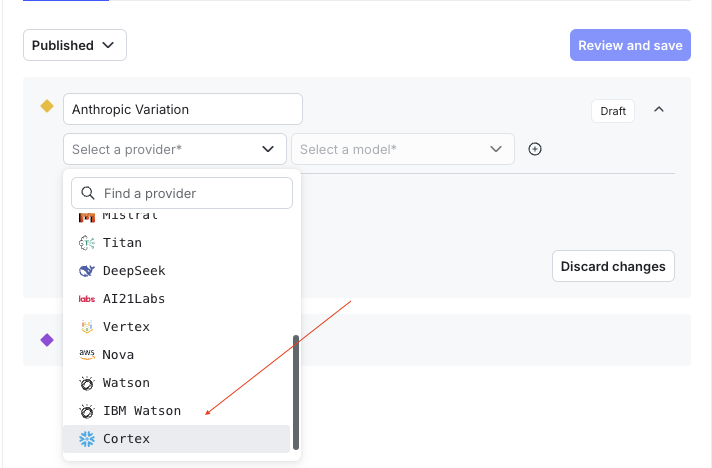
<Frame caption="Select Cortex">
  ![Select Cortex](https://files.buildwithfern.com/https://launchdarkly.docs.buildwithfern.com/docs/05a4f18e814b1751004cd7c1def5fd3497b587f1fa2c5248c870facf0d38a076/assets/images/tutorials/snowflake-tutorial/select-cortex.png)
</Frame>

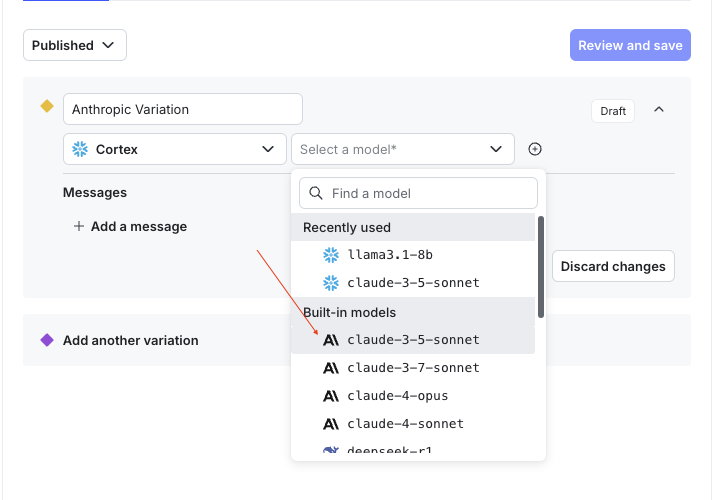
3. Now that Cortex is selected, the model dropdown will be filtered to the available models. For this first variation, we'll select `claude-3-5-sonnet`

<Callout intent="info">
  Make sure that the region you're accessing from has support for the model you select. You can view model availability on [this page](https://docs.snowflake.com/en/user-guide/snowflake-cortex/cortex-rest-api#model-availability).
</Callout>

<Frame caption="Select Claude">
  ![Select Claude](https://files.buildwithfern.com/https://launchdarkly.docs.buildwithfern.com/docs/4e0a9207ef60062bca6bc31978a270ae2b679b50b1fa36e15891112f133b581a/assets/images/tutorials/snowflake-tutorial/select-claude.png)
</Frame>

4. Add your messages for the completion. We'll add a single system message, as well as a template for where the user message will go:
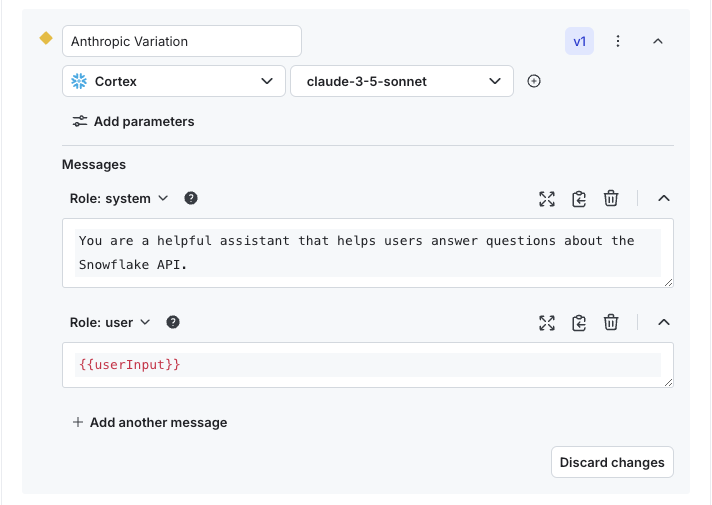
<Frame caption="Add messages">
  ![Add messages](https://files.buildwithfern.com/https://launchdarkly.docs.buildwithfern.com/docs/ca7e6ca18a627c2befea2faa879ac5ec1f2ec7c3a32820921bf7efcbc013a81a/assets/images/tutorials/snowflake-tutorial/add-messages.png)
</Frame>

<Callout intent="info">
  `{{variables}}` signify a variable that will be replaced at the time you retrieve your config. This is how you provide dynamic content to your Configs such as contextual user information
</Callout>

5. Click "Review and save". You'll be given a chance to review your changes before committing them.
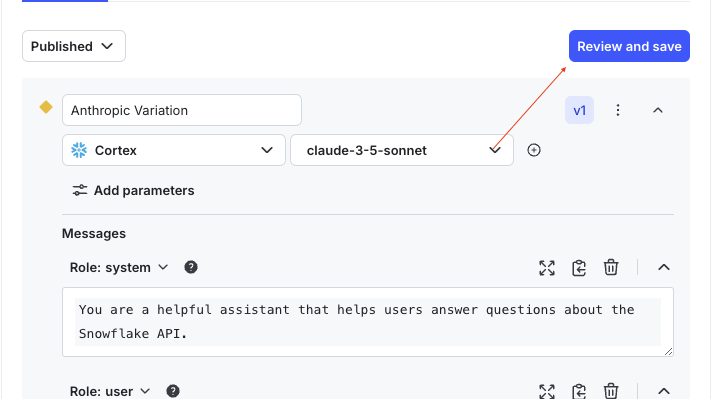
<Frame caption="Review and save">
  ![Review and save](https://files.buildwithfern.com/https://launchdarkly.docs.buildwithfern.com/docs/d2f14ce577cbc9bf6842a46c2b517c213a799f2a227c57dad2b8a36e8dc9b1ad/assets/images/tutorials/snowflake-tutorial/review-and-save.png)
</Frame>

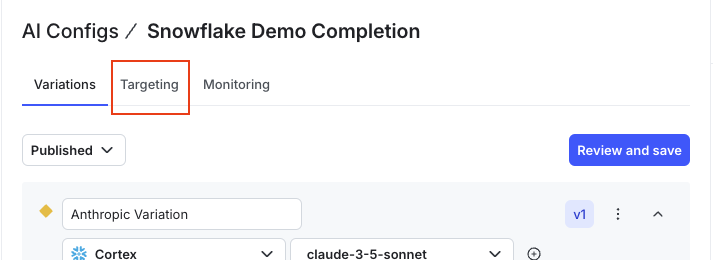
6. Your AI Config is now saved so it's time to serve our new variation to our users. Click the "Targeting" tab on the top of the AI Config:
<Frame caption="Targeting tab">
  ![Targeting tab](https://files.buildwithfern.com/https://launchdarkly.docs.buildwithfern.com/docs/88bb6f7fe7c7d0fe1defb0ba7a3aaafd812c1c867ebff3587a0260dc5eb1e875/assets/images/tutorials/snowflake-tutorial/targeting-tab.png)
</Frame>

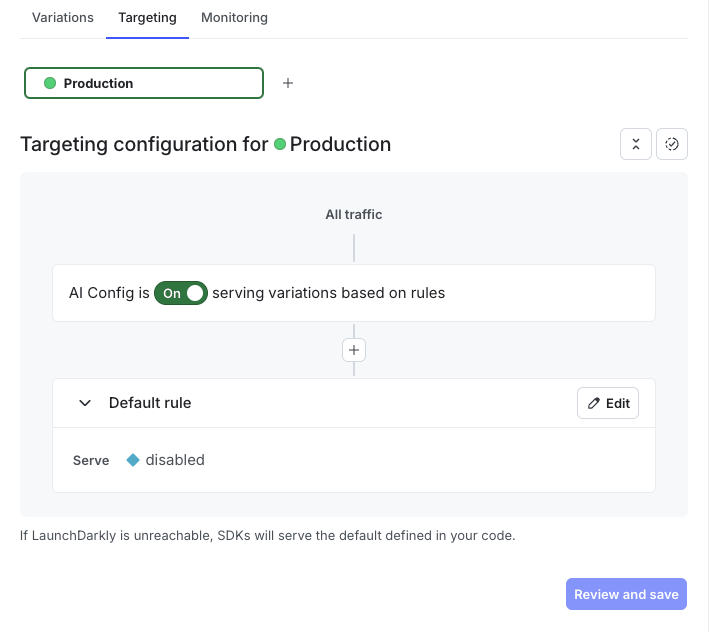
7. By default your Config will be serving the `disabled` variation which is used to signal that a Config is turned off. We'll revisit this aspect later in the code.
<Frame caption="Default disabled">
  ![Default disabled](https://files.buildwithfern.com/https://launchdarkly.docs.buildwithfern.com/docs/3380d098bae52423f8bb4310c7c76eb29f19ee1a8b303150f85456e1b3a39a58/assets/images/tutorials/snowflake-tutorial/default-disabled.png)
</Frame>

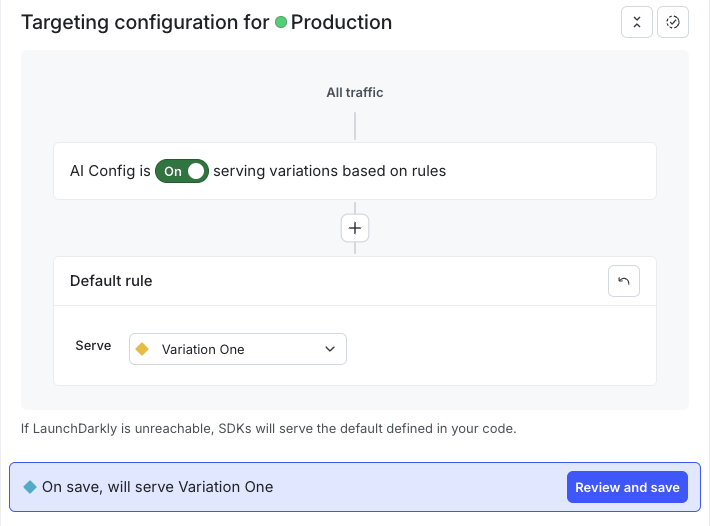
8. Click "Edit" on the default rule and select your variation from the dropdown, click "Review and save", and then confirm the changes:
<Frame caption="Select variation">
  ![Select variation](https://files.buildwithfern.com/https://launchdarkly.docs.buildwithfern.com/docs/bb18b550ee69462956858096acd66a18c05733bd9e1a69271a4895c45945060c/assets/images/tutorials/snowflake-tutorial/select-variation.png)
</Frame>

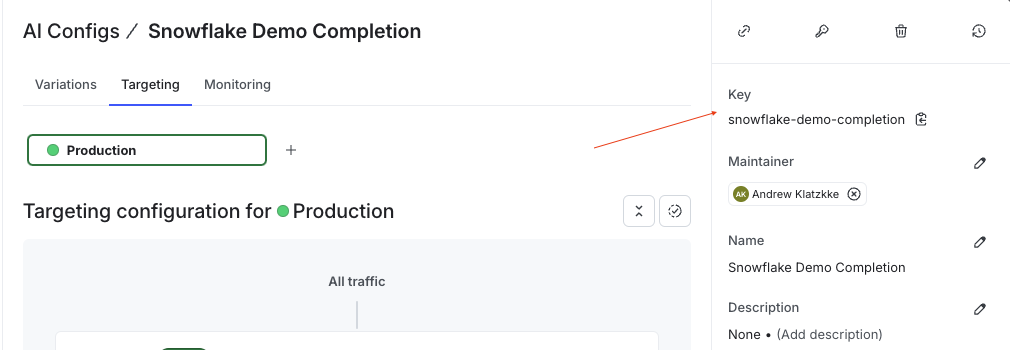
You've now targeted a variation which can be served in the SDK. We'll come back to this later once we've got some code set up. For now, just copy the key in your sidebar for later:
<Frame caption="Copy key">
  ![Copy key](https://files.buildwithfern.com/https://launchdarkly.docs.buildwithfern.com/docs/0fec43e88c5759899c263530a69143979ff860a878937147dcd57d8d894d7290/assets/images/tutorials/snowflake-tutorial/copy-key.png)
</Frame>

## Set up the server

Next, we'll set up our sample application so that we can see LaunchDarkly AI Configs and the Snowflake REST API interacting in real-time. This section assumes some knowledge with TypeScript and the NodeJS ecosystem, but can be accomplished in any language with [AI SDK support](https://launchdarkly.com/docs/sdk/ai#ai-sdks).

<Callout intent="info">
  For the following sections, these are instructions to set it up as a new application. If you're not concerned about which piece does what or having a clean slate, you can also just clone [this repository](https://github.com/launchdarkly-labs/snowflake-aiconfigs-tutorial)  and run `npm install` and then `npm run start` after filling out the `.env` section.
</Callout>

### Set up an ExpressJS application

Follow the [ExpressJS installation guide](https://expressjs.com/en/starter/installing.html) to set up a new project leveraging Express.

#### Basic setup

Let's create some of the structure we'll need for the app:

<CodeBlocks>
  <CodeBlock>
    ```bash
    mkdir app views
    touch index.ts package.json views/index.html app/launchdarklyClient.ts app/completions.ts
    cp .env.example .env
    ```
  </CodeBlock>
</CodeBlocks>

#### `.env`

The last command created a `.env` file that we'll use to register our secrets so they can be securely loaded by the application.

Within this file, fill out the following values:

<CodeBlocks>
  <CodeBlock>
    ```bash
    SNOWFLAKE_ACCOUNT_IDENTIFIER=<Snowflake account identifier>.snowflakecomputing.com
    SNOWFLAKE_PAT=<Snowflake Personal Access Token>

    LAUNCHDARKLY_SDK_KEY=<LaunchDarkly SDK key>
    LAUNCHDARKLY_AI_CONFIG_KEY=<LaunchDarkly AI Config key>
    PORT=3000
    ```
  </CodeBlock>
</CodeBlocks>

The Snowflake account identifier and Personal Access Token should be available from following the authentication instructions for Snowflake.

If you do not know how to get your LaunchDarkly SDK key, you can follow [this guide](https://launchdarkly.com/docs/sdk/concepts/getting-started).

#### `package.json`

Grab the contents of the `package.json` file from the repository and replace your local `package.json` file.

Now run `npm install` to install our dependencies. Once that finishes, run `typescript --init` from the project folder to create a `tsconfig.json` file. You'll need the dependencies in here to process TypeScript files and run your local application.

The dependencies in this file do the following:

* Add TypeScript support to ExpressJS (`@types/express`, `typescript`)
* Add utilities to run the application (`nodemon`, `ts-node`, `dotenv`)
* Initialize the LaunchDarkly SDKs (`@launchdarkly/node-server-sdk`, `@launchdarkly/server-sdk-ai`)

<Callout intent="info">
  We are using default TypeScript settings. Feel free to edit these to match your project's needs.
</Callout>

#### `index.ts`

The `index.ts` file is responsible for initializing the application. We'll be including two routes; one to render an HTML page and one to respond to the completion.

Grab the `index.ts` file from the repo and replace this content. The file has comments explaining the functionality.

#### `index.html`

Replace the `index.html` file in `views/index.html` with the same content from the repository, or use it as a guideline to build your own interface for the chat. This file is also commented, but outside of the HTML structure, you'll want to pay attention to the `<script>` at the bottom of the page which handles making the API call.

### Make our completion calls

Now that we have an application, we can start wiring up LaunchDarkly to the Snowflake API.

We'll set up the LaunchDarkly clients in `app/launchdarklyClient.ts`:

<CodeBlocks>
  <CodeBlock>
    ```typescript
    import { LDClient, init } from "@launchdarkly/node-server-sdk";
    import { LDAIClient, initAi } from "@launchdarkly/server-sdk-ai";

    let ldClient: LDClient;
    function getSDKClient() {
    	if (!ldClient) {
    		ldClient = init(process.env.LAUNCHDARKLY_SDK_KEY!);
    	}

    	return ldClient;
    }

    let aiClient: LDAIClient;
    function getAIClient() {
    	if (!aiClient) {
    		aiClient = initAi(getSDKClient());
    	}
    	return aiClient;
    }

    // Initialize and return the LaunchDarkly client
    export async function getLaunchDarklyClients() {
    	const ldClient = getSDKClient();
    	const aiClient = getAIClient();

    	try {
    		await ldClient.waitForInitialization({ timeout: 10 });
    	} catch (err) {
    		// log your error.
    	}

    	return { ldClient, aiClient };
    }

    export async function closeLaunchDarklyClients() {
    	await ldClient.flush();
    	ldClient.close();
    }
    ```
  </CodeBlock>
</CodeBlocks>

The LaunchDarkly AI SDK allows you to use the features of AI Configs within the LaunchDarkly SDK.

Within `app/completions.ts` let's go ahead and set up the Snowflake call:

<CodeBlocks>
  <CodeBlock>
    ```typescript
    import { getLaunchDarklyClients } from './launchdarklyClient';
    // Base URL
    const SNOWFLAKE_BASE_URL = `https://${process.env.SNOWFLAKE_ACCOUNT_IDENTIFIER}`
    // Completion endpoint
    const SNOWFLAKE_COMPLETE_URL = `${SNOWFLAKE_BASE_URL}/api/v2/cortex/inference:complete`

    const snowflakeCompletionClient = async (body: Record<string, any>) => {
        const headers = {
            'Content-Type': 'application/json',
            // Includes the authorization token on the request
            'Authorization': `Bearer ${process.env.SNOWFLAKE_PAT}`,
            'Accept': 'application/json'
        }
        // Run a fetch on the Snowflake completion URL
        return fetch(SNOWFLAKE_COMPLETE_URL, {
            method: 'POST', 
            headers,
            // We are not going to stream our responses, so pass `stream:false` to all instances of this invocation
            body: JSON.stringify({...body, stream: false}),
        })
    }

    export async function runSnowflakeCompletion(userInput: string) {
        // Retrieve the AI Client from LaunchDarkly
        const { aiClient } = await getLaunchDarklyClients();
        // Set up the user's context; this can be used to control which variations the users receive. You can target against any attribute passed in this context.
        const userContext = {
            type: 'user',
            name: 'John Doe',
            key: `user-${Math.random().toString(36).substring(2, 15)}`
        }
        // Retrieve the AI Config from the LD SDK
        const config = await aiClient.completionConfig(
            // This is the key of our config
            process.env.LAUNCHDARKLY_AI_CONFIG_KEY!, 
            // Context
            userContext, 
            // Defaults - can be left empty unless you want to provide
            // default values if the AI Config is not found.
            {}, 
            // These variables are automatically interpolated into the 
            // messages returned from the SDK. Here, we're providing the
            // user's actual query, but this can be used for other runtime data augmentation purposes
            { userInput }
        )
        // Check that the config is enabled and conforms to the shape we would expect.
        // Some calls may omit things like the `messages` array when just changing models.
        if(!config.enabled || !config.model || !config.messages) {
            throw new Error("Malformed config")
        }
        // Make the call to the Snowflake API
        const run = await snowflakeCompletionClient({
            // The model name is provided dynamically, which means we
            // can change this at runtime with AI Configs!
            model: config.model.name,
            messages: config.messages,
        })

        const result = await run.json();
        // Extract the top choice of message and return it to the client
        const response = result.choices?.[0]?.message.content ?? "No response from Snowflake"

        return { response, model: config.model.name };
    }
    ```
  </CodeBlock>
</CodeBlocks>

### Run the app

Navigate to your root directory and run `npm run start` to start the application.

When you navigate to `localhost:3000` (or whichever port you changed it to) you should see a simple screen that looks like this:

<Frame caption="Landing page">
  ![Landing page](https://files.buildwithfern.com/https://launchdarkly.docs.buildwithfern.com/docs/14859d274734a4378666452c4be47afe4347fb03cb9e794483b817ab5c98c92b/assets/images/tutorials/snowflake-tutorial/landing-screen.png)
</Frame>

Enter a query into the textarea, such as "How do I create a user in Snowflake?" and after a few moments a response will be generated:

<Frame caption="Landing page with completion">
  ![Landing page with completion](https://files.buildwithfern.com/https://launchdarkly.docs.buildwithfern.com/docs/40b093e25e6debcfd706ce21b5ff7508404b4fe774d16d5c7df9ce6faca04154/assets/images/tutorials/snowflake-tutorial/landing-page-complete.png)
</Frame>

We can see in the response that it lists the model we're using to generate the completion.

## Make runtime changes

Now that we have a completion endpoint set up, let's create a new variation and change the model at runtime. You can minimize your code editor for now; we'll only need to make changes in the LaunchDarkly UI!

1. Navigate back to your AI Config in the LaunchDarkly UI
2. Click "Add another variation" and then repeat the steps from earlier, but this time select a different model. We'll use `llama3.1-8b` and edit the system message slightly for tone:

<Frame caption="Adding a second variation">
  ![Adding a second variation](https://files.buildwithfern.com/https://launchdarkly.docs.buildwithfern.com/docs/90ff13c4f12f5e225376082d5d55d0bd29ecb67e63167c0a2a57e5cce4fbf208/assets/images/tutorials/snowflake-tutorial/second-variation.png)
</Frame>

3. Click save and head back over to targeting
4. On the targeting page, edit the default rule and select the new variation you created:

<Frame caption="Second variation selection">
  ![Second variation selection](https://files.buildwithfern.com/https://launchdarkly.docs.buildwithfern.com/docs/5bd5c947cc8fb58a1f30d55a4c1b77b0271f9a27f99f11e75f231cdfc94e55c3/assets/images/tutorials/snowflake-tutorial/llama-variation.png)
</Frame>

5. Click save and confirm the changes

Now, let's head back over to our app on the `localhost` URL. Without refreshing the page or restarting the server, go ahead and re-submit the request.

Our output was now generated by our `llama3.1-8b` model rather than the Sonnet model we were leveraging earlier:

<Frame caption="Llama output">
  ![Llama output](https://files.buildwithfern.com/https://launchdarkly.docs.buildwithfern.com/docs/6a54d5c7b8d930342cc3861483ee27509d9e3d979494095c23b5d07c7f733b12/assets/images/tutorials/snowflake-tutorial/llama-output.png)
</Frame>

And that's it! We've now made a runtime model change on an active AI Config.

We didn't have to change any code to change the model, and there's more we can tweak such as the model's parameters and messages. We can add messages and have them automatically inserted at runtime, test different models on different customers, and tweak parameters in a live system to see how the models respond in real-world conditions.

The last point we'll touch on is how we can optionally capture data about our AI Config invocations and send those over to LaunchDarkly.

### Setting up monitoring

To set up monitoring, we need to extract the `tracker` object from our AI Config and call some `track` methods that will communicate the metrics to LaunchDarkly.

Let's update the `app/completions.ts` file to include tracking:

<CodeBlocks>
  <CodeBlock>
    ```typescript
    import { LDAIConfigTracker } from '@launchdarkly/server-sdk-ai';
    import { getLaunchDarklyClients } from './launchdarklyClient';
    // Base URL
    const SNOWFLAKE_BASE_URL = `https://${process.env.SNOWFLAKE_ACCOUNT_IDENTIFIER}`
    // Completion endpoint
    const SNOWFLAKE_COMPLETE_URL = `${SNOWFLAKE_BASE_URL}/api/v2/cortex/inference:complete`

    const snowflakeCompletionClient = async (body: Record<string, any>) => {
        const headers = {
            'Content-Type': 'application/json',
            // Includes the authorization token on the request
            'Authorization': `Bearer ${process.env.SNOWFLAKE_PAT}`,
            'Accept': 'application/json'
        }
        // Run a fetch on the Snowflake completion URL
        return fetch(SNOWFLAKE_COMPLETE_URL, {
            method: 'POST', 
            headers,
            // We are not going to stream our responses, so pass `stream:false` to all instances of this invocation
            body: JSON.stringify({...body, stream: false}),
        })
    }

    export async function runSnowflakeCompletion(userInput: string) {
        // Retrieve the AI Client from LaunchDarkly
        const { aiClient } = await getLaunchDarklyClients();
        // Set up the user's context; this can be used to control which variations the users receive. You can target against any attribute passed in this context.
        const userContext = {
            type: 'user',
            name: 'John Doe',
            key: `user-${Math.random().toString(36).substring(2, 15)}`
        }
        // Retrieve the AI Config from the LD SDK
        const config = await aiClient.completionConfig(
            // This is the key of our config
            process.env.LAUNCHDARKLY_AI_CONFIG_KEY!, 
            // Context
            userContext, 
            // Defaults - can be left empty unless you want to provide
            // default values if the AI Config is not found.
            {}, 
            // These variables are automatically interpolated into the 
            // messages returned from the SDK. Here, we're providing the
            // user's actual query, but this can be used for other runtime data augmentation purposes
            { userInput }
        )
        // Extract the tracker from the AI Config
        const { tracker } = config;
        // Check that the config is enabled and conforms to the shape we would expect.
        // Some calls may omit things like the `messages` array when just changing models.
        if(!config.enabled || !config.model || !config.messages) {
            // Track an error if the config is not enabled or does not conform to the shape we would expect.
            tracker.trackError();
            throw new Error("Malformed config")
        }
        try {
            const durationStart = Date.now();

            // Make the call to the Snowflake API
            const run = await snowflakeCompletionClient({
                // The model name is provided dynamically, which means we
                /// can change this at runtime with AI Configs!
                model: config.model.name,
                messages: config.messages,
            })
        
            const durationEnd = Date.now();
        
            const result = await run.json();
            // Track a successful completion
            tracker.trackSuccess();
            // Track the duration of the completion
            tracker.trackDuration(durationEnd - durationStart);
            // Track the tokens used in the completion
            if (result.usage) {
                tracker.trackTokens({
                    total: result.usage.total_tokens,
                    input: result.usage.prompt_tokens,
                    output: result.usage.completion_tokens,
                });
            }
        
            // Extract the top choice of message and return it to the client
            const response = result.choices?.[0]?.message.content ?? "No response from Snowflake"
        
            return { response, model: config.model.name };
        } catch(error) {
            // An error occurred while making the completion call
            tracker.trackError();
            throw error;
        }

    }
    ```
  </CodeBlock>
</CodeBlocks>

We now capture a duration by setting a timer before and after the call, and use the `usage` parameter returned from Snowflake to capture the token usage. These metrics will appear in your dashboard for your AI Config under the "Monitoring" tab:

<Frame caption="Monitoring">
  ![Monitoring](https://files.buildwithfern.com/https://launchdarkly.docs.buildwithfern.com/docs/4eb624883c99d39e05f17e3b97b159f987ddea2ba878b4a703e7061d3f1458d3/assets/images/tutorials/snowflake-tutorial/monitoring.png)
</Frame>

You'll receive additional information on this page about when different variations released and when changes were made to the configs so that you can keep track of what changes have what impact on your completions.

### Wrapping up

This is a simple example but demonstrates how you can use the power of Snowflake's Cortex completion gateway in conjunction with AI Configs. Together, they allow you to tweak models in real-time by selecting any models available in your region and having them update seamlessly without requiring any code changes.

Additionally, with the power of [LaunchDarkly's targeting](https://launchdarkly.com/blog/beginners-guide-to-targeting-with-feature-flags/) you can serve different models and prompts to different users, and even [run experiments](https://launchdarkly.com/blog/introducing-ai-experiments-and-ai-versioning/) against your AI Configs to see which model and prompts best fit your features.

To get started with AI Configs, [sign up for a free trial](https://app.launchdarkly.com/signup). You can also contact us at `aiproduct@launchdarkly.com` with any questions.
