

The Zapier integration is available to customers on select plansThe Zapier integration is only available to customers on select plans. To learn more, read about our pricing. To upgrade your plan, contact Sales.
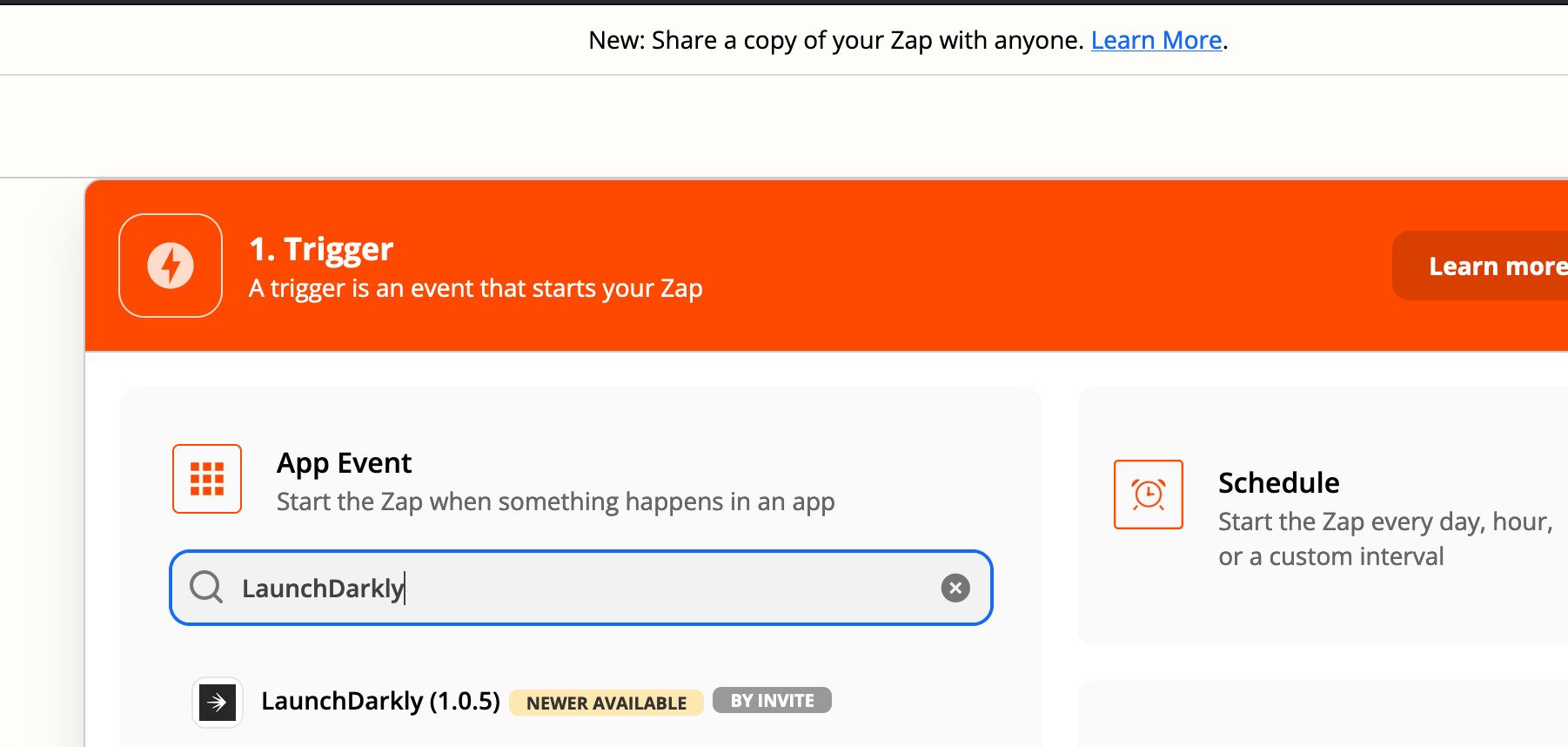
Zapier event search for LaunchDarkly
About LaunchDarkly triggers
You can trigger Zaps based on LaunchDarkly change history events, and can filter which change history events trigger the Zap. For example, you could trigger a Zap when a specific flag is turned on, or when a new team is created, or when an integration is configured.Create a Zap triggered by LaunchDarkly change history events
To create a Zap triggered by change history events:- Go to https://zapier.com and log in.
- Click Create a Zap in the top left corner.
- Type “LaunchDarkly” in the App Event search box.
- Select the type of event you want to trigger your Zap on, for example, “Flag events.”
- Follow the Zapier prompts to authenticate with LaunchDarkly and configure the trigger.
- (Optional) Add additional functionality to your Zap based on the LaunchDarkly trigger. For example, your Zap could notify you in Slack when certain events happen, or create calendar events for scheduled flag changes.
Use LaunchDarkly actions
You can also use Zapier to run actions in LaunchDarkly as part of a Zap. Like all Zapier actions, LaunchDarkly actions are part of a pipeline that starts with a trigger. You can use LaunchDarkly actions with any trigger, including a LaunchDarkly trigger or the Zapier schedule trigger. The example in the following section toggles a LaunchDarkly flag, which demonstrates how to use one of the LaunchDarkly actions. Other LaunchDarkly actions follow the same set of steps.Create a Zap to toggle a LaunchDarkly flag
To create a Zap that toggles a flag:- Go to https://zapier.com and log in.
- Click Create a Zap in the top left corner.
- Select the trigger you want to cause the LaunchDarkly flag to toggle. For example, use the “Schedule trigger” to toggle a flag every year on April 1st.
- After you set up the trigger, Zapier displays an App Event search box. Type “LaunchDarkly” in the App Event search box.
- Select the “Toggle a Feature Flag” event.
- Follow the Zapier prompts to authenticate with LaunchDarkly, and configure the flag you want to toggle.
- Click Test & Continue.
- Turn the Zap on. Your flag will now toggle when the trigger happens.