
Onboarding to preset roles
Preset roles are only available to customers on select plans. To learn more, read about our pricing. To upgrade your plan, contact Sales.
Project roles provided by LaunchDarkly may be available in your account as part of our Early Access Program (EAP). If these roles are available, a banner appears on the Roles page prompting you to add the roles to your account. After you add these roles, you can assign them to any member. These roles all have names that start with “LaunchDarkly.”
To request access these provided roles, request to join the EAP.
This topic explains how to start using preset roles. Preset roles let you onboard new members quickly without having to build custom roles from scratch. These roles streamline permission management by grouping common sets of permissions applicable to different team members.
Preset roles facilitate the efficient onboarding of new team members by letting you quickly assign standardized permissions. They reduce complexity by letting you avoid manually creating complex permission sets. They also provide consistency and security by applying standardized permissions across projects and your entire account.
Preset roles use role attributes, which are parameters for the role’s scope. Members with appropriate permissions can expand permissions to these pre-built roles to meet specific organizational requirements. To learn more, read Using role scope.
LaunchDarkly’s base roles (Reader, Writer, Admin, Owner, No access) still exist. Customers with access to preset roles may continue to use base roles when assigning permissions to any member. To learn more, read Roles.
Preset role categories
There are different types of preset roles: project roles and organization roles. Project roles are scoped to individual projects, while organization roles apply across your entire account.
Project roles
- LaunchDarkly Contributor: Can update flag statuses and perform releases. Cannot create or delete flags.
- LaunchDarkly Developer: Can take any actions on flags that are within projects or views assigned to that team member.
- LaunchDarkly Maintainer: Can manage resources grouping flags, such as projects and views.
- LaunchDarkly Project Admin: Can perform all project-level actions.
- LaunchDarkly Viewer: Can only read project data. Cannot take any actions.
To learn more, read Project roles.
Organization roles
- LaunchDarkly Billing Admin: Can manage billing and payment details
- LaunchDarkly Admin: Can control administrative settings and manage projects and team memberships. Cannot take actions on billing or payment details.
- LaunchDarkly Architect: Manages flags and top-level resources across all projects. Cannot take account-level actions.
- LaunchDarkly Member: Default role with no permissions, unless assigned additional project roles.
To learn more, read Organization roles.
Prerequisites: Enable preset roles for your account
Before you can use preset roles, a member with an Admin or Owner base role must enable them.
Here’s how:
-
Log in to LaunchDarkly as a member with an Admin or Owner base role.
-
Click on the gear icon. The Organization settings page appears.
-
Select Roles from the Access section.
-
Find the banner prompting you to add preset roles to your account:
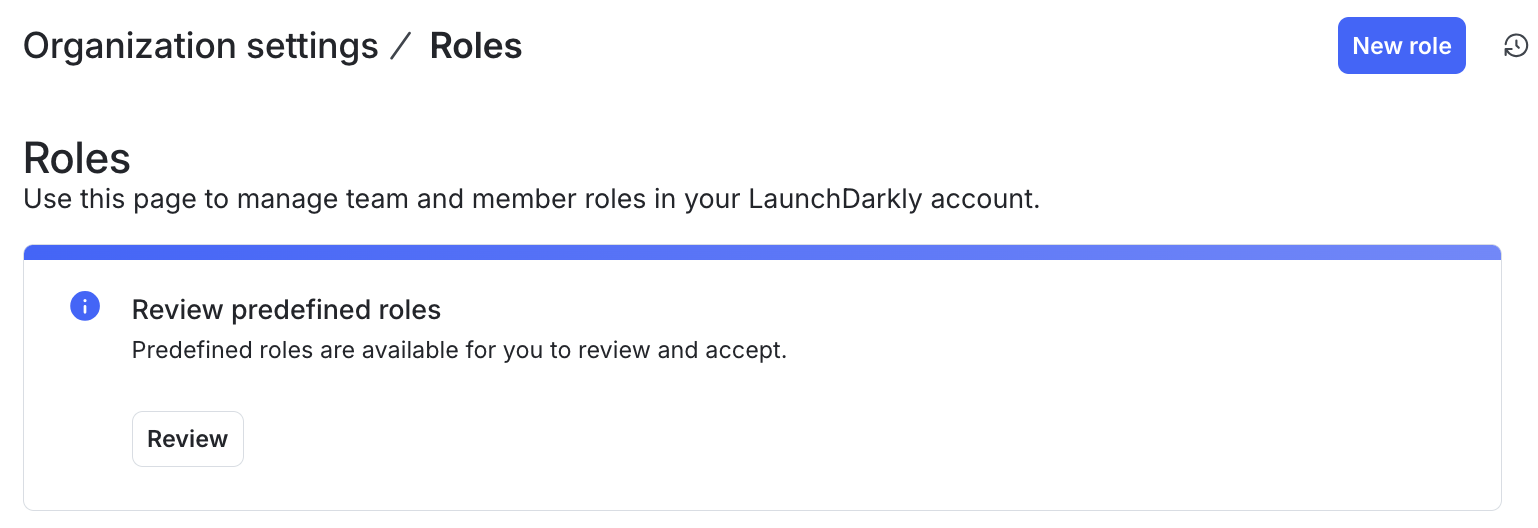
The "Roles" page with a banner prompting you to review preset roles. -
Click Review.
-
In the “Predefined roles” dialog, click < and > to review the policies for each preset role. These roles all have names that start with “LaunchDarkly.”
-
Click Accept to enable the new roles in your account.
After you add these roles, you can assign them to any member. Optionally, you can update the preset project roles or preset organization roles to them to customize them.
Review preset roles
To access these roles:
- Log in to LaunchDarkly.
- Click on the gear icon. The Organization settings page appears.
- Select Roles from the Access section.
- Choose from the list of preset roles.
- Click the role name to review the access it provides.
Assign preset roles
To assign a role to an existing member:
- Click the gear icon in the left sidebar to view Organization settings.
- Click Members. The Members list appears.
- Find the account member you wish to give a role.
- Click that account member’s name. The member’s Access tab opens.
- Click Assign access. The “Assign access” dialog appears.
- Choose a preset role from the dropdown.
- Click Assign access. You are returned to the Access tab.