

This SDK is in early accessThe MAUI observability plugin is in early access. Its APIs may change before the 1.x release.
- Observability captures errors, logs, and traces. Use it to debug failures in production, watch error rates for a release, and trace network calls end-to-end. The SDK does not report crashes automatically. To report an exception, call
LDObserve.RecordError. - Session replay captures UI snapshots of what a user encountered. Use it when a stack trace alone doesn’t tell you why a user got stuck, and pair it with masking to keep sensitive fields out of the recording.
ObservabilityPlugin, which installs alongside the LaunchDarkly .NET MAUI SDK. To learn more about every configuration field, the full LDObserve method surface, and advanced distributed-tracing patterns, read the .NET MAUI SDK observability reference.
Prerequisites
To complete this guide, you need:- .NET 9 or .NET 10 with the MAUI workload installed.
- A target device or emulator: Android API level 23+ (Android 6.0, Marshmallow), or iOS 15+.
- A LaunchDarkly account and a mobile key for the environment you’re testing against. Find the mobile key on the SDK keys page under Settings.
Step 1: Install the SDK
Add theLaunchDarkly.SessionReplay package to your MAUI project:
Visual Studio on Windows (Android target)If you build for Android from Visual Studio on Windows, the Android SDK may land in a system-protected directory the build can’t write to, causing build errors. The fix is to relocate the Android SDK to a user-writable location. For step-by-step instructions, read the Android SDK relocation guide for Windows. This only affects Android-on-Windows.
HttpClient requests, add the HttpActivityPropagationSupport property to your app’s project file. Without it, the .NET trimmer removes the diagnostics that the SDK listens to, and no HTTP spans are recorded:
Step 2: Initialize the SDK
Initialization belongs inMauiProgram.cs, alongside the rest of your MauiApp.CreateBuilder() configuration. This example references LDConfig.MobileKey. LDConfig is a small static class that holds the mobile key. Replace that reference with your own constant or with an inline string literal:
serviceName is how this app appears in the LaunchDarkly UI, so make it recognizable.
Step 3: Turn on session replay
Pass aSessionReplayOptions object as the second argument to ObservabilityPlugin:
Step 4: Decide what to mask
Masking is configured throughPrivacyOptions on SessionReplayOptions. There are several configuration options depending on your use case.
They are:
- Production: Mask everything, including labels, images, and web views.
- Local debugging: Turn masking off on your own test data so you can see what’s going on.
- Balanced: Mask inputs and web views (passwords, payment forms, and similar) but keep ordinary labels and images visible.
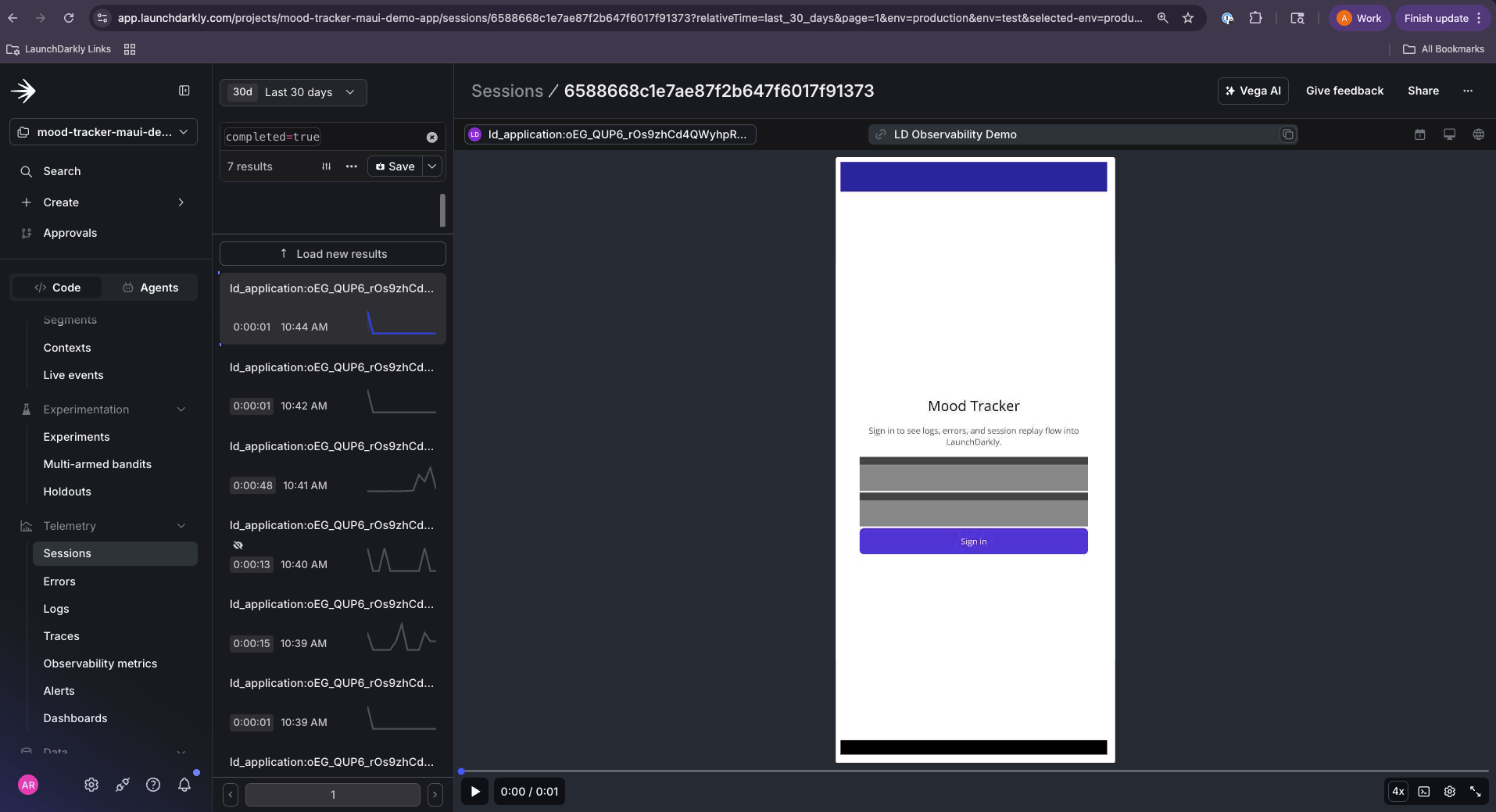
A session replay with masking applied: the password field is captured as a blank block while non-sensitive labels remain readable.
Mask a specific element
When a preset is almost right but one field is the exception, override it at the element level. Call.LDMask() on the underlying view after you have a reference to it, or call .LDUnmask() to reveal something the preset would hide:
Step 5: Run it and confirm data is arriving
Build and run on a device or emulator:serviceName appear there, as well as a session replay recording you can scrub through with your masking choices applied. When your service name appears in Observability, that is a confirmation that the SDK initialized successfully and is recording data.
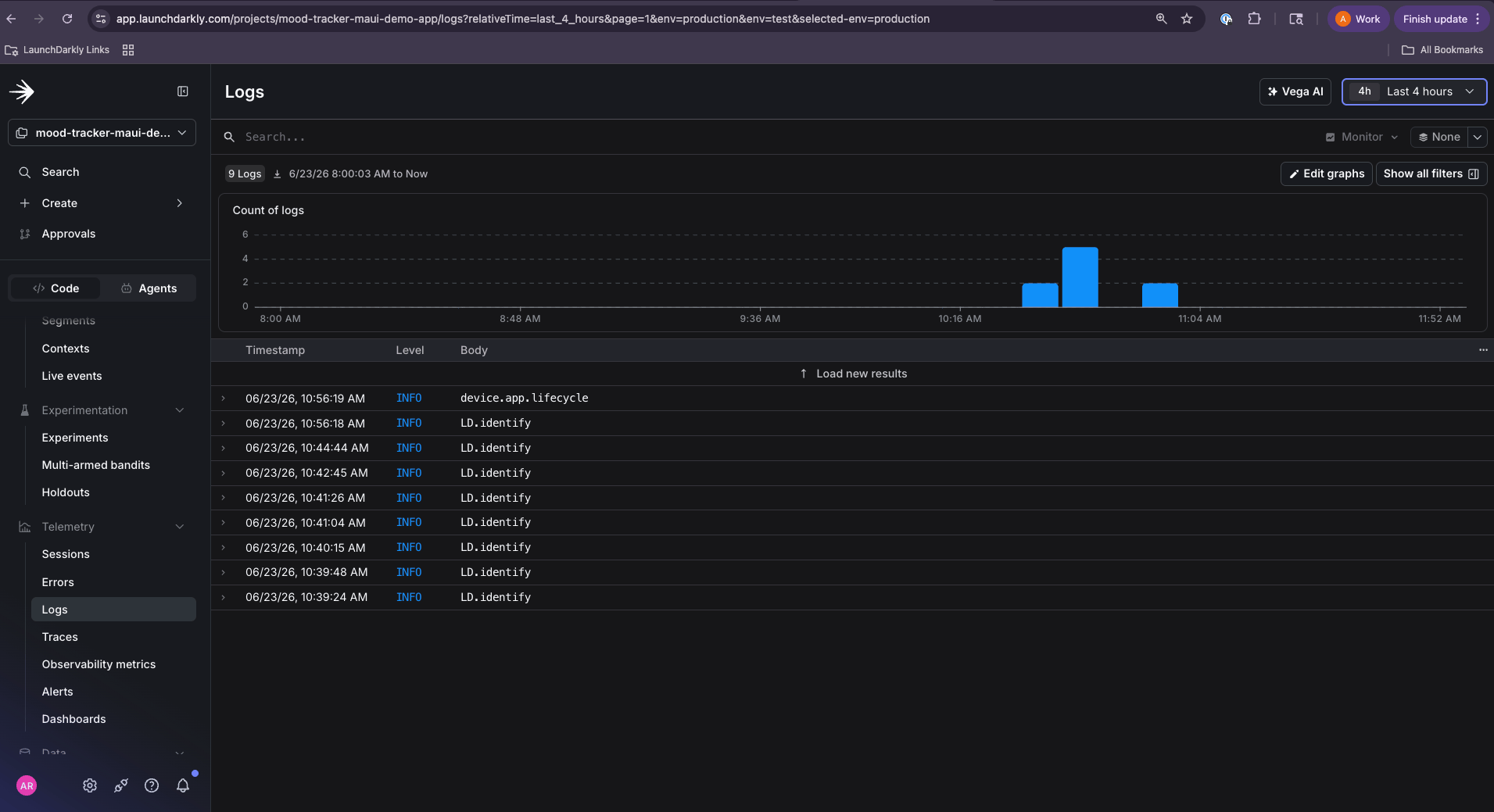
Logs and errors arriving in LaunchDarkly, attributed to the serviceName you set in Step 2.
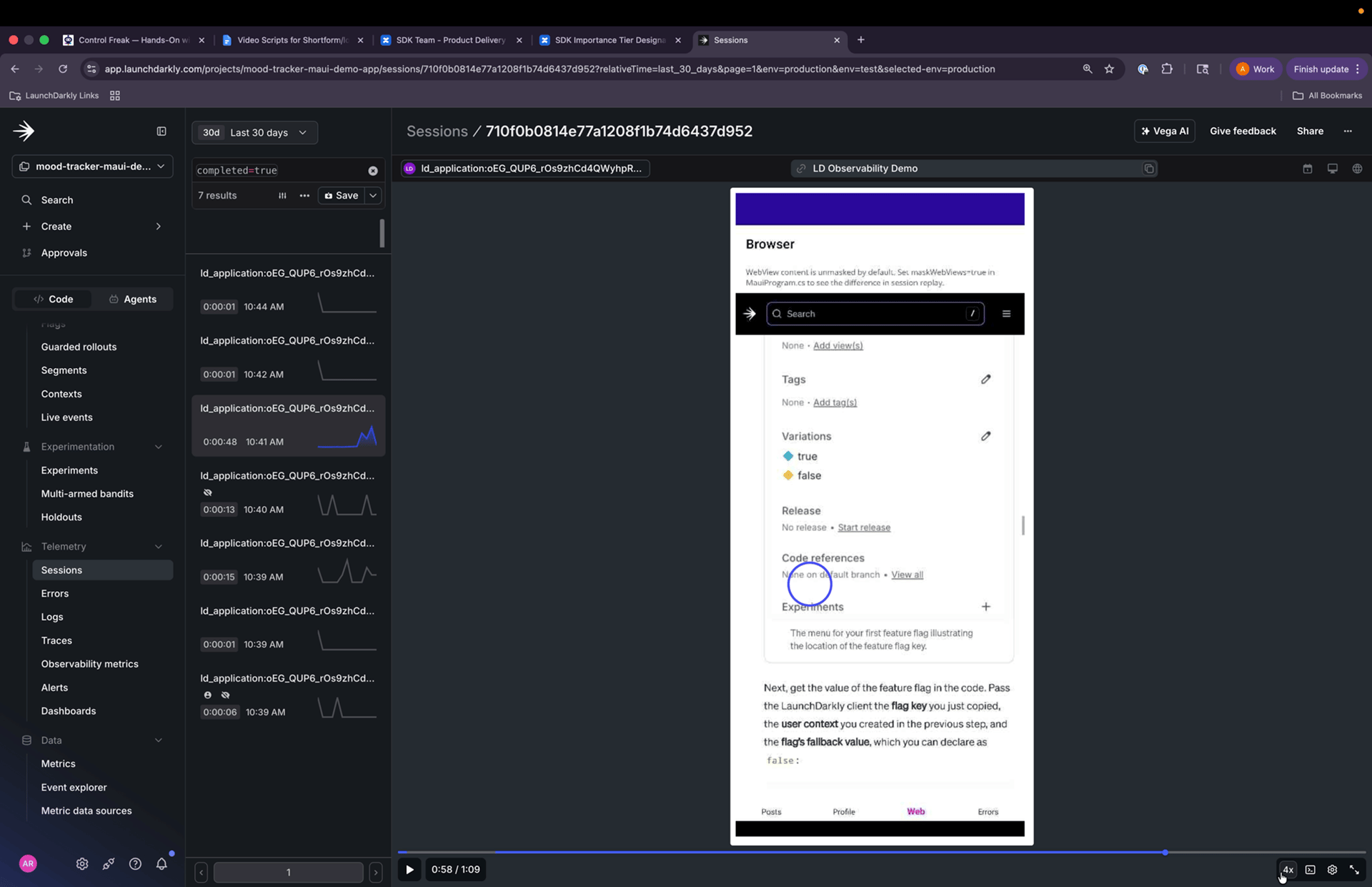
A recorded session in the replay player. You can scrub the timeline to watch what the user did leading up to an error, with your masking choices applied throughout.
Complete code sample
Here is aMauiProgram.cs showing observability and session replay wired into MAUI’s startup. LDConfig is a small static class that holds the MobileKey constant. The privacy block uses the SDK default (mask text inputs only). Swap in any preset from Step 4 to change what session replay records:
What to explore next
- Every configuration field: The complete
ObservabilityOptionsandSessionReplayOptionstables are in the SDK reference documentation and in Configuration for client-side observability. - Custom tracing: Time your own operations with
LDObservespans. The reference’s distributed-tracing section covers root spans, nesting, cross-thread context, and automaticHttpClientinstrumentation. - How this relates to OpenTelemetry: The plugin is an OpenTelemetry implementation under the hood. If you already use
System.Diagnostics.Activity,LDObservehasStartActivity,StartRootActivity, andGetActivitySourceequivalents so your existing trace code flows in. - Working with your data: After telemetry is flowing, set up alerts and dashboards, then investigate issues with Vega.
Troubleshooting
Use this section to investigate common issues.No data appearing
If no data appears in LaunchDarkly:- Confirm you pasted the mobile key for the environment you’re viewing in the UI, and not for a different environment.
- Make sure plugin registration runs in
MauiProgram.csand that the configured builder is actually returned fromCreateMauiApp(). - Test the app a bit more and refresh. Data can take a few minutes to appear.
Session replay isn’t recording, but observability works
If observability data arrives but session replays don’t:- Confirm that you pass a
SessionReplayOptionsobject as the second argument toObservabilityPlugin. Without it, the plugin records observability data only. - If you set
isEnabledtofalseonSessionReplayOptionsfor consent-gated rollout, confirm the call that enables it is actually running.
HTTP requests don’t appear in traces
Confirm thatHttpActivityPropagationSupport is set to true in your app’s project file. The .NET Android SDK turns it off by default, and the .NET iOS SDK turns it off in Release builds. To learn how to set it, read Step 1: Install the SDK.
Build failures
If your app fails to build:- Run
dotnet cleanand rebuild, especially on iOS. - On Windows building for Android, check the Android SDK relocation note in Step 1: Install the SDK.
Masking not applied to a specific view
Confirm that your app calls.LDMask() or .LDUnmask() after the view’s handler is attached, for example in Appearing, not in a constructor.
Conclusion
In this guide, you instrumented a .NET MAUI application for LaunchDarkly observability. You can now:- Capture errors, logs, and session replays from both Android and iOS with one C# codebase
- Control what session replay records through
PrivacyOptionspresets and per-view masking - Confirm telemetry is flowing in the LaunchDarkly UI, ready for alerts, dashboards, and Vega
Want to know more? Start a trial.Your 14-day trial begins as soon as you sign up. Get started in minutes using the in-app Quickstart. You’ll discover how easy it is to release, monitor, and optimize your software.
Want to try it out? Start a trial.
Want to try it out? Start a trial.