

Data Export is an add-on featureData Export is available as an add-on feature to select plans. To learn more, read about our pricing. To add Data Export to your plan, contact Sales.
Prerequisites
To configure the Redshift Data Export integration, you must have the following prerequisites:- A LaunchDarkly role that lets you add and edit integrations and add destinations.
- Access to an existing provisioned Amazon Redshift cluster. The cluster must be provisioned, not serverless. The endpoint you enter must resolve to a public IP address.
- IAM permissions in AWS to create roles, policies, and S3 buckets.
- The ability to run SQL commands through Redshift Query Editor v2 or another SQL client connected to your cluster.
- Your Redshift cluster endpoint, cluster identifier, and AWS account ID. You can find these in the AWS console under Amazon Redshift > Clusters > [your cluster name].
- If your cluster restricts inbound connections by IP, you must allow the LaunchDarkly data transfer service’s static IP address:
35.192.85.117.
One Data Export destination per environmentYou can configure only one Data Export destination per LaunchDarkly environment, regardless of destination kind. If you need more than one Data Export destination for the same data, configure them in different environments.
Redshift naming conventions
When you select a project and environment, LaunchDarkly pre-fills default names for the resources the setup creates. Redshift converts unquoted identifiers to lowercase, so all defaults are lowercase. You can keep these defaults or customize them in step 2 of the setup:- Database:
ld_export. Shared across all environments. - Schema:
export_<projKey>__<envKey>, where<projKey>is your project key and<envKey>is your environment key. Unique to a project and environment. - User:
ld_export_user_<projKey>__<envKey>. Unique to a project and environment. - S3 staging bucket:
ld-export-staging-<projKey>--<envKey>. LaunchDarkly uses lowercase characters for the name and also replaces underscores with hyphens, because S3 bucket names cannot contain underscores. Unique to a project and environment. Do not customize this name.
- start with a lowercase letter or underscore
- contain only lowercase letters, digits, and underscores
- be 127 characters or fewer
- not be a Redshift reserved word
Another data export destination on this Redshift cluster already uses schema '<schema>' in database '<database>'. Each environment must use a unique schema.Another data export destination on this Redshift cluster already uses user '<user>'. Each environment must use a unique Redshift user.
Set up the integration
To set up Redshift Data Export, enter your cluster connection details, run a generated SQL script in Redshift, create the S3 staging bucket and IAM role in AWS, then test the connection and save the destination. We recommend having browser windows open for LaunchDarkly, AWS, and Redshift so that you can switch between them.Step 1: Connect your LaunchDarkly environment to Redshift
To start the configuration in LaunchDarkly:- Click the gear icon in the left sidebar to view Organization settings.
- Click Integrations and find “Redshift Data Export.”
- Click Add integration. The Redshift Data Export configuration page appears.
- Give the integration a human-readable Name.
- Choose a Project and environment to export data from. Environments that already have a Data Export destination are unavailable.
- Enter the Redshift cluster Endpoint as a hostname, optionally followed by a port and a database path, for example
my-cluster.abc123.us-east-1.redshift.amazonaws.com:5439/dev. If you omit the port, LaunchDarkly uses the Redshift default,5439. LaunchDarkly ignores the database path and uses the Database name from step 2,ld_exportby default, instead. The endpoint must resolve in public DNS to a public IP address. When you click Test connection and save, LaunchDarkly checks the endpoint:- If it resolves to a private IP address, including AWS PrivateLink and virtual private cloud (VPC) endpoint names, the check fails with the error
host is not permitted. - If it does not resolve, the check fails with the error
host does not resolve.
- If it resolves to a private IP address, including AWS PrivateLink and virtual private cloud (VPC) endpoint names, the check fails with the error
- Enter the Cluster identifier.
- Select the Cluster region.
- Enter your AWS account ID. This is the 12-digit number for the AWS account that owns the cluster.
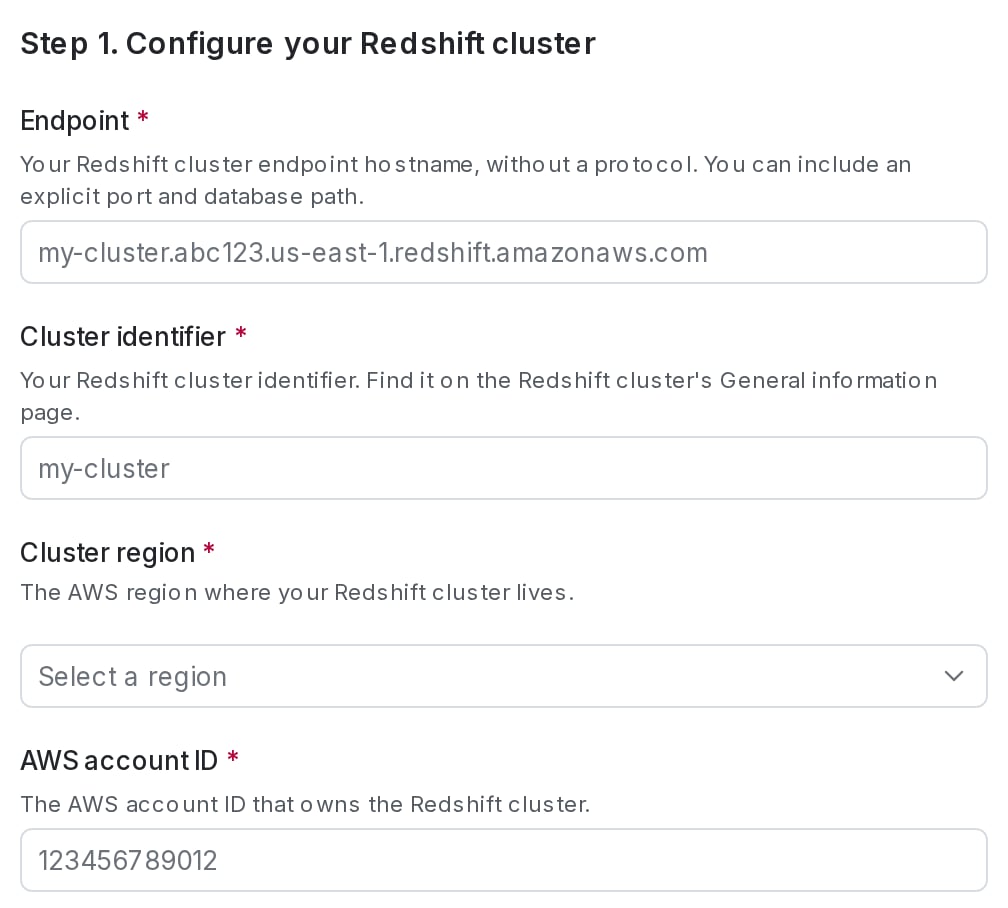
The Redshift cluster configuration section in LaunchDarkly.
Step 2: Customize resource names (optional)
If your organization uses specific naming conventions for Redshift objects, you can override the defaults LaunchDarkly creates. Expand the Customize resource names section to edit any of:- Database name
- Schema name
- User name
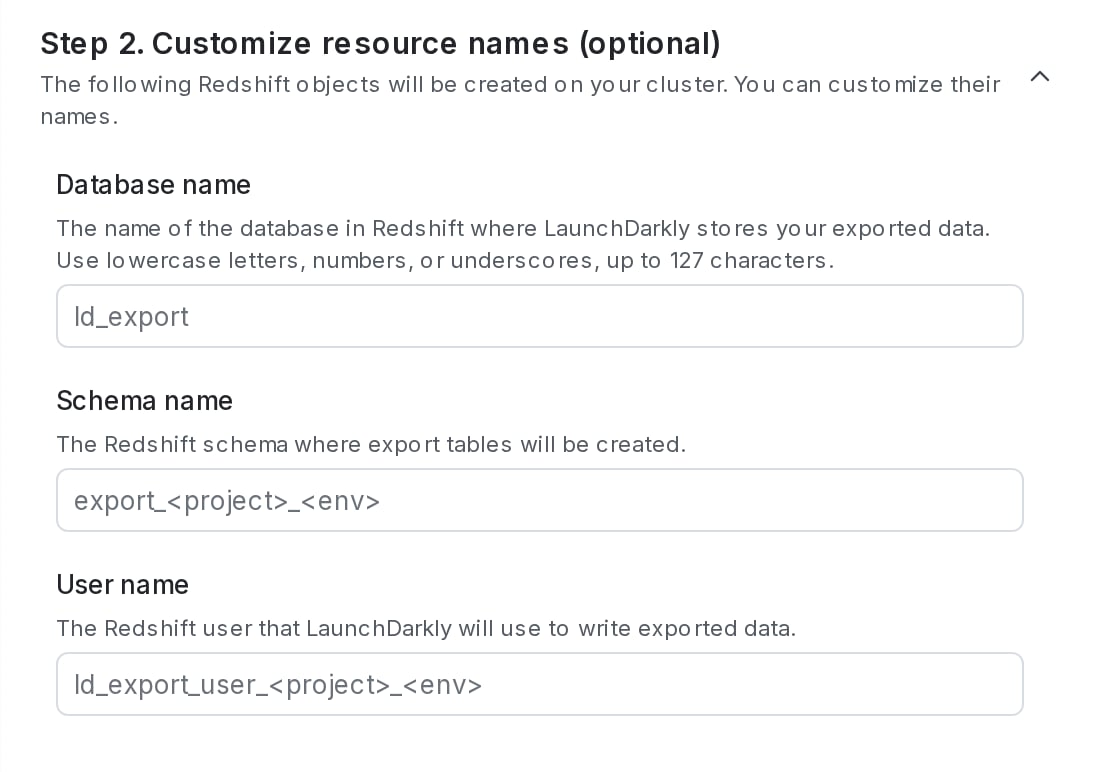
The resource name customization section in LaunchDarkly.
Step 3: Generate and run the SQL script
Now, generate the script that creates the database, schema, user, and grants in your cluster. The script has two stages that you run separately.- Click Generate setup script. LaunchDarkly returns a setup script that creates the database, schema, user, and grants using the names you chose.
- Copy the script.
- Connect to your cluster in Redshift Query Editor v2 or your SQL client with a user that has permission to create databases, create users, and grant privileges.
- Run Stage 1, which creates the database:
- Run the pre-flight
SELECTstatement at the top of the script. It returns eitherskiporcreate. - If it returns
create, run theCREATE DATABASEstatement that follows it. - If it returns
skip, the database already exists. Do not run theCREATE DATABASEstatement. This is expected for every environment after the first one that uses the same database on a cluster.
- Run the pre-flight
- Run Stage 2, which creates the per-environment objects:
- Connect to the export database. This is
ld_exportunless you customized the Database name in step 2. - Run all of the remaining statements in the script.
- Connect to the export database. This is
Stage 2 of the setup script is idempotentYou can run stage 2 more than once without errors. Per-environment objects, including schema, user, and grants, use
CREATE SCHEMA IF NOT EXISTS and a NONATOMIC stored-procedure pattern that catches the 42710 “object already exists” error. Re-running produces RAISE INFO messages.Stage 1 requires a manual decision because Redshift does not support CREATE DATABASE IF NOT EXISTS and does not allow CREATE DATABASE inside a stored procedure. Running CREATE DATABASE fails if the database already exists.Step 4: Create the S3 staging bucket
LaunchDarkly stages exported data in an S3 bucket in your AWS account before loading it into Redshift. LaunchDarkly generates the bucket name for you, and you create a bucket with that exact name. To create the staging bucket:- In LaunchDarkly, copy the read-only S3 staging bucket name from Step 4 of the configuration page. The name follows the pattern
ld-export-staging-<projKey>--<envKey>. - Select the S3 staging bucket region. This must be the same region as your Redshift cluster.
- In the AWS console, create an S3 bucket with the exact name you copied, in the region you selected.
Step 5: Create the IAM role
The LaunchDarkly data transfer service assumes an IAM role in your AWS account to read from the staging bucket and runCOPY into your Redshift cluster. You create the role using the two policy documents LaunchDarkly generates for you, then paste the role’s ARN back into LaunchDarkly.
To create the role:
- In LaunchDarkly, copy the Permissions policy from Step 5 of the configuration page.
- In the AWS console, navigate to IAM > Policies and click Create policy. Select the JSON editor and paste the permissions policy. Add policy details, then create the policy.
- In LaunchDarkly, copy the Trust policy from Step 5 of the configuration page.
- In the AWS console, navigate to IAM > Roles and click Create role. Select a Custom trust policy and paste the trust policy. On the permissions step, attach the policy you created in step 2.
- Add role details, then create the role.
- Copy the ARN of the new role.
- Return to LaunchDarkly and paste the ARN into the IAM role ARN field.
Test and save the connection
To finish the setup:- Read the Integration Terms and Conditions, then select the I have read and agree to the Integration Terms and Conditions checkbox.
- Click Test connection and save. LaunchDarkly assumes the IAM role you provided, tests the Redshift connection, and, if both succeed, activates the destination and starts the initial transfer.
View an existing destination
The destination setup is visible on the edit page so that you can re-copy the SQL script or look up the staging bucket name or IAM role ARN without having to reconstruct any values from scratch. However, all fields on the edit page are read-only. You may need to use the read-only fields in the following ways:- Copy the SQL script in step 3 if you need to re-run the setup in Redshift, for example after re-creating the cluster.
- Copy the S3 staging bucket name if you need to look up the bucket in AWS.
- In LaunchDarkly, click the gear icon in the left sidebar to view Organization settings.
- Click Integrations and find “Redshift Data Export.”
- Find the destination you want to edit and click Edit. The Redshift Data Export configuration page appears with the destination’s settings.