For AI agents: a documentation index is available at the root level at /llms.txt and /llms-full.txt. Append /llms.txt to any URL for a page-level index, or .md for the markdown version of any page.
Sign inTry it free
DocsGuidesSDKsIntegrationsAPI docsTutorialsFlagship blog
  • Integrations
    • Collaboration tools
      • Microsoft Teams
      • Slack app
        • Setting up Slack accounts and permissions
        • Subscribing to notifications
        • Managing approvals in Slack
        • Toggling flag targeting on and off
        • Slack incoming webhooks
      • Confluence
    • Data Export
    • Edge tools
    • Environments as a service
    • Experimentation and metric integrations
    • Internal developer platforms
    • Monitoring tools
    • Segments integrations
    • Workflow management tools
    • More integrations
    • Managing integrations
    • Using the LaunchDarkly integration framework
    • Building partner integrations
Sign inTry it free
LogoLogo
On this page
  • Overview
  • Toggle flags on and off from Slack
IntegrationsCollaboration toolsSlack app

Toggling flag targeting on and off

Was this page helpful?
Previous

Slack incoming webhooks

Next
Built with

Overview

This topic explains how to toggle feature flags with the LaunchDarkly Slack app.

Toggle flags on and off from Slack

You can turn flag targeting on or off from within Slack.

To turn a flag’s targeting on or off:

  1. Click the View details button on a flag change notification, or paste a link to the flag in Slack.
  2. Click the three-dot overflow menu item in the flag details message.
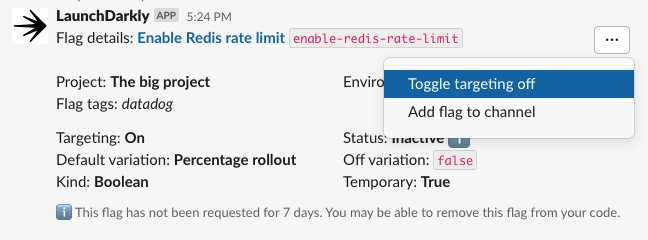
The "Flag Overview" message with the "Toggle targeting off" overflow menu item selected.

The "Flag Overview" message with the "Toggle targeting off" overflow menu item selected.
  1. Select Toggle targeting off or Toggle targeting on.

After you confirm changes, you will receive a notification stating that the flag targeting has changed.