

Consistency across user sessions
When conducting an experiment on an app or website with both logged-out and logged-in states, you may want the end user to receive the same variation every time they log in. You can do this by setting an experiment’s randomization unit touser.
However, if you optimize for consistency across logins instead of continuity within a session, a user might see one variation while logged out and another immediately after they log in. To keep the experience stable for the length of a visit, use session as the randomization unit instead. The following sections compare the two approaches.
”User” randomization units
As an example, imagine Anna visits your website on her phone before she logs in. She sees variation A, the one-click checkout option. She adds some items to her cart, remembers to log in, continues to see variation A, adds a few more items, then gets interrupted. She decides to finish checking out later. That evening, Anna visits your website from her laptop. She is not logged in and she is on a different device, so your app does not recognize her as the same person from earlier in the day. The experiment serves variation B, the two-click checkout option. When Anna logs in, if logged-in users always receive variation A, her variation flips from B to A in the middle of her session. Withuser as the randomization unit, logged-in people see the same variation whenever they return to your app. We recommend user when you care most about consistency for an individual over time. Assignments are based on the user’s unique context key. The trade-off is that someone like Anna can still see two different versions of your app within one session.
”Session” randomization units
Contrast this with Miguel’s experience. Miguel visits your website on his phone and does not log in. He sees variation A, the one-click checkout option. He adds some items to his cart, remembers to log in, continues to see variation A, adds a few more items, then gets interrupted. He decides to finish checking out later. That evening, Miguel visits your website from his laptop. He is not logged in yet and he is on a different device, so the experiment does not recognize him as the same person from earlier in the day. The experiment serves variation B, the two-click checkout option. Miguel logs in and checks his cart. He keeps seeing variation B until the session ends. That behavior is what you should expect withsession as the randomization unit. Assignment depends on a session key, usually stored in a cookie that expires after about 7–14 days. If someone returns on the same device and browser before the cookie expires and has not cleared cookies, they usually see the same variation. However, different devices, different browsers, or incognito mode each get a new session key, so you cannot rely on the same variation across those contexts.
We recommend session when you want consistency within a single visit or interaction. The trade-off is that someone like Miguel might see different versions of your app on different logins or devices.
Strategies for increasing session consistency
These approaches help keep the product experience coherent when people move between sessions, devices, and authentication states.Target only logged-in users
If the feature is available to both logged-out and logged-in users, consider scoping the experiment to logged-in users only and randomizing byuser. Your experiment will include fewer people, but variation assignments will stay consistent.
Target specific device types
People often use both a phone and a laptop to access the same website or app. After a device switch, LaunchDarkly usually cannot tell that two sessions belong to the same person. Randomizing byuser while restricting the experiment audience to one device type, such as mobile, reduces how often someone hits two variations. Device-specific experiments can also be easier to interpret because behavior differs by platform. The example in this guide targets by device type.
Shorten the experiment duration
Longer run times mean more opportunities for multiple session exposures. Shorter experiments shrink the window in which cross-session or cross-device inconsistency can occur.Example experiment
This example builds a checkout experiment in an app and uses time to checkout as the primary metric. The following sections cover the metric, flag variations, hypothesis, randomization unit, and sample size.Create the metric
First, create the metric you need for the experiment. This example uses a custom numeric metric. Use the following settings for the metric:- Event kind: Custom
- Event key: time-to-checkout
- Metric definition:
Averageevent values perUser, then compute theAverageof those values wherelower is better - Choose how to handle units that do not generate the event: Exclude units that generate no events
- Unit of measure: ms
- Name: Time to checkout
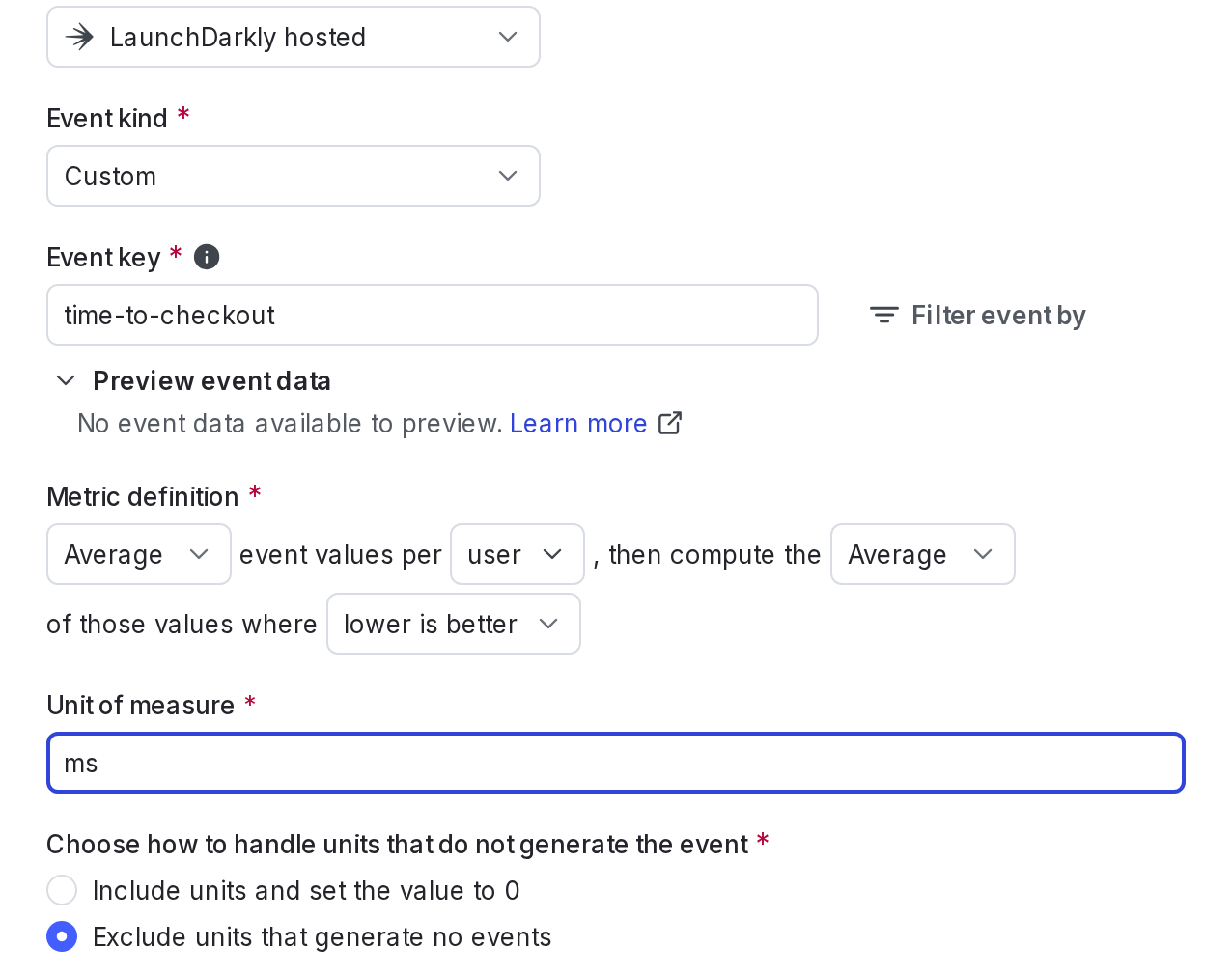
The "Metric definition" section for a custom numeric metric.
time-to-checkout.
Event keys and metric keys are differentSending custom events to LaunchDarkly requires a unique event key. Set the event key to anything you want. Adding this event key to your codebase lets your SDK track actions customers take in your app as events. To learn more, read Tracking custom events.LaunchDarkly also automatically generates a metric key when you create a metric. You only use the metric key to identify the metric in API calls. To learn more, read Creating and managing metrics.
Create the flag and its variations
Next, create a “Check-out experience” boolean flag with these variations:- One click
- Two click (control)
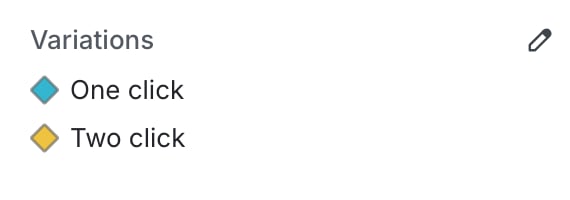
A flag with two variations.
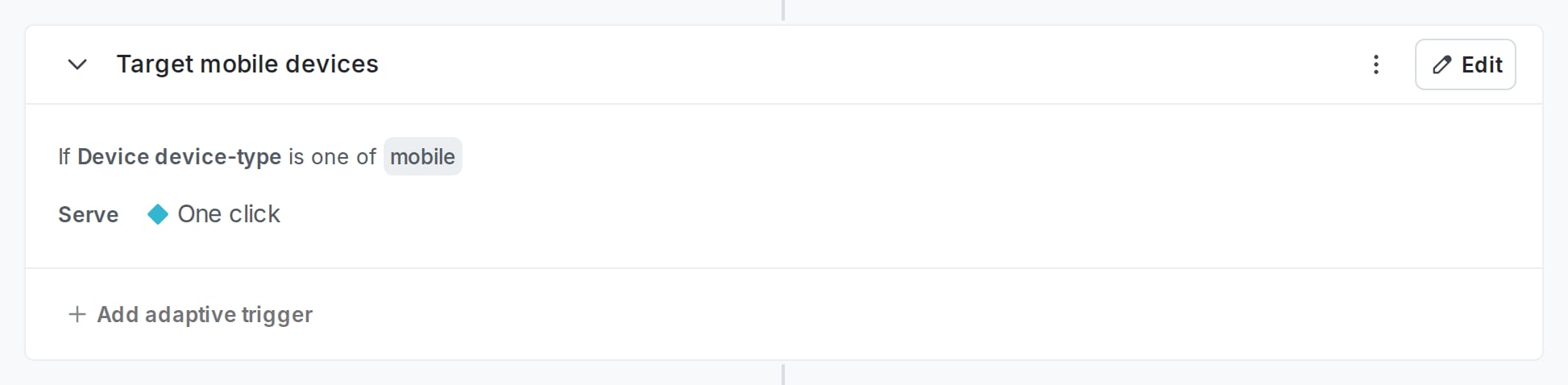
A rule on a flag targeting mobile devices.
Build the experiment
To create the experiment, expand Iterate in the left sidebar, click Experiments, then click Create experiment. Set up your experiment with the following parameters:- Name: Shortened check-out experience
- Hypothesis: “If we implement a one-click checkout experience, then customers will spend less time in the checkout process than customers who encounter a two-click checkout experience, because it requires fewer clicks.”
- Randomize by: user
- Metrics: Time to checkout
- Flag: Check-out experience
- Variation served to users outside this experiment: Two click
- Percent of users in this experiment: 5%
- Statistical approach: Either Bayesian or frequentist is appropriate for this experiment. This example uses Bayesian.
- Threshold: 95%
Conclusion
For apps with logged-out and logged-in states, matching the same variation on every login is not always the right goal. Keeping one variation for the length of a session, including across the login moment, often feels smoother to users while still producing the experiment data you need to improve the product. To get started building your own experiment, follow our Quickstart for Experimentation.Want to know more? Start a trial.Your 14-day trial begins as soon as you sign up. Get started in minutes using the in-app Quickstart. You’ll discover how easy it is to release, monitor, and optimize your software.
Want to try it out? Start a trial.
Want to try it out? Start a trial.