For AI agents: a documentation index is available at the root level at /llms.txt and /llms-full.txt. Append /llms.txt to any URL for a page-level index, or .md for the markdown version of any page.
Sign inTry it free
DocsGuidesSDKsIntegrationsAPI docsTutorialsFlagship blog
  • Integrations
    • Collaboration tools
      • Microsoft Teams
        • Setting up the Microsoft Teams integration
        • Receiving approval notifications in Microsoft Teams
        • Receiving flag notifications in Microsoft Teams
        • Flag links in Microsoft Teams
        • MS Teams incoming webhooks
      • Slack app
      • Confluence
    • Data Export
    • Edge tools
    • Environments as a service
    • Experimentation and metric integrations
    • Internal developer platforms
    • Monitoring tools
    • Segments integrations
    • Workflow management tools
    • More integrations
    • Managing integrations
    • Using the LaunchDarkly integration framework
    • Building partner integrations
Sign inTry it free
LogoLogo
On this page
  • Overview
  • Set up the LaunchDarkly app in Microsoft Teams
  • Disconnect your LaunchDarkly account from Microsoft Teams
IntegrationsCollaboration toolsMicrosoft Teams

Setting up the Microsoft Teams integration

Was this page helpful?
Previous

Receiving approval notifications in Microsoft Teams

Next
Built with

Overview

This topic explains how to set up the LaunchDarkly Microsoft Teams integration.

Set up the LaunchDarkly app in Microsoft Teams

To add LaunchDarkly to a Teams workspace, add the LaunchDarkly app from within Microsoft Teams. Then, authenticate the app with your LaunchDarkly account.

To authenticate the Microsoft Teams app:

  1. Navigate to the LaunchDarkly Microsoft AppSource listing.

  2. Click Get it now. After installing the LaunchDarkly Microsoft Teams app, you are prompted to connect your LaunchDarkly account.

  3. Click Sign in to connect your account to Microsoft Teams. You are redirected to the LaunchDarkly login page.
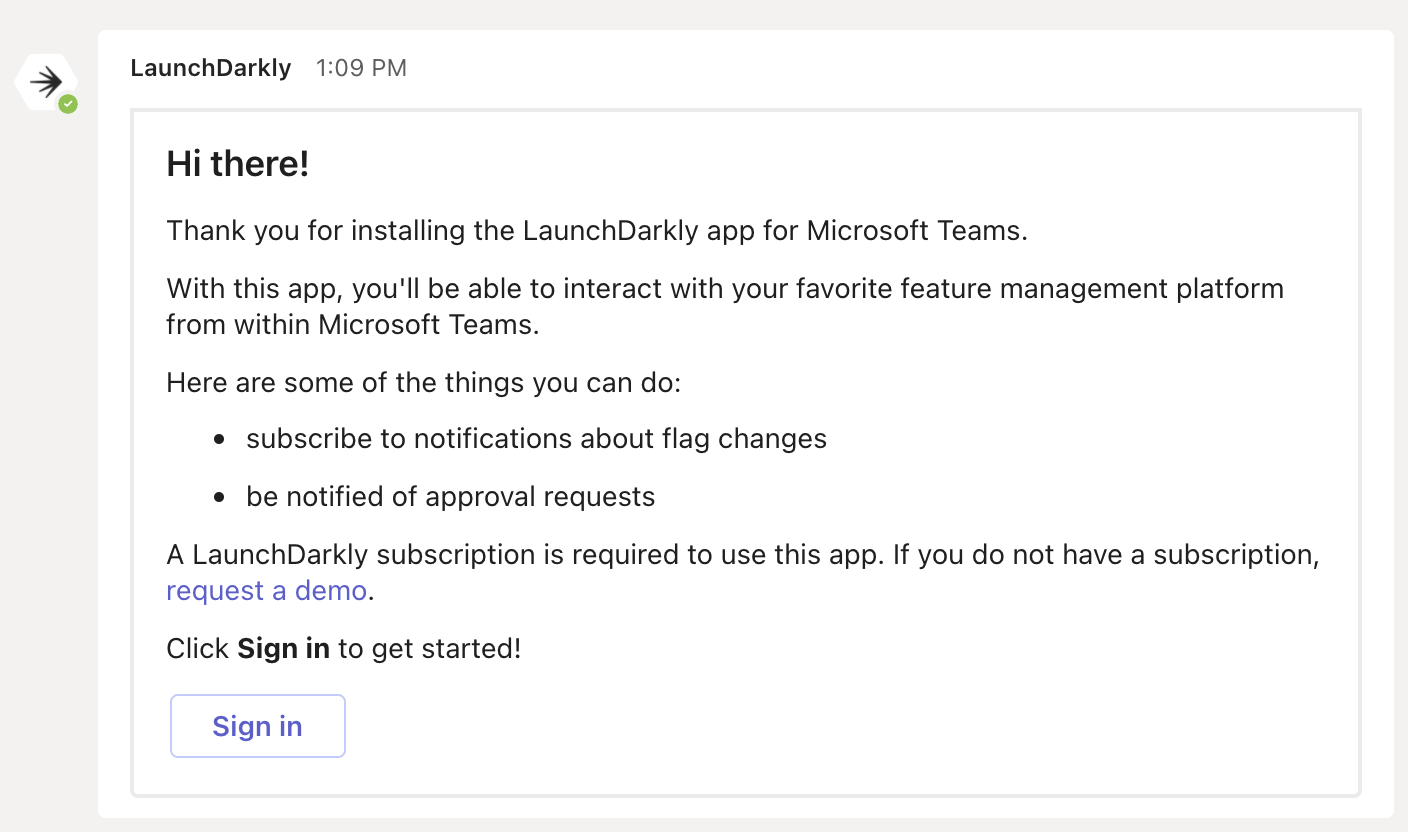
    The LaunchDarkly app sign-in screen in Microsoft Teams.

    The LaunchDarkly app sign-in screen in Microsoft Teams.
  4. Log in with your LaunchDarkly credentials. LaunchDarkly displays a message that the Microsoft Teams app would like permission to access your LaunchDarkly account.

  5. Click Authorize. LaunchDarkly displays an authentication code.
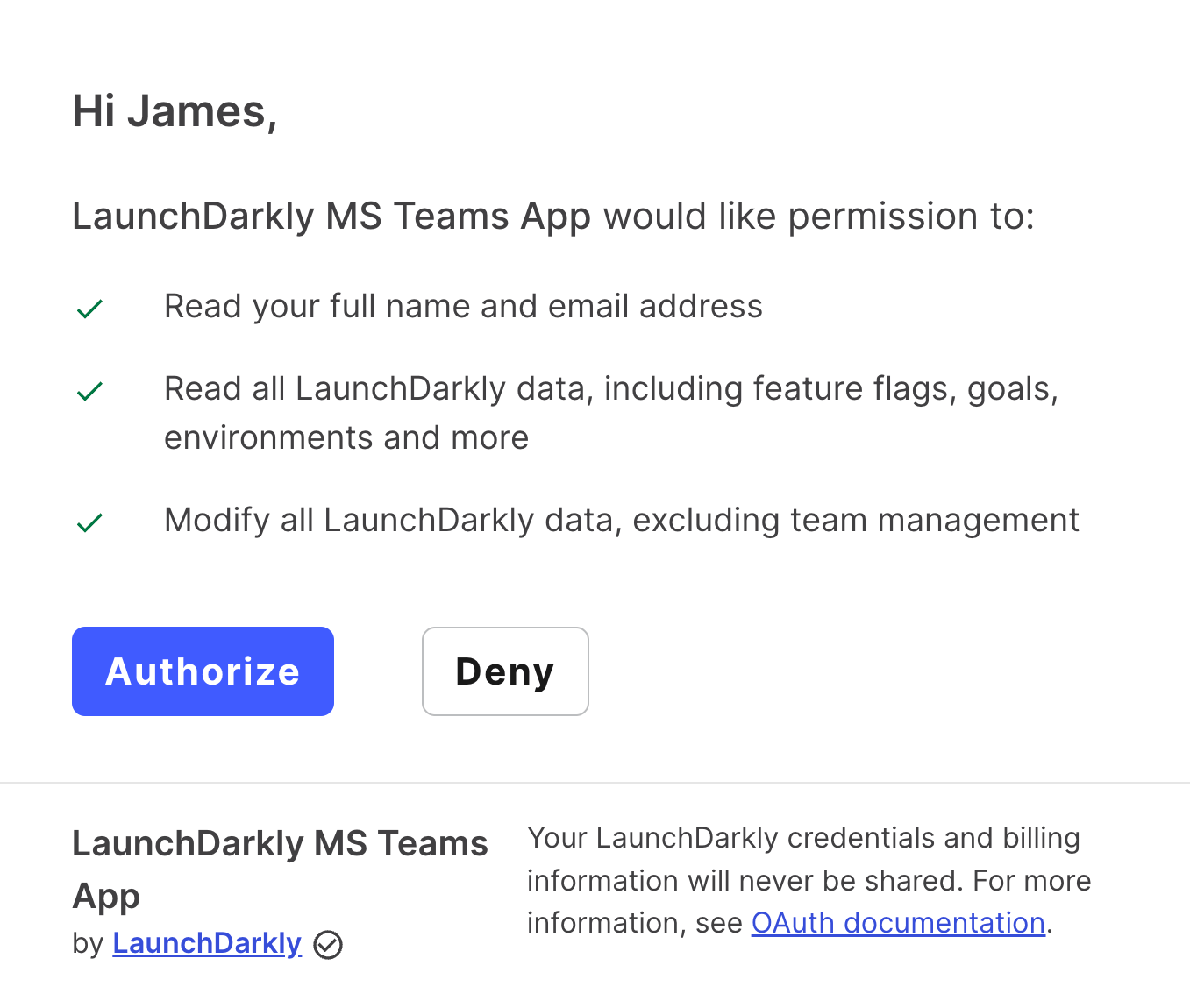
    The permissions authorization dialog in the Microsoft Teams app.

    The permissions authorization dialog in the Microsoft Teams app.
  6. Type the provided authentication code into Microsoft Teams in a chat window with LaunchDarkly.
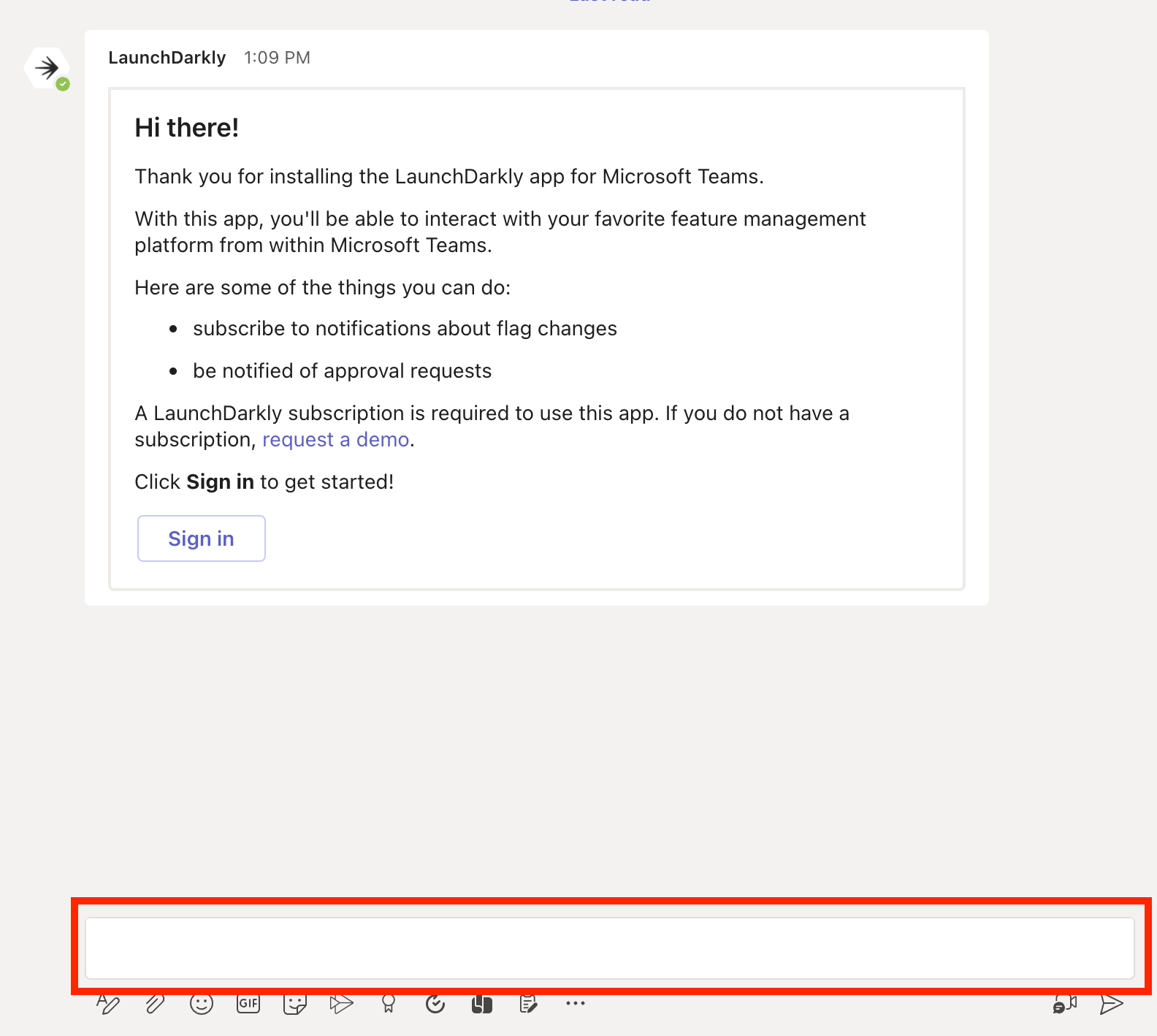
    The authentication code screen in Microsoft Teams with the code input box called out.

    The authentication code screen in Microsoft Teams with the code input box called out.
  7. Press Enter.

The LaunchDarkly app displays a success message. You can now use the LaunchDarkly app in Microsoft Teams.

To learn how to troubleshoot connection errors, read Unable to connect LaunchDarkly account to Microsoft Teams.

A success message from LaunchDarkly.

A success message from LaunchDarkly.

Disconnect your LaunchDarkly account from Microsoft Teams

To disconnect your LaunchDarkly account from Microsoft Teams:

  1. In Microsoft teams, open a chat window with LaunchDarkly.
  2. Enter “account” in the text box and press Enter.
  3. LaunchDarkly displays a message that you are currently connected to your LaunchDarkly account. Click Logout to disconnect your LaunchDarkly account from Microsoft Teams.
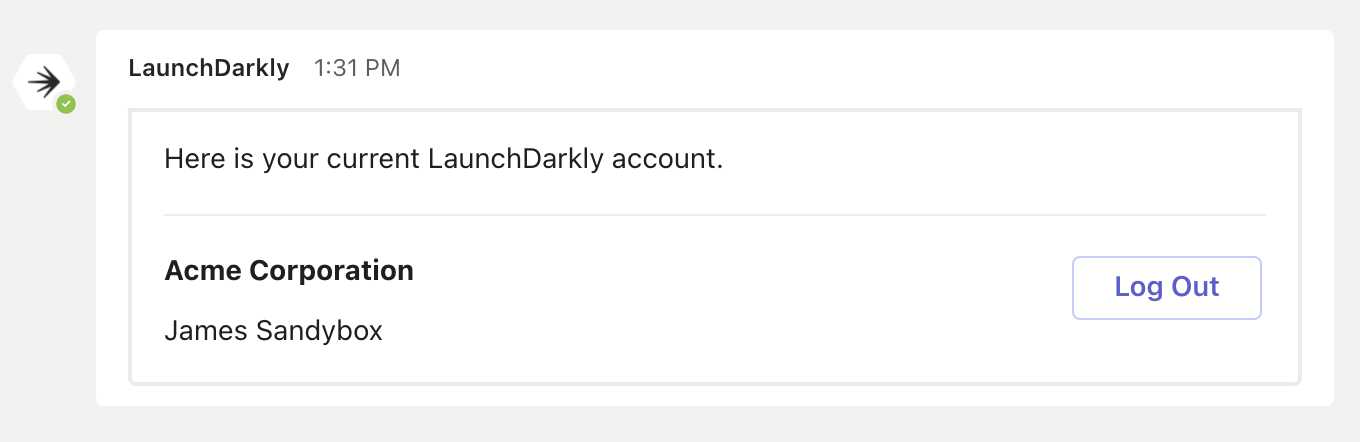
The log out screen in Microsoft Teams.

The log out screen in Microsoft Teams.
