

Subscribe to flag notifications
You can subscribe to updates for flags, segments, metrics, projects, or environments. When someone updates a resource LaunchDarkly sends a notification of the change to all channels subscribed to updates for that resource. There are two ways to subscribe to flag notifications:- Follow a specific flag in LaunchDarkly. To learn more, read Follow flags.
- Create a subscription in Microsoft Teams.
Create a subscription in Microsoft Teams
You can create a subscription using thesubscribe command with keyword arguments, or using the subscribe command with positional arguments. We recommend using keyword arguments. To view more information and examples of the subscribe command, run @launchdarkly help subscribe in a channel or direct message that the LaunchDarkly bot is in.
Subscribe with keyword arguments
You can use keyword arguments to create a subscription with any combination of parameters. At least one parameter is required. Here’s how:- Open the Microsoft Teams channel you want notifications in.
- Run
@launchdarkly subscribeand pass in any combination of the following arguments:-por--project=-eor--environment=-for--flag_key=-sor--status=-aor--action=-tor--tag=
- Press Enter.
qa environment of the chatbot project, with status active and tag production:
Subscribe with positional arguments
You can use positional arguments to create a subscription for a single flag. You must provide all three arguments. Here’s how:- Open the Microsoft Teams channel you want notifications in.
- Run
@launchdarkly subscribeand provide in order the project, environment, and flag key of the flag you would like to subscribe to. - Press Enter.
chat-response flag in the qa environment of the chatbot project:
Manage subscriptions
You can view and remove subscriptions in a Teams channel using the@launchdarkly list command:
- Open the Teams channel where you would like to remove notifications.
- Type
@launchdarkly listand press Enter. A list of subscriptions for the channel appears. - Locate the subscription you wish to remove from the channel.
- Click Delete.
View flag change notifications in Microsoft Teams
Flag change notifications appear in the Microsoft Teams app. Here’s how to view them:- In Microsoft Teams, open a chat window with LaunchDarkly.
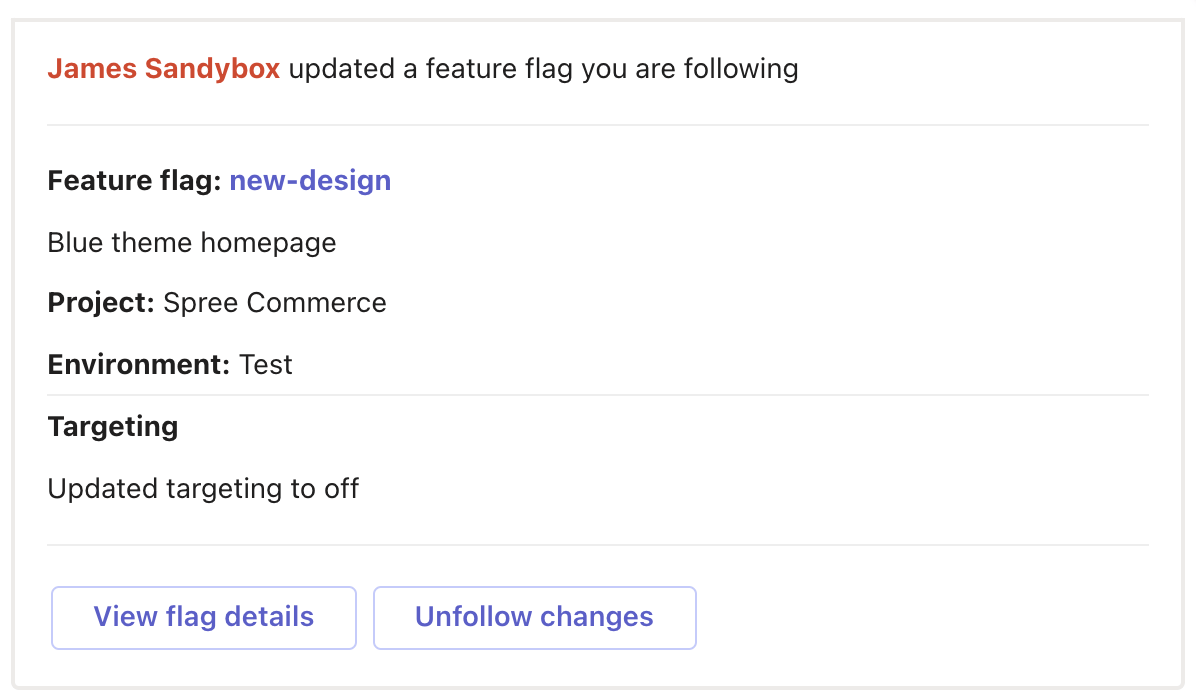
A flag notification message in Microsoft Teams.
- Click the flag name after “Feature flag:” to open the flag in LaunchDarkly.
- Click View flag details to view more information about the flag.
- Click Unfollow changes to stop receiving notifications for the flag. This will also unfollow the flag in LaunchDarkly.
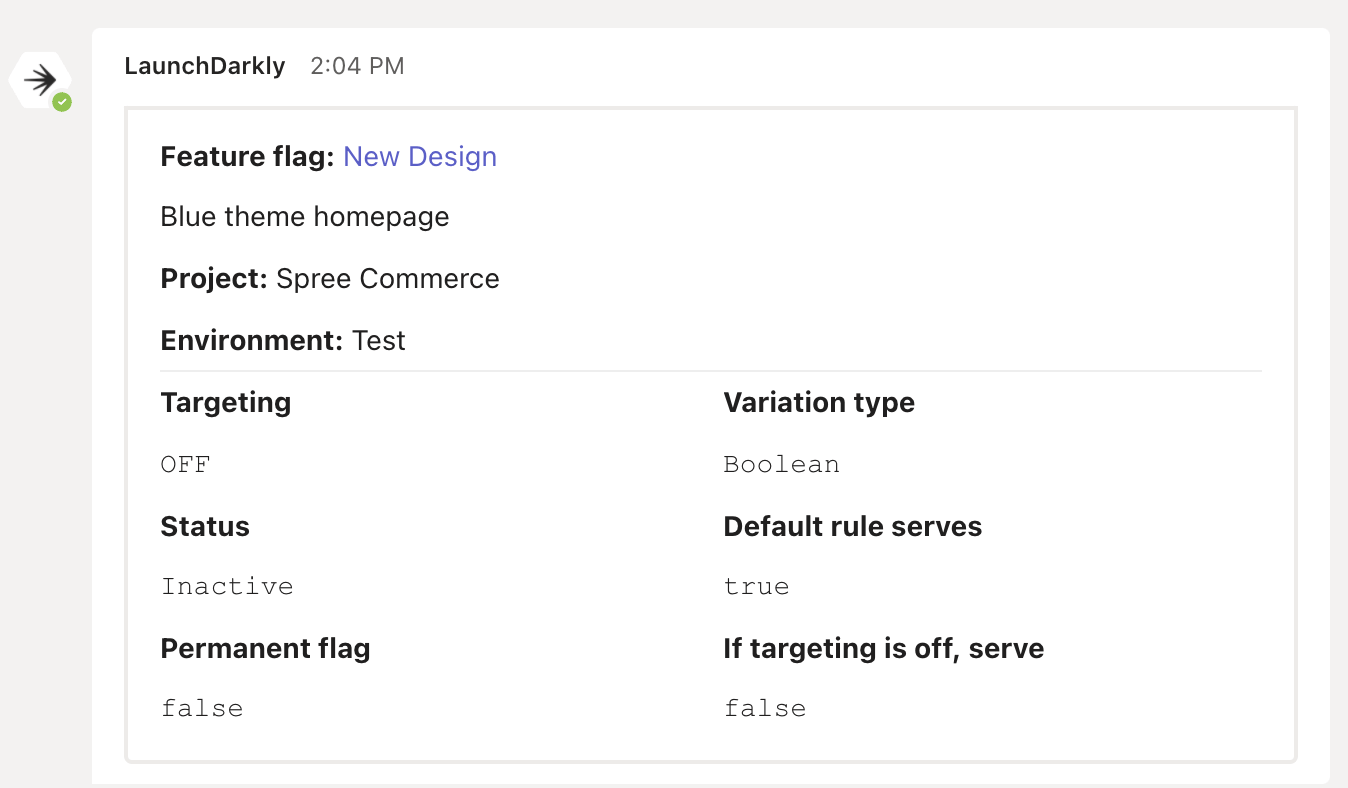
The flag details screen in Microsoft Teams.