

Prerequisites
In order to complete this topic, you must meet the following prerequisites.- You must have an existing ServiceNow account.
- You must have completed both parts of the setup for this integration. To learn more, read Setting up the ServiceNow approvals integrations.
Request approval for changes in ServiceNow
To request approval for changes in ServiceNow, you must request approval for the change in LaunchDarkly. The ServiceNow approvals integration supports approval requests for feature flag and experiment changes. To request approval in LaunchDarkly:- In LaunchDarkly, navigate to a feature flag or experiment and make your needed changes.
- Click Review and save. The “Save changes” dialog appears.
- If the Reviewer(s) menu is not visible, select the person icon.
- Choose one or more reviewers from the Reviewer(s) menu.
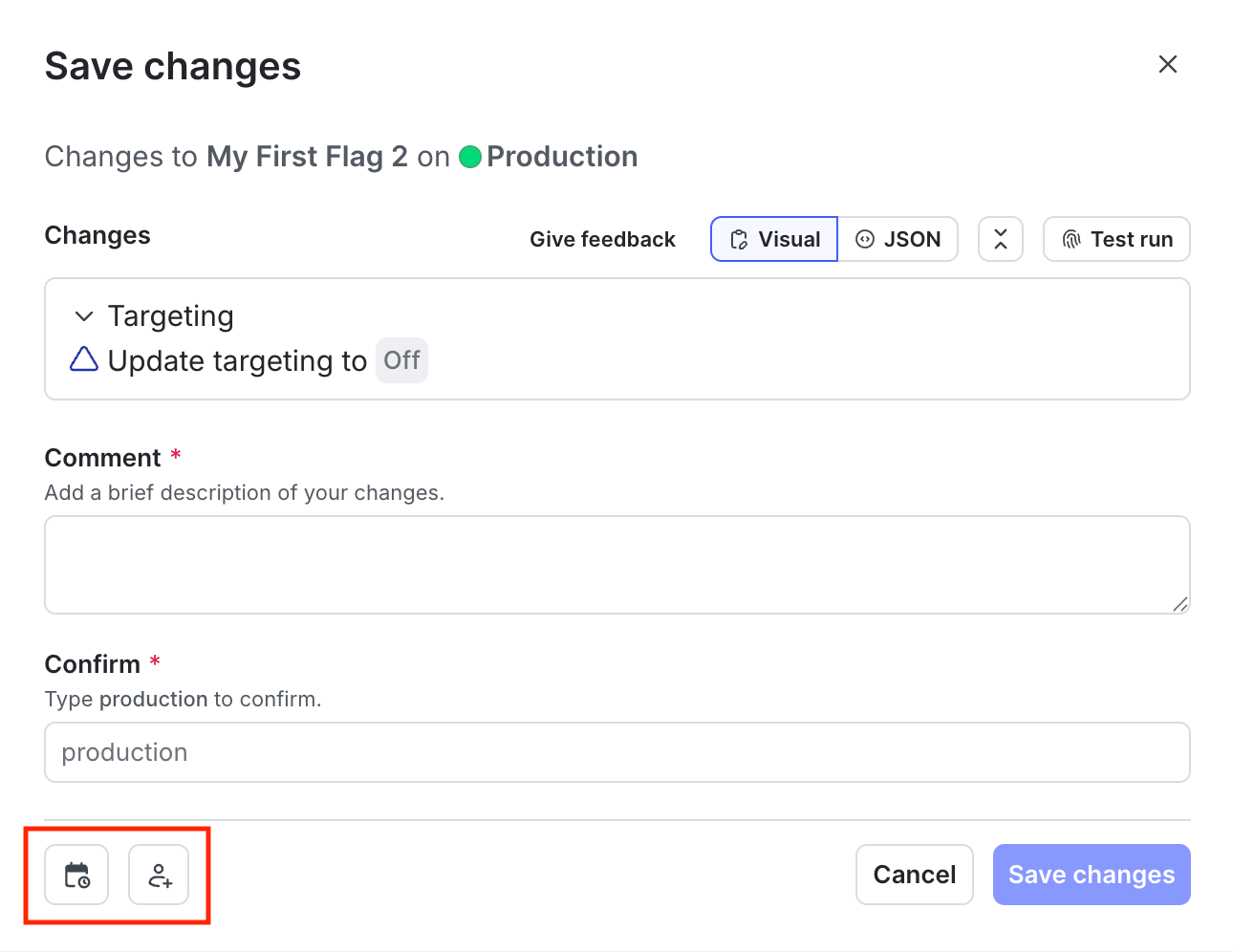
The "Save changes" dialog with the "Schedule changes" and "Add reviewers" icons called out.
- Enter a Comment to add details that help your reviewers understand the changes you made.
- Click Request approval.
- The approvers for feature flag and experiment changes receive a notification.
View and approve approval requests in ServiceNow
The approver for a change can view and, if using manual approvals, approve the request in ServiceNow. To view and approve the change request in ServiceNow:- In LaunchDarkly, click the “Pending changes” section in the right sidebar of the flag or experiment. The “Pending changes” panel opens.
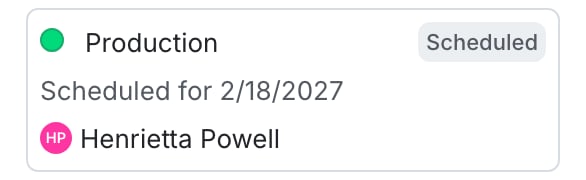
The "Pending changes" section of a flag.
- Next to the request you want to view, click View. The “Review request” screen appears.
- Click Review in ServiceNow. The change request screen in ServiceNow appears:
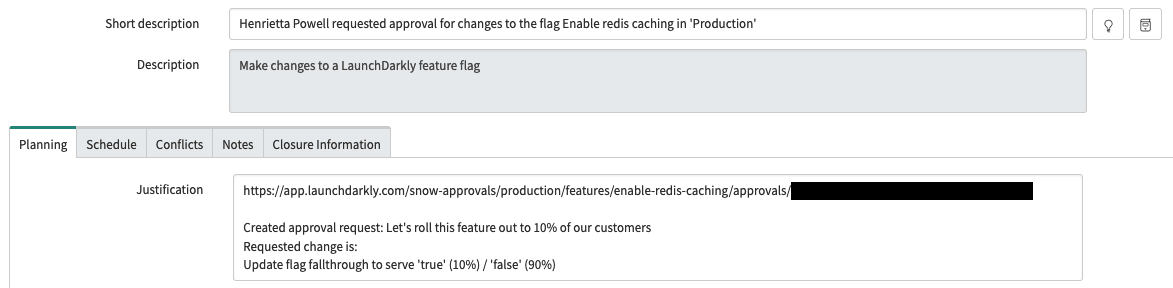
A ServiceNow change request populated with LaunchDarkly approval request details.
- View or approve the request in ServiceNow. When the ServiceNow approval conditions are met, ServiceNow changes the state to “Implement.”
- Alternatively, if ServiceNow changes the state to “Canceled,” LaunchDarkly changes the approval request status to “Declined.”
- Apply the approved changes:
- If your LaunchDarkly environment’s approval settings specify to Automatically apply changes in LaunchDarkly, then no further action is required. LaunchDarkly applies the changes when the associated ServiceNow change request is approved.
- If your LaunchDarkly environment’s approval settings do not specify to automatically apply changes, then you must apply the changes manually. You can do this within LaunchDarkly by clicking Apply Changes in the “Pending changes” panel.
| ServiceNow state | LaunchDarkly approval status |
|---|---|
| New | Needs review |
| Implement | Approved |
| Review | Completed |
| Canceled | Declined |
ServiceNow field mappings
Here is a table showing the fields LaunchDarkly specifies when it creates a ServiceNow approval request:| Approval request field in ServiceNow | Description |
|---|---|
short_description | A brief summary of what is being requested. This is automatically generated and includes the LaunchDarkly member name, flag or experiment name, and environment. The change request screen in ServiceNow, above, shows an example. |
justification | A more detailed summary of what is being requested. This includes a link back to the LaunchDarkly approval request, the member-provided comment, and an automated change description. The image of the change request screen in ServiceNow, above, shows an example. |
requested_by | The ServiceNow member ID associated with the LaunchDarkly member making the change. LaunchDarkly members are mapped to ServiceNow member IDs using email addresses. |
start_date | The timestamp when the approval request was created in LaunchDarkly, or the scheduled date if the approval request is for a scheduled change. |
end_date | The start_date with a small offset. |