

Relay Proxy offline mode is available to customers on select plansRelay Proxy offline mode is only available to customers on select plans. To learn more, read about our pricing. To upgrade your plan, contact Sales.
- Online mode is the default mode for the Relay Proxy. When you run the Relay Proxy in online mode, you can configure your SDKs for either proxy mode or daemon mode.
- Offline mode prevents the Relay Proxy from connecting directly to LaunchDarkly. When you run the Relay Proxy in offline mode, you must configure your SDKs for proxy mode.
Benefits of offline mode
For most customers, we do not recommend running the Relay Proxy in offline mode. Running the Relay Proxy in offline mode means that any time you make changes to your flag rules, you must re-download the flag rule file and update it on the Relay Proxy’s filesystem. The Relay Proxy then automatically detects the file change and reloads it. In contrast, running the Relay Proxy in online mode handles these changes automatically. However, there are benefits to using offline mode in certain circumstances. Enabling offline mode on the Relay Proxy lets you run the Relay Proxy without ever connecting it to LaunchDarkly. Instead of retrieving flag and segment values from LaunchDarkly’s servers, the Relay Proxy gets them from files located on your local host or filesystem. This allows you to run the Relay Proxy in a highly secure system, such as in your organization’s air-gapped or FedRAMP-compliant system. By using offline mode, you can secure the Relay Proxy away from any external touchpoints. Alternatively, if your primary concern is FedRAMP-compliance, you can also use the LaunchDarkly federal instance. To learn more, read LaunchDarkly in federal environments. You should not use a persistent feature store between the Relay Proxy and your application in offline mode. To run the Relay Proxy in offline mode, you must:- Ensure that your deployment is available. For example, if you are starting the Relay Proxy from a Docker image, make sure to copy the .tar to the container file system.
- Configure your SDKs to run in proxy mode. To learn how, read Configuring SDKs to use different modes.
Enable offline mode
Enabling offline mode is a two-step process. You must:- Create a Relay Proxy configuration from the Relay proxy page under Organization settings and save its unique key.
- Configure your Relay Proxy instance to use the unique key from the prior step. You may do so either as a property in your Relay Proxy configuration file or as an environment variable.
- Click the gear icon in the left sidebar to view Organization settings.
- Click Relay proxy. The “Relay Proxy” page opens.
- Click Create configuration. The “Create a Relay Proxy configuration” panel appears.
- Give the Relay Proxy a human-readable Name.
- Choose a Rule from the menu. This rule determines what content the Relay Proxy receives.
- “All projects and environments” sends changes about all projects and environments to the Relay Proxy.
- “Inline policy” allows you to specify which projects and environments you can track events for. To learn more, read Write an inline policy.
- Click Save configuration. The Relay Proxy appears on the Relay proxy page with its key visible.
- Copy and save the key somewhere secure:
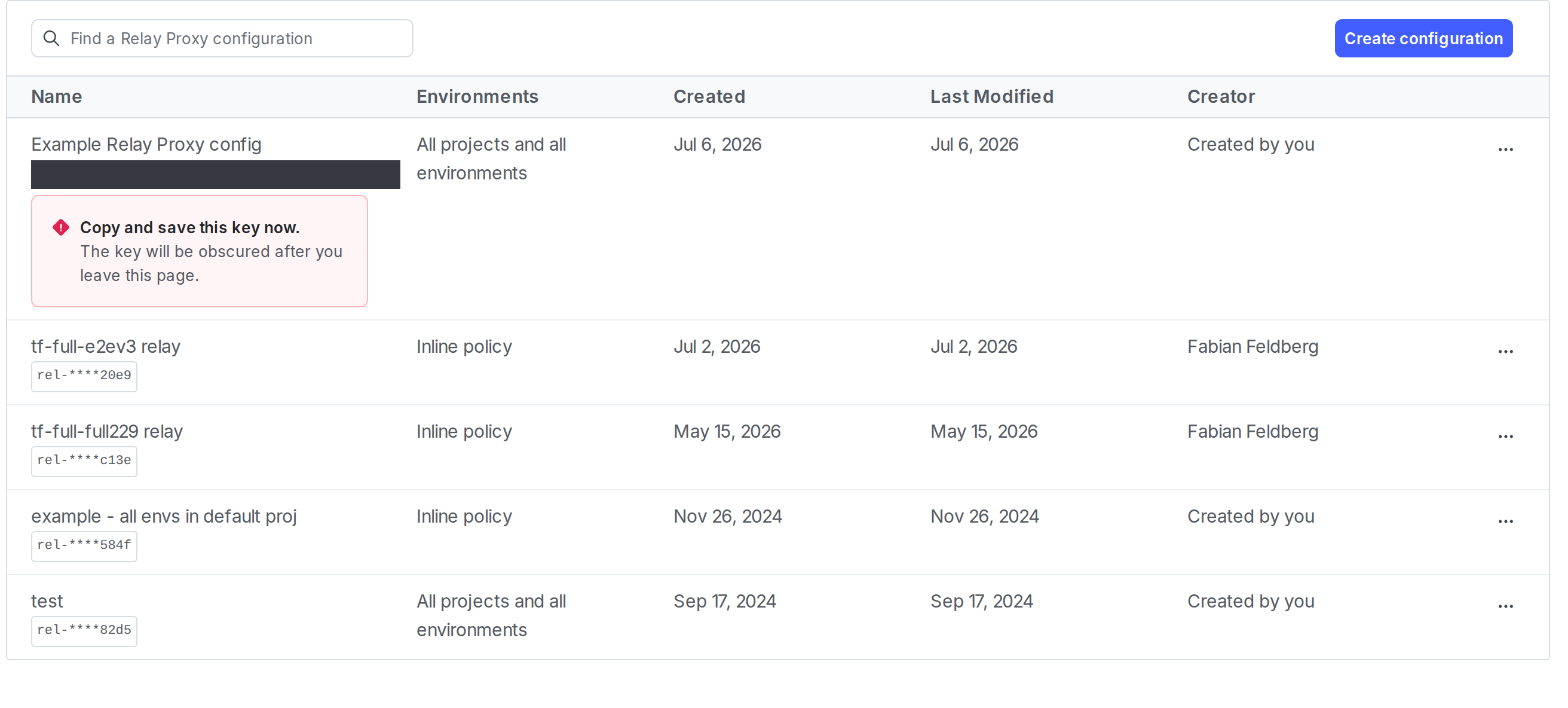
The "Relay proxy" page with a newly created Relay Proxy configuration. The key is displayed.
-
curl /relay/latest-all. This generates a file containing all your flag rules. An examplecurlis below: - Copy that file to your local host.
- The next step varies depending on whether you’re using a configuration file or environment variables:
-
If you’re using a configuration file, configure it to read the file you saved in step 2. In the file, specify an
OfflineModesection with thefileDataSourcekey and a value of the file’s path. -
If you’re using environment variables, specify the file with the
FILE_DATA_SOURCEenvironment variable.
- Start the Relay Proxy.
Update flag rules in offline mode
After you configure the Relay Proxy to run in offline mode, you do not need to connect to a network to update flag rules. If your flag rules change, you can update the Relay Proxy by re-downloading the flag rules file and updating it on your filesystem. To update the Relay Proxy in offline mode:- Make a request to
https://sdk.launchdarkly.com/relay/latest-allto generate a file containing all your flag rules. - Replace the existing file on the Relay Proxy’s filesystem with the newly-generated file. The Relay Proxy automatically detects that the file has changed and reloads it. You do not need to stop and restart the Relay Proxy in order to serve flag values based on the contents of this updated file.