

The LaunchDarkly change history used to be called the audit logThe LaunchDarkly change history used to be called the audit log. The LaunchDarkly REST API still references the audit log.
View the change history
The unlimited change history is available to customers on select plansThe unlimited change history is only available to customers on select plans. For Foundation plans, the change history is restricted for account changes to the last 30 days of events, and is otherwise unlimited. For Developer plans, the change history is restricted to the last 30 days of events. To learn more, read about our pricing. To upgrade your plan, contact Sales.
A portion of the Flags list, with the clock icon highlighted.
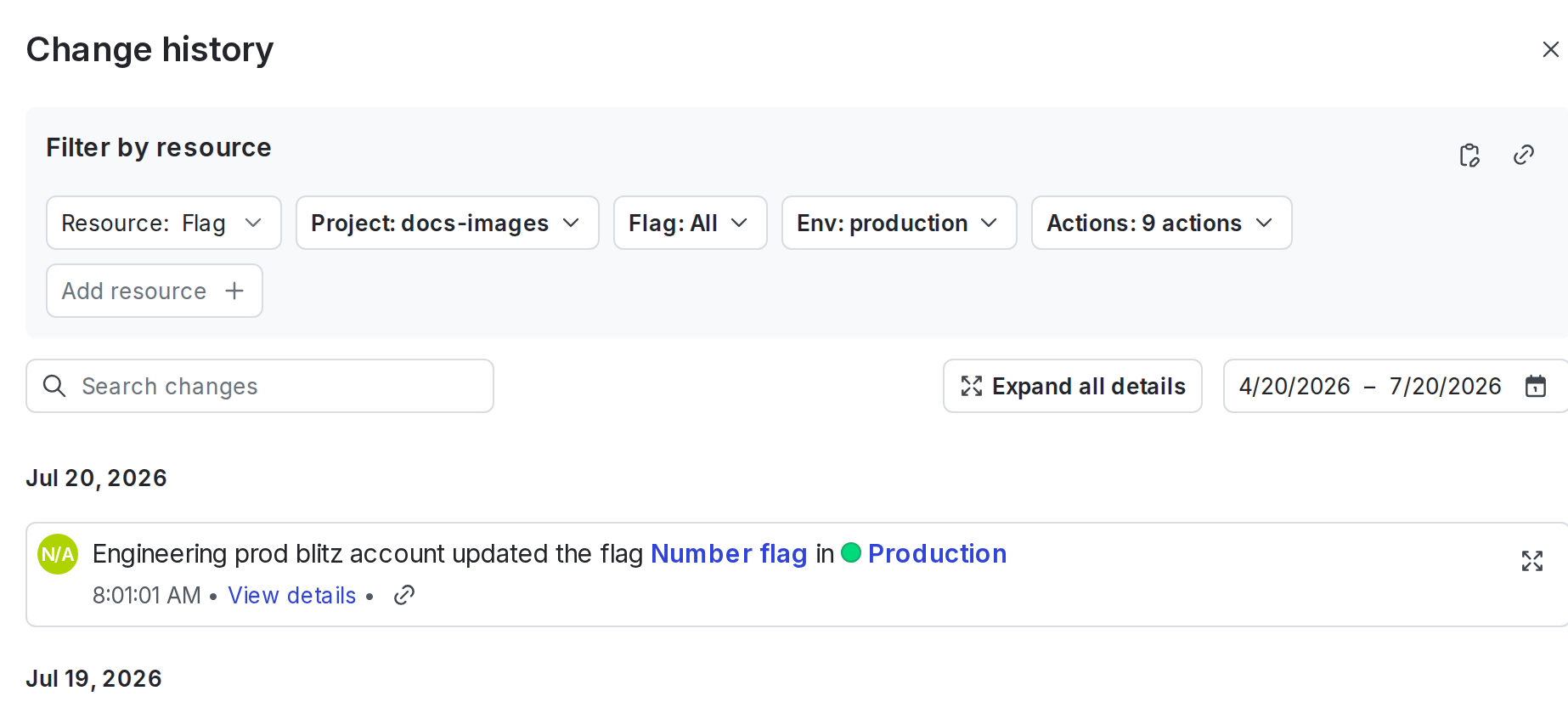
The "Change history" dialog, automatically filtered by resource, project, and environment.
View a change entry
To view the details of a specific change entry, click on its four-arrow expand icon:
The "link" and "expand" icons for a change entry.
- the member that made the change
- the resource affected
- the environment where the change was made
- the date of the change
- a list of the included changes
- a diff of the changes
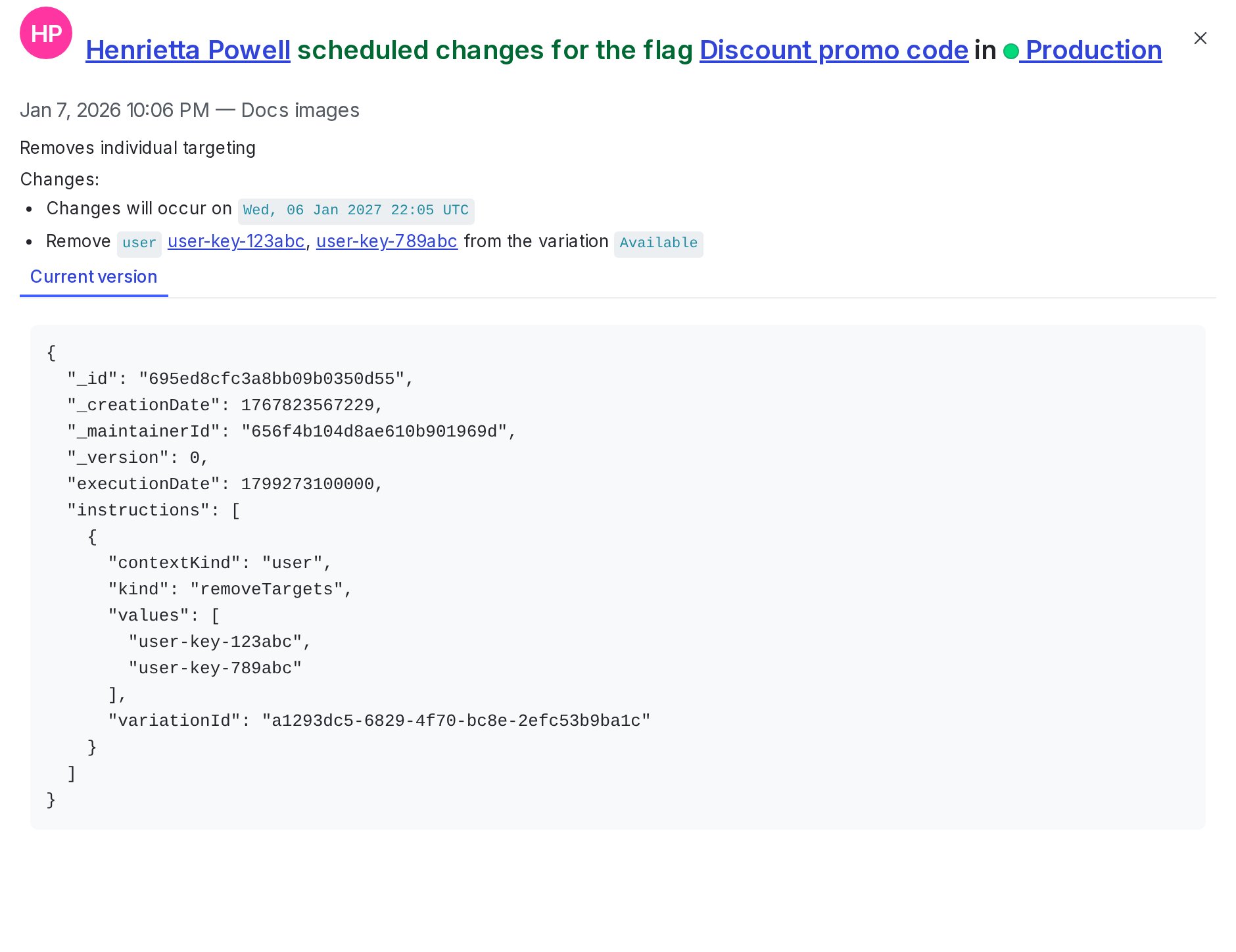
The details of a flag change.
Filter the change history
To filter the change history, use the “Filter by resource” section. You can use the “Filter by resource” section to filter the results by any of the following resources:- Account
- AgentControl config
- Application
- Code reference
- Context kinds
- Experiment
- Flag
- Integration
- Layer
- Member
- Metric
- Metric group
- Project
- Relay Proxy
- Release pipeline
- Role
- Segment
- Service token
- Team
- Template
- Webhook
Actions recorded in the change history
In the LaunchDarkly UI, the change history displays a description of each action or set of actions, as entered by the member who performed them. If you use the REST API to review the change history, the API response also includes a list of the specific actions. The actions displayed vary depending on the resource you’re viewing and your app configuration. To learn more about the actions you may see in the change history, read Using actions.
You can also use the REST API: Audit log