
Guarded rollouts health checks
This topic explains how to use health checks for guarded rollouts to confirm your rollout setup and troubleshoot configuration problems.
Guarded rollouts availability
All LaunchDarkly accounts include a limited trial of guarded rollouts. Use this to evaluate the feature in real-world releases.
Health checks help you confirm that your flag or AgentControl config, metrics, and context configuration allow Release Guardian to measure rollout performance correctly.
Health check statuses
When you create a guarded rollout, LaunchDarkly displays a health check status below the Target by field.
The possible statuses include:
- Health check waiting: LaunchDarkly does not yet have enough evaluation or metric data to determine the rollout’s health.
- Healthy: The flag or AgentControl config is receiving evaluations, selected metrics are receiving events, and the context kinds align with the selected randomization unit.
- Health warnings: At least one configuration issue prevents LaunchDarkly from accurately measuring the rollout.
Hover over the status to view detailed health checks.
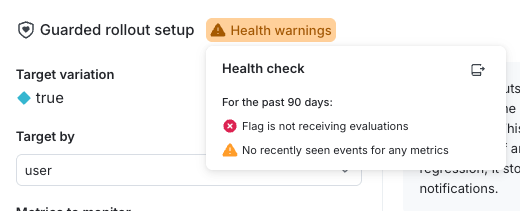
The individual health checks are described below.
Flag evaluations
This health check confirms that LaunchDarkly receives evaluation data for the flag or AgentControl config.
Possible statuses include:
- Flag is receiving evaluations: Contexts evaluate the flag, and SDKs send evaluation data to LaunchDarkly.
- Flag is not receiving evaluations: LaunchDarkly is not receiving evaluation data. This may indicate a flag key mismatch, incorrect SDK configuration, or missing traffic.
To review evaluation traffic, expand the Evaluations graph at the top of the Targeting tab.
Example: Flag is not receiving evaluations
Your organization creates a guarded rollout using the user context kind. After saving, the health check displays Flag is not receiving evaluations. This means LaunchDarkly has not received evaluation data for the flag.
To resolve this issue:
- Confirm that the SDK evaluates the correct flag key in your application code.
- Trigger the code path where the flag evaluation occurs so real traffic reaches LaunchDarkly.
- Verify that events are enabled in the SDK configuration.
After LaunchDarkly receives evaluations, the health check updates to Flag is receiving evaluations.
Flag context kinds
This health check confirms that evaluations use the same context kind as the rollout’s randomization unit.
If the flag evaluates against a different context kind than the one selected in the Target by menu, Release Guardian cannot measure rollout performance.
Possible statuses include:
- Flag is seeing [context kind]: Evaluations include the same context kind as the selected randomization unit.
- Flag is not seeing [context kind]: Evaluations use a different context kind than the selected randomization unit.
To learn more, read Randomization unit and Context kinds.
Example: Flag is not seeing the expected context kind
A guarded rollout uses organization as the randomization unit. The health check displays Flag is not seeing organization. Evaluations reaching LaunchDarkly do not include the organization context kind.
Your developers discover that the frontend sends a multi-context with both user and organization, while the backend sends only user. Because the rollout uses organization as the randomization unit, Release Guardian cannot measure performance until evaluations include organization.
To resolve this issue:
- Update backend evaluations to include a multi-context that contains both
userandorganization. - Confirm in the LaunchDarkly UI that the
organizationcontext kind is marked as Available for experiments and guarded rollouts.
When evaluations include the required context kind, the health check updates to Flag is seeing organization.
Metric randomization units
This health check confirms that each selected metric uses the same randomization unit as the guarded rollout.
The metric randomization unit health check appears only after LaunchDarkly receives events for the metric.
Possible statuses include:
- [Randomization unit] is tracked by [Metric name]: The metric uses the same randomization unit as the rollout.
- [Randomization unit] is not tracked by [Metric name]: The metric uses a different randomization unit than the rollout.
Randomization units depend on how the metric is configured, not on the event data currently sent to LaunchDarkly.
Example: Metric does not track the selected randomization unit
Your organization creates a guarded rollout and selects request as the randomization unit. Two latency metrics are attached. One metric uses request. The other uses user. The health check displays request is not tracked by latency percentile.
To resolve this issue:
- Review the metric configuration to confirm which randomization unit it uses.
- Align the metric with the rollout by updating the metric, selecting a different metric, or changing the rollout’s randomization unit.
- Save the updated configuration and confirm that new metric events include the required context kind.
After metric events match the selected randomization unit, the health check updates to request is tracked by latency percentile.
Metric events
This health check confirms that LaunchDarkly receives recent metric events.
Possible statuses include:
- Recently seen events for [metric name]: The metric has sent events within the last 90 days.
- No recently seen events for [metric name]: The metric has not sent events within the last 90 days.
If metrics do not send events during a period of time, difference charts display a flat segment using the most recent value. This approach keeps the timeline continuous and ensures hover behavior remains smooth.
You can confirm metric activity by reviewing the metric’s Activity tab.
Example: No recently seen events for a metric
A guarded rollout includes a conversion metric named Checkout conversions. The health check displays No recently seen events for Checkout conversions. The metric’s Activity tab shows that it last received events 90 days ago. The checkout flow changed, and the SDK no longer sends the checkoutCompleted event that the metric expects.
To resolve this issue:
- Verify the event name, properties, and context data in the SDK code.
- Update event tracking so that the
checkoutCompletedevent is sent again. - Confirm in the Activity tab that LaunchDarkly receives new metric events.
After events resume, the health check updates to Recently seen events for Checkout conversions.