
Warehouse native metrics
This topic explains how to configure a warehouse native metric for use in an experiment. Warehouse native metrics are metrics that measure events stored in an external warehouse, such as Snowflake.
Prerequisites
Before you can create a warehouse native metric, you must configure a warehouse native Experimentation integration and create at least one metric data source for the integration. To learn more, read Metric data sources. You can optionally create a new data source when you create a new metric.
Warehouse native metric requirements
Warehouse native metrics must be custom metrics or ratio metric.
Experiments that use warehouse native metrics cannot use:
- Clicked or tapped metrics
- Page viewed metrics
- Metric groups
- LaunchDarkly hosted metrics that measure events from LaunchDarkly SDKs
Create a warehouse native metric
To create a warehouse native metric:
- Open the Data section and navigate to the Metrics list.
- Click Create metric. The “Create metric” dialog appears.
- Select either Simple or Ratio as the metric structure.
- Select a configured warehouse integration from the Define metric using menu.
- Select an existing data source from Metric data source, or click Create metric data source to create a new one.
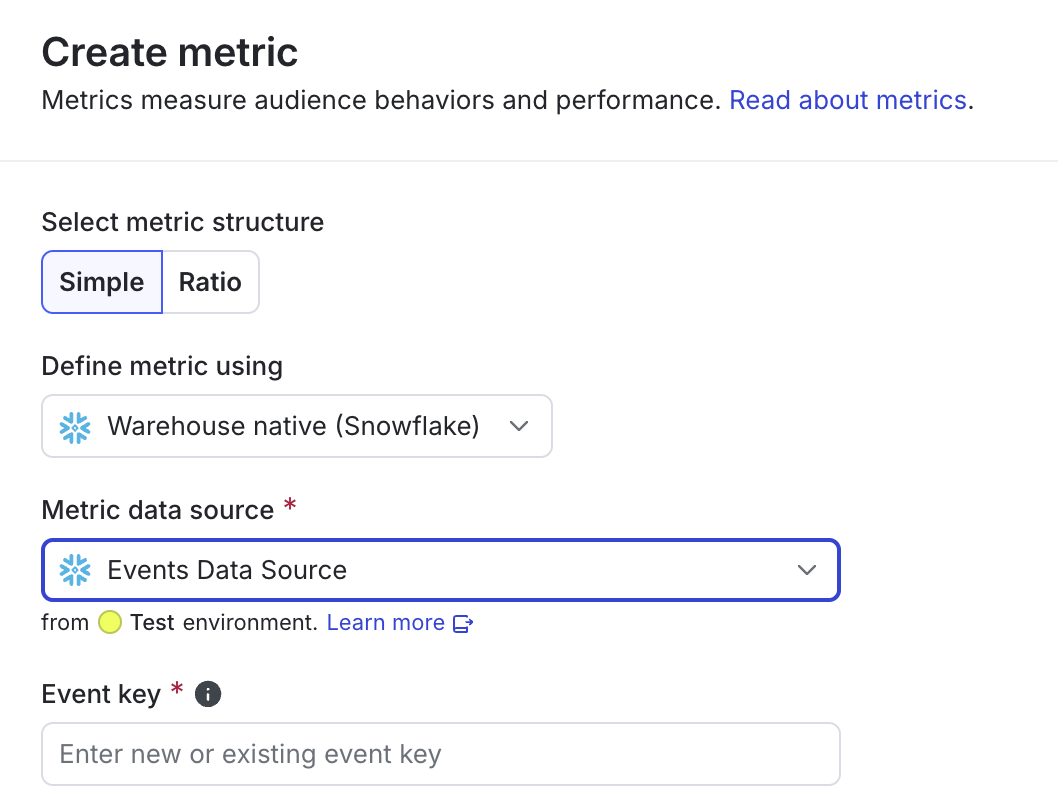
- Enter a new or existing event key to use for creating the metric.
- (Optional) Use the Filter by event properties field to create a filter query to choose the specific events you want to select for this metric. This field is available only for metrics created from Snowflake data sources. To learn more, read Filtering custom metric events.
- Finish creating the metric by continuing the procedure as described in custom conversion binary, custom conversion count, custom numeric, or ratio metric.
You can now create an experiment by selecting this metric.