

- Internal users: a group of internal employees who test new features before you release them to your beta testers.
- Beta testers: A group of customers that have agreed to act as beta testers for new products and features
- Enterprise accounts: a group of all of your enterprise-level customer accounts who should have access to your premium features
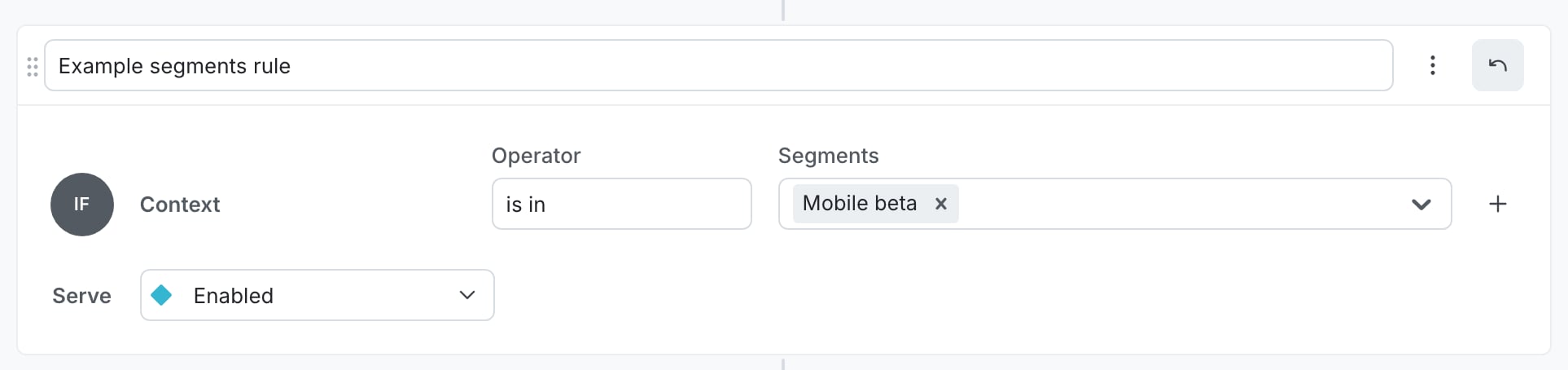
A flag rule targeting a "Mobile beta" segment.
How to use segments
Using segments requires three steps:- Create the segment
- Add targeting rules or add lists of contexts to target
- Target that segment in one or more flags
Example use
For an example of how you can use segments, read Using segments and targeting to manage early access programs.View segments
You can view segments from the Segments list: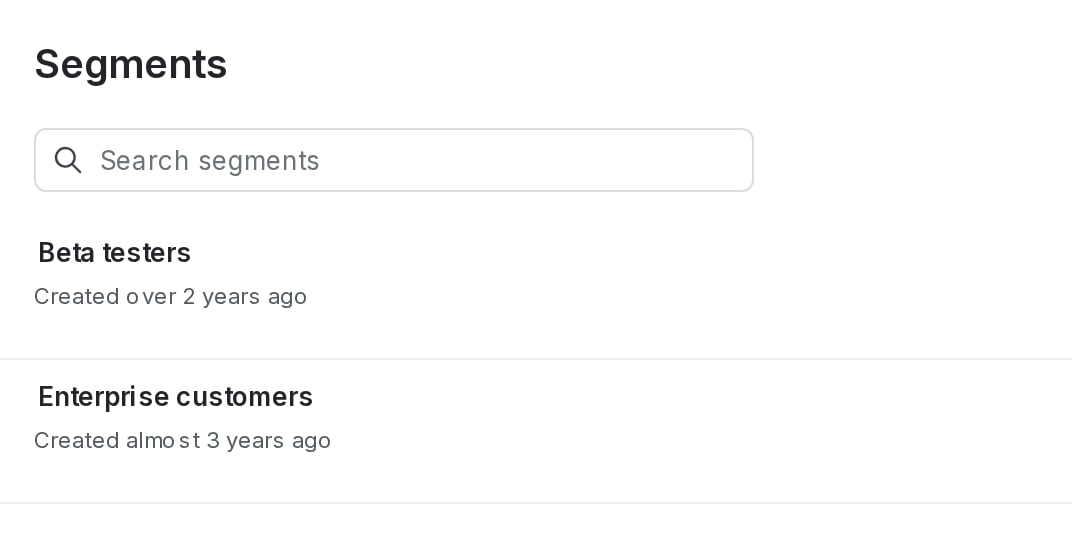
The "Segments" list.
Save filtered Segments lists
You can create shortcuts to filtered Segments lists, and save them in the left sidebar to return to at any time. To create a shortcut to a filtered Segments list:- In the left sidebar, click Code. The CodeControl menu appears.
- Click Segments.
- Add your desired environments to the Segments list following the instructions in Open environments.
- Add any segment filters you need such as tags or segment kind.
- Click the bolt icon above the Segments list to create a shortcut:
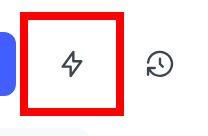
The Segments list with the "bolt" shortcut icon called out.
- Add a Name for your shortcut.
- (Optional) Choose an Icon to represent your shortcut in the left sidebar.
- Click Save.
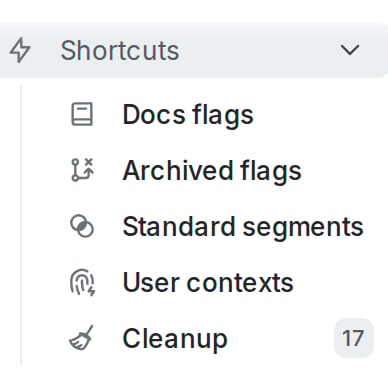
A list of shortcuts in the left sidebar.
View segment details
To view a segment’s details:- In the left sidebar, click Code. The CodeControl menu appears.
- Click Segments.
- Click the Name of the segment.
- The segment details page appears.
- which flags use this segment in their targeting rules
- which flag variations are served to the contexts in this segment
- which individual targets are included or excluded from this segment
- the targeting rules for this segment
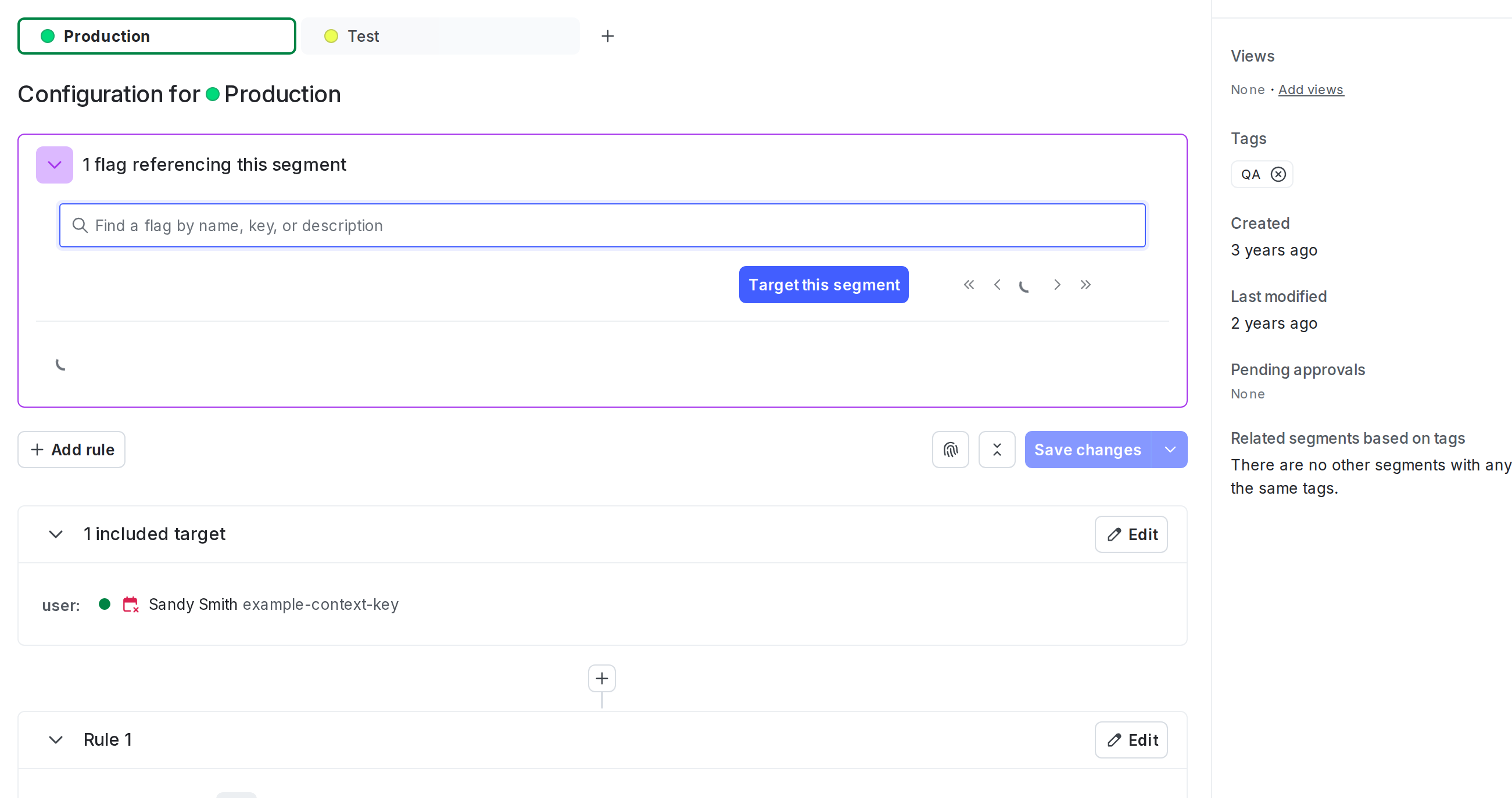
A segment's details page.