

Subscribe to notifications
You can subscribe to updates for flags, metrics, projects, or environments. When someone updates a resource or when an alert is triggered, either directly in LaunchDarkly or through the Slack app, LaunchDarkly sends a notification to all channels subscribed to updates for that resource. Subscriptions must have a project, and can optionally include parameters like a specific environment, flag name, status, or tag that will filter the notifications you receive. There are two ways to create a subscription to flag notifications: the Slack modal workflow or the/launchdarkly subscribe command. Subscriptions created through the modal must specify a project and environment.
Subscribe using the modal
To subscribe using the modal:- Open the Slack channel you want notifications in.
- After you set up the Slack app, you can subscribe to notifications in any public Slack channel.
- If you want notifications in a private Slack channel, you must add the Slack app to the channel explicitly. Click the Integrations tab in the private channel. Then select Add app.
- Type
/launchdarkly subscribein your Slack client’s text bar and press Enter. The “Create subscription” dialog appears.
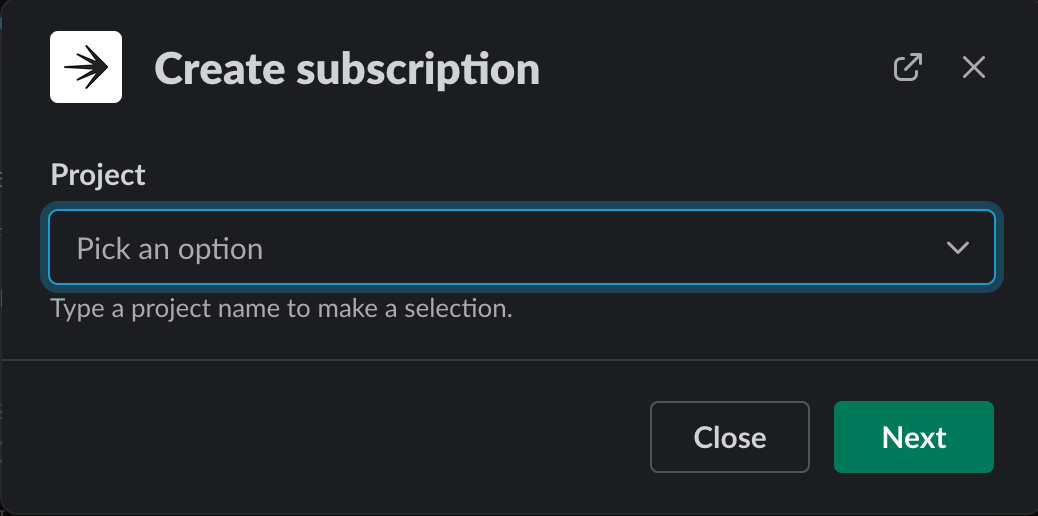
The create subscription dialog.
- Select the project and environment you’d like to receive notifications for.
- (Optional) You can further refine your subscription defining specific flag, status, action, or tag. You can use
*as a wildcard in your flag key. You’ll only receive updates for flags that match these parameters.
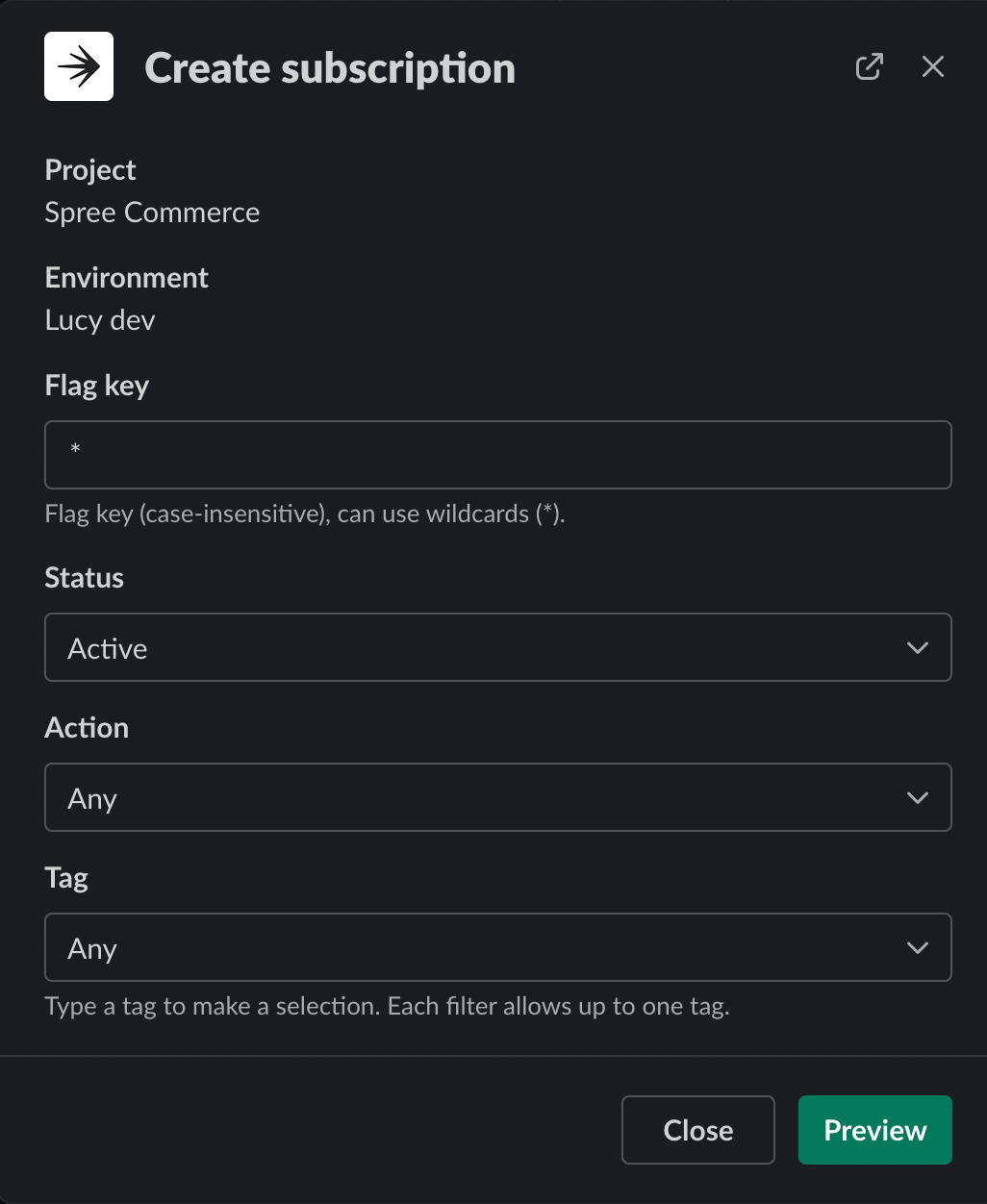
The modal to select subscription parameters.
- Click Preview to view the list of flags that your parameters include.
- Click Create subscription to subscribe the channel to flag notifications. A confirmation message appears in the channel after you close the dialog.
Subscribe using the command
There are two ways to subscribe to updates using the command: with keyword arguments (recommended), or with positional arguments. To view more information and examples of the subscribe command, run/launchdarkly help subscribe in a channel that the LaunchDarkly bot is in.
Subscribe with keyword arguments
You can use keyword arguments to create a subscription with any combination of parameters. At least one parameter is required. Here’s how:- Open the Slack channel you want notifications in.
- After you set up the Slack app, you can subscribe to notifications in any public Slack channel.
- If you want notifications in a private Slack channel, you must add the Slack app to the channel explicitly. Click the Integrations tab in the private channel. Then select Add app.
- Run
/launchdarkly subscribeand pass in any combination of the following arguments:-por--project=-eor--environment=-for--flag_key=-sor--status=-aor--action=-tor--tag=
- Press Enter.
qa environment of the chatbot project, with status active and tag production:
Subscribe with positional arguments
You can use positional arguments to create a subscription for a single flag. You must provide all three arguments. Here’s how:- Open the Slack channel you want notifications in.
- After you set up the Slack app, you can subscribe to notifications in any public Slack channel.
- If you want notifications in a private Slack channel, you must add the Slack app to the channel explicitly. Click the Integrations tab in the private channel. Then select Add app.
- Run
/launchdarkly subscribeand provide in order the project, environment, and flag key of the flag you would like to subscribe to. - Press Enter.
chat-response flag in the qa environment of the chatbot project:
Manage subscriptions
You can view and remove subscriptions in a Slack channel using the/launchdarkly list command:
- Open the Slack channel where you would like to remove notifications.
- Type
/launchdarkly listand press Enter. A list of subscriptions for the channel appears. - Locate the subscription you wish to remove from the channel.
- Click Remove.
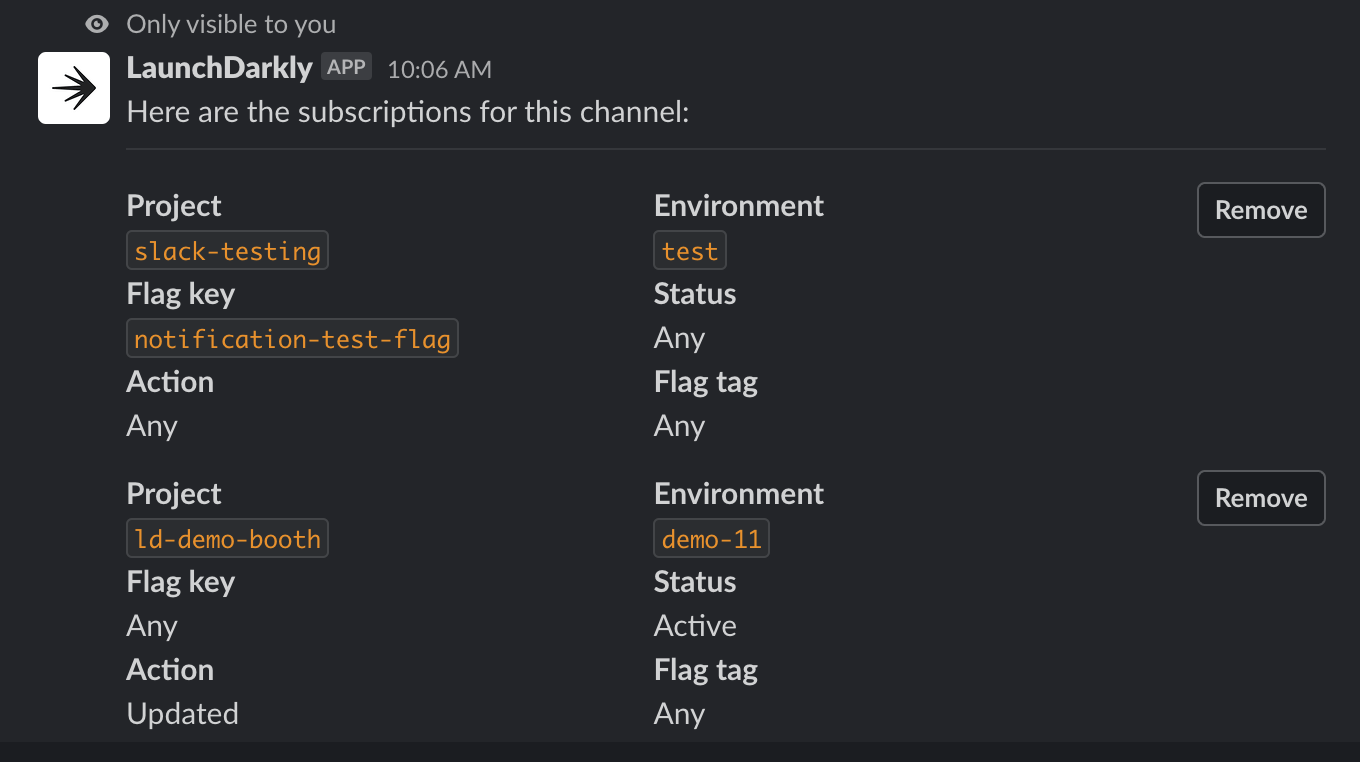
The output of the /launchdarkly list command.
Notification information
Flag notifications include the following information:- The name of the person who made the change
- The name of the flag
- The environment, project, and key of the flag
- A comment about the change, if applicable
| Subscription parameters | Required | Description |
|---|---|---|
| Project | Required | All subscriptions must include a project and environment to get flag notifications for. |
| Environment | Optional, but required in modal creation | All subscriptions must include a project and environment to get flag notifications for. |
| Flag key | Optional | A flag key to get notifications for, which can begin or end with a wildcard * to include all matching flag keys. |
| Status | Optional | Filter by flag status. Available statuses are:
|
| Action | Optional | Filter by action. Available actions are:
|
| Flag tag | Optional | Filter by a list of all flag tags. Does not include other types of tags, such as segment tags. |
Receive approval request notifications
Approvals is available to customers on select plansApprovals are only available to customers on select plans. To learn more, read about our pricing. To upgrade your plan, contact Sales.Requiring approvals by environment is available only to customers on an Enterprise plan. To learn more, read Configuring approvals for an environment.