

- Click the gear icon in the left sidebar. The settings page opens.
- Click Flag settings. The flag settings page appears.
Client-side availability
To make all of a project’s flags available to client-side or mobile SDKs by default:- Open the Flag settings screen for your project.
- In the “Client-side availability” section, check SDKs using Mobile Key or SDKs using Client-side ID.
- Click Save.
Security implications of making flags available to mobile SDKsSDKs for mobile devices use mobile SDK keys, which are readily available to mobile apps. A leaked mobile SDK key allows the holder to circumvent JavaScript’s Secure Mode. This can give the holder access to the value of every flag for any context, even without knowing the SDK key that hashes the context key in Secure Mode.
Flag key conventions
If you would like to standardize how members of your organization define feature flag keys, you can specify a convention in the project settings and LaunchDarkly will enforce your convention for all new flags. This includes flags that you create or import through the LaunchDarkly user interface, as well as flags that you create using the REST API. To enforce naming conventions for flag keys:- Open the Flag settings list for your project.
- Select a Casing convention in the “Flag key conventions” section. Review the example to confirm the convention you’ve selected:
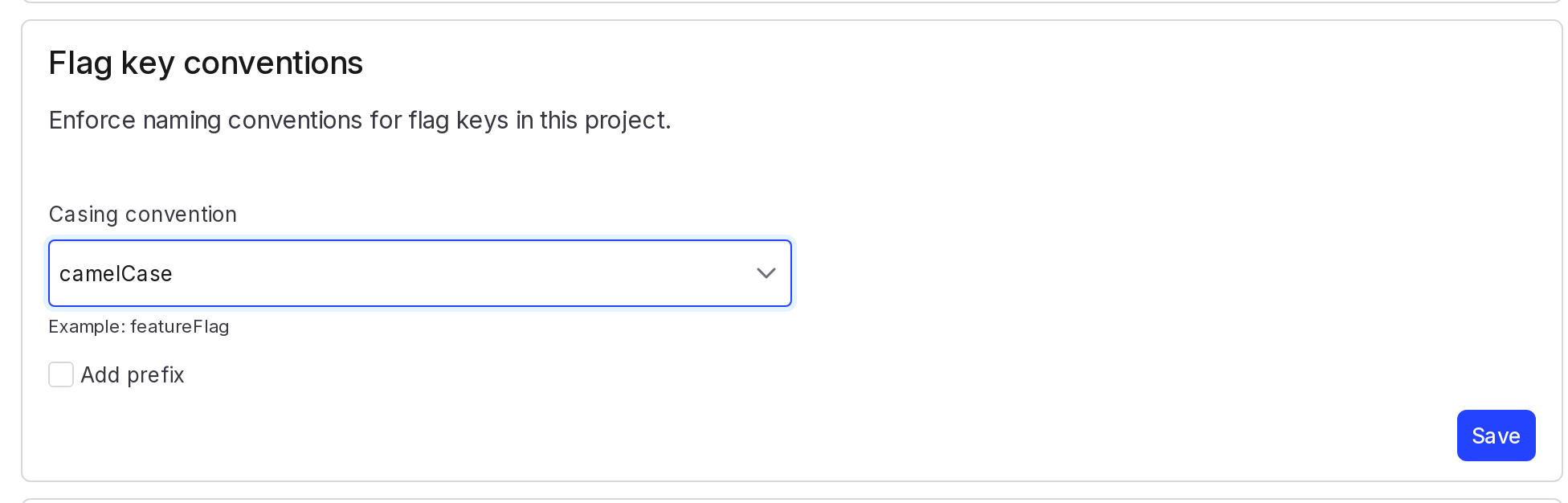
The Flag key conventions section, with "camelCase" selected.
- (Optional) Check Add prefix and enter a Prefix that all flag keys should use.
- Select Save.
Automatically generated flag keysThe key in the Key field is automatically generated from the flag name. The system adds a dash between letters and numbers. For example, a flag named
example-flag-v1 generates the suggested key example-flag-v-1.This behavior is intentional for consistency and readability but is only a suggestion, not a requirement. You could manually update the generated key to example-flag-v1 if you wished.Flag templates
LaunchDarkly projects have groups of default settings, called “templates,” for each type of flag. When you create a flag from a template, that template’s default settings appear as pre-set configuration options. You can modify default flag templates. LaunchDarkly applies those default settings to new flags of the same template type within the project. Updated default settings only apply to flags created after you modified the default settings. If you change a flag template’s default settings, LaunchDarkly does not retroactively apply the new defaults to existing flags. To modify a flag template:- Open the Flag settings list for your project.
- In the “Flag templates” section, click the pencil icon on the flag template you wish to modify and follow the section for that flag template:
Default flag template settings
This section lets you customize the default template settings for custom flags. Here’s how:- In the “Flag templates” section, click Edit.
- Choose Yes or No to mark all flags of this template type as temporary or permanent.
- In the “Variations” section, edit the flag variation Names.
- In the “Default variations” section, choose which default variations to serve when the flag is toggled On or Off.
- In the “Tags” section, type to add tags to each new flag by default.
- Click Save.
Release flag template settings
This section lets you customize the default template settings for release flags. Here’s how:- In the “Flag templates” section, click Edit.
- Choose Yes or No to mark all flags of this template type as temporary or permanent. Release flags are usually temporary.
- In the “Variations” section, edit the flag variation Names.
- In the “Default variations” section, choose which default variations to serve when the flag is toggled On or Off.
- In the “Tags” section, type to add tags to each new flag by default.
- Click Save.
Kill switch flag template settings
This section lets you customize the default template settings for kill switch flags. Here’s how:- In the “Flag templates” section, click Edit.
- Choose Yes or No to mark all flags of this template type as temporary or permanent. Kill switch flags are usually permanent.
- In the “Variations” section, edit the flag variation Names.
- In the “Default variations” section, choose which default variations to serve when the flag is toggled On or Off.
- In the “Tags” section, type to add tags to each new flag by default.
- Click Save.
Experiment flag template settings
This section lets you customize the default template settings for experiment flags. Here’s how:- In the “Flag templates” section, click Edit.
- In the “Tags” section, type to add tags to each new flag by default.
- Click Save.
Migration flag template settings
This section lets you customize the default template settings for migration flags. Here’s how:- In the “Flag templates” section, click Edit.
- In the “Tags” section, type to add tags to each new flag by default.
- Click Save.
Require a team maintainer for new flags
By default, the account member who creates a flag becomes its maintainer. To keep flag ownership with a group instead of an individual, you can require that a team is set as the maintainer for every new flag in the project. Requiring a team maintainer keeps flag upkeep from depending on a single member who might change teams or leave your organization. To change this setting, you need a role with theupdateTeamMaintainerRequirements project action. To learn more, read Project actions.
To require a team maintainer for new flags:
- Open the Flag settings list for your project.
- In the “Team maintainer requirement” section, turn on Require new flags to have a team as their maintainer.