

Restricted to warehouse native metricsYou can configure winsorization only for warehouse native metrics, for use with LaunchDarkly experiments. You cannot configure winsorization for metrics created from LaunchDarkly hosted events. To learn more, read Metric event sources.
Limiting the impact of extreme values on experiments
Winsorization is a statistical technique that replaces outlying values with values at a configured percentile. Using metric winsorization helps you limit the impact of extreme values in LaunchDarkly experiment results without introducing bias by selectively removing values. For example, consider a metric that generates the following (sorted) latency values for a single randomization unit during the course of an experiment:Common use cases
Winsorization is most commonly used with metrics that produce a long tail distribution of values. This generally corresponds to metrics that measure revenue, latency, or session duration. Using winsorization at the upper bound for P90 or higher percentiles limits the impact of extremely high values that would negatively skew experiment results.How LaunchDarkly computes winsorization percentiles
LaunchDarkly computes the percentile values for winsorization using all metrics collected for a randomization unit across all arms of a warehouse native experiment. For metrics that use a metrics measurement window configuration, LaunchDarkly uses only those values collected within the configured window to determine the percentile values. If no window is configured, the measurement duration corresponds to the length of the experiment itself. If you chooseInclude units and set the value to 0 for a numeric metric, LaunchDarkly does not include assigned zero values when it computes winsorization percentiles. To learn more, read Units without events.
Prerequisites and limitations
You can configure metric measurement winsorization for any warehouse native metric. You cannot configure winsorization for metrics created from LaunchDarkly hosted events.Configuring winsorization
You configure optional winsorization properties after you specify the analysis method for a warehouse native metric.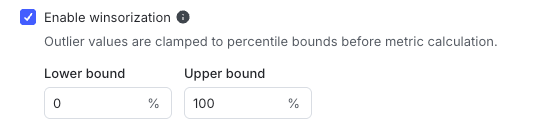
Configuring metric winsorization.
- Open the Data section and navigate to the Metrics list.
- Click Create metric. The “Create metric” dialog appears.
- Select Warehouse native from the “Event source” menu.
- Select an available data source from the “Metric data source” menu, or create a new data source. To learn more, read Metric data sources.
- Search for or enter an Event key to use for the metric.
- Choose the metric aggregation from the “Metric definition” section. The window populates a full metric definition using default values.
- Change options in the “Metric definition” drop-down menus as needed to change the analysis units or other metric analysis options. To learn more, read Components of a metric.
- (Optional) Choose Enable custom measurement window if you want to configure a metric measurement window. To learn more, read Metric measurement window.
- Choose Enable winsorization.
- Enter percentile values in the Lower bound and Upper bound fields as needed to specify the percentile value(s) used to winsorize extreme values. If you are configuring two-sided winsorization, the Upper bound value must be greater than the Lower bound value. Set Lower bound to zero, or Upper bound to 100, to disable winsorization for that bound.
- Enter a Metric name and an optional Description.
- Click Create.