
Custom approvals
The Custom approvals integration is only available to customers on select plans. To learn more, read about our pricing. To upgrade your plan, contact Sales.
You cannot use custom approvals in any environment that uses workflows or the ServiceNow integration. Custom approvals are still available in other environments that don’t use workflows or the ServiceNow integration.
This topic describes how to create your own custom approvals integration. Only customers with complex workflow management or approval systems in third-party applications that LaunchDarkly does not integrate with directly are likely to need a custom approvals integration.
Use cases for custom approvals
LaunchDarkly provides several integrations so that you can use third-party workflow management applications. However, the provided LaunchDarkly integrations are optimized for relatively basic change management workflows in the third-party applications.
For example, LaunchDarkly’s ServiceNow approvals integration embeds LaunchDarkly approvals into your ServiceNow workflows. All approval requests created in a LaunchDarkly environment generate corresponding ServiceNow standard change requests, and LaunchDarkly uses the state of the corresponding standard change request to determine if the proposed change should be acknowledged as “approved” or “declined.”
If you have more complex workflow management processes or approval requirements, you can still set up LaunchDarkly-created approval requests to generate corresponding requests in your system. For example, if you have a customized ServiceNow implementation that does not use standard change requests, you can use a custom approvals integration with LaunchDarkly.
Set up custom approvals
To set up custom approvals in LaunchDarkly, you must to do the following:
- Create and host your own application that serves as an intermediary between LaunchDarkly approvals and your workflow management application
- Add a custom approvals integration configuration to link LaunchDarkly to your intermediary application
- Configure LaunchDarkly environments to use the custom approvals integration configuration
After all of these steps are complete, you can use custom approvals from within LaunchDarkly.
Use custom approvals
After you create your own intermediary application, add a custom approvals integration configuration and configure your chosen LaunchDarkly environments to use the custom integration. This lets members of your organization in LaunchDarkly request approval for flag and experiment changes within LaunchDarkly. LaunchDarkly sends these requests to your intermediary application, which can process them or forward them to your workflow management application.
To request flag and experiment change approvals from within LaunchDarkly:
- In LaunchDarkly, navigate to the feature flag or experiment that you wish to change. Make sure you are in an environment for which the approval settings are set to your custom approvals integration.
- Click Review and save. The “Save changes” dialog appears.
- If the Reviewer(s) menu is not visible, select the person icon.
- Choose one or more reviewers from the Reviewer(s) menu.
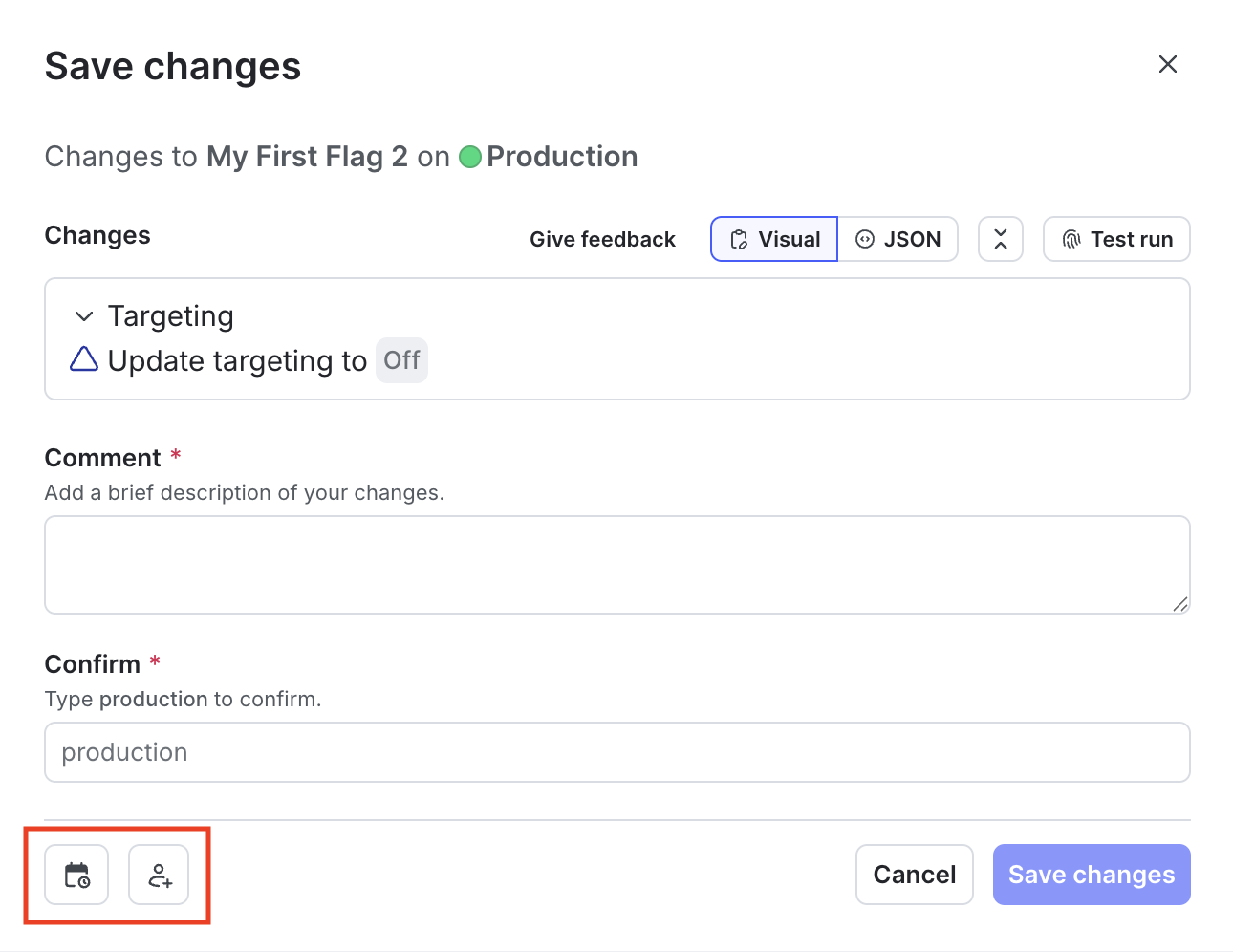
- Enter a Comment to add details that help your reviewers understand the changes you made.
- Click Request approval.
The approvers for changes receive a notification in your workflow management application, where they can view and approve it.
After they approve the request, the member can apply the change in LaunchDarkly.