
Grafana
The Grafana integration is only available to customers on select plans. To learn more, read about our pricing. To upgrade your plan, contact Sales.
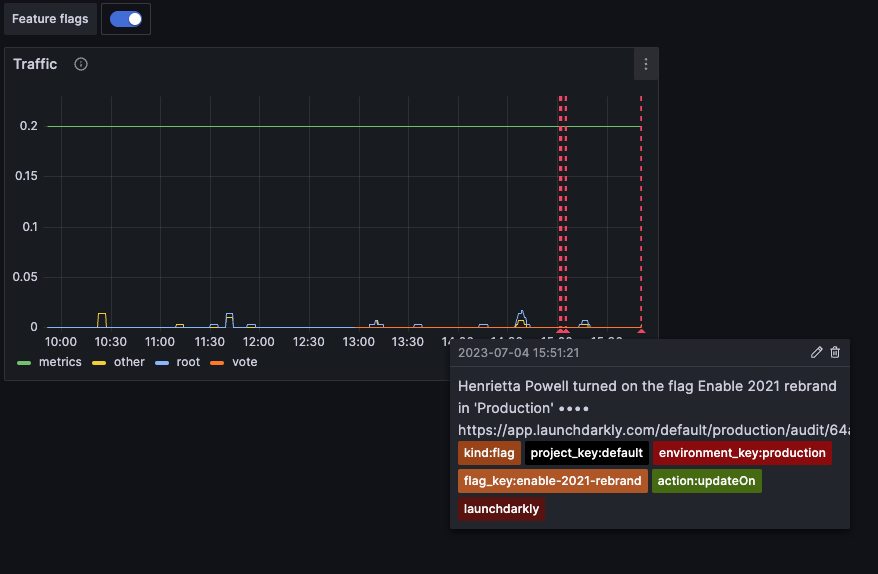
This topic explains how to use the LaunchDarkly Grafana integration. You can use the integration to send flag, environment, and project updates to Grafana as annotations to add context to your graphs.
Prerequisites
To use the Grafana integration, you must have the following prerequisites:
- A Grafana instance that is accessible to LaunchDarkly’s servers.
- A Grafana service account with the “Annotation writer” role and a corresponding service account token.
Create a Grafana service account and service account token
To create a Grafana service account, follow Grafana’s service account creation instructions. Change the Role selection to “Annotation writer.”
For the display name, we recommend “LaunchDarkly integration” or similar.
Next, generate a service account token for the service account you just created following Grafana’s service account token instructions.
Set up the Grafana integration
After you create a service account token in Grafana, you can set up the integration in LaunchDarkly.
- Click the gear icon in the left sidebar to view Organization settings.
- Click Integrations and find “Grafana.”
- Click Add integration. The “Create Grafana configuration” panel appears.
- (Optional) Give your integration a human-readable Name.
- Enter your Grafana instance URL. Do not include a trailing
/. - Enter the Grafana service account token. You created this token in the Prerequisites section.
- (Optional) Configure a custom policy to control which events LaunchDarkly sends to Grafana. To learn more, read Filter the events you send to Grafana.
- After reading the Integration Terms and Conditions, check the I have read and agree to the Integration Terms and Conditions checkbox.
- Click Save configuration. The new integration appears on the Integrations page. It is switched On by default.
After you set up the Grafana integration, events from LaunchDarkly appear in your Grafana dashboard.
Filter the events you send to Grafana
By default, LaunchDarkly sends events to Grafana for changes made to any feature flag, environment, or project. If you have a more limited use case for using the integration, or you wish to restrict which data you send to Grafana, you can filter which events LaunchDarkly sends.
To filter events, write a policy using the same syntax as the role policy builder to filter the events sent to Grafana.
For more information about writing policies, read Using policies.
For example, if you only want to receive an event when a change is made to one of the feature flags in your testing environment, you can add the following policy to your events stream:
To add a custom filter:
- Navigate to the Integrations page and find “Grafana.”
- Click the overflow menu next to the configuration you wish to modify, and select “Edit integration configuration.” The “Edit Grafana configuration” panel appears.

- In the “Policy” section, click Advanced editor. The Advanced editor appears.
- Enter your custom policy.
- Click Save configuration.
You can verify that LaunchDarkly is sending a customized set of events by viewing the events in your Grafana dashboard.
Add LaunchDarkly annotations to Grafana dashboards
To add LaunchDarkly events as annotations in Grafana dashboards:
- Open the Grafana dashboard in edit mode.
- Click the Dashboard settings gear icon button located at the top of the page.
- Click Annotations.
- Click New query. The “New annotation” page appears.
- Enter a human readable name for the annotation, such as “LaunchDarkly feature flags.”
- In the Data source menu, select ”— Grafana —.”
- In the Filter by menu, select Tags.
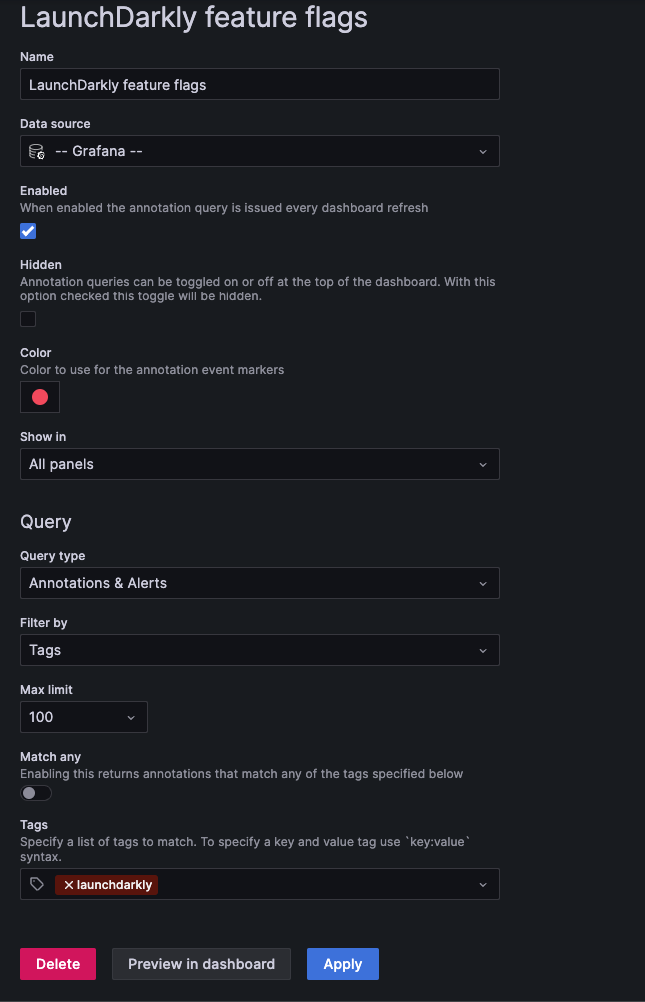
- The LaunchDarkly integration sends annotation events to Grafana with event-specific tags. You can use one or more of the following tags to filter the annotations that appear on your dashboard:
- Click Apply.