
Slack incoming webhooks
This topic explains how to use the Slack webhook integration to set up Slack incoming webhooks to receive any activities in LaunchDarkly. When you change something in LaunchDarkly, for example, when you update a feature flag, update a segment, or invite a new account member, LaunchDarkly sends an incoming webhook to Slack.
LaunchDarkly has developed a new Slack app which is more powerful and easier to use than the Slack webhooks integration.
The content below describes the older webhook-based integration.
Create a Slack incoming hook
First, create an incoming hook in Slack. To do this:
- Navigate to the Incoming Webhooks page in Slack.
- Select a Slack channel.
- Click Add Incoming WebHooks integration:
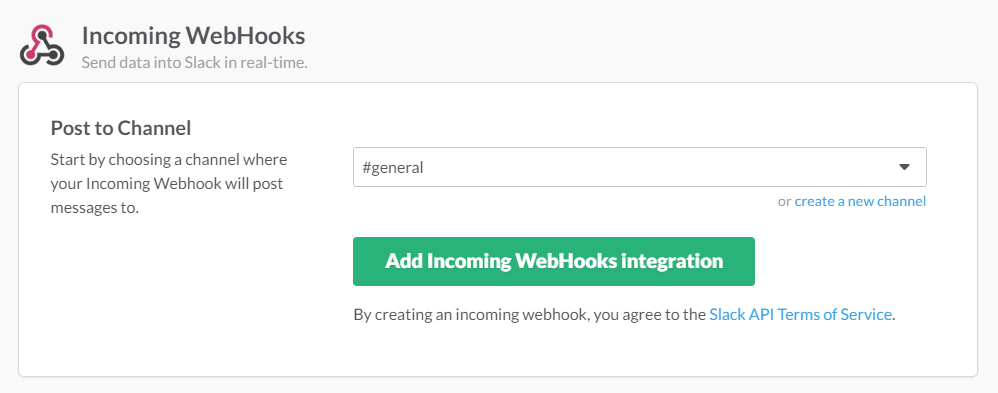
- Copy and save the Webhook URL.
Then, set up the integration in LaunchDarkly. To do this:
- In LaunchDarkly, click the gear icon in the left sidebar to view Organization settings.
- Click Integrations and find the “Slack incoming webhooks” integration.
- Click Add integration.
- Enter a Name for the webhook.
- In the URL field, enter the webhook URL you saved from step 4 in the previous procedure.
- (Optional) Click + Add statement to add a policy filter, or click Advanced editor.
- Click Save incoming webhook.
Add a policy filter
LaunchDarkly sends all flag change events in the production environment to a webhook by default. To customize the events LaunchDarkly sends to your Slack channel, use the policy editor in the webhook creation panel. To learn more about creating a policy, read Example roles and policies.
For example, if you want to receive an event only when a change is made to one of your production feature flags, you can add the following policy to the webhook integration:
Disable a Slack incoming webhook
To temporarily disable a Slack incoming webhook:
- Navigate to the Integrations page and find “Slack incoming webhooks.”
- Click the expand arrow to display all of the configured webhooks.

- Click the pencil icon next to the webhook you want to disable. The “Edit Slack incoming webhook” panel appears.
- Toggle the switch Off.