Getting started with Google Gemini

Overview

This guide shows how to connect a Google Gemini-powered application to LaunchDarkly AI Configs. Gemini offers native multimodal capabilities, long context windows, and competitive pricing with Gemini Flash. By the end, you will be able to manage your model configuration and prompts outside of your application code, and track metrics automatically.

AI Configs support two modes:

  • Completion mode returns messages and roles (system, user, assistant). Use it for chat-style interactions and message-oriented workflows. Completion mode supports online evaluations with judges attached in the LaunchDarkly UI.
  • Agent mode returns a single instructions string. Use it when your runtime or framework expects a goal/instructions input for a structured workflow. Agent mode changes the configuration shape from messages to instructions. Your application maps these instructions into your provider or framework’s native input.

Both modes support tool calling. This guide walks through completion mode as the main path, with an optional agent config section. To learn more about when to use each mode, read When to use prompt-based vs agent mode.

This guide provides examples in both Python and Node.js (TypeScript).

Additional resources for AI Configs

If you are not familiar with AI Configs, start with the Quickstart for AI Configs and return to this guide when you are ready for a more detailed example.

You can find reference guides for each of the AI SDKs at AI SDKs.

Prerequisites

To complete this guide, you need the following:

Concepts

Before you begin, review these key concepts.

AI Configs

An AI Config is a LaunchDarkly resource that controls how your application uses large language models. Each AI Config contains one or more variations. Each variation specifies:

  • A model configuration, including the model name and parameters
  • Messages that define the prompt

You can update these settings in LaunchDarkly at any time without changing your application code.

Contexts

A context represents the end user interacting with your application. LaunchDarkly uses context attributes to:

  • Determine which variation to serve based on targeting rules
  • Populate {{ ldctx.* }} placeholders in your prompts with context attribute values

Other placeholders, such as {{ topic }}, are populated from the variables argument you pass at runtime.

The tracker

When you retrieve an AI Config, the SDK returns a config object with a tracker property. The tracker records metrics from your Gemini calls, including:

  • Generation count
  • Input and output tokens
  • Latency
  • Success and error rates

These metrics appear on the AI Insights dashboard in LaunchDarkly.

Step 1: Install the SDK

Install the LaunchDarkly AI SDK and the Google GenAI SDK in your application. AI Configs are supported by LaunchDarkly server-side SDKs only. The Node.js examples in this guide use the server-side Node.js AI SDK.

Here is how to install the required packages:

$pip install launchdarkly-server-sdk-ai
$pip install google-genai
$pip install python-dotenv

Create a .env file in your project root to store your API keys:

$# .env
$LAUNCHDARKLY_SDK_KEY=<your-launchdarkly-sdk-key>
$GEMINI_API_KEY=<your-gemini-api-key>

Add .env to your .gitignore to keep credentials out of version control.

Step 2: Initialize the clients

Initialize both the LaunchDarkly client and the Google GenAI client. Store your API keys in environment variables.

Here is the initialization code:

1import os
2from typing import List, Optional, Tuple
3import ldclient
4from ldclient import Context
5from ldclient.config import Config
6from ldai.client import LDAIClient, LDMessage
7from ldai.providers.types import LDAIMetrics
8from ldai.tracker import TokenUsage
9from google import genai
10from google.genai import types
11from dotenv import load_dotenv
12
13load_dotenv()
14
15GOOGLE_API_KEY = os.environ.get("GEMINI_API_KEY") or os.environ.get("GOOGLE_API_KEY")
16SDK_KEY = os.environ.get("LAUNCHDARKLY_SDK_KEY_GEMINI")
17CONFIG_KEY = "gemini-assistant"
18AGENT_CONFIG_KEY = "gemini-agent"
19
20gemini_client = genai.Client(api_key=GOOGLE_API_KEY)
21ldclient.set_config(Config(SDK_KEY))
22if not ldclient.get().is_initialized():
23 exit(1)
24
25ai_client = LDAIClient(ldclient.get())

Step 3: Create an AI Config in LaunchDarkly

Create an AI Config in the LaunchDarkly UI to store your Gemini model settings and prompts.

Using the MCP server or agent skills

If you have the LaunchDarkly MCP server or agent skills configured, prompt your coding assistant to create the AI Config for you. For example:

“Create a completion mode AI Config called ‘Gemini assistant’ with a ‘Gemini 2.0 Flash’ variation using the gemini-2.0-flash model, temperature 0.7, max_tokens 1024, and the system message: ‘You are a helpful assistant. Answer questions about {{topic}}.’ Enable targeting.”

To create the AI Config:

  1. In the left navigation, click Create and select AI Config.
  2. In the Create AI Config dialog, select Completion.
  3. Enter a name, such as “Gemini assistant”.
  4. Click Create.

To create a variation:

  1. On the Variations tab, replace “Untitled variation” with a name, such as “Gemini 2.0 Flash”.
  2. Click Select a model and choose the gemini-2.0-flash Gemini model.
  3. Click Parameters and set temperature to 0.7 and max_tokens to 1024.
  4. Add a system message to define your assistant’s behavior:
System message
You are a helpful assistant. Answer questions about {{topic}}.
  1. Click Review and save.

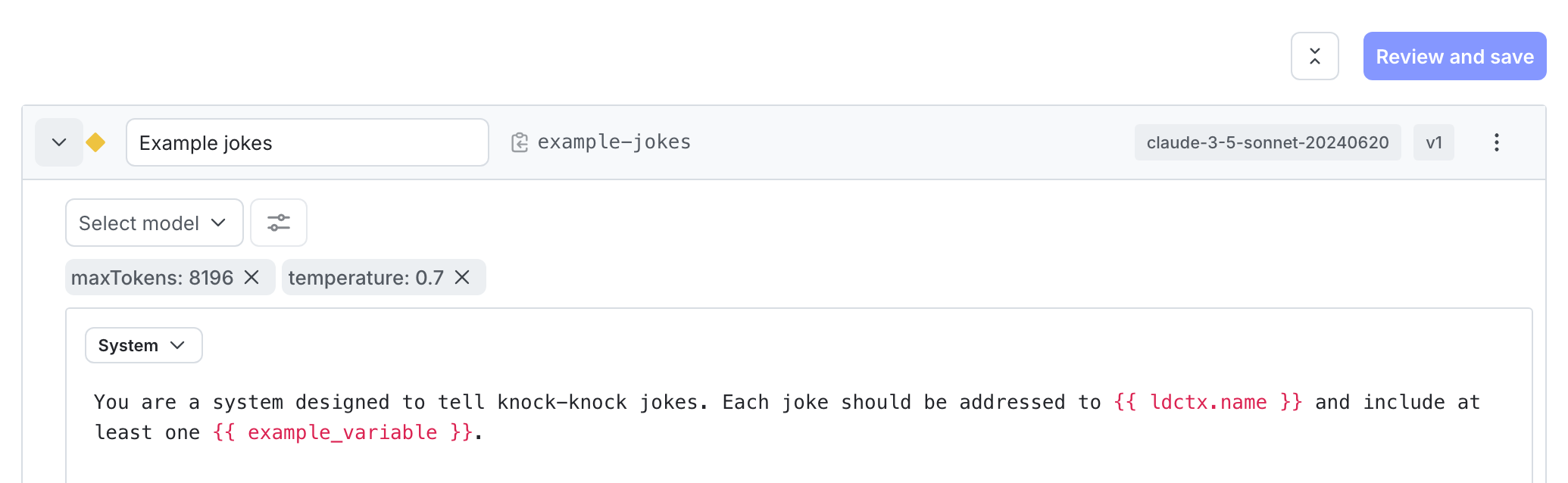
A completed variation with model configuration and system message.

A completed variation with model configuration and system message.

To enable targeting:

  1. Select the Targeting tab.
  2. In the “Default rule” section, click Edit.
  3. Set the default rule to serve your variation.
  4. Click Review and save.

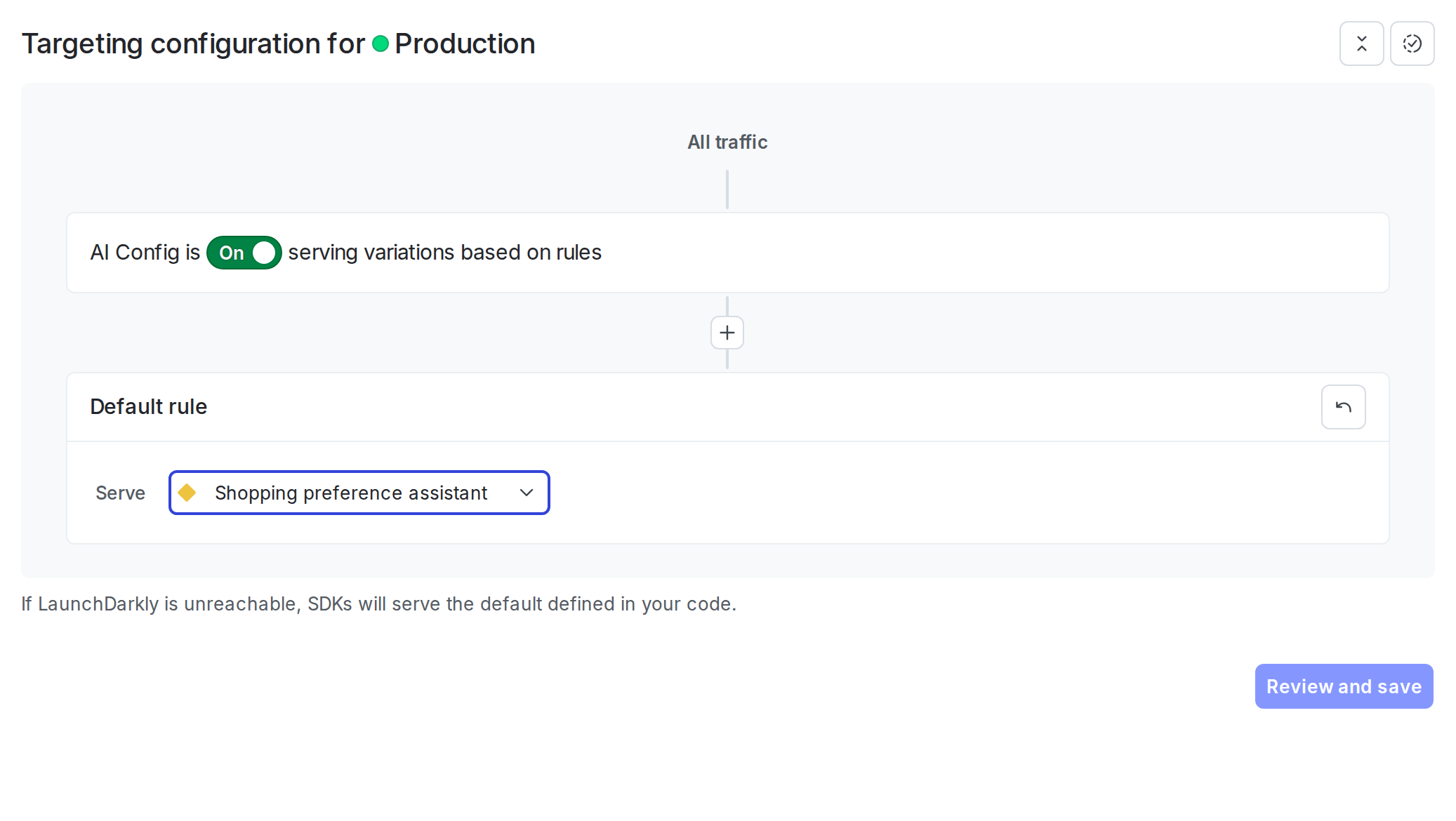
The default targeting rule configured to serve a variation.

The default targeting rule configured to serve a variation.

Step 4: Get the AI Config in your application

Retrieve the AI Config from LaunchDarkly by calling the completion config function. Pass a context that represents the current user and a fallback configuration.

Here is how to get the AI Config:

1# Define the context for the current user
2context = Context.builder("user-123") \
3 .kind("user") \
4 .name("Sandy") \
5 .build()
6
7# Pass a default for improved resiliency when the AI config is unavailable
8# or LaunchDarkly is unreachable; omit for a disabled default.
9# Example:
10# from ldai.client import AICompletionConfigDefault
11# default = AICompletionConfigDefault(
12# enabled=True,
13# model={"name": "gemini-2.5-flash"},
14# provider={"name": "gemini"},
15# messages=[{"role": "system", "content": "You are a helpful assistant."}],
16# )
17# config = ai_client.completion_config(CONFIG_KEY, context, default, variables={"topic": "Python"})
18
19# Get the AI Config
20config = ai_client.completion_config(CONFIG_KEY, context, variables={"topic": "Python"})
21tracker = config.tracker

The SDK uses the fallback configuration when LaunchDarkly is unreachable. Check the enabled property and handle the disabled case in your application.

Best practices

For production use:

  • Retrieve the AI Config each time you generate content so LaunchDarkly can evaluate the latest targeting rules and prompt changes.
  • Provide a fallback configuration when possible so your application can fail gracefully if LaunchDarkly is unavailable.
  • Avoid sending personally identifiable information in contexts unless you have a specific need and an approved handling pattern. To learn more, read Privacy in AI Configs.

Step 5: Call Gemini and track metrics

Google’s GenAI SDK treats system_instruction as a top-level config field on GenerateContentConfig, separate from the contents array. Define a helper to split LD messages into a (system_instruction, contents) tuple: system messages are concatenated into a single string, user messages become role: "user" content items, and assistant messages become role: "model" content items. Append the user’s question to the contents list, then call generate_content directly instead of creating a chat session.

Gemini’s parameter names differ slightly from the LaunchDarkly AI Config field names. The max_tokens parameter stored in a variation becomes max_output_tokens in the Gemini SDK. Define a mapping helper to handle this rename, then define a converter function that translates a Gemini response into an LDAIMetrics object. Pass the converter to the tracker’s generic wrapper, which handles duration, success, and error tracking automatically:

1def gemini_config_kwargs(params):
2 """Map AI Config parameter names to google.genai GenerateContentConfig arguments.
3 LaunchDarkly's max_tokens needs to become max_output_tokens; the rest
4 (temperature, topP, topK, stopSequences) already match the SDK's snake_case aliases.
5 Drop `tools` — we pass them via the GenerateContentConfig.tools field, so
6 leaving them in params would duplicate the argument."""
7 mapping = {"max_tokens": "max_output_tokens"}
8 return {mapping.get(k, k): v for k, v in (params or {}).items() if k != "tools"}
9
10def map_to_google_ai_messages(
11 input_messages: List[LDMessage],
12) -> Tuple[Optional[str], List[types.Content]]:
13 """Split LD messages into (system_instruction, history) for google.genai.
14 System messages are concatenated into a top-level system_instruction;
15 user/assistant go into Content history (assistant role becomes `model`)."""
16 history: List[types.Content] = []
17 system_messages: List[str] = []
18 for m in input_messages:
19 if m.role == "system":
20 system_messages.append(m.content)
21 elif m.role == "user":
22 history.append(types.Content(role="user", parts=[types.Part(text=m.content)]))
23 elif m.role == "assistant":
24 history.append(types.Content(role="model", parts=[types.Part(text=m.content)]))
25 system_instruction = " ".join(system_messages) if system_messages else None
26 return system_instruction, history
27
28def gemini_metrics(response) -> LDAIMetrics:
29 """Convert a google.genai response into LDAIMetrics. Passed to
30 tracker.track_metrics_of, which handles duration + success/error itself."""
31 usage = getattr(response, "usage_metadata", None)
32 tokens = None
33 if usage:
34 tokens = TokenUsage(
35 total=usage.total_token_count or 0,
36 input=usage.prompt_token_count or 0,
37 output=usage.candidates_token_count or 0,
38 )
39 return LDAIMetrics(success=True, usage=tokens)

Then call Gemini with the config. Use map_to_google_ai_messages / mapToGoogleAIMessages to split the LD messages into a system instruction and a contents array, append the user’s question, then call generate_content / generateContent directly through the tracker wrapper:

1if config.enabled:
2 tracker = config.tracker
3 system_instruction, contents = map_to_google_ai_messages(config.messages or [])
4 contents.append(types.Content(role="user", parts=[types.Part(text="How do I read a file in Python?")]))
5
6 ld_params = (config.model.to_dict().get("parameters") if config.model else None) or {}
7
8 response = tracker.track_metrics_of(
9 lambda: gemini_client.models.generate_content(
10 model=config.model.name,
11 contents=contents,
12 config=types.GenerateContentConfig(
13 system_instruction=system_instruction,
14 **gemini_config_kwargs(ld_params),
15 ),
16 ),
17 gemini_metrics,
18 )

Step 6: (optional): Use agent mode with tool calling

Agent-mode AI Configs return a single instructions string instead of a message list, and they let you attach reusable tools from the LaunchDarkly tools library. With Gemini, the instructions map to the system_instruction field on GenerateContentConfig and tools pass through as a functionDeclarations array.

Create the tool in the tools library

First, define the tool in LaunchDarkly so the AI Config variation can reference it:

  1. In the left navigation, click Library, then select the Tools tab.
  2. Click Add tool.
  3. Enter get_order_status as the Key.
  4. Enter “Look up the status of a customer order by order ID” as the Description.
  5. Define the schema using the JSON editor:
1{
2 "type": "object",
3 "properties": {
4 "order_id": {
5 "type": "string",
6 "description": "The order ID to look up"
7 }
8 },
9 "required": ["order_id"]
10}
  1. Click Save.

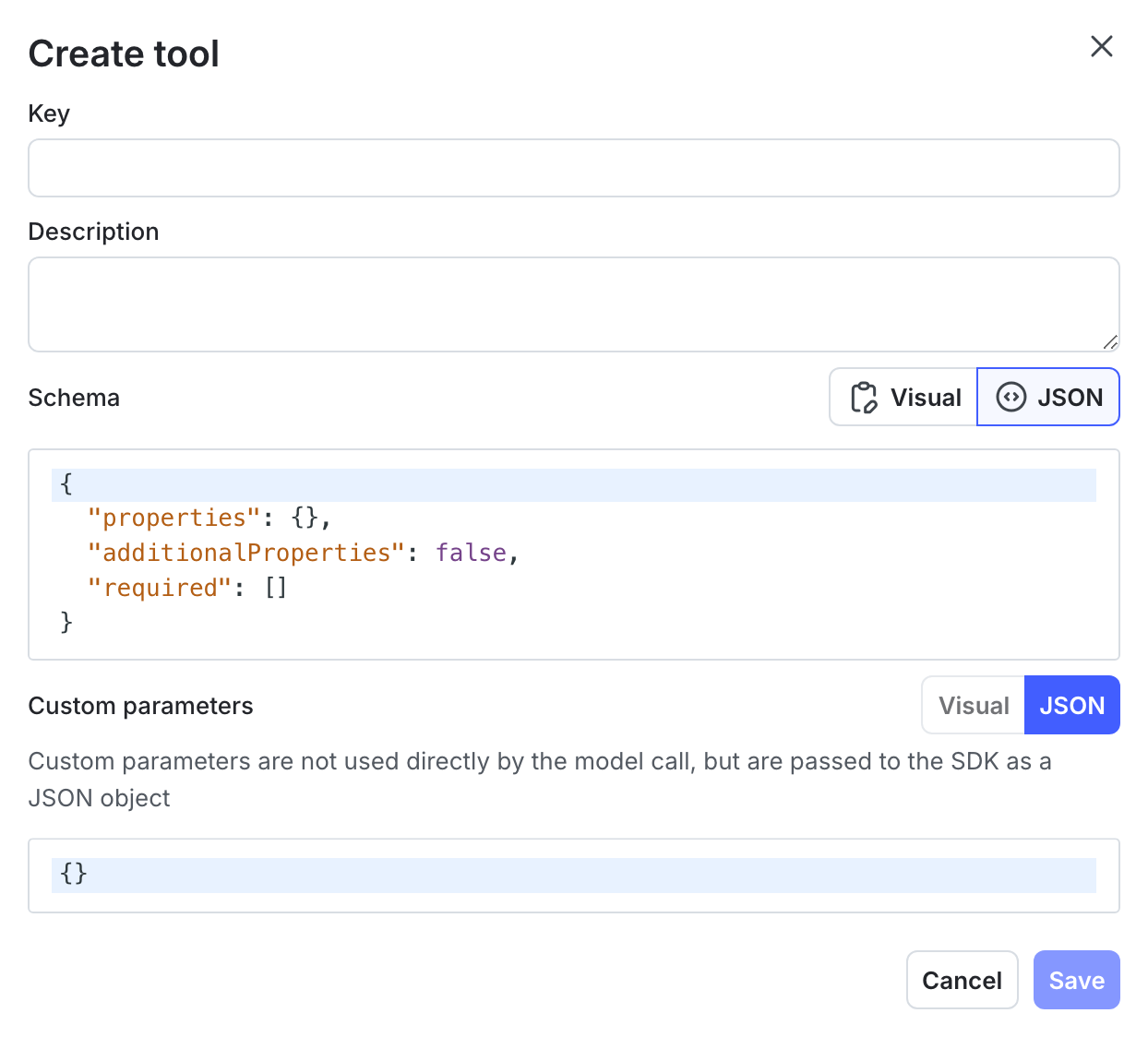
The Create tool dialog.

The Create tool dialog.

Create the agent AI Config

  1. Click Create and select AI Config.
  2. Select Agent mode.

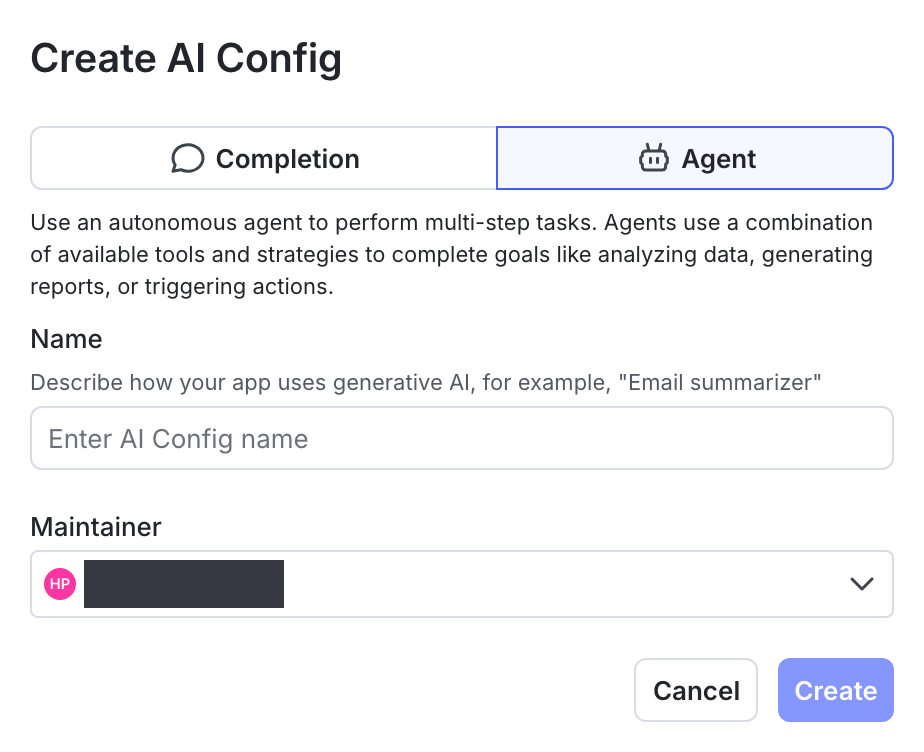
The Create AI Config dialog with Agent mode selected.

The Create AI Config dialog with Agent mode selected.
  1. Enter a name:
AI Config name
Gemini agent
  1. Click Create.
  2. On the Variations tab, name the variation (for example, “Gemini 2.0 Flash agent”).
  3. Click Select a model and choose gemini-2.0-flash.
  4. Click Parameters and set max_tokens to 1024.
  5. Add the agent instructions:
Agent instructions
You are an order status assistant. Use the get_order_status tool to look up customer orders by ID. Only call the tool when the user asks about an order.
  1. Click + Attach tools and select get_order_status.
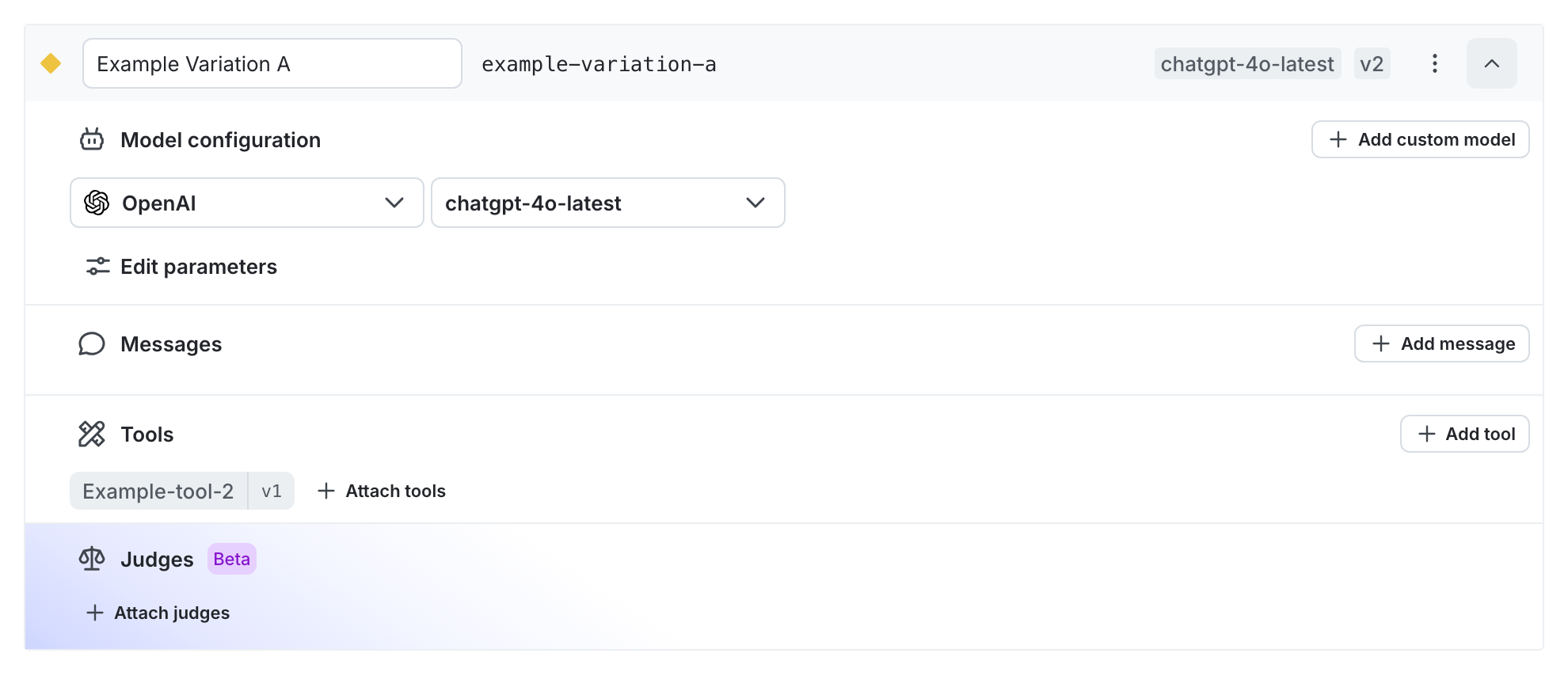
A variation editor with an attached tool.

A variation editor with an attached tool.
  1. Click Review and save.
  2. On the Targeting tab, set the default rule to serve your variation and save.

To learn more about managing tools, read Tools in AI Configs.

Retrieve the agent config and run the tool loop

Use agent_config() instead of completion_config(). The SDK returns the attached tools under parameters.tools in OpenAI’s type=function shape, so convert them to Gemini’s {functionDeclarations: [{name, description, parameters}]} shape and pass them on the tools field of GenerateContentConfig. Tool handler functions stay in your application code — LaunchDarkly stores the schema, your application owns the behavior.

1# Same fallback pattern as completion — omit the default for a disabled fallback.
2agent = ai_client.agent_config(AGENT_CONFIG_KEY, context)
3
4if agent.enabled:
5 tracker = agent.tracker
6 ld_params = (agent.model.to_dict().get("parameters") if agent.model else None) or {}
7
8 # LD returns attached tools under parameters.tools in OpenAI type=function shape.
9 # Gemini wants {functionDeclarations: [{name, description, parameters}]}.
10 ld_tools = ld_params.get("tools", []) or []
11 tools = [{
12 "functionDeclarations": [
13 {
14 "name": t["name"],
15 "description": t.get("description", ""),
16 "parameters": t.get("parameters", {"type": "object", "properties": {}}),
17 }
18 for t in ld_tools
19 ]
20 }] if ld_tools else []
21
22 # Handlers stay in application code — LD governs the schema, the app owns execution.
23 def get_order_status(order_id: str) -> str:
24 orders = {
25 "ORD-123": "Shipped — arrives Thursday",
26 "ORD-456": "Processing — estimated ship date: tomorrow",
27 "ORD-789": "Delivered on Monday",
28 }
29 return orders.get(order_id, f"No order found with ID {order_id}")
30
31 tool_handlers = {"get_order_status": get_order_status}
32
33 chat = gemini_client.chats.create(
34 model=agent.model.name,
35 config=types.GenerateContentConfig(
36 system_instruction=agent.instructions,
37 tools=tools,
38 **gemini_config_kwargs(ld_params),
39 ),
40 )
41
42 # Agent loop: send, handle functionCalls, repeat
43 MAX_STEPS = 5
44 message_payload: object = "What's the status of order ORD-123?"
45 for _ in range(MAX_STEPS):
46 response = tracker.track_metrics_of(
47 lambda: chat.send_message(message_payload),
48 gemini_metrics,
49 )
50
51 calls = response.function_calls or []
52 if not calls:
53 break
54
55 function_response_parts = []
56 for call in calls:
57 if call.name not in tool_handlers:
58 raise ValueError(f"Unknown tool: {call.name}")
59 result = tool_handlers[call.name](**call.args)
60 tracker.track_tool_call(call.name)
61 function_response_parts.append(
62 types.Part(function_response=types.FunctionResponse(name=call.name, response={"result": result}))
63 )
64 message_payload = function_response_parts

In completion mode, you can attach judges to variations in the LaunchDarkly UI for automatic evaluation. In agent mode, invoke judges programmatically through the AI SDK.

To learn more, read When to use prompt-based vs agent mode and Agents in AI Configs.

Step 7: Monitor your AI Config

Use the LaunchDarkly UI to monitor how your applications are performing across all AI Configs and for individual configs.

To view aggregated metrics across all your AI Configs, navigate to Insights in the left navigation under the AI section. The Insights overview page displays cost, latency, error rate, invocation counts, and model distribution across your organization. To learn more, read AI Insights.

To view metrics for a specific AI Config:

  1. Navigate to your AI Config.
  2. Select the Monitoring tab.

The dashboard displays the following metrics:

  • Generation count: The total number of AI generation calls tracked for this config.
  • Input and output tokens: Token consumption broken down by prompt tokens sent and completion tokens received.
  • Latency: The time taken for each generation call, shown as percentiles (p50, p95).
  • Success and error rates: The proportion of successful versus failed generation calls.

Metrics update approximately every minute. Use these metrics to compare variations and optimize your prompts. To learn more, read Monitor AI Configs.
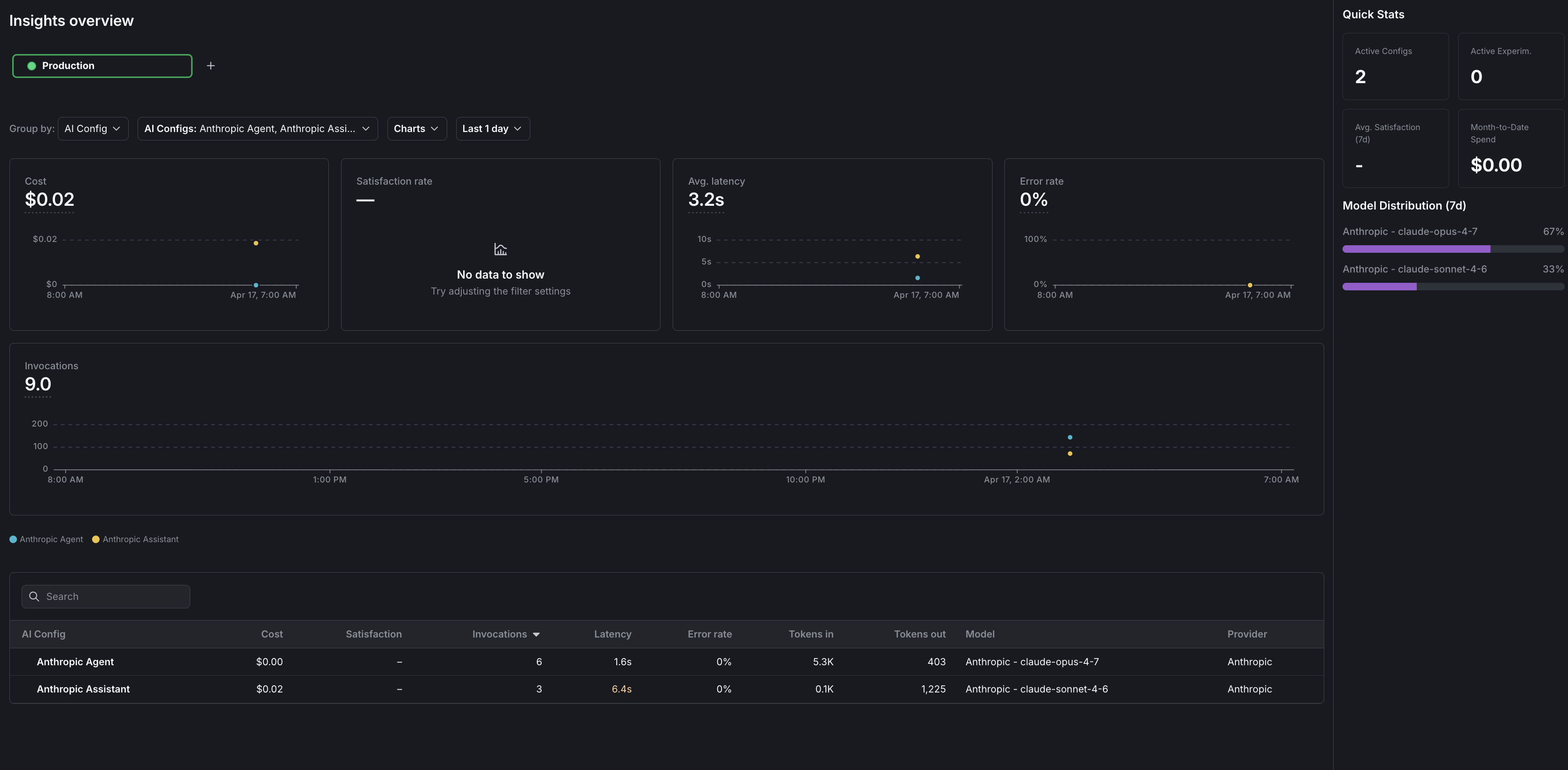
The Insights overview page showing cost, latency, error rate, and invocation metrics for Gemini AI Configs.

The Insights overview page showing cost, latency, error rate, and invocation metrics for Gemini AI Configs.
Observability

The AI SDKs emit OpenTelemetry-compatible spans for each generation call. You can forward these spans to your existing observability stack for deeper analysis. To learn more, read Observability and LLM observability.

Step 8: Close the client

Close the LaunchDarkly client when your application shuts down to flush pending events.

Here is how to close the client:

1ldclient.get().close()

Always flush events before closing. Trailing events are at risk of being lost otherwise, in short-lived scripts and long-running services alike.

Here is how to flush events:

1# Always flush events before closing — trailing events are at risk of being
2# lost otherwise, in short-lived scripts and long-running services alike.
3ldclient.get().flush()
4ldclient.get().close()

Complete example

Here is a complete working example that combines all the steps.

1import os
2from typing import List, Optional, Tuple
3import ldclient
4from ldclient import Context
5from ldclient.config import Config
6from ldai.client import LDAIClient, LDMessage
7from ldai.providers.types import LDAIMetrics
8from ldai.tracker import TokenUsage
9from google import genai
10from google.genai import types
11from dotenv import load_dotenv
12
13load_dotenv()
14
15GOOGLE_API_KEY = os.environ.get("GEMINI_API_KEY") or os.environ.get("GOOGLE_API_KEY")
16SDK_KEY = os.environ.get("LAUNCHDARKLY_SDK_KEY_GEMINI")
17CONFIG_KEY = "gemini-assistant"
18AGENT_CONFIG_KEY = "gemini-agent"
19
20
21def gemini_config_kwargs(params):
22 """Map AI Config parameter names to google.genai GenerateContentConfig arguments.
23 LaunchDarkly's max_tokens needs to become max_output_tokens; the rest
24 (temperature, topP, topK, stopSequences) already match the SDK's snake_case aliases.
25 Drop `tools` — we pass them via the GenerateContentConfig.tools field, so
26 leaving them in params would duplicate the argument."""
27 mapping = {"max_tokens": "max_output_tokens"}
28 return {mapping.get(k, k): v for k, v in (params or {}).items() if k != "tools"}
29
30
31def map_to_google_ai_messages(
32 input_messages: List[LDMessage],
33) -> Tuple[Optional[str], List[types.Content]]:
34 """Split LD messages into (system_instruction, history) for google.genai.
35 System messages are concatenated into a top-level system_instruction;
36 user/assistant go into Content history (assistant role becomes `model`)."""
37 history: List[types.Content] = []
38 system_messages: List[str] = []
39 for m in input_messages:
40 if m.role == "system":
41 system_messages.append(m.content)
42 elif m.role == "user":
43 history.append(types.Content(role="user", parts=[types.Part(text=m.content)]))
44 elif m.role == "assistant":
45 history.append(types.Content(role="model", parts=[types.Part(text=m.content)]))
46 system_instruction = " ".join(system_messages) if system_messages else None
47 return system_instruction, history
48
49
50def gemini_metrics(response) -> LDAIMetrics:
51 """Convert a google.genai response into LDAIMetrics. Passed to
52 tracker.track_metrics_of, which handles duration + success/error itself."""
53 usage = getattr(response, "usage_metadata", None)
54 tokens = None
55 if usage:
56 tokens = TokenUsage(
57 total=usage.total_token_count or 0,
58 input=usage.prompt_token_count or 0,
59 output=usage.candidates_token_count or 0,
60 )
61 return LDAIMetrics(success=True, usage=tokens)
62
63
64def main():
65 gemini_client = genai.Client(api_key=GOOGLE_API_KEY)
66 ldclient.set_config(Config(SDK_KEY))
67 if not ldclient.get().is_initialized():
68 return
69
70 ai_client = LDAIClient(ldclient.get())
71
72 context = Context.builder("user-123").kind("user").name("Sandy").build()
73
74 # ===================
75 # COMPLETION MODE
76 # ===================
77
78 # Pass a default for improved resiliency when the AI config is unavailable
79 # or LaunchDarkly is unreachable; omit for a disabled default.
80 # Example:
81 # from ldai.client import AICompletionConfigDefault
82 # default = AICompletionConfigDefault(
83 # enabled=True,
84 # model={"name": "gemini-2.5-flash"},
85 # provider={"name": "gemini"},
86 # messages=[{"role": "system", "content": "You are a helpful assistant."}],
87 # )
88 # config = ai_client.completion_config("gemini-assistant", context, default, variables={"topic": "Python"})
89 config = ai_client.completion_config(CONFIG_KEY, context, variables={"topic": "Python"})
90
91 if config.enabled:
92 tracker = config.tracker
93 system_instruction, contents = map_to_google_ai_messages(config.messages or [])
94 contents.append(types.Content(role="user", parts=[types.Part(text="How do I read a file in Python?")]))
95
96 ld_params = (config.model.to_dict().get("parameters") if config.model else None) or {}
97
98 tracker.track_metrics_of(
99 lambda: gemini_client.models.generate_content(
100 model=config.model.name,
101 contents=contents,
102 config=types.GenerateContentConfig(
103 system_instruction=system_instruction,
104 **gemini_config_kwargs(ld_params),
105 ),
106 ),
107 gemini_metrics,
108 )
109
110 # ===================
111 # AGENT MODE
112 # ===================
113
114 # Same fallback pattern as completion — omit the default for a disabled fallback.
115 agent = ai_client.agent_config(AGENT_CONFIG_KEY, context)
116
117 if agent.enabled:
118 tracker = agent.tracker
119 ld_params = (agent.model.to_dict().get("parameters") if agent.model else None) or {}
120
121 # LD returns attached tools under parameters.tools in OpenAI type=function shape.
122 # Gemini wants {functionDeclarations: [{name, description, parameters}]}.
123 ld_tools = ld_params.get("tools", []) or []
124 tools = [{
125 "functionDeclarations": [{
126 "name": t["name"],
127 "description": t.get("description", ""),
128 "parameters": t.get("parameters", {"type": "object", "properties": {}}),
129 } for t in ld_tools]
130 }] if ld_tools else []
131
132 # Handlers stay in application code — LD governs the schema, the app owns execution.
133 def get_order_status(order_id: str) -> str:
134 orders = {
135 "ORD-123": "Shipped — arrives Thursday",
136 "ORD-456": "Processing — estimated ship date: tomorrow",
137 "ORD-789": "Delivered on Monday",
138 }
139 return orders.get(order_id, f"No order found with ID {order_id}")
140
141 tool_handlers = {"get_order_status": get_order_status}
142
143 chat = gemini_client.chats.create(
144 model=agent.model.name,
145 config=types.GenerateContentConfig(
146 system_instruction=agent.instructions,
147 tools=tools,
148 **gemini_config_kwargs(ld_params),
149 ),
150 )
151
152 # Agent loop: send, handle functionCalls, repeat
153 MAX_STEPS = 5
154 message_payload: object = "What's the status of order ORD-123?"
155 for _ in range(MAX_STEPS):
156 response = tracker.track_metrics_of(
157 lambda: chat.send_message(message_payload),
158 gemini_metrics,
159 )
160
161 calls = response.function_calls or []
162 if not calls:
163 break
164
165 function_response_parts = []
166 for call in calls:
167 if call.name not in tool_handlers:
168 raise ValueError(f"Unknown tool: {call.name}")
169 result = tool_handlers[call.name](**call.args)
170 tracker.track_tool_call(call.name)
171 function_response_parts.append(
172 types.Part(function_response=types.FunctionResponse(name=call.name, response={"result": result}))
173 )
174 message_payload = function_response_parts
175
176 # Always flush events before closing — trailing events are at risk of being
177 # lost otherwise, in short-lived scripts and long-running services alike.
178 ldclient.get().flush()
179 ldclient.get().close()
180
181
182if __name__ == "__main__":
183 main()

What to explore next

After you have the basic integration working, you can extend it with:

  • Tools for calling external functions from your workflows
  • Online evaluations to score response quality automatically
  • Experiments to compare AI Config variations statistically
  • Agents for multi-step workflows

For more AI Configs guides, read the other guides in the AI Configs guides section.

Troubleshooting

If you are experiencing problems with your configuration, this section lists common errors and solutions.

Metrics not appearing

If metrics do not appear on the AI Insights dashboard:

  • Verify that you are calling the tracker methods (trackDuration, trackSuccess, trackTokens).
  • Ensure you call flush() before closing the client, especially for short-lived scripts.
  • Wait at least one minute for metrics to process.

SDK initialization failures

If the LaunchDarkly SDK fails to initialize:

  • Verify your SDK key is correct and matches the environment you are targeting.
  • Check that your network can reach LaunchDarkly servers.
  • Review the SDK logs for specific error messages.

Config returns fallback value

If you always receive the fallback configuration:

  • Verify targeting is enabled for your AI Config.
  • Check that the AI Config key in your code matches the key in LaunchDarkly.
  • Ensure your context matches the targeting rules.

Google API errors

If you receive Google API errors:

  • Verify your GEMINI_API_KEY or GOOGLE_API_KEY is set correctly.
  • Check that the Gemini API is enabled for your API key.
  • Ensure the model name in your AI Config matches an available Gemini model.

Conclusion

In this guide, you connected a Google Gemini-powered application to LaunchDarkly AI Configs. You can now:

  • Manage prompts and model settings in LaunchDarkly without code changes
  • Track token usage, latency, and success rates automatically
  • Use template variables to customize prompts per user
Want to know more? Start a trial.
Your 14-day trial begins as soon as you sign up. Get started in minutes using the in-app Quickstart. You'll discover how easy it is to release, monitor, and optimize your software.

Want to try it out? Start a trial.