

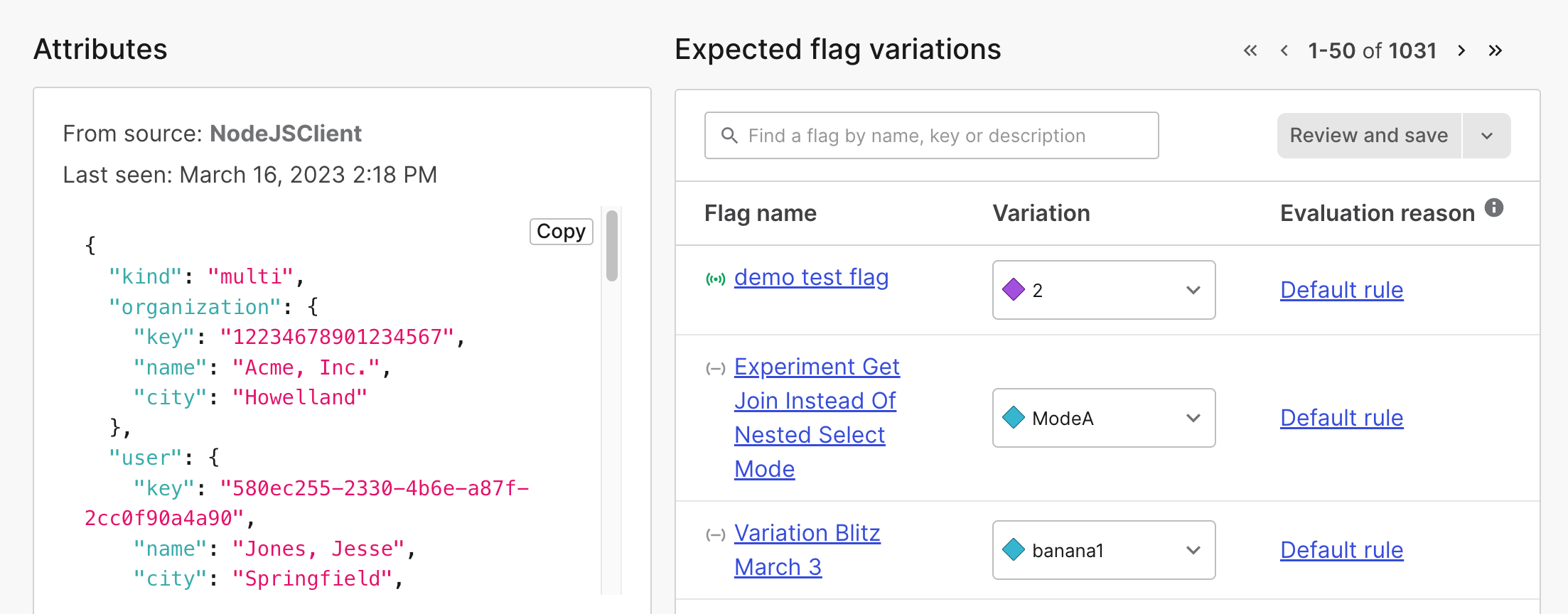
The details page for a multi-context.
Attributes
The “Attributes” section displays all of the context attributes associated with the selected context instance version. A context instance version is a context instance that’s recorded from a unique source application or LaunchDarkly SDK. It includes only the context attributes you provide in the evaluation call. To learn more, read Context instances. This illustration shows a flag evaluating two instance versions of the same context: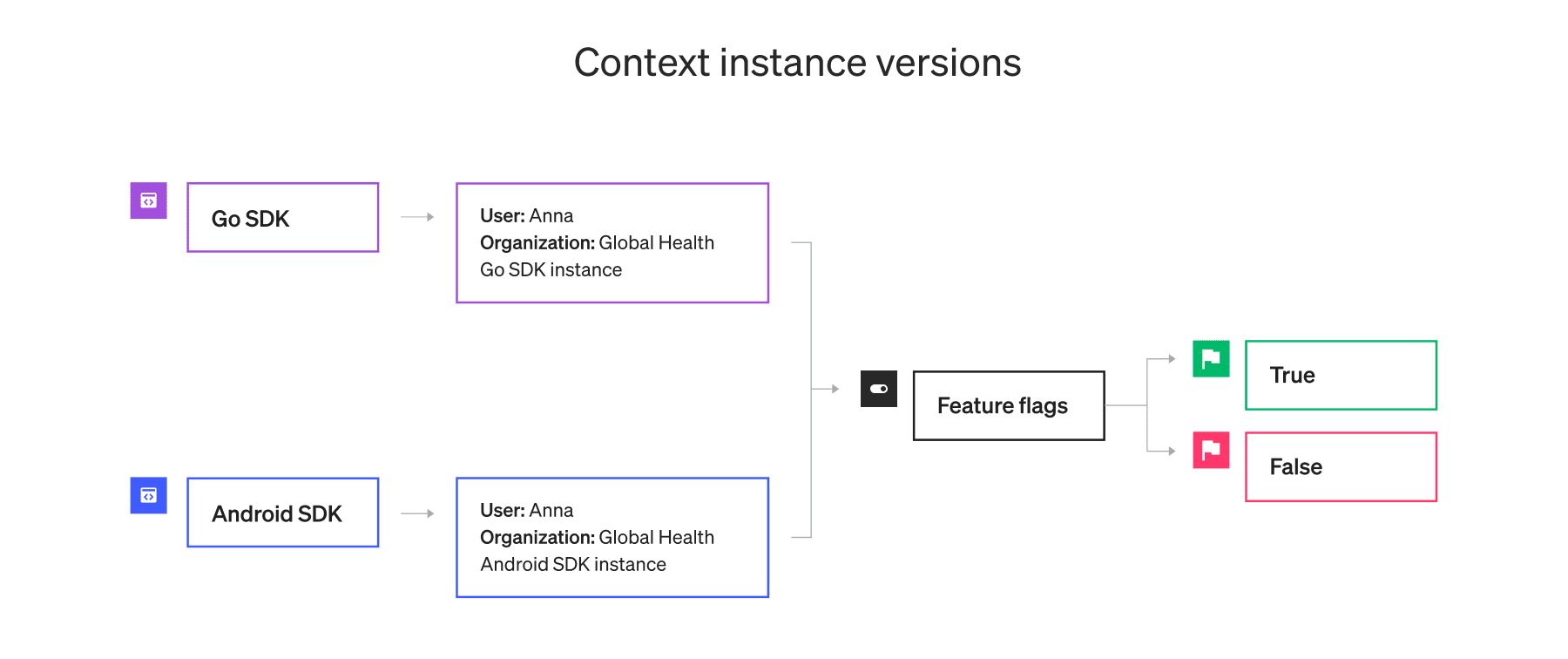
Two instance versions of the same context.
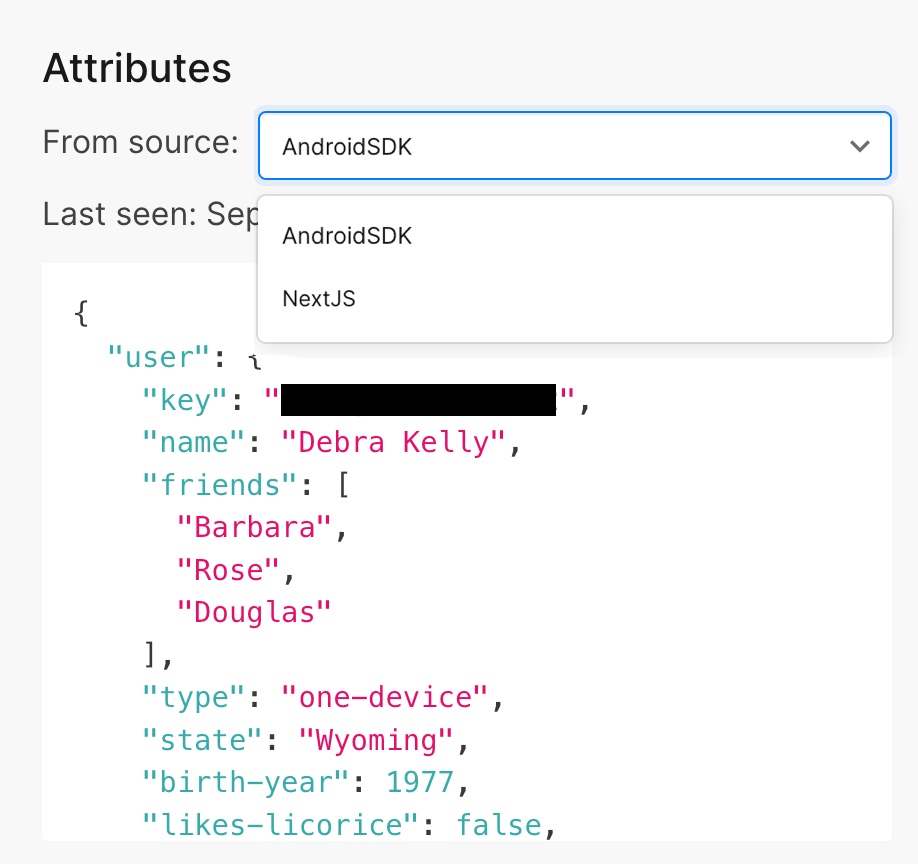
The "From source" menu with two context instance versions displayed.

You can also use the REST API: Get context attribute names, Get context attribute values
Segments
The “Segments” section lists any segments the context is a part of. Click on the segment name to open the segment’s details page. To learn more, read Segments.Instances
The “Instances” section lists the instances in which the context has appeared, and when LaunchDarkly last encountered each instance: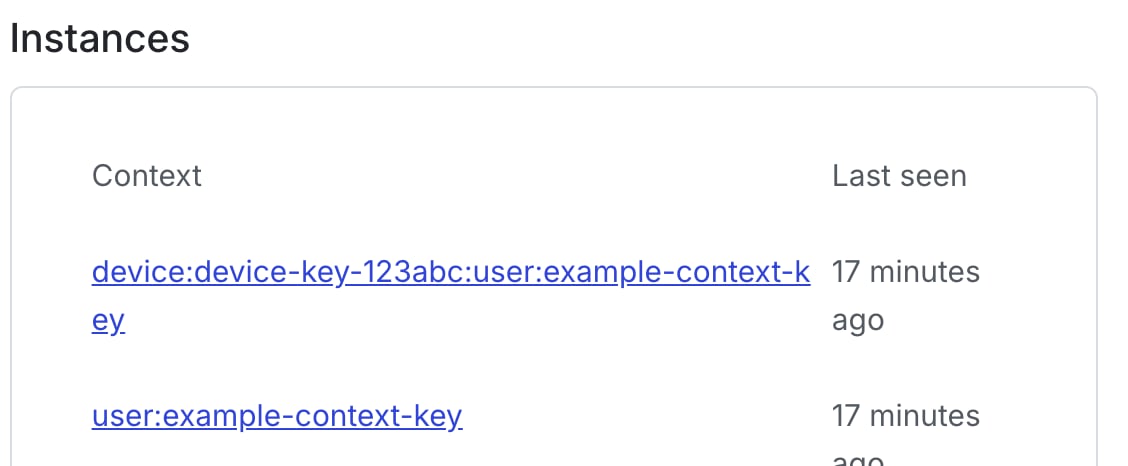
The "Instances" section with two instances.
You can also use the REST API: Get contexts
Delete context instances
To delete a context instance:- In the left sidebar, click Code. The CodeControl menu appears.
- Click Contexts.
- From the Contexts list, click on the name of the context with an instance you want to delete. The context details page opens.
- In the “Instances” section, click on an instance. The instance details page opens.
- Click Delete:

A context instance detail page with the "Delete" button called out.
Expected variations
The “Expected variations” section lists the variation you can expect that context instance to receive for each flag or AgentControl config within your current project and environment.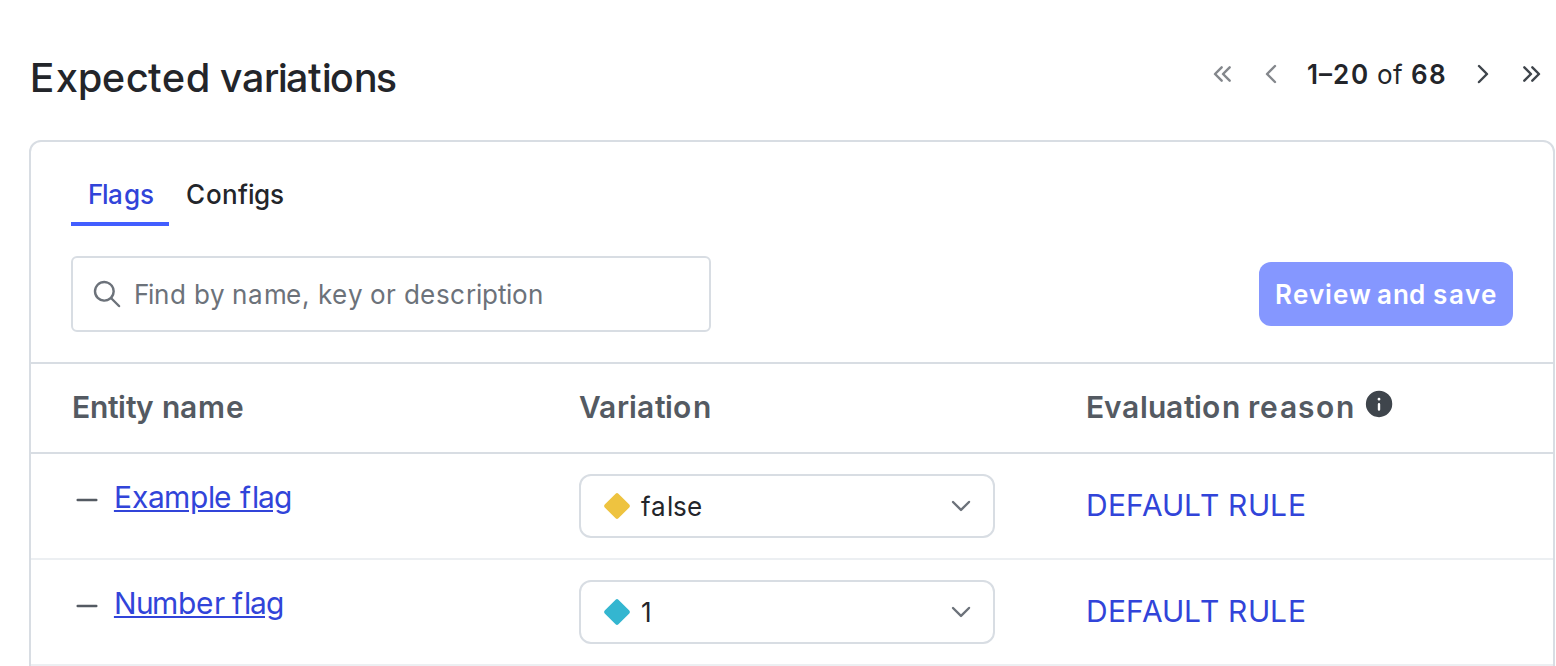
The "Expected variations" on the details page for a context.
Try it in your SDK: Flag variation evaluation details
Modify variations for a context
You can modify the variation a context receives for a feature flag or an AgentControl config. To do this:- Find the “Entity name” you want to modify in the “Expected variations” section.
- Select a new variation from the Variation menu next to the flag:
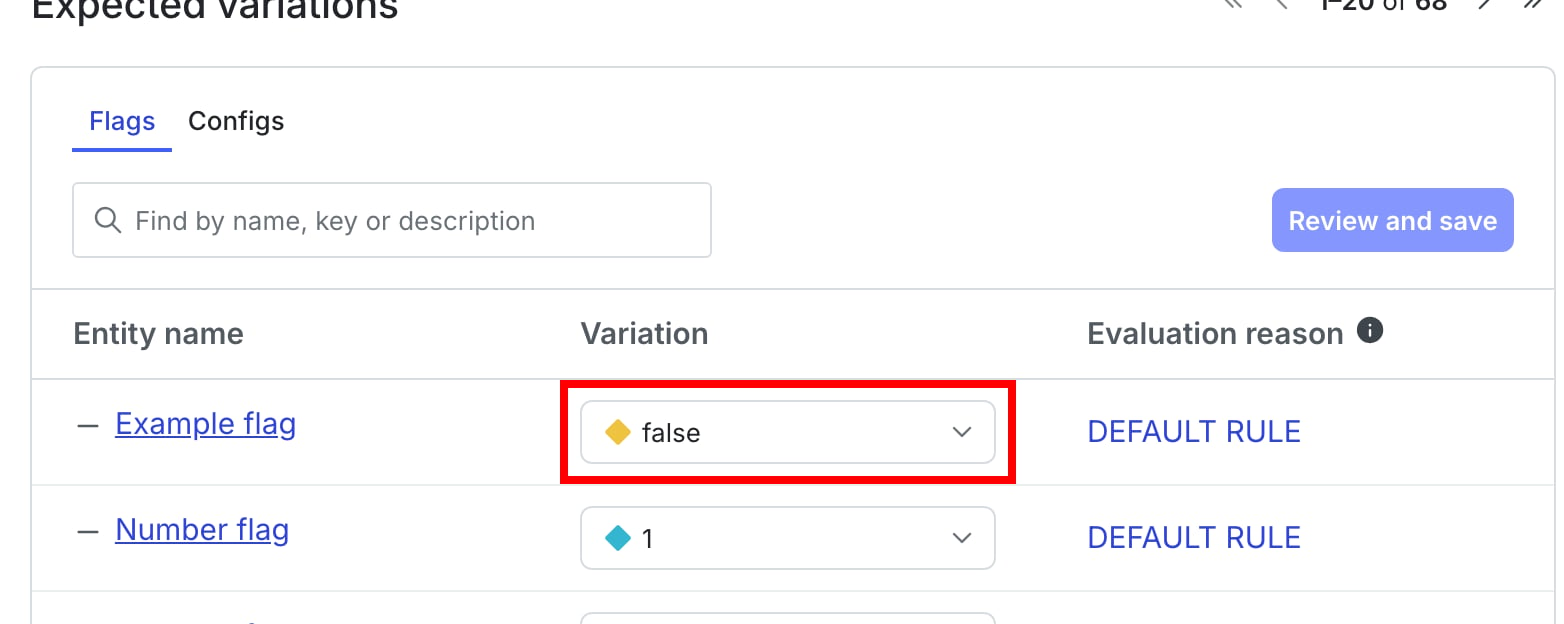
The "Expected variations" section with a variation called out.
- (Optional) To remove individual targeting, either:
- change to the variation from the Variation dropdown, or
- click the “Evaluation reason” link to remove the individual target from the flag’s Targeting tab.
- Click Save changes.
Targeting changes are only available for individual contexts.You cannot make targeting changes to context instances with multiple contexts. That option is not available on the instance details page with multiple contexts.