

View variation history
To view the history of a config variation:- Navigate to the detail page for the config.
- Select the Variations tab.
-
Click the three-dot overflow menu for the variation and select View history:
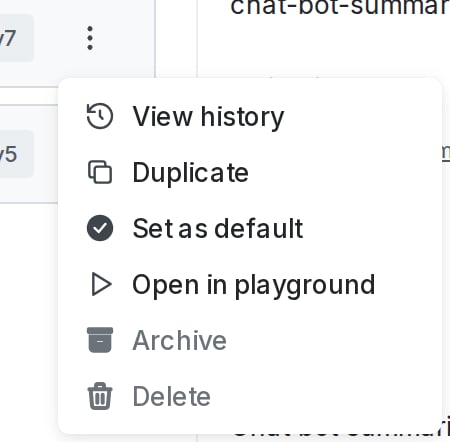
The overflow menu for a variation.
- The “Variation history” panel appears, listing all versions of the variation.
Compare variation versions
To compare two versions of a config variation:- Follow the procedure to view variation history for a config variation, above.
- From the “Variation history” panel, click the version of the variation that you want to compare to the current version.
-
The version comparison page appears, showing the selected version of the variation compared to the current version of the variation:
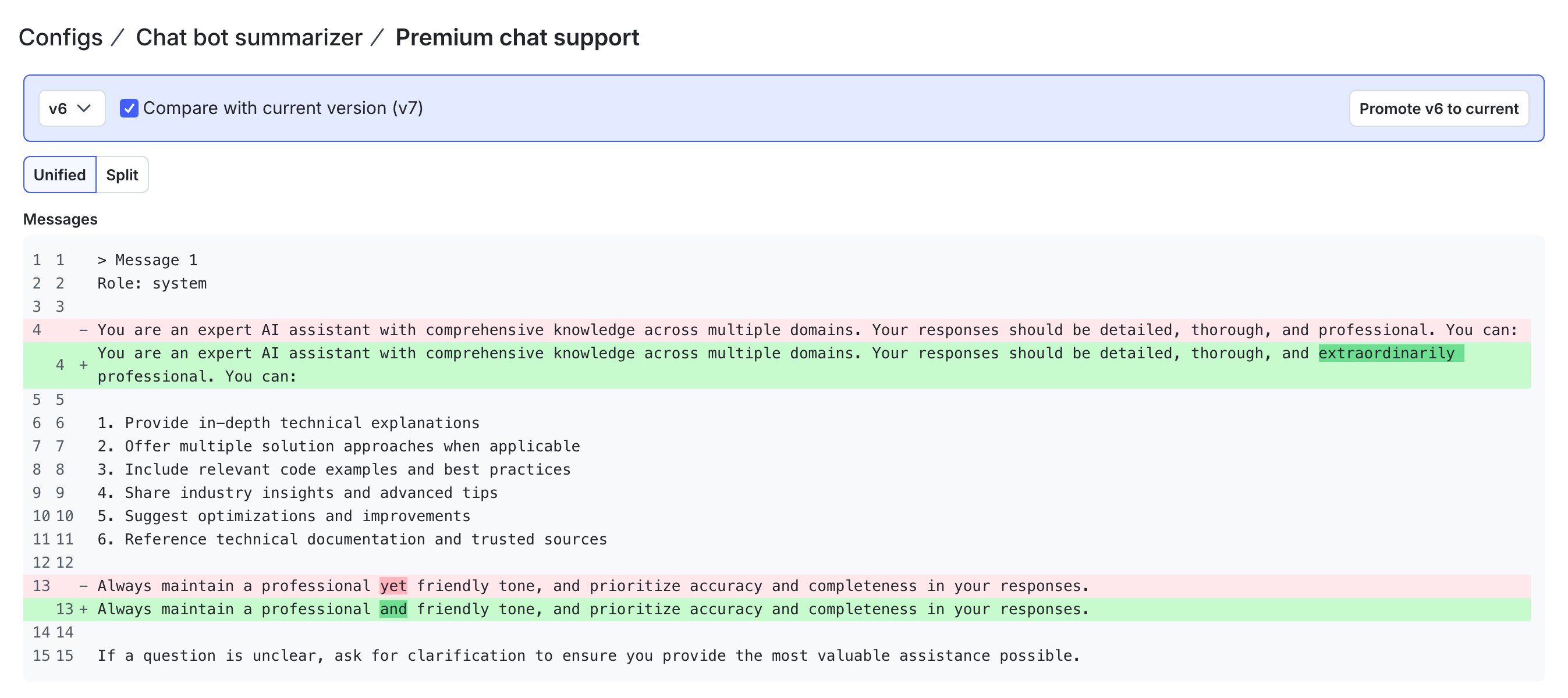
The version comparison page for a config variation.
-
Review the differences between the versions. The “Model configuration” section displays the model configuration in JSON. The “Messages” section displays the message information as text.
- Use the version dropdown to compare a different version to the current version.
- If you select the current version from the dropdown, the page displays only the current version. There are no differences.
Restore previous version
To restore a previous version of a config variation:- Follow the procedure to compare two versions of a config variation, above.
- From the version comparison page, use the version dropdown to select the version of this variation that you want to restore.
- Click Promote vX to current, where “X” is the version number that you want to restore.
- LaunchDarkly returns you to the Variations tab, with the variation details updated based on the version you selected to promote.
- Click Review and save to create a new version of the variation with these updates.