

Scope of custom model versioningCustom model versioning applies only to the AI model configurations you create. Global models, the standard models LaunchDarkly provides, are managed by LaunchDarkly and do not have versions. A config variation using a global model always uses the current definition of that model.
- Create an AI model configuration
- View AI model configurations
- Edit an AI model configuration
- Restrict an AI model configuration
- Delete an AI model configuration
Create an AI model configuration
To create an AI model configuration from a config variation:- Navigate to the Variations tab of the config and select a variation. Some sections in the interface may be collapsed. Expand the section you want to edit before continuing.
- Open the Select a model menu.
- Choose + Add a model.
- Follow the steps for completing the “Add custom model” dialog, below.
Complete the “Add custom model” dialog
To complete the “Add custom model” dialog:- Enter a Name for your AI model configuration.
- The name appears in the Select a model menu when you create a variation for a config.
- You also need the name if you want to create a role that allows or denies access to this AI model configuration.
- Select a Provider.
- Enter a Model ID.
- The model ID is the identifier for the model that the LLM provider uses. This must exactly match the identifier from the provider.
- You also need the model ID if you want to create a role that allows or denies access to this AI model configuration.
- Enter the token costs:
- Enter the Input token cost per million tokens.
- Enter the Output token cost per million tokens.
- (Optional) Click + Add suggested parameters. The menu displays model parameters, their types, and their default values.
- Select a model parameter from the list.
- Set its value in the dialog. This will be the default value when you choose this model in a config variation. You can set a different value in the config variation if needed.
- When you customize a config in your SDK, you can access these parameters in the
modelsection of theLDAIConfig.
- (Optional) Click + Add custom parameters.
- Enter any additional parameters you want to include as a valid JSON object.
- LaunchDarkly always applies these parameters and their values when you select this model in a config variation.
- When you customize a config in your SDK, you can access these parameters in the
model.customsection of theLDAIConfig.
- Click Save.
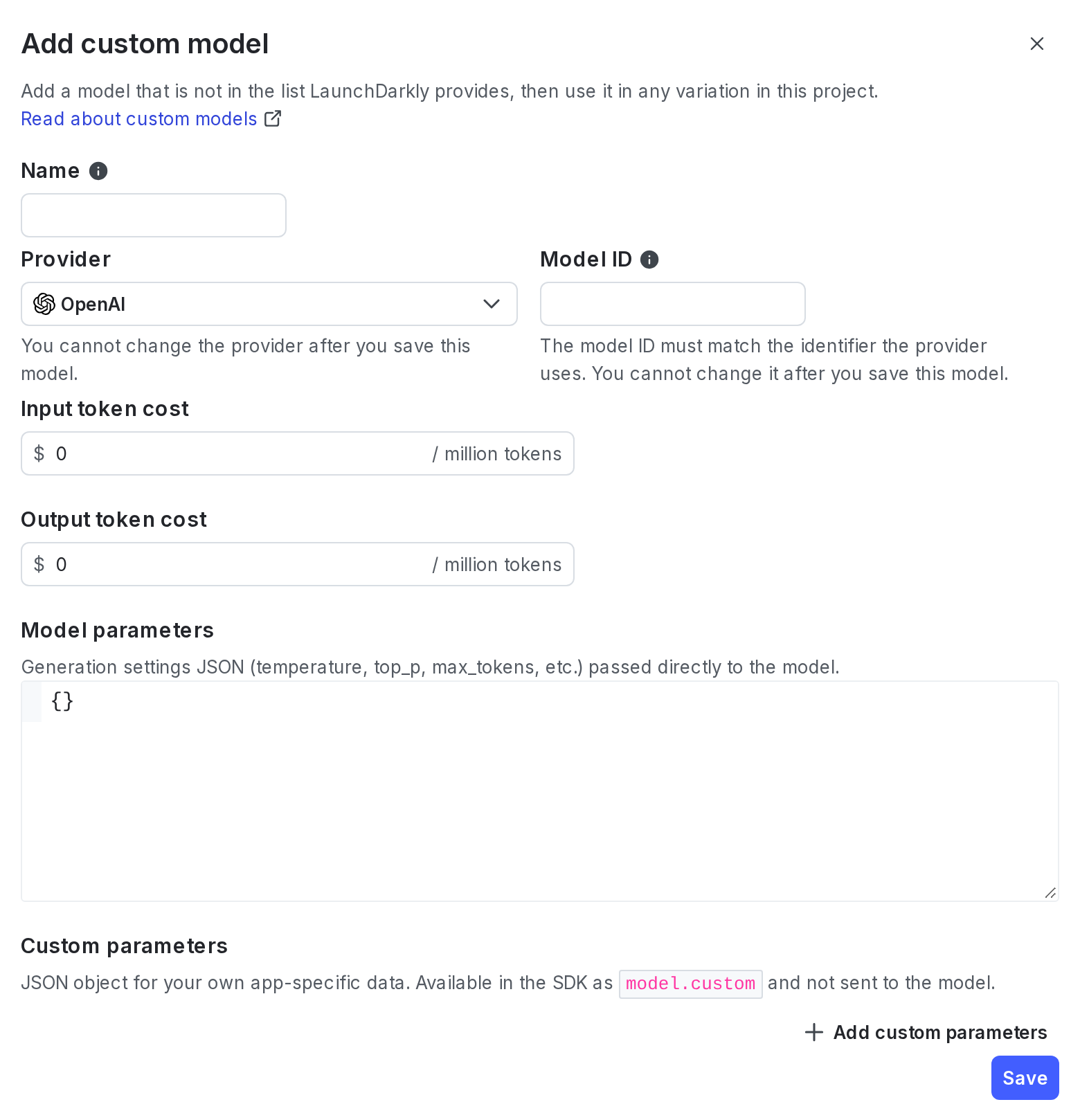
The "Add custom model" dialog.
View AI model configurations
To view all of the AI model configurations in a project:- Open the project menu.
- Select Project settings.
- Select AI model configs to open the AI model configs list.
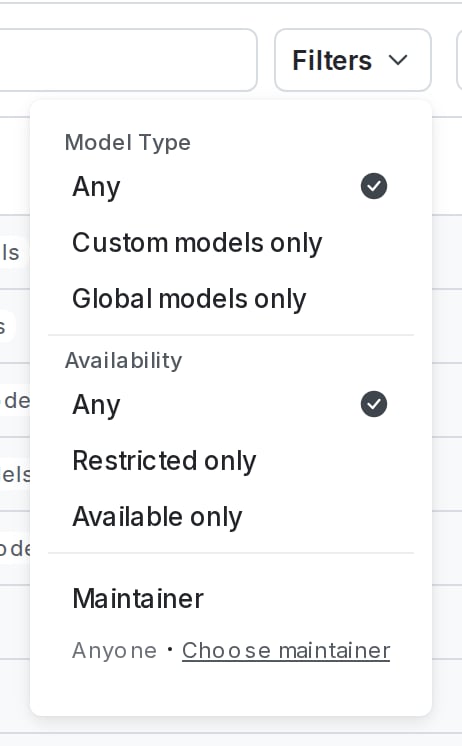
The "Filters" menu for the AI model configs list.
Edit an AI model configuration
You can edit a custom AI model configuration from the Models tab in the library. To edit an AI model configuration:- In the left sidebar, click Agents. The AgentControl menu appears.
- Click Library. The Models tab appears.
- Click the name of the custom model you want to edit.
-
Update any of the following fields:
- Name
- Input token cost
- Output token cost
- Model parameters
- Custom parameters
- Tags
- Maintainers
- Click Save.
Editable fields
Some fields on a custom model can change from version to version. Others are set permanently when you first create the model. This table lists which fields you can change and which stay fixed:| Field | Can change between versions |
|---|---|
| Name | Yes |
| Input token cost | Yes |
| Output token cost | Yes |
| Model parameters | Yes |
| Custom parameters | Yes |
| Tags | Yes |
| Maintainers | Yes |
| Provider | No |
| Model ID | No |
Update custom model versions for config variations
The “Used in” column in the Models tab shows how many config variations reference each custom model. Click the number to open a side panel showing which variations reference the model and which version each uses. You can update a single config variation to a new version, or apply it across every referencing variation at the same time. When a more recent version of a custom model is available, a warning icon appears in the “Used in” column. To update config variations to a more recent custom model version:- In the Models tab, click the number in the “Used in” column for the custom model you want to update. A side panel appears listing all configs currently using that model.
- Next to each config, use the menu to select the version you want to apply.
- Click Apply to configs.
View version history
To review the version history of a custom model, click the version number in the Models tab. The “Version history” dialog appears and displays all versions of the model. To compare two versions:- Open the “Version history” dialog.
- Click Compare.
- Select the two versions you want to compare to review the differences.
Version limit
Each custom model key supports up to 100 versions. If a model reaches this limit, you cannot create additional versions, and you cannot delete existing versions to make room for new ones.Restore a previous version
Restoring a previous version does not delete or overwrite later versions. Instead, it creates a new version containing the restored values. To restore a previous version:- Open the “Version history” dialog.
- Click the backward arrow button next to the version you want to restore. A confirmation dialog appears.
- Click Restore.
Restrict an AI model configuration
You can mark any AI model configuration as restricted, which prevents anyone in your organization from using it in any config variations. This lets you effectively limit the models that are available in each LaunchDarkly project. To restrict an AI model configuration:- Open the project menu.
- Select Project settings.
- Select AI model configs to open the AI model configs list.
- Click the three-dot overflow menu and select Restrict.
Delete an AI model configuration
To delete an AI model configuration:- Open the project menu.
- Select Project settings.
- Select AI model configs to open the AI model configs list.
- Click the three-dot overflow menu for the model you want to delete and select Delete.
- Alternatively, click the name of the AI model config you want to delete, then click Delete AI model config from the detail page.
How cost attribution works across model versions
LaunchDarkly attributes usage and cost to the specific model version that served each request, not to whichever version of the model is current when you open the data. When an SDK evaluates a config variation that references a custom model, it records the model’s key and the pinned version alongside the usage event. When LaunchDarkly calculates cost for that event, it uses the input and output token cost that were in effect on that version, regardless of any pricing changes you have made since. This gives you an accurate historical record even when your model configurations evolve. For example, if you lower a custom model’s output token cost this month, requests served last month continue to reflect last month’s cost when you review cost data on the Monitoring tab or the Insights page. You do not need to track pricing changes separately to keep your cost reporting accurate. LaunchDarkly handles this by attributing cost to the version.You must use the latest SDK version to attribute cost by model versionTo attribute usage and cost by model version, your application must use the latest version of the LaunchDarkly SDK. Applications using older SDK versions continue to work, but LaunchDarkly attributes their usage to the model’s first version.