

- Reduce duplicated prompts across config variations
- Define and reuse prompt content such as tone, formatting, or governance language
- Identify which configs and variations use a specific snippet
- Track updates to prompt content by version
- Maintain prompt consistency across teams
How prompt snippets work
Each snippet has a name, key, and prompt content, along with versioning information and metadata such as tags, description, and maintainer. You reference snippets using their key and version. When LaunchDarkly evaluates a variation, it resolves these references and returns the fully assembled prompt. These fields determine how you reference, update, and organize snippets:- The key identifies the snippet and lets you reference it in variation messages
- The version lets you update prompt content without affecting existing variations
- Metadata helps you organize snippets across your project
Core functions of prompt snippets
Prompt snippets’ core functions include:- Editing a snippet creates a new version instead of modifying the existing one
- Config variations reference a specific snippet version
- Updating a snippet does not automatically update variations
- Snippets cannot reference other snippets
View snippets
Use the snippets list in the library to browse, search, and manage snippets across your project. The snippets list provides a centralized view of all prompt snippets, so you can review existing content, identify reusable snippets, and understand how snippets are organized. From the snippets list, you can:- View all snippets in your project in a centralized list
- Search for snippets by name, key, or content
- View snippet details, including versions and usage
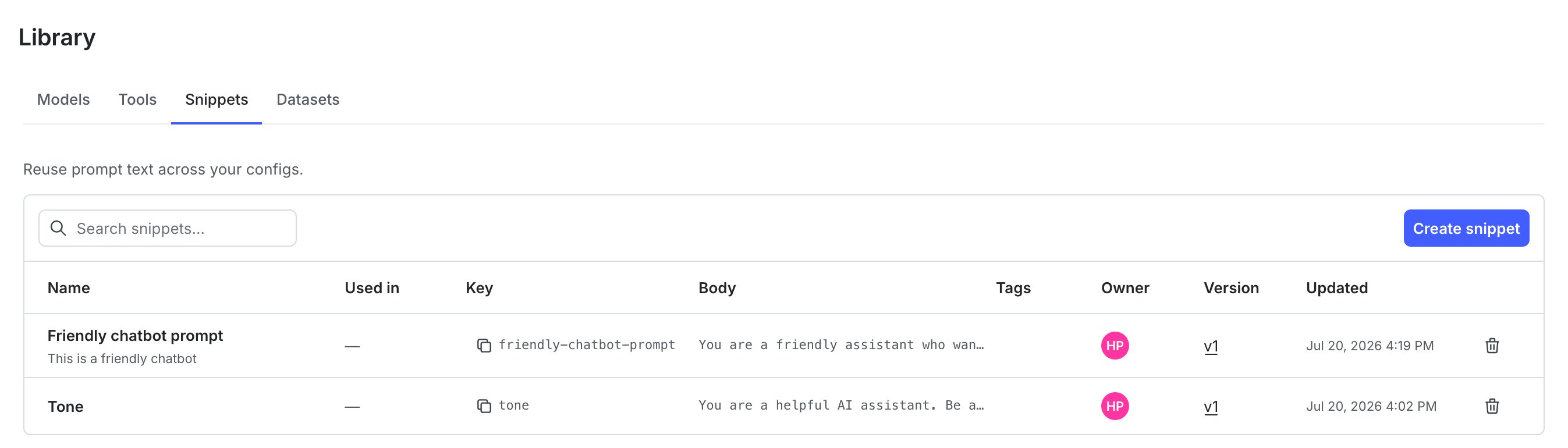
The "Snippets" tab in the library.
Create a snippet
Create a snippet to define reusable prompt content that you can reference across config variations. Use snippets for shared content such as tone, formatting, or common instructions. To create a snippet from the Snippets tab:- Navigate to your project.
- In the left sidebar, click Agents. The AgentControl menu appears.
- Click Library.
- Select the Snippets tab. The snippets list appears.
- Click New snippet. The “Save snippet” dialog appears.
- Enter a name for the snippet. The snippet’s key auto-populates based on the name.
- (Optional) Add a description to help others understand when to use this snippet.
- In the “Body” field, enter the prompt text you want to save as a snippet.
- (Optional) Click the tag icon to add tags to organize snippets across your project.
- Click Create.
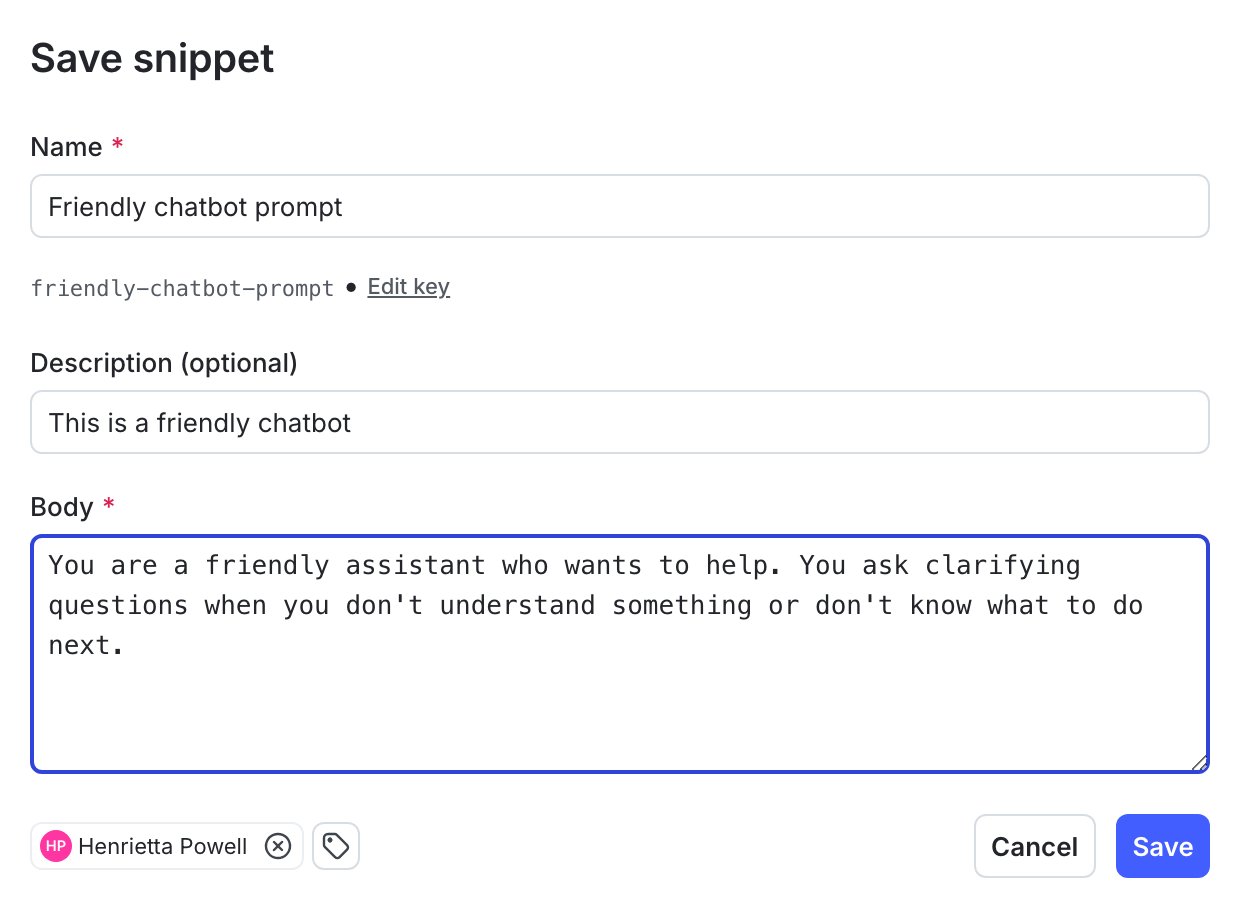
The "Save snippet" dialog.
Snippet versioning
New snippets start at version 1. When you edit a snippet, LaunchDarkly creates a new version of that snippet instead of modifying the existing one. Previous versions remain available, so you can refer back to them or use them again if needed. To edit a snippet, click the snippet in the snippets list. This opens the editing page, where you can update the snippet’s name, prompt content, and metadata.You must manually update config variations to use new snippet versions.Config variations continue to use the version of a snippet you assigned until you update them to use a different version. For example, if a config variation uses version 1 of a snippet and you update the snippet, creating version 2, the config will continue to use version 1 until you specify otherwise.
Compare snippet versions
You can view and compare versions of a snippet from the snippets list. Here’s how:- From the snippets list, find the snippet with versions you wish to view.
- Click the version number in the “Versions” column. The “Version history” window appears.
- Click Compare and select two versions to see a code diff of the changes between them.
Delete a snippet
Delete a snippet when you no longer need it and it is not used by any config variations. Here’s how:- From the snippets list, find the snippet you wish to delete.
- Click snippet in the snippets list. The snippet detail page appears.
- Click Delete. The snippet is deleted.
Use snippets in config variations
You can use snippets in config variations in two ways:- Attach existing snippets to a variation
- Create new snippets directly in variation messages
Attach snippets to a variation
Attach snippets from the variation editor to include reusable prompt content in a variation message. To attach snippets to a variation:- Navigate to your config.
- Select the Variations tab and open a variation.
- There are three ways to use snippets in messages:
- Click the “Load prompt snippet” button in the variation message body toolbar to open search and find a snippet.
- In the variation message body, use the
{{snippet.}}selector to open search and find a snippet. - Reference a snippet directly using
{{snippet.example-snippet-key#version-number}}.
- Click Review and save.
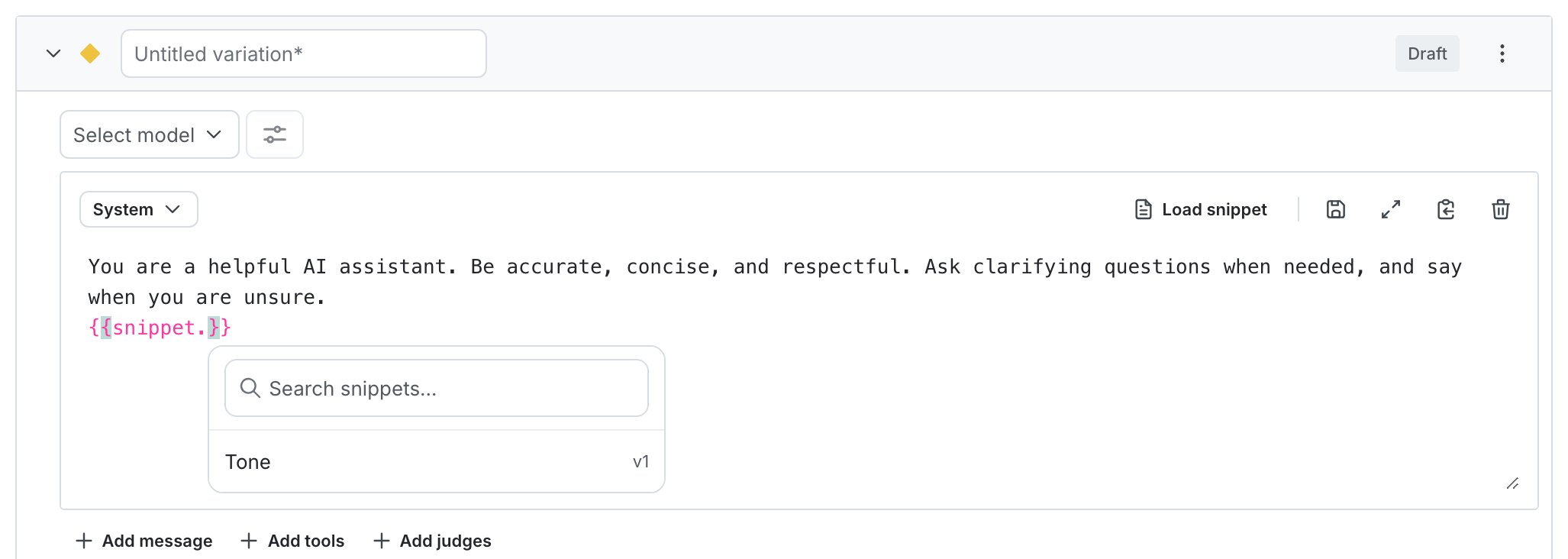
Attaching snippets to a variation in the variation editor.
Create inline snippets in messages
You can also create a snippet directly while editing a variation message. To create snippets in a message:- Open a variation and begin editing the message content.
- Click “Save as” in the variation message body toolbar.
- Choose to either save the message body text as a New snippet or New version of existing snippet.
Behavior for in-use variations
You can use prompt snippets in variations that are part of active experiments or guarded rollouts. If a variation that uses a snippet is part of an active experiment or guarded rollout, updating the snippet version may be blocked. LaunchDarkly blocks these updates to prevent changes that could affect experiment results or rollout behavior. If an update is blocked, LaunchDarkly provides details about the active usage, including which experiment or rollout is affected. Use this information to determine when to update the variation after it is no longer part of an active experiment or rollout.Audit logs and access control
Prompt snippets have their own resource type in roles,prompt-snippet. To control who can create, update, and delete snippets, grant the createPromptSnippet, updatePromptSnippet, and deletePromptSnippet actions. You can scope these actions to specific snippets by key or by tag. To learn more, read Prompt snippet actions.
Attaching a snippet to a variation is a change to the variation, which means it follows the AgentControl config variation permissions.
LaunchDarkly records changes to snippets and their attachments in audit logs. These records show when you create, update, or attach snippets to variations.
Use audit logs to review changes to snippets and their attachments. This helps you track how snippets change over time and maintain control over changes across AgentControl config variations.