

Canada.
Add attribute filters
To filter results by attribute, you can add up to 20 attributes in the “Advanced” section when you create an experiment. To learn how, read Creating experiments. You can then filter your results by the different values of one of those attributes. You can also add attributes to an existing experiment from its Results tab:- Navigate to your experiment’s Results tab.
- Scroll to the results table and click Add.
- Select Attributes. An “Add attributes” dialog appears, listing the context attributes you can add.
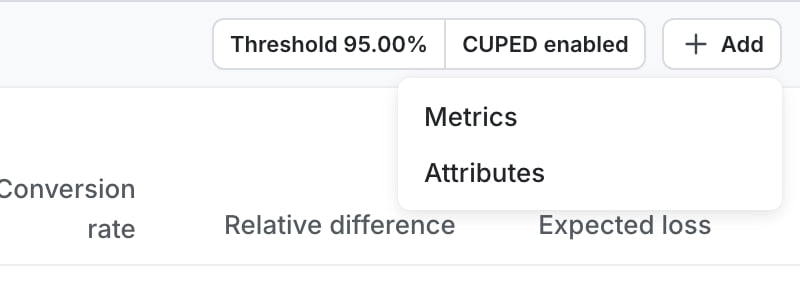
The add attribute option on a running experiment.
- Select the attributes you want to filter by. You can also type the name of an attribute that LaunchDarkly has not observed yet.
- Click Add.
Configure your SDK: Context configuration
View results filtered by attribute
To view experiment results filtered by attribute:- Navigate to your experiment’s Results tab.
- Above the results table, click All attributes. A menu of attributes appears.
- Hover over an attribute from the menu. A list of attribute values appears.
- Check the box next to any attribute value you want to narrow your results by.
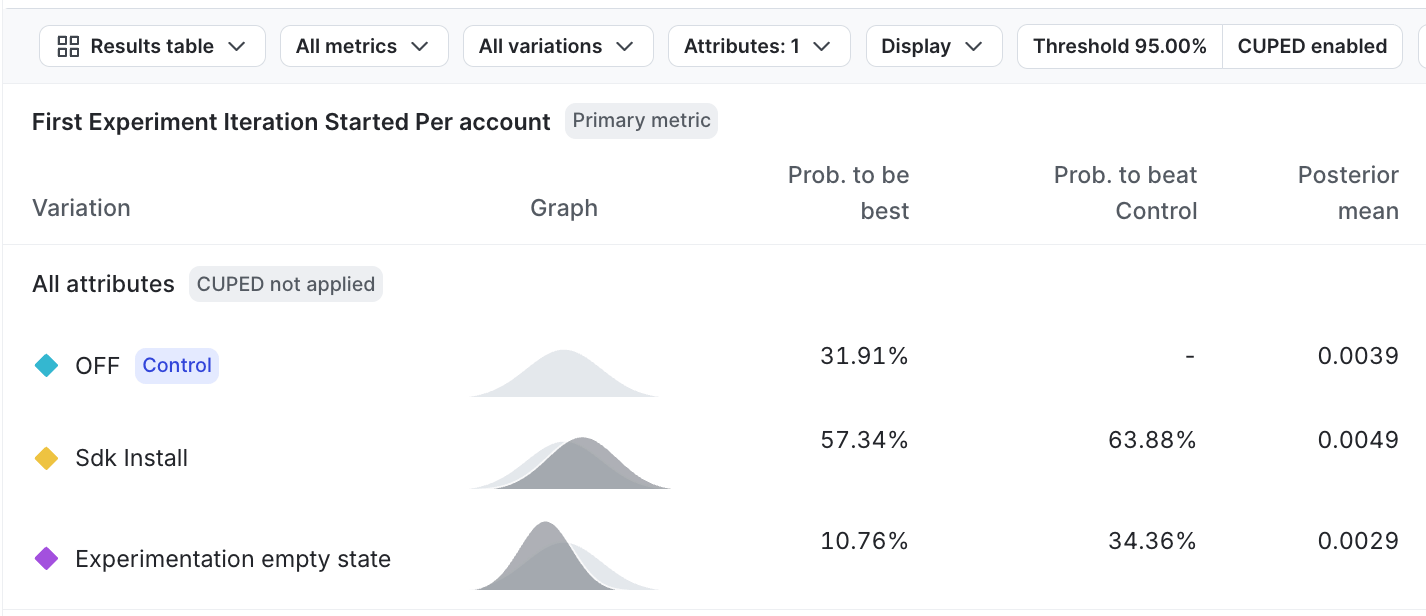
Experiment results filtered by attribute.
Statistical adjustments
LaunchDarkly does not apply covariate adjustment (CUPED), multiple comparison correction (MCC), or sequential testing to filtered attribute results, even if LaunchDarkly applied those adjustments to the unfiltered results. We recommend using filtered results for exploration and hypothesis generation rather than final decision-making.Attribute value update timing
After you add attributes to an existing experiment, the time it takes for LaunchDarkly to update the attribute values depends on the metric type and age of the experiment iteration:| Metric type | Iteration age | Time to update |
|---|---|---|
| LaunchDarkly hosted | Less than one day | Approximately five minutes |
| LaunchDarkly hosted | 1-60 days | Approximately one hour |
| LaunchDarkly hosted | More than 60 days | Approximately one day |
| Warehouse native | Any | Every 15 minutes during the first 24 hours of an iteration, then at the warehouse integration’s refresh frequency |
Attribute eligibility
You can add any attribute from your context data to an experiment, either when you create the experiment or while it is running. An attribute’s results display as empty if LaunchDarkly has not recorded values for it yet, or if it has too many unique values for LaunchDarkly to calculate results, as described in High-cardinality attributes.High-cardinality attributes
For experiment iterations that use LaunchDarkly hosted metrics, LaunchDarkly does not calculate results for an attribute that has more than 500 unique values in the iteration’s audience. This typically applies to identifiers such as email addresses, user IDs, or names, where each value covers too few contexts to produce meaningful results. You can still add these attributes to an experiment, but their results do not appear. This limit does not apply to:- Warehouse native experiment iterations, which calculate results for all attributes you add, regardless of how many unique values they have.
- Older hosted iterations that still use eligibility thresholds, as described in Eligibility for older experiment iterations.
Eligibility for older experiment iterations
Some older experiment iterations that use LaunchDarkly hosted metrics still use eligibility thresholds. For these iterations, the “Add attributes” dialog lists each attribute as eligible or ineligible based on how often LaunchDarkly observes it in your experiment audience. An attribute is eligible when its most common value:- appears for at least 50 contexts in the experiment, and
- accounts for at least 5% of the experiment audience.