

device, plan_tier, or product_category.
For example, if a metric measures checkout events from a table with a product_category column, you can review the experiment’s results for events where product_category is books, clothes, or toys. You do not need to know the values in advance, and you do not need to create a separate metric for each one.
Compare ways to narrow experiment data
Event properties are one of several ways to narrow the data in an experiment. Other options include:- Attribute filters narrow results by the context attributes a context had when it encountered the experiment. A context has one value for each attribute. Event properties narrow results by the values recorded on each metric event. A context can have events with many different values.
- Metric event filters limit a metric to events with values you specify, and the metric produces one result. Event properties produce a separate result for every value, from a single metric.
| Characteristic | Attribute filters | Metric event filters | Event properties |
|---|---|---|---|
| Narrows results by | Context attributes sent with flag evaluations | Context attributes or event properties you choose values for | Columns on the metric’s data source |
| What you get | Results for the attribute values you select | One result, for the values the filter matches | A separate result for each value |
| Where you configure it | On the experiment | On the metric | On the metric |
| Supported metrics | LaunchDarkly hosted and warehouse native | LaunchDarkly hosted and Snowflake warehouse native | Warehouse native |
| Example question | Did the change improve the metric for users in Canada? | Did the change improve the metric for purchases of widgets? | Did the change improve the metric for checkout events where product_category is books? |
Prerequisites
To slice results by event property, you need:- A warehouse native Experimentation integration.
- A metric data source that includes the columns you want to use as event properties. Event property columns can use a string, boolean or integer data type.
- LaunchDarkly hosted metrics
- Percentile metrics
- Ratio metrics that use a different analysis unit for the numerator and the denominator
Add event properties to a metric
You add event properties to a warehouse native metric, either when you create the metric or by editing it later. Every experiment that uses the updated metric version displays results for all of the metric’s event properties. You can add up to ten event properties to each metric. Each event property must be a column on the metric’s data source that:- Uses a string, boolean, or integer data type.
- Is not the column mapped as the data source’s timestamp or context key.
- Click Data > Metrics in the left sidebar.
- Click Create metric. The “Create metric” dialog appears.
- Select a configured warehouse integration from the Define metric using menu.
- Select a data source from Metric data source.
- Configure the rest of the metric as described in Create a warehouse native metric.
- Click the Slice by event property menu. A list of the data source’s columns appears, with each column’s data type.
- Check the box next to each column you want to use as an event property.
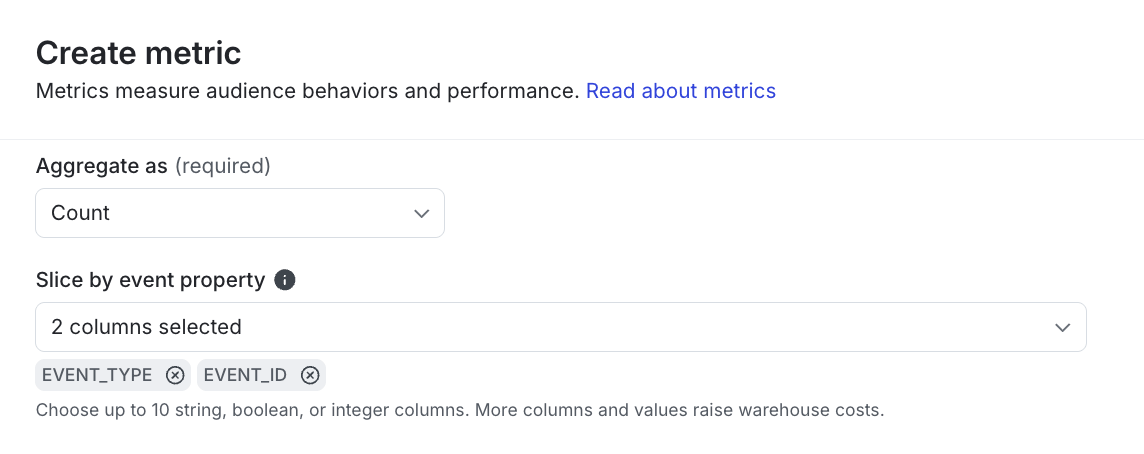
The "Slice by event property" menu in the "Create metric" dialog.
- Click Create.
- Click Measurement > Metrics in the left sidebar.
- Click the name of the metric you want to edit. The metric details screen appears.
- Click the pencil icon in the right sidebar. The “Edit metric” dialog appears.
- Click the Slice by event property menu.
- Check the box next to each column you want to use as an event property, or clear the box next to each column you want to remove.
- Click Save metric.
Add event properties to a running experiment
Adding or removing event properties creates a new version of the metric. Running experiment iterations keep the event properties they started with until you update them to the new version. If the metric is in any running experiments, the “Edit metric” dialog displays a warning with the number of experiments. You do not need to start a new experiment iteration. To learn how to update an experiment to a new metric version, read How metric versions affect experiments.Slice results by event property
On the experiment’s Results tab, you choose an event property separately for each metric. You can view a different event property for each metric in the experiment. To view experiment results by event property:- Navigate to your experiment’s Results tab.
- Find the metric in the results table and click its Slice results menu. The “Slice this metric by” menu appears, listing the metric’s event properties by column name.
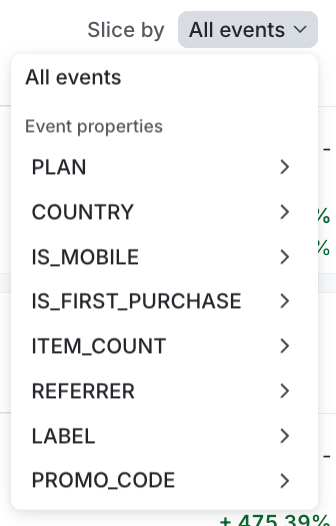
The "Slice results" menu for a metric on the "Results" tab.
- Select the event property you want to view results by.
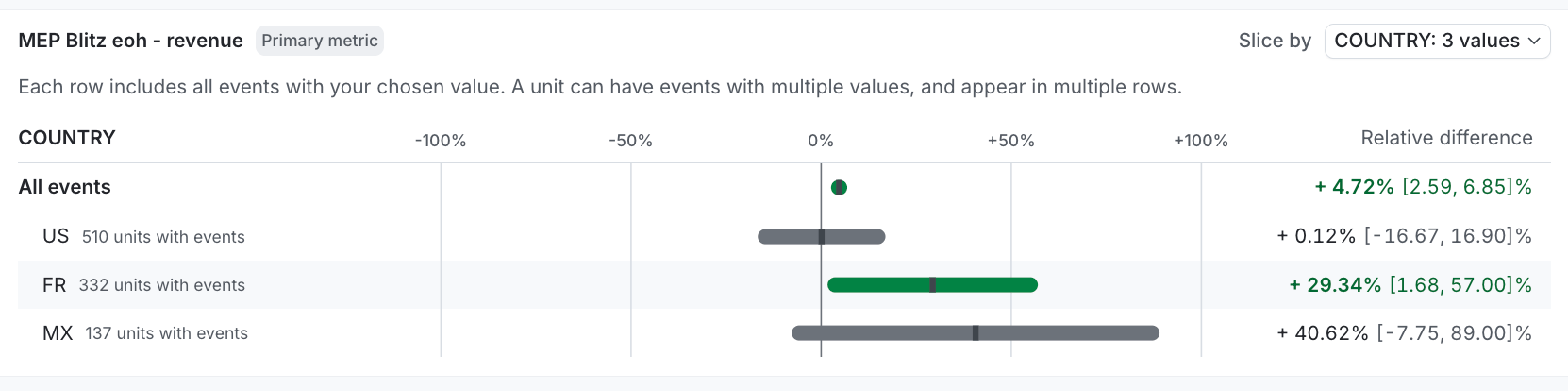
Experiment results sliced by the COUNTRY event property.
How LaunchDarkly calculates event property results
LaunchDarkly calculates event property results in the same pass as the metric’s overall results. Each value’s results are equivalent to the results of the same metric with a metric event filter for that value, with the exceptions described below.Value limits
For each event property, LaunchDarkly displays results for up to the 20 most frequent values. LaunchDarkly ranks values by the number of contexts that have at least one event with each value, across all variations. LaunchDarkly combines all remaining values into a single “(other)” group. LaunchDarkly leaves events with a null or empty value out of the event property’s results. These events may still count toward the metric’s overall results.Overlapping values
A context can have events with more than one value for the same event property. For example, a user who checks out on both desktop and mobile counts toward both thedesktop and the mobile results. Because a context can appear in the results for more than one value, the results for individual values might not add up to the metric’s overall results.
Contexts included in each value
Each value’s results include every context in the variation, including contexts that have no events with that value. For conversion metrics, a context converts for a value if it has at least one event with that value. If a metric uses the “Exclude units that generate no events” option, each value’s results include only contexts that have at least one event with that value. A variation can change which contexts generate events with a given value, which can bias the comparison between variations. To learn more about this option, read Units without events. When you slice results by event property for one of these metrics, LaunchDarkly displays a warning above the results table.Ratio metrics
For ratio metrics, LaunchDarkly applies the event property to the numerator only. The denominator is the same as in the metric’s overall results.Winsorization
If a metric uses winsorization, LaunchDarkly applies the thresholds from the metric’s overall results to each value’s results. LaunchDarkly does not calculate separate thresholds for each value.Statistical adjustments
LaunchDarkly does not apply CUPED, multiple comparison correction (MCC), or sequential testing to event property results, even if LaunchDarkly applied those adjustments to the metric’s overall results. We recommend using event property results for exploration and hypothesis generation rather than final decision-making. When you slice results by event property, the Results tab displays a notice that statistical adjustments are not applied. Each value’s results compare the variations for that value only. Comparing results across values, such as whether a change improved the metric more forbooks than for toys, is not valid. When an event property has many values, some values may show a difference between variations by chance.