

Audience-based releases availabilityAudience-based releases are available to customers on an Enterprise plan with the Guardian add-on. To learn more, read about our pricing or contact Sales.
Prerequisites
To create an audience-based release, you should first complete the following prerequisites:Choose a context kind
Choose a context kind to use as the randomization unit for the rollout. The context kind determines how LaunchDarkly assigns traffic to variations and how audiences are evaluated during each phase. It must be available in both the flag or AgentControl config and in any metrics you plan to monitor.Custom context kinds must be available for audience-based releasesIf you want to use a custom context kind as a randomization unit, the Available for experiments and guarded rollouts box must be checked in the context kind configuration. To learn how, read Edit context kinds.
Create metrics
If you are using guarded rollout behavior, choose one or more existing metrics or create new ones to monitor during the rollout. All phases share the same metrics and rollback configuration. To learn how, read Creating and managing metrics.Define your audiences
Decide which audiences to include and in what order. Each audience defines which contexts are included in a phase of the release. You can define audiences using segments or targeting rules.Create an audience-based release
You can create an audience-based release when you begin serving a new variation. This applies whether you are toggling the flag or AgentControl config on for the first time, or changing a variation on a flag or config that is already on. Select Automatic for phase advancement to let LaunchDarkly move the release through all audiences without manual action between phases. To create an audience-based release on a flag or AgentControl config:- Navigate to the flag or config you want to release, then select the Targeting tab.
- Locate the rule where you want to create the release.
- Click Ship it or the “using a release is recommended” release policy banner.
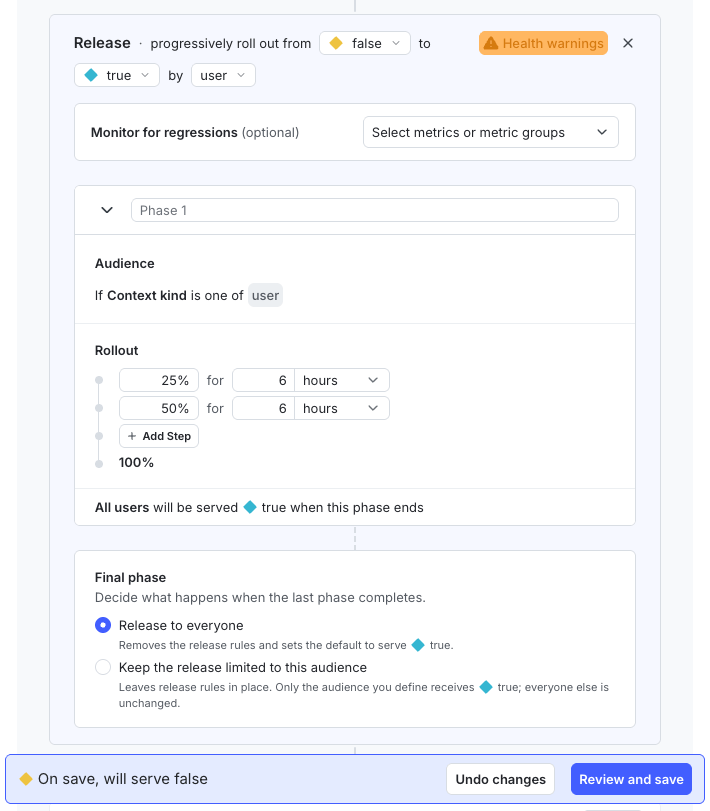
The release configuration panel showing rollout steps, audience targeting, and final phase options for an audience-based release.
- Select the rollout variations.
- Select the context kind to use as the randomization unit.
- (Optional) Select metrics or metric groups to monitor for regression.
- Configure the rollout steps. These settings apply to every phase in the release.
- Select a Phase advancement option.
- Select Automatic to let LaunchDarkly start the next phase as soon as the current phase completes, advancing through all audiences without manual action between phases.
- Select Manual if you prefer to start each phase yourself.
- Select a Final phase option.
- Click Health check waiting or Health warnings to review any issues that could prevent LaunchDarkly from monitoring your rollout. To learn more, read Health checks for guarded rollouts.
- Click Review and save.
Advance to the next phase
A phase completes when the rollout steps reach 100% for the current audience.Automatic phase advancement
If you selected Automatic phase advancement, LaunchDarkly starts the next phase automatically when the current phase completes. The release moves through all audiences without any manual action required between phases.Manual phase advancement
If you selected Manual phase advancement, navigate to the flag or AgentControl config, select the Targeting tab, and click Advance to next phase.Monitor an audience-based release
To monitor an audience-based release:- Navigate to the flag or AgentControl config.
- Select the Monitoring tab.
- Review the current phase and rollout progress.
- Examine metric performance for the active audience.
- Check for regressions or health warnings.