

purchaseCompleted event with a productCategory property, you can define one metric that includes only purchases of widgets and another that includes only purchases of gizmos. You do not need to change your instrumentation or send separate events.
For warehouse native metrics created from Snowflake data sources, you can filter metric events using any column that is mapped in the warehouse data source. To learn more, read Create data sources.
LaunchDarkly applies a metric’s filter when it processes events during a guarded rollout or experiment. Only events that match the event key and satisfy the filter are included in the metric.
Warehouse native filtering is restricted to Snowflake data sourcesYou can only filter warehouse native metric events with metrics created from Snowflake data sources, for use with warehouse native Experimentation. You cannot filter events for metrics created from other warehouse data sources.
Benefits of filters
Metric filters help you:- Define metrics for specific values of context attributes or event properties using data you already send. For example, you can define a metric to measure
purchaseCompletedevents for users whereplan = "enterprise"orcountry = "CA". - Use a single custom event to create multiple metrics, without complicating your instrumentation.
- Change what a metric measures directly in the LaunchDarkly UI, without updating your code or redeploying.
- Reuse filtered metrics across multiple guarded rollouts and experiments.
Filter options
With LaunchDarkly hosted metrics, you can filter custom metrics using two types of data:- Context attributes, such as “country”, “plan”, or “deviceType”
- Event properties, such as
productCategory,currency, orpageType
data object provided in a custom event. Supported values include strings, numbers, and true or false values.
Nested data is not supportedFilters do not evaluate nested data or arrays provided in LaunchDarkly hosted metrics. If your event includes nested objects or arrays, LaunchDarkly ignores those fields when applying metric filters.
AND or OR operators or logical groupings.
You create metric filters using the Filter by event properties or Filter by context attributes fields when creating a new metric. The fields use these basic controls:
- Click an empty spot in the field to display the attributes, properties, warehouse columns, or query operators you can add to the filter at that spot.
- Type characters to limit the available selections you can add. Enter or click a name in the menu to add the value.
- Use checkboxes in the menu to select multiple values to insert.
- Click an existing filter entry to edit the selection.
- Click the x icon next to an entry to delete it.
Example: LaunchDarkly hosted metric for EU users who made a purchase
To include only LaunchDarkly hosted events from users in the EU who purchased a widget, use a filter for both the context attribute and the event property:- Context attribute:
user.region = "EU" - Event property:
product_category = "widget"
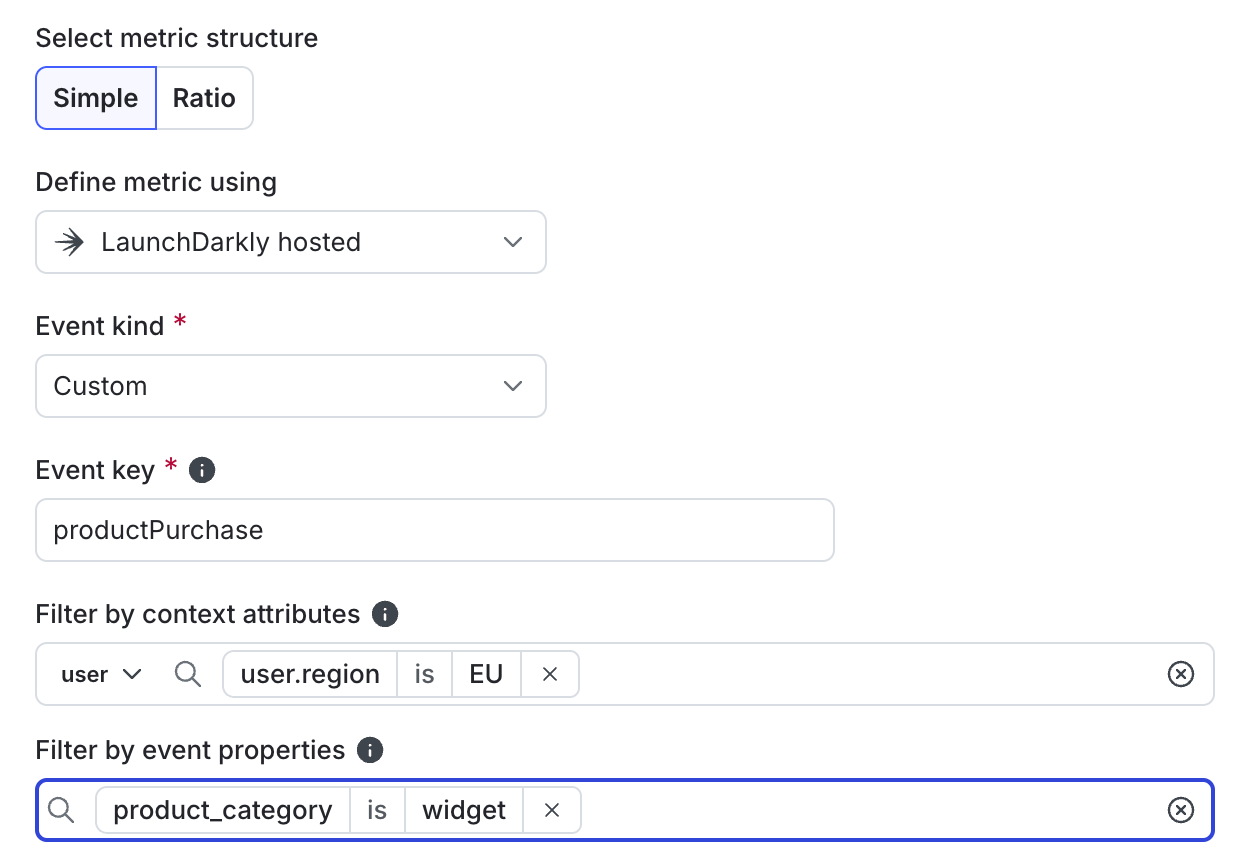
A LaunchDarkly hosted metric that includes only events from EU users who purchased a widget.
Example: Warehouse native metric for completed purchases
Event filters for warehouse native metrics can use any Snowflake columns that you mapped in the data source. You specify column names, values, and operators in the Filter by event properties field to select only those rows you want to include for the metric. For example, you can filter warehouse columns to select events only from users who made a purchase with a unit price greater than 1.5.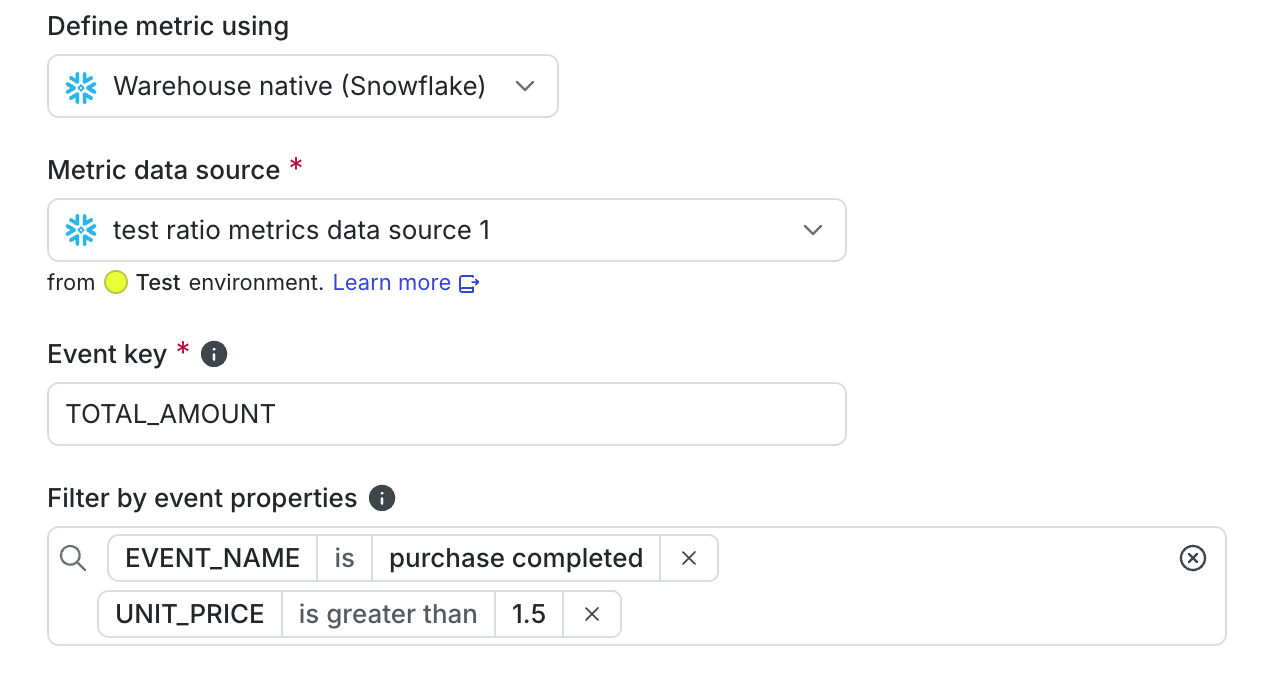
A warehouse native metric that includes only events from users who purchased higher-priced units.
Filter evaluation
LaunchDarkly evaluates metric filters when the event is received. Filters determine whether a specific event is included in the metric calculation. Filters do not affect flag targeting, flag evaluations, or exposure logic.Context attribute filters
Context attribute filters match data from the context that triggered the event. These filters are evaluated at the time the event is received.Event property filters
Event property filters match key-value pairs in thedata field of a custom event, or from Snowflake columns included in a data source context pair mapping.
For LaunchDarkly hosted events, these filters only work if the event data is a flat JSON object that includes string, number, or boolean values.
Here is an example of a track() call in JavaScript:
productCategory and currency can both be used in metric filters.
Prerequisites
You can apply filters only to custom metrics that are hosted in LaunchDarkly or created from a Snowflake warehouse data source. Metrics based on clicked or tapped events and page viewed events do not support filtering. You cannot filter metric events for warehouse native metrics created from warehouse data sources other than Snowflake.SDK compatibilityBecause LaunchDarkly applies filters automatically when processing metric events, you do not need to change how the event is tracked in your SDK.However, you must use an SDK that supports inline contexts, which is a format for how the SDK sends custom event information to LaunchDarkly. To confirm that your SDK supports this, read Supported features. Find your SDK and look for the “Inline contexts in custom events” entry in the corresponding table.
Add a filter to a custom metric
You can add metric filters when you create a new custom metric or edit an existing one. Filters are available in the LaunchDarkly UI during metric definition. To create a new metric with filters:- Open the Data section and navigate to the Metrics list.
- Click Create metric. The “Create metric” panel appears.
- Select a Snowflake warehouse integration or leave the selection on LaunchDarkly hosted. If you select a Snowflake integration, also choose a data source to provide event data for the metric.
- Select Custom as the event kind for a LaunchDarkly hosted metric.
- Search for or enter an Event key.
- Click Filter events to show the available metric filter fields.
-
(Optional) Click the menu in Filter by context attributes to select the context kind to use for filtering context attributes. Then click an empty spot in the field to choose context attributes, values, and operators for the filter. This field is available only for LaunchDarkly hosted metrics.
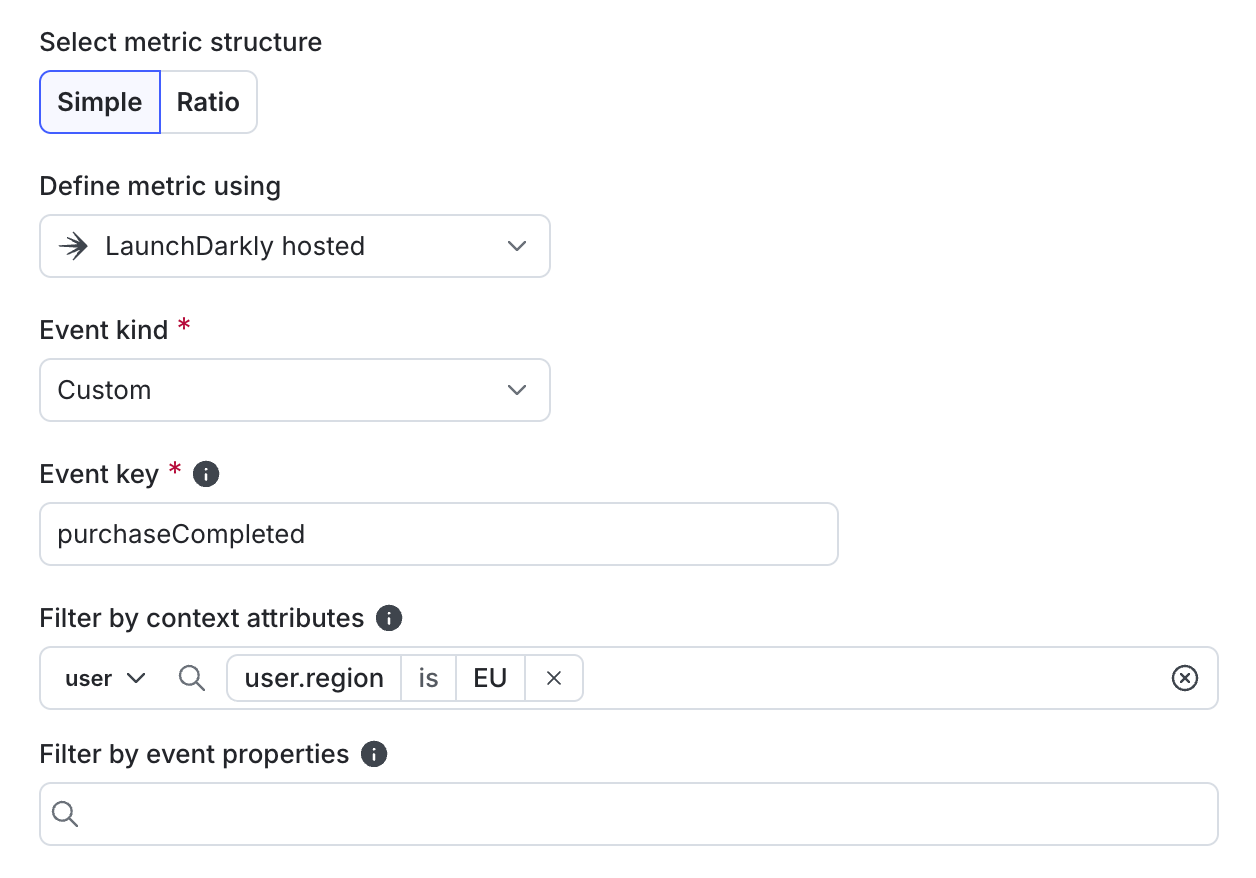
Filtering
usercontext kinds where theregionattribute is set toEU. -
(Optional) Click in the Filter by event properties field to select the event property or warehouse column, value, and operators to use for filtering.
Filtering events where the
product_categoryproperty is set towidget. - Continue creating your metric according to the create procedure for the custom metric.