

About ratio metrics
A ratio metric is a complex metric type that computes the ratio of two separate metric aggregations: one for the numerator component and one for the denominator component. Each aggregation component is a simple metric created from a warehouse data source. LaunchDarkly divides the total of the numerator aggregation by the total of the denominator aggregation to compute the final metric value.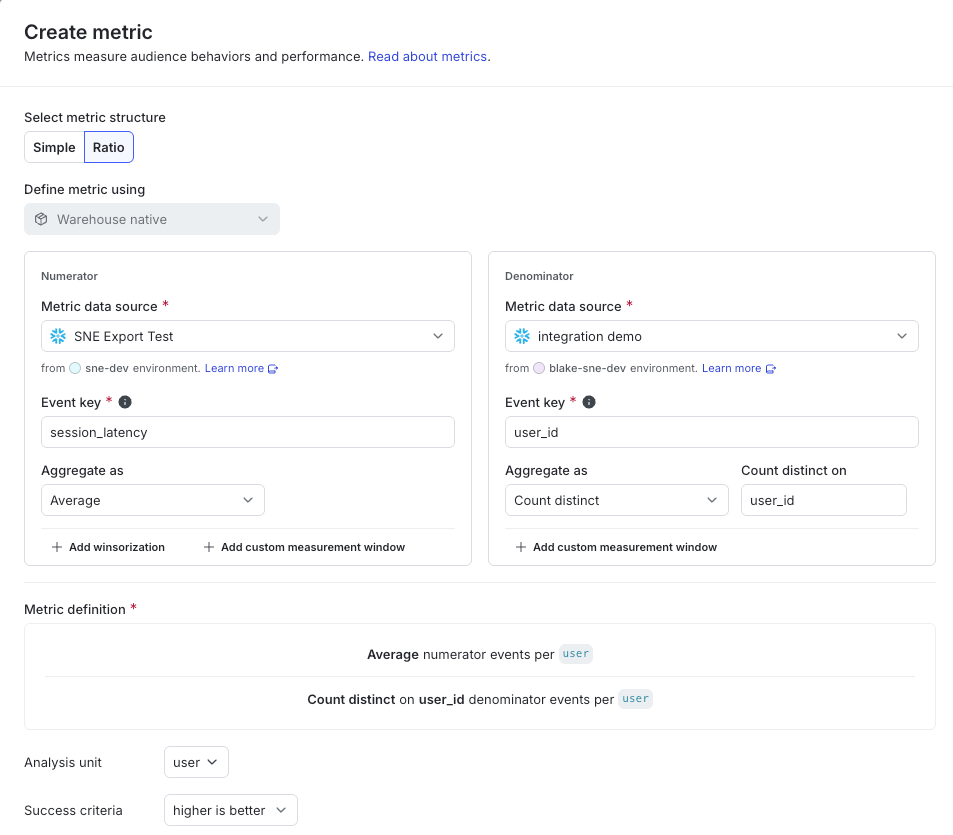
Configuring numerator and denominator aggregations for a ratio metric.
-
Clustered analysis for experiments: Ratio metrics let you measure events that are grouped by an analysis unit that is finer-grained than the randomization unit chosen for the experiment. For example, you could measure the number of session errors generated relative to the total number of prompts that users created. In this example, you randomize the experiment by user contexts and configure a user aggregation for the denominator component, then configure a session aggregation for the numerator.
Clustered analysis is also available for simple metricsSnowflake experiments also support clustered analysis using simple metrics. You can select the metric analysis unit to use after you add Snowflake metrics to an experiment. To learn more, read Randomization units and metric analysis units.
- Conversion metrics normalized by a separate event: Simple metrics can measure conversion events normalized by users who participate in the experiment. Ratio metrics can measure conversion events normalized by users that generate some other event, configured in the denominator aggregation. For example, you could measure the number of users who clicked on a search result, relative to the number of users who initiated a search.
Aggregation types for ratio metrics
You configure each aggregation in a ratio metric separately. The numerator and denominator can use the same or different aggregation types, and can even use data from different warehouse data sources. However, the selected data sources must include context key mappings for one or more shared context kinds. For example, if the data source for the numerator contains context key mappings for the “account,” “user,” and “session” context kinds but the denominator includes mappings for “session” and “device” contexts, then the ratio metric can only use “session” as the analysis unit. To learn more about mapping context keys in a warehouse data source, read Create data sources. Ratio metric components support the following aggregation types:- Count uses sum aggregation to measure the total number of times a context generates the metric event (conversion metric).
- Sum uses sum aggregation to measure the total of the numerical values provided with a context’s metric events (numeric metric).
- Average uses average aggregation to measure the average numerical value provided with a context’s metric events (numeric metric).
- Count distinct uses
count_distinctaggregation to measure the total number of times a unique value appears in a warehouse column associated with a context’s metric events (numeric metric). This option ignores duplicate or null values in the column.
count_distinct aggregation type provides the flexibility to measure a distinct signal independently of the metric event count or event value. When you choose Count distinct, you provide the name of a warehouse column associated with the metric event to use for measuring distinct values. Simple warehouse native metrics can also use this aggregation type. To learn more, read Count distinct metrics.
For all ratio metric aggregations that correspond to a numeric metric, LaunchDarkly uses imputation to assign a zero value to any units that do not produce a metric event. To learn more, read Units without events.
Example metric in SQL
Some customers find it helpful to think about LaunchDarkly metric calculations in terms of SQL statements. The following example shows a conversion metric that is normalized by a separate event. It measures the number of users who clicked a search result, normalized by the number of users who initiated a search. Example table and column names represent the separate metric components:result_click_eventsis a warehouse table that stores the metric events for the numerator aggregation. In this example, it records an event each time a user clicks a search result.search_eventsis a warehouse table that stores the metric events for the denominator aggregation. In this example, it records an event each time a user initiates a search. The numerator and denominator can draw from the same or different data sources, as long as they share at least one context kind.user_idis the shared context kind that both aggregations use as the analysis unit. Each component usesCOUNT(DISTINCT user_id), the count distinct aggregation, to count the unique users represented in each table. This example uses the “user” context kind, but a metric can use other context kinds, such as “account,” “session,” or “device.”- The resulting
ratioexpresses the number of users who clicked a search result relative to the number of users who initiated a search.
Prerequisites and limitations
You can create ratio metrics only from Snowflake warehouse native metrics, for use with warehouse native Experimentation. Configure your Snowflake warehouse integration and create a data source before you create new warehouse native metrics. To learn more, read Metric data sources. You cannot create ratio metrics from LaunchDarkly hosted metric events, OpenTelemetry traces, or from warehouse data sources other than Snowflake. You can add ratio metrics only to experiments that use the frequentist statistical methodology. To learn more, read Analyzing experiments.Create a ratio metric
To create a ratio metric:- Open the Data section and navigate to the Metrics list.
- Click Create metric. The “Create metric” dialog appears.
- Click Ratio in the “Select metric structure” section. The “Select metric structure” section appears only if you have configured warehouse native Experimentation and a Snowflake warehouse data source.
-
Configure metric options for the “Numerator” component:
- Choose an existing data source from the Select metric data source menu. The data sources you choose for the numerator and denominator components must have at least one context key mapping to the same context kind.
- (Optional) Enter the Event key to use for the numerator component of the metric. If you leave the Event key blank, the component includes every event from the data source.
- Choose an aggregation type from the Aggregate as menu:
- Count uses sum aggregation to measure the total number of times a context generates the metric event (conversion metric).
- Sum uses sum aggregation to measure the total of the numerical values provided with a context’s metric events (numeric metric).
- Average uses average aggregation to measure the average numerical value provided with a context’s metric events (numeric metric).
- Count distinct uses
count_distinctaggregation to measure the total number of times a unique value appears in a column associated with a context’s metric events (numeric metric). This option ignores duplicate or null values in the column.
- If you chose Count distinct, enter a column name to use for the measurement in the Count distinct on field.
- If you chose Sum or Average aggregation, confirm or choose the Numeric value column. LaunchDarkly reads this column from each row in the data source to get each event’s numeric value, such as
order_amount. If the data source maps an event value column, this field displays that column by default, and you can select a different numeric column for this component. Otherwise, select the column to use for providing the value. - (Optional) Click + Add winsorization or + Add custom measurement window as needed to configure the aggregation. To learn more, read Metric winsorization or Metric measurement window.
-
Repeat the previous step to configure an aggregation for the “Denominator” component of the metric. The aggregation type or warehouse column does not need to match the configuration of the numerator. However, the data sources you choose for the numerator and denominator must have at least one shared context key mapping.
After you configure the numerator and denominator, the window displays a complete metric definition using the values you selected.Both metric windows must completeIf you configure a metric window for the numerator and denominator, windows for both components must complete before LaunchDarkly includes the ratio metric result in an experiment. To learn more, read Interpreting metrics excluded from experiments.
- Use the Analysis unit menu to select the analysis units to use for the metric. The same analysis units apply to both the numerator and denominator components of the ratio metric. Only context kinds marked as available for experiments and guarded rollouts appear as options. To learn more, read Mark context kinds available for experiments.
- Choose higher is better or lower is better to define the success criteria for the computed ratio.
- Enter a metric Name.
- (Optional) Add a Description.
- (Optional) Add any Tags.
- (Optional) Update the Maintainer.
- Click Create.

You can also use the REST API: Create metric