

- Whether the Data Export destination for a given project and environment is receiving data
- Whether required fields are present and valid
- Whether authentication to your warehouse is working
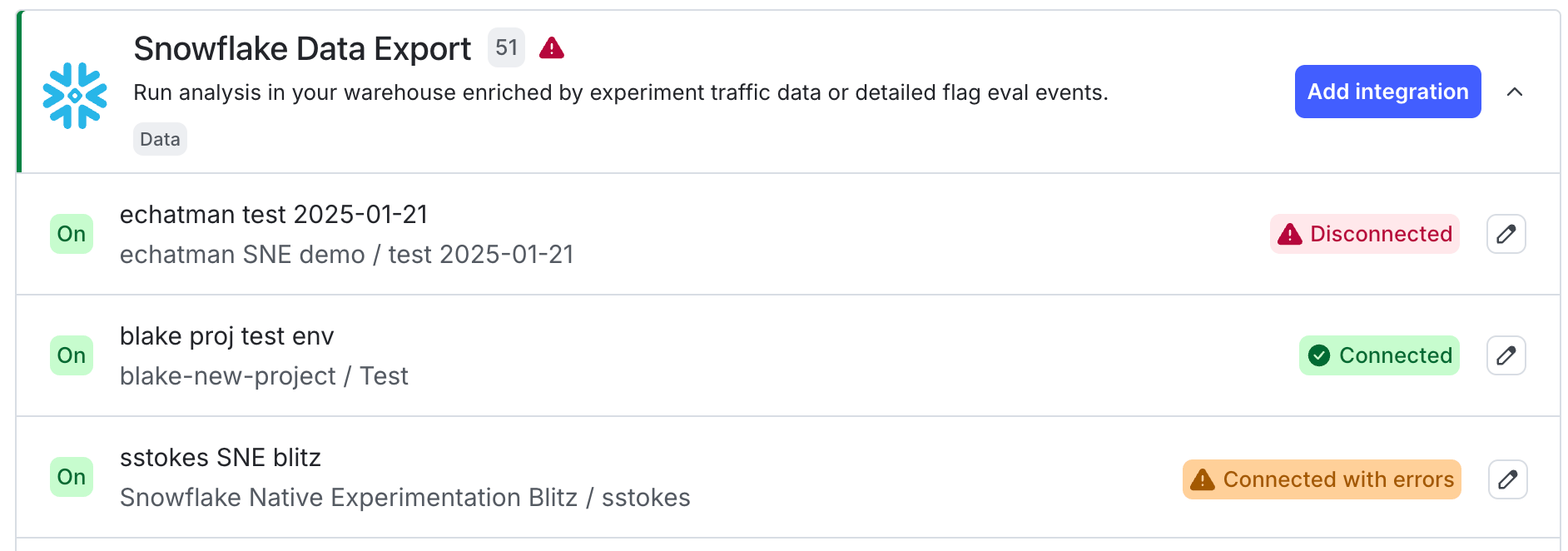
A connection warning for a Snowflake Data Export integration.
View connection status
To view the connection status for an integration:- Click the gear icon in the left sidebar to open Organization settings.
- Click Integrations.
- Find your warehouse Data Export integration section and click the down arrow next to “Add integration.” A list of existing destinations displays.
- Connected: The integration is enabled and operating normally.
- Connected with errors: The integration is enabled but LaunchDarkly detected a problem, such as data delivery errors.
- Disconnected: The integration is not connected. You may need to update your credentials or complete setup for the integration.
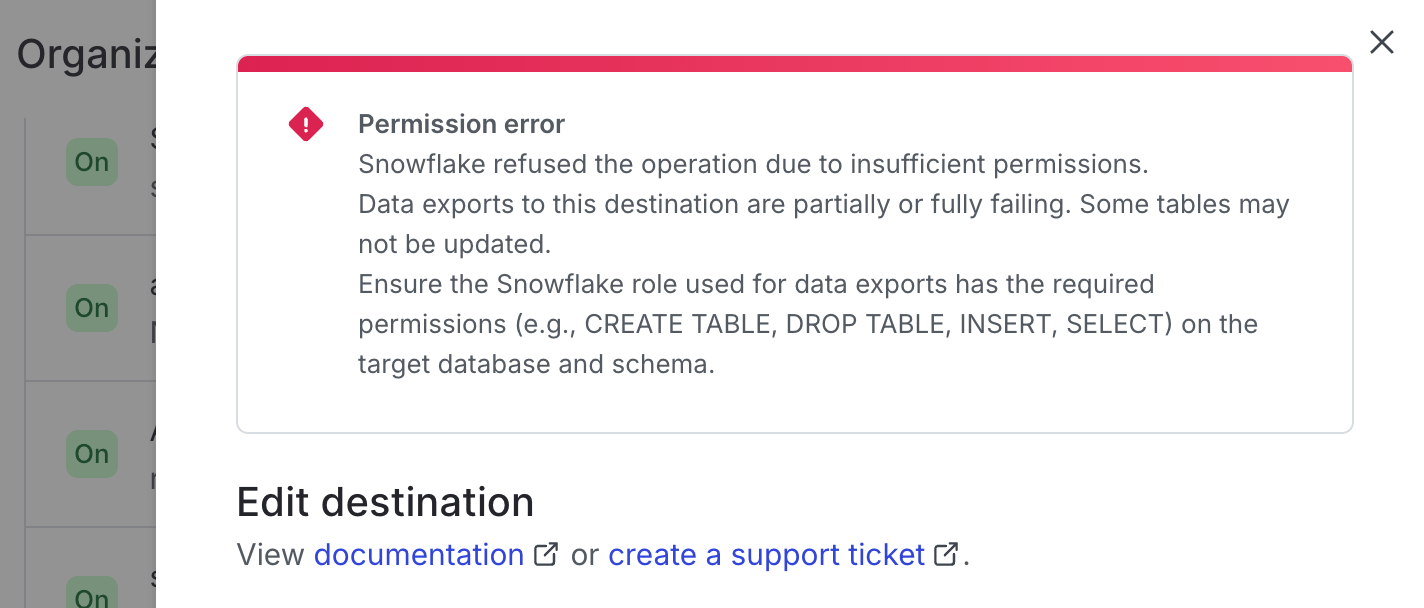
A permission error warning at the top of an integration configuration panel.
sts:AssumeRole action can take up to five minutes to be reachable from another AWS account. If your first Test connection and save fails immediately after you create the role, wait a few minutes and try again. To learn more, read Redshift Data Export.