

Contact us for help configuring Databricks native ExperimentationAccess to Databricks native Experimentation requires both Data Export and Experimentation. If you do not have access or need help getting started, contact your LaunchDarkly representative or start a Support ticket.
- Choosing an authentication method
- Creating credentials in Databricks
- Granting Unity Catalog permissions
- Gathering your Databricks catalog and warehouse details
- Configuring the LaunchDarkly integration
- Verifying the connection
Prerequisites
Before setting up Databricks native Experimentation, ensure that you have:- The Databricks Data Export integration set up in LaunchDarkly for the project and environment you use. Only environments with a Databricks Data Export destination are available when you create this integration.
- A Databricks workspace that uses Unity Catalog.
- A Databricks user who can create a service principal and grant Unity Catalog privileges. The service principal that LaunchDarkly uses does not need admin rights. To learn which privileges it needs, read Step 3.
- Catalog and schema names for experiment results, and optional metrics catalog and metrics schema names.
- An active Databricks SQL warehouse.
- A LaunchDarkly role of Owner or Admin, or a custom role that allows the following actions:
- Event data in your Databricks database that you want to use for Experimentation.
- An allow list in Databricks that includes the following outbound IP addresses:
52.21.152.96/3252.200.35.24/3252.200.50.23/3254.144.218.89/3254.221.221.197/3234.236.6.43/32
Step 1: Choose an authentication method
LaunchDarkly supports two methods for authenticating the Databricks native Experimentation integration to your workspace:- OAuth M2M: LaunchDarkly authenticates with the client ID and client secret of a Databricks service principal. This is the default method when the authentication method control appears in the configuration form.
- Personal access token: LaunchDarkly authenticates with a Databricks personal access token (PAT).
Step 2: Create credentials in Databricks
Create the credentials that match the authentication method you chose.Expand Create OAuth M2M credentials
Expand Create OAuth M2M credentials
Create OAuth M2M credentials
LaunchDarkly connects to your warehouse as a Databricks service principal using OAuth M2M authentication. Generate an OAuth secret for the service principal, then provide its client ID and secret to LaunchDarkly. To learn more, read the Databricks documentation about OAuth machine-to-machine (M2M) authentication.To create a service principal, follow the Databricks instructions to Add service principals to your account. Ensure that the principal has Workspace access and Databricks SQL access entitlements. To learn how, read the Databricks documentation about Access entitlements.To generate the OAuth credentials:- Navigate to the Databricks account console, click Settings, then open Identity and access and find “Service principals.”
- Select the service principal you created, then copy its Application ID. This is your client ID.
- Open the service principal’s Secrets tab, then click Generate secret.
- Set a Lifetime (days) for the secret, then click Generate.
- Copy the Secret and save it in a secure location. Databricks displays the secret only once. This is your client secret.
Expand Create a personal access token
Expand Create a personal access token
Create a personal access token
Use this procedure if you want to use a Personal access token to set up the integration. First, create a workspace token in Databricks. Then use that token to create the PAT that LaunchDarkly uses. Finally, grant your service principal permission to use personal access tokens.To create a workspace token:- Navigate to Workspace settings > Developer.
- Click Manage.
- Click Generate new token.
- Copy and save the token. You use this token as the bearer token in the next request.
DATABRICKS_HOSTNAME with your workspace hostname, EXISTING_TOKEN with the token from the previous steps, and LIFETIME_SECONDS with the token lifetime in seconds:- Navigate to Workspace settings > Workspace admin > Advanced > Personal access tokens > Permission settings.
- Add the service principal.
- Assign the Can use permission.
Step 3: Grant Unity Catalog permissions
LaunchDarkly connects as the service principal you created, or as the owner of the personal access token. This principal does not need workspace or account admin rights. Grant it only the Unity Catalog privileges below, before you save the integration. These grants apply to both authentication methods. For the Catalog and Schema where LaunchDarkly writes experiment results, grant the privileges that match how you set up the schema:- If the schema already exists:
USE CATALOGon the catalog, andUSE SCHEMA,CREATE TABLE,MODIFY, andSELECTon the schema. - If you want LaunchDarkly to create the schema:
USE CATALOGandCREATE SCHEMAon the catalog. The service principal owns the schema it creates and needs no schema-level grants.
- If you specify a Metrics catalog and Metrics schema:
USE CATALOGon the catalog, andUSE SCHEMAandSELECTon the schema. - If you specify a Metrics catalog without a Metrics schema:
USE CATALOG,USE SCHEMA, andSELECTon the catalog. This allows LaunchDarkly to read every schema in it. - If a data source queries a table in any other catalog or schema, grant
USE CATALOG,USE SCHEMA, andSELECTfor that location too.
USE CATALOG, USE SCHEMA, and SELECT to read exposure data. If you use the same service principal as Data Export, it already has these privileges.
Here is an example that grants the required privileges. Replace the catalog, schema, and principal names with your own:
Step 4: Gather your Databricks catalog and warehouse details
LaunchDarkly fills the Workspace URL from the Databricks Data Export destination for the environment you select. It also copies the HTTP path from that destination. You can change the HTTP path to query a different SQL warehouse in the same workspace. If you use a different warehouse than Data Export, collect the HTTP path from Databricks:- Navigate to SQL > SQL Warehouses in Databricks.
- Select the warehouse you plan to use.
- Select the Connection details tab.
- Copy and save the HTTP path.
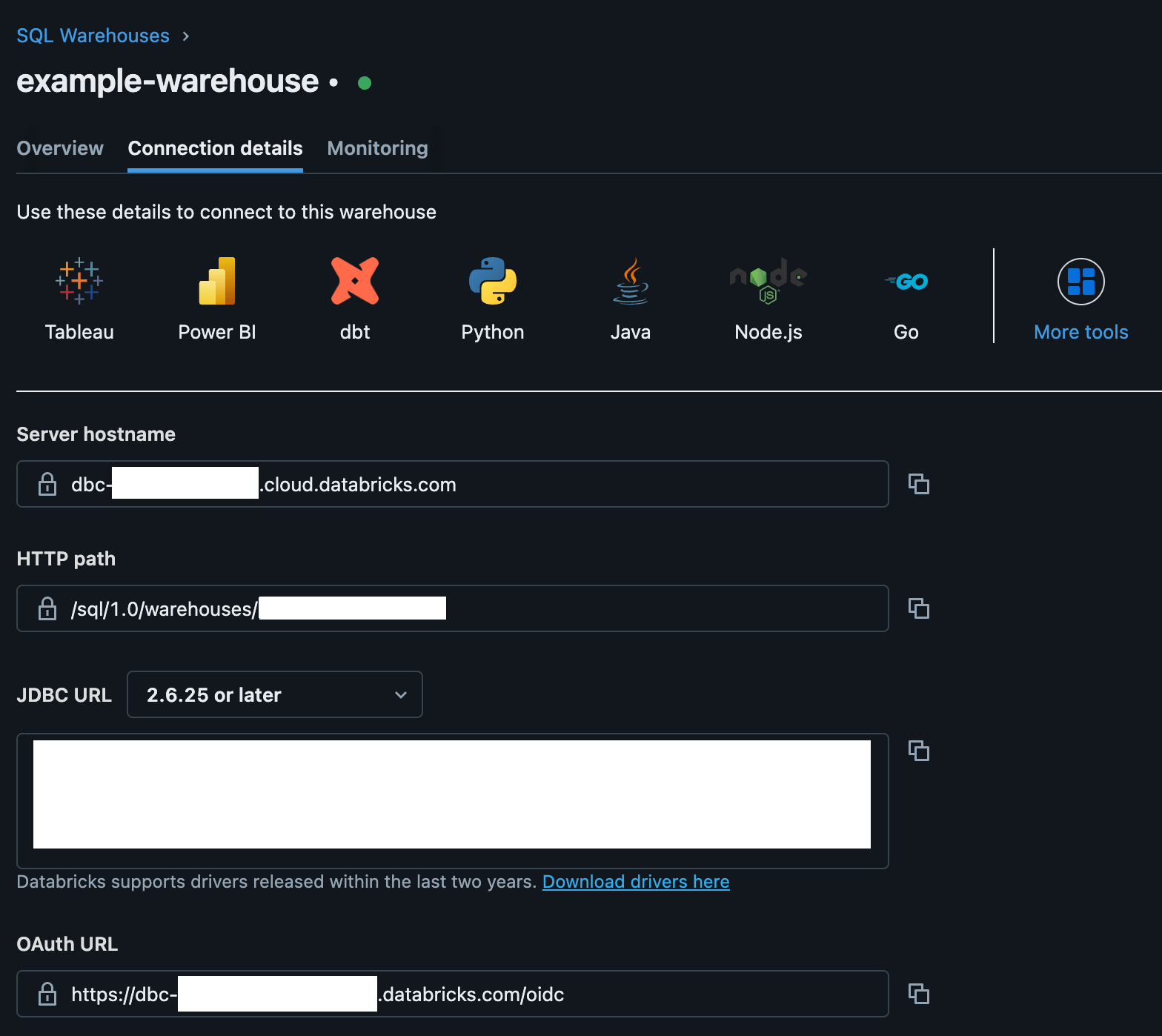
The Databricks connection details tab.
- Catalog: The Unity Catalog catalog where LaunchDarkly writes experiment results.
- Schema: The schema within that catalog where LaunchDarkly writes experiment results.
- Metrics catalog (optional): The catalog that holds the data your metrics query, if it differs from the catalog above.
- Metrics schema (optional): The schema that holds the data your metrics query, if it differs from the schema above.
Step 5: Configure the LaunchDarkly integration
Now, configure the Databricks native Experimentation integration in LaunchDarkly. This integration is a second LaunchDarkly integration that looks similar to the Databricks Data Export integration, but requires a separate setup process. To set up the integration:- Navigate to the Integrations page.
- Search for and select Databricks Native Experimentation.
- Click Add integration. The configuration page appears.
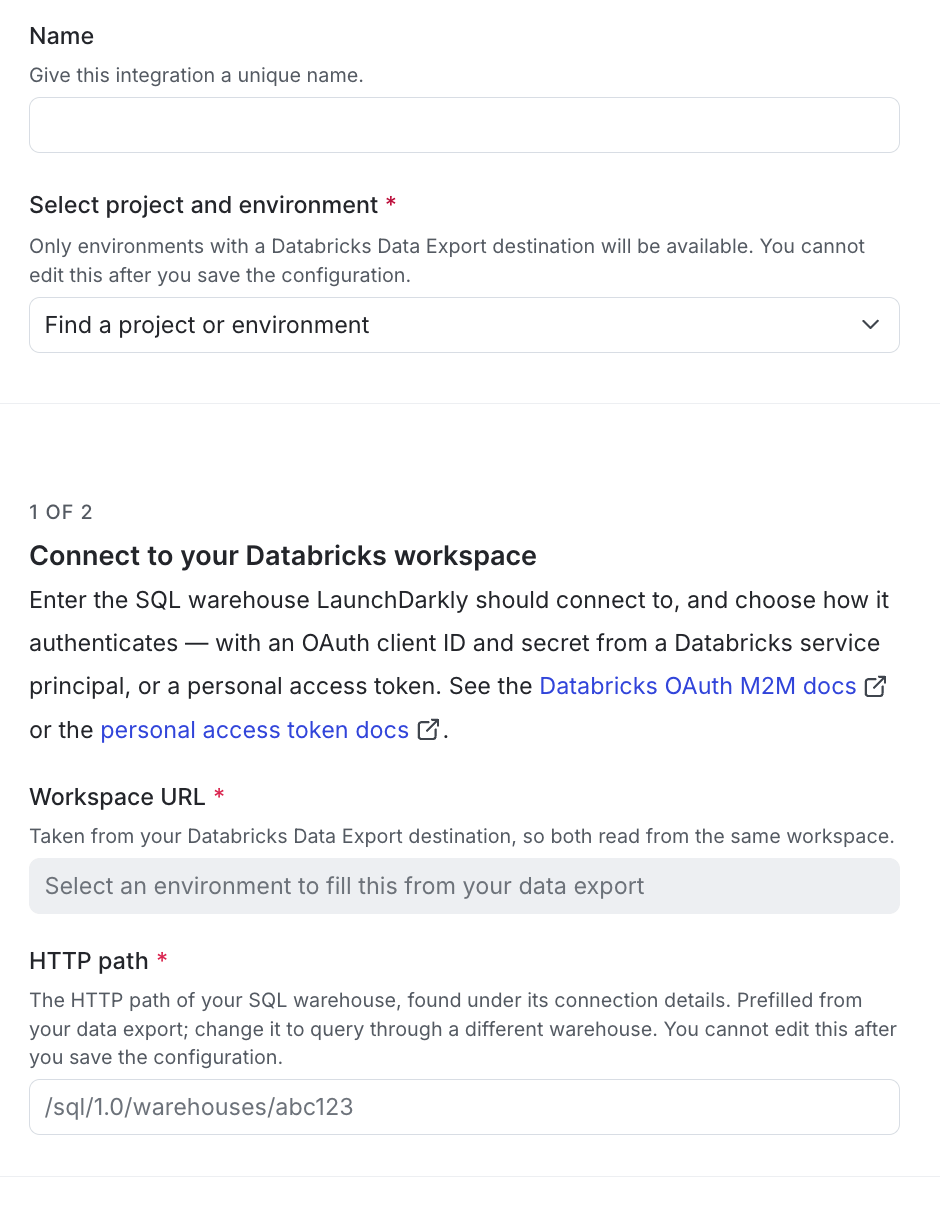
The Databricks native Experimentation create page in LaunchDarkly, with OAuth M2M selected.
- Enter an integration Name.
- Select the LaunchDarkly Project and environment for this integration. Only environments with a Databricks Data Export destination are available. You cannot change this after you save the integration.
- Confirm the Workspace URL. LaunchDarkly fills this from the Databricks Data Export destination for the environment you selected. You cannot edit it.
- Confirm or update the HTTP path. LaunchDarkly copies this from the Data Export destination. You can change it to query a different SQL warehouse in the same workspace. You cannot change it after you save.
- Select an Authentication method. LaunchDarkly selects OAuth M2M by default. Click Personal access token to authenticate with a token instead. You cannot change the method after you save.
- Enter the credentials for the method you selected:
- Enter your Databricks Catalog.
- Enter your Databricks Schema.
- (Optional) Enter your Databricks Metrics catalog.
- (Optional) Enter your Databricks Metrics schema.
- After reading the Integration Terms and Conditions, check the I have read and agree to the Integration Terms and Conditions checkbox.
- Click Test connection and save.