
Building teams in LaunchDarkly
This guide explains the best practices for getting started using teams in LaunchDarkly. Teams help large organizations manage their members and member access in LaunchDarkly more easily.
Prerequisites
In order to complete this guide, you must have the following prerequisites:
- A LaunchDarkly Admin organization role, or an Admin or Owner base role, or another role with team management permissions.
Teams are only available to customers on select plans. To learn more, read about our pricing. To upgrade your plan, contact Sales.
Concepts
This guide relies on the following concepts:
Members
Account members are people who work at your organization or have access rights to your organization’s LaunchDarkly environment for another reason, such as contractors or part-time employees.
To learn more about members, read Members.
Teams
Teams are groups of your organization’s members. A LaunchDarkly account administrator can give specific permissions to teams with roles that let them perform actions on different resources, such as projects or flags.
To learn more about teams, read Teams.
LaunchDarkly’s preset roles
Every LaunchDarkly account has the following built-in base roles: Reader, Writer, Admin, Owner.
Customers on select plans also have:
- access to a built-in No access base role.
- access to the organization roles Admin, Architect, Billing Admin, and Member, provided by LaunchDarkly.
- access to the project roles Viewer, Contributor, Developer, Maintainer, and Project Admin, provided by LaunchDarkly.
- the ability to create their own roles.
For a summary of the permissions these preset roles include, read Organization roles and Project roles.
Define additional permissions
If LaunchDarkly’s preset roles do not meet your organization’s needs, you have two options:
- You can add additional policy statements to the preset roles.
- You can define additional roles.
Together, these options give you precise access control to everything in LaunchDarkly, including feature flags, projects, environments, metrics, and teams, so you can enforce access policies that meet your exact process needs.
To learn more, read Roles and Creating roles and policies.
Get started with teams
Depending on your organization’s level of experience with LaunchDarkly, you can get started with teams in one of two ways. Here are the two levels:
- You’re new to LaunchDarkly: You are one of the first members of your organization to use LaunchDarkly. Your colleagues have not yet been invited to LaunchDarkly or have not been actively using LaunchDarkly yet.
- You already use LaunchDarkly: Your organization is already actively using LaunchDarkly and you want to start using teams.
You’re new to LaunchDarkly
If you are one of the first members of your organization to use LaunchDarkly and you need to invite others to LaunchDarkly, then take this approach.
First, invite new members. To invite new account members, follow the steps outlined in Add members to LaunchDarkly. We recommend giving new members the Member organization role or the No access base role. These two roles are equivalent. They both mean that new members cannot read or interact with anything until they are also assigned another role.
Next, create your teams in LaunchDarkly and assign roles to each team.
Finally, add members to each team.
Follow these guidelines when you assign members and roles to teams:
-
For Developers,
- We recommend giving new members the Member organization role](/home/getting-started/vocabulary#organization-role) or the No access base role. These two roles are equivalent. They both mean that the new members cannot read or interact with anything until they are also assigned another role.
- We recommend creating a new team for your developers, and assigning each team the preset LaunchDarkly Developer project role. This role can perform all flag actions within specified projects. When you assign this role to a team, you’ll be prompted to set a role attribute to specify which projects this team should have access to. Then, you can add members to the team, and each member will have this access.
- Alternatively, if the preset Developer role does not meet your needs, you can create a new role that grants write access only to specific projects, environments, or flags that the team needs to do their jobs. We recommend using role attributes to specify the projects, environments, or flags. To learn more, read Using role scope.
- If several teams share a project but should not all work with the same flags, link each team’s flags to a view and scope that team’s role to the view. To learn more, read Onboarding to views.
- Team members inherit the roles assigned to the team, in addition to the roles you assign directly to the individual member. To learn more, read How team roles interact with individual member roles.
-
For Administrators,
- We recommend giving new members the Admin organization role, which means the new members start with access to manage your entire LaunchDarkly account. These members will not lose this access if they are also added to a team in LaunchDarkly, because access granted to an individual member is aggregated with access granted to a team. To learn more, read How team roles interact with individual member roles.
You already use LaunchDarkly
If your organization is already actively using LaunchDarkly and you want to migrate into using teams, then take one of these approaches:
- Retain existing access: Use these recommendations for account members who should retain the same level of access as they currently have based on their individual member roles.
- Update access to be more restrictive: Use these recommendations in cases where you want to give a set of account members more focused, restrictive access than they currently have based on their individual member roles.
Retain existing access
To change the access for a set of account members to be controlled by membership in a team, rather than individual roles, follow this procedure:
-
Create a new team for a set of account members, and add their leads as team maintainers. To learn how, read Creating a team and Add a team maintainer.
-
Add the existing account members to the team. Then, assign a role to the team. Follow the steps outlined in Managing teams to assign members and roles to the team. If you’re an admin, you can add members to teams in bulk to streamline the process. If you need to create a new role before assigning it to the team, follow the steps outlined in Creating roles and policies.
-
Remove the roles that each team member is assigned directly. This way, each member will have their access assigned only through their team, which can be easier to manage. Follow the steps outlined in Change individual member roles to update a member’s role. If you’re an admin, you can change multiple members’ roles in bulk to streamline the process.
We recommend the above approach because access granted to an individual member is aggregated with access granted to a team. This means individual member access should be kept at a minimum in order to layer on team access. To learn more, read How team roles interact with individual member roles.
Update access to be more restrictive
If you want to further restrict a team’s current permissions, audit their existing permissions in LaunchDarkly and determine where you can restrict the scope. For example, if all developers were previously assigned the legacy Writer role, you may want to create teams and assign more granular custom roles that only grant write permissions to certain projects, environments, or flags. This approach can be helpful from both a security and organizational perspective.
After you’ve completed the audit, we recommend taking the following steps:
- Create a new team for each group identified. Optionally, add the team leads as team maintainers. To learn how, read Creating a team and Add a team maintainer.
- Add the members to the appropriate team. Then, assign a role with a more focused level of access to the team. Follow the steps outlined in Managing teams to assign members and roles to the team. If you need to create a new role before assigning it to the team, follow the steps outlined in Creating roles and policies.
Create private teams
Sometimes a team and project should be kept private due to security or other organizational policies.
You can achieve this by inviting all new account members with the Member organization role, which means the new members cannot read or interact with anything until they are also assigned another role, either directly or through a team. You can use the preset roles, or create your own. By default, new roles cannot take any actions on any resources.
If the resources that should stay private are in a project that other teams also use, link them to a view and grant access to that view only to the private team.
Views are only available to customers on select plans. To learn more, read about our pricing. To upgrade your plan, contact Sales.
To learn more, read Onboarding to views.
Restrict older custom roles
If your organization created custom roles prior to October 2024, you have a few options:
- Create new roles and assign them to all your members and teams. This is the most secure option, but may be a large amount of work depending on the number of roles and teams your organization uses.
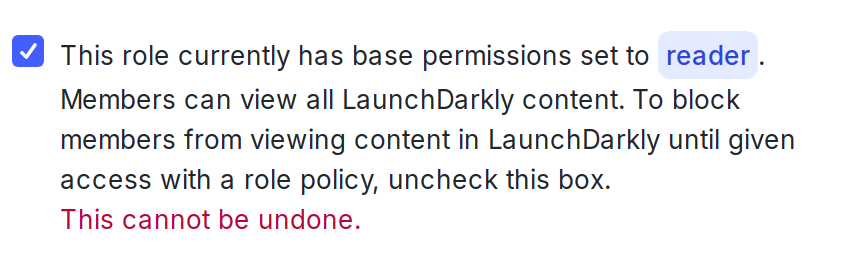
- Review each existing custom role. For each role used by members who are not a part of the private team, edit the role and look for the warning statement “This role currently has base permissions set to Reader. Members can view all LaunchDarkly content.” Uncheck the box to update the role so that it starts with no access and only allows actions based on the statements in its policy.
Conclusion
In this guide, you learned some key concepts that provide a foundation for using teams, best practices for getting started using teams whether you’re new to LaunchDarkly or have been using LaunchDarkly for some time, and how to create private teams.
Your 14-day trial begins as soon as you sign up. Learn to use LaunchDarkly with the app’s built-in quick start guide. You’ll discover how easy it is to manage the whole feature lifecycle from concept to launch to control.
Want to try it out? Start a trial.