
Managing teams
Teams are only available to customers on select plans. To learn more, read about our pricing. To upgrade your plan, contact Sales.
This topic explains how to manage team members in LaunchDarkly.
Manage team members
If you have an Admin role, you are a maintainer of the team, or you have the required team permissions, you can add and remove team members from new and existing teams.
Add a member to an existing team
If you have an existing team and you want to add a member to it:
- Click the gear icon in the left sidebar to view Organization settings.
- Click Teams.
- Click on the name of a team to navigate to that team’s page. The team’s Team members tab appears.
- Click Add members. The “Add members” dialog appears.
- Select the members to add to the team.
- Click Add members.

You can also use the REST API: Add a member to teams, Update a team
Add members to a team from the Members dashboard
The bulk editing feature is only accessible if you have a role that allows the updateTeamMembers action. The LaunchDarkly Admin and Architect organization roles, as well as the Admin and Owner base roles, include this ability. To learn more, read About member roles and Team actions.
To add members to an existing team:
-
Click the gear icon in the left sidebar to view Organization settings.
-
Click Members.
-
Select the checkbox to the left of a member’s name to choose that member.
-
Select all the members that you want to add to the teams. Next to the Export CSV button, another button appears. It is labeled Edit N members, where N is the number of members that you selected.
- Alternatively, if you wish to select all the members, click the checkbox next to the “Name” column in the table.

The "Edit N members" button. -
Click the Edit N members button and select the “Add to teams” option. A modal appears.
-
Select one or multiple teams from the input field and then click Add members to teams. LaunchDarkly attempts to add each of the selected members to the selected teams.
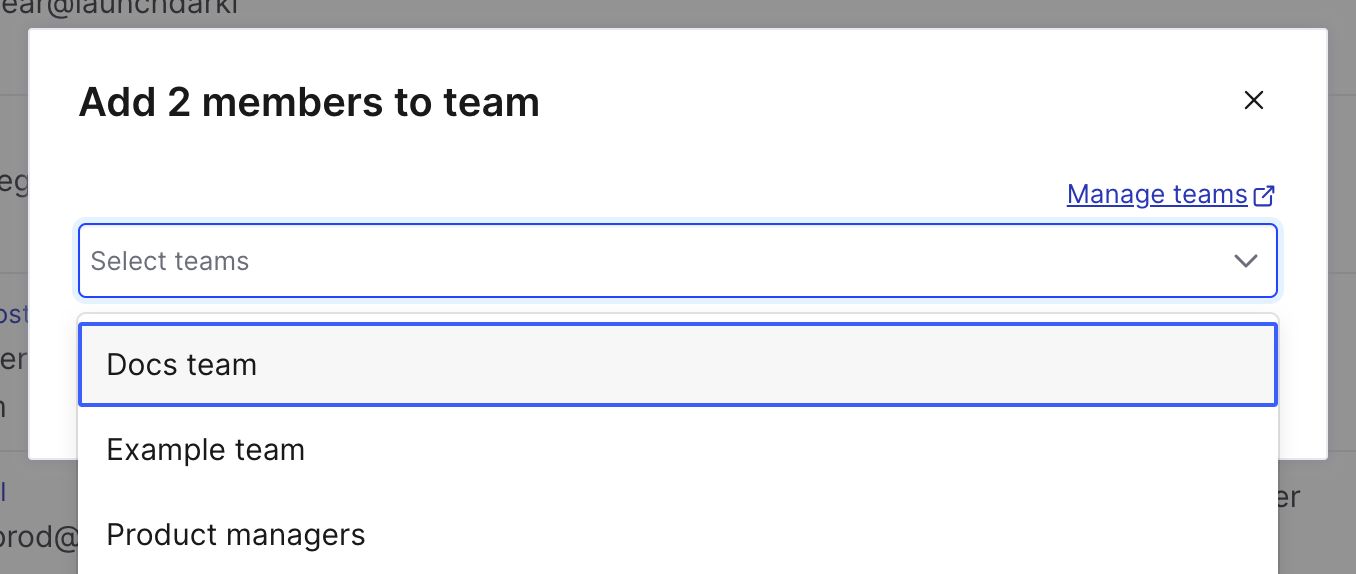
When you select all members, the number of members may not match the number of members that appears at the top of the Members tab. This happens because you cannot perform bulk edit actions on yourself or the Owner of the account.
Add members in bulk to an existing team from a CSV
You can add multiple members to an existing team by uploading a CSV file of member email addresses. Your CSV file must include email addresses in the first column. You can include data in additional columns, but LaunchDarkly ignores all data outside the first column. Headers are optional.
To upload a CSV file:
-
Click the gear icon in the left sidebar to view Organization settings.
-
Click Teams.
-
Click on the name of the team you want to add members to. The team’s Team members tab appears.
-
Click Upload CSV. The “Upload CSV” dialog appears:
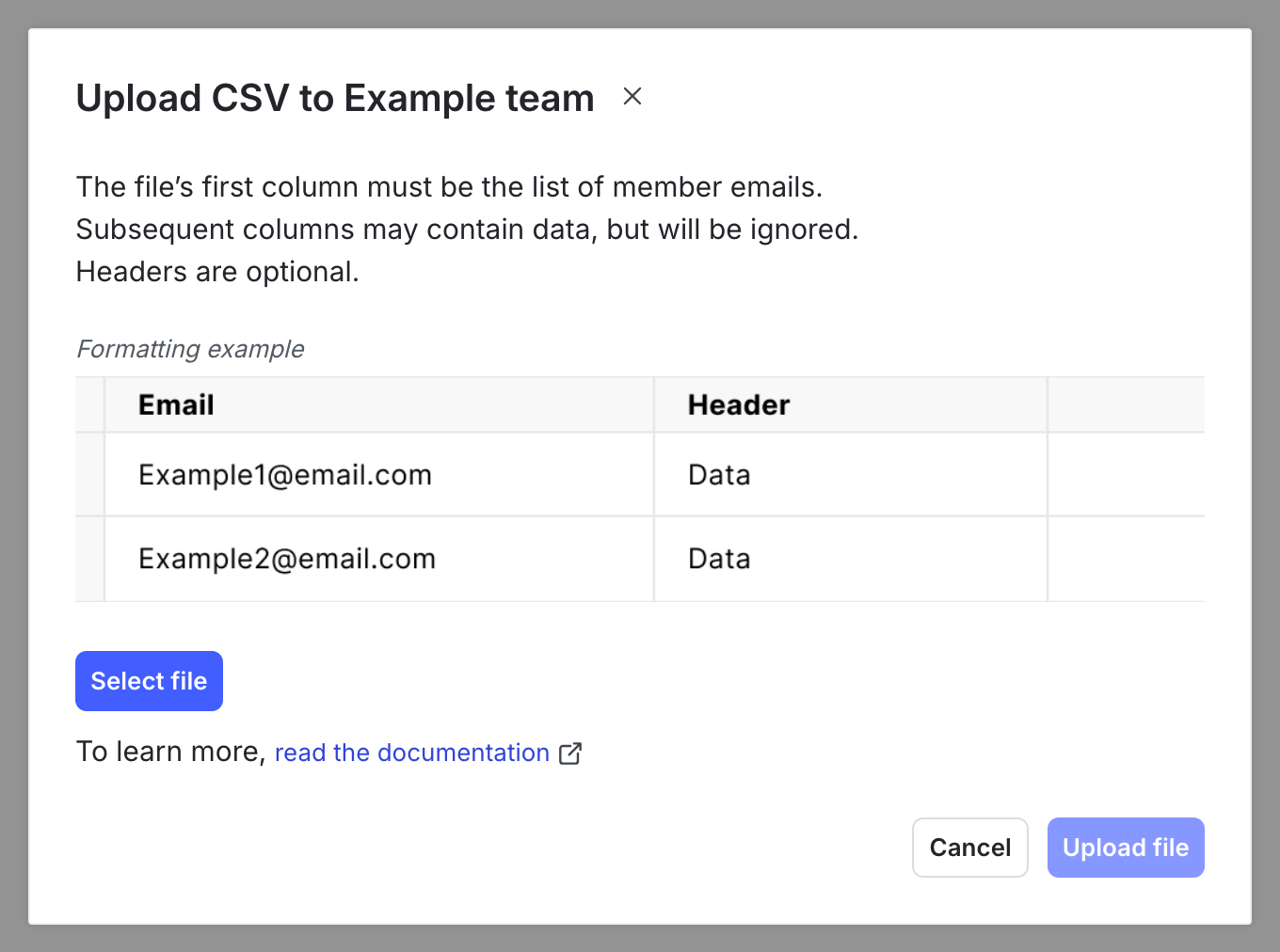
The "Upload CSV" dialog. -
Click Select file. A prompt to choose a file appears.
-
Choose a CSV file. You are returned to the “Upload CSV” dialog.
-
Click Upload file.
A success indicator appears with the number of team members successfully added to your team.
You can also use the REST API: Add multiple members to team
If the file upload was not successful, an error message appears with information about the errors in the file.
There are two types of CSV file upload errors:
- Global errors are errors at the file level preventing LaunchDarkly from processing the file.
- Line errors are errors on one or more individual lines in your CSV file.
Troubleshoot global errors
Global errors mean that something is wrong at the file level preventing LaunchDarkly from processing the file. You must resolve the errors in your file and try uploading again.
This table includes a list of global errors and how to resolve them:
Troubleshoot line errors
Line errors mean that something is wrong with one or more individual lines in your CSV file. You can either add only the valid entries from your CSV file, or upload a new file.
This table includes a list of line errors and how to resolve them:
Remove a member from a team
You can remove a member from a team in two ways. You can remove them from the team management page or from the Members page.
To remove a member from a team using the team management page:
- Click the gear icon in the left sidebar to view Organization settings.
- Click Teams.
- Click on the name of the team you want to remove members from. The team’s Team members tab appears.
- Find the member in the list of team members.
- Click the overflow menu at the right of the row of the member you want to remove.
- Select Remove from team. A confirmation dialog appears.
- Click Remove member in the dialog to confirm.
To remove a member from a team using the Members page:
- Click the gear icon in the left sidebar to view Organization settings.
- Click Members.
- Find the member in the list. Optionally, use the “Team” filter to narrow the list.
- Click on the member’s name.
- Click the Teams tab.
- Find the team that you want to remove this member from.
- Click the overflow menu at the right of the row of the team you want to remove the member from.
- Select Remove member. A confirmation dialog appears.
- Click Remove member in the dialog to confirm.
View an individual member’s teams
Members of your organization can belong to multiple teams.
To view the teams that a member belongs to:
- Click the gear icon in the left sidebar to view Organization settings.
- Click Members.
- Filter the list of members for the member you’re looking for.
- The “Teams” column lists the teams the members belong to. There may be additional teams in the overflow menu. Click the overflow menu to view the Teams tab on that member’s page. It has a complete list of that member’s teams, and indicates if the member is a team maintainer for any team.