
Getting started with Google Gemini
This guide shows how to connect a Google Gemini-powered application to LaunchDarkly AgentControl. Gemini offers native multimodal capabilities, long context windows, and competitive pricing with Gemini Flash. By the end, you will be able to manage your model configuration and prompts outside of your application code, and track metrics automatically.
AgentControl supports two modes:
- Completion mode returns messages and roles (system, user, assistant). Use it for chat-style interactions and message-oriented workflows. Completion mode supports online evaluations with judges attached in the LaunchDarkly UI.
- Agent mode returns a single
instructionsstring. Use it when your runtime or framework expects a goal/instructions input for a structured workflow. Agent mode changes the configuration shape from messages to instructions. Your application maps these instructions into your provider or framework’s native input.
Both modes support tool calling. This guide walks through completion mode as the main path, with an optional agent config section. To learn more about when to use each mode, read When to use completion mode vs agent mode.
This guide provides examples in both Python and Node.js (TypeScript).
If you’re new to AgentControl, start with the Quickstart and return to this guide when you are ready for a more detailed example.
To learn more about AgentControl-specific SDKs, read AI SDKs. For Python-specific details, read the Python AI SDK reference.
Prerequisites
To complete this guide, you need the following:
- A LaunchDarkly account with an SDK key for your environment and a member role that allows AgentControl actions. To learn more about LaunchDarkly roles, read Roles.
- A Google API key with Gemini API access. Create one at aistudio.google.com.
- A development environment:
- Python: Python 3.10 or higher
- Node.js: Node.js 20 or higher
- Familiarity with LaunchDarkly contexts. To learn more, read Contexts and segments.
Concepts
Before you begin, review these key concepts.
AgentControl configs
An AgentControl config is a LaunchDarkly resource that controls how your application uses large language models. Each AgentControl config contains one or more variations. Each variation specifies:
- A model configuration, including the model name and parameters
- Messages that define the prompt
You can update these settings in LaunchDarkly at any time without changing your application code.
Contexts
A context represents the end user interacting with your application. LaunchDarkly uses context attributes to:
- Determine which variation to serve based on targeting rules
- Populate
{{ ldctx.* }}placeholders in your prompts with context attribute values
Other placeholders, such as {{ topic }}, are populated from the variables argument you pass at runtime.
The tracker
When you retrieve an AgentControl config, call createTracker() (Node.js) or create_tracker() (Python) on the returned object to mint a tracker. The tracker records metrics from your Gemini calls, including:
- Generation count
- Input and output tokens
- Latency
- Success and error rates
These metrics appear on the AI Insights dashboard in LaunchDarkly.
Step 1: Install the SDK
Install the LaunchDarkly AI SDK and the Google GenAI SDK in your application. AgentControl is supported by LaunchDarkly server-side SDKs only. The Node.js examples in this guide use the server-side Node.js AI SDK.
Here is how to install the required packages:
Create a .env file in your project root to store your API keys:
Add .env to your .gitignore to keep credentials out of version control.
Step 2: Initialize the clients
Initialize both the LaunchDarkly client and the Google GenAI client. Store your API keys in environment variables.
Here is the initialization code:
Step 3: Create an AgentControl config in LaunchDarkly
Create an AgentControl config in the LaunchDarkly UI to store your Gemini model settings and prompts.
If you have the LaunchDarkly MCP server or agent skills configured, prompt your coding assistant to create the AgentControl config for you. For example:
“Create a completion mode AgentControl config called ‘Gemini assistant’ with a ‘Gemini 2.0 Flash’ variation using the gemini-2.0-flash model, temperature 0.7, max_tokens 1024, and the system message: ‘You are a helpful assistant. Answer questions about {{topic}}.’ Enable targeting.”
To create the AgentControl config:
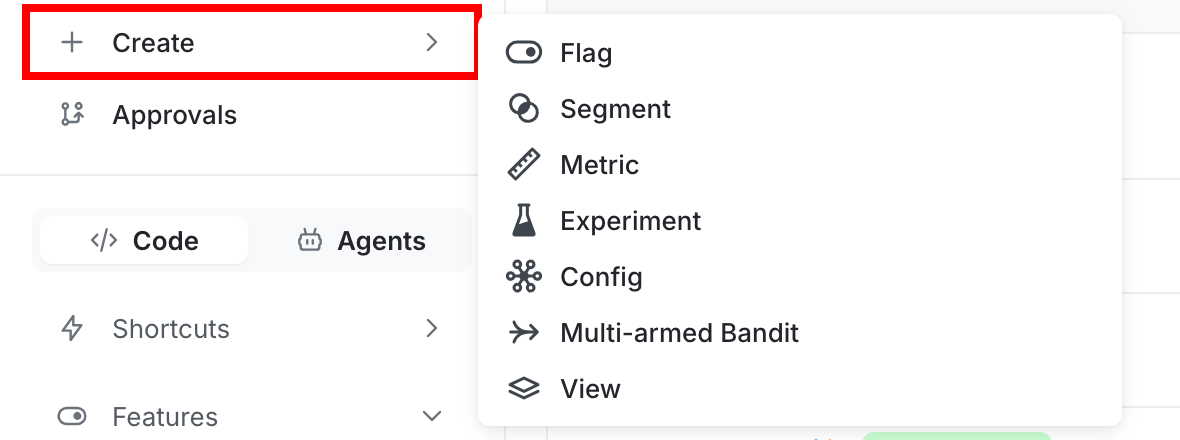
- In the left sidebar, click Create and select Config.
- In the “Create config” dialog, select Completion.
- Enter a name, such as “Gemini assistant”.
- Click Create.
To create a variation:
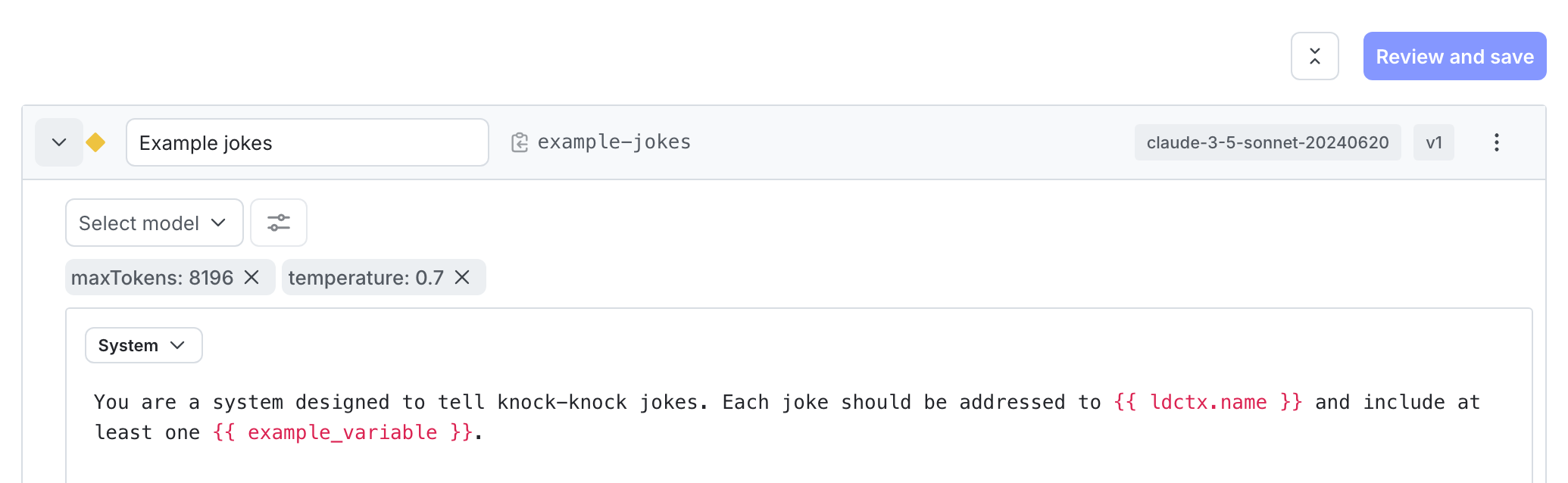
- On the Variations tab, replace “Untitled variation” with a name, such as “Gemini 2.0 Flash”.
- Click Select a model and choose the
gemini-2.0-flashGemini model. - Click Parameters and set
temperatureto0.7andmax_tokensto1024. - Add a system message to define your assistant’s behavior:
- Click Review and save.
To enable targeting:
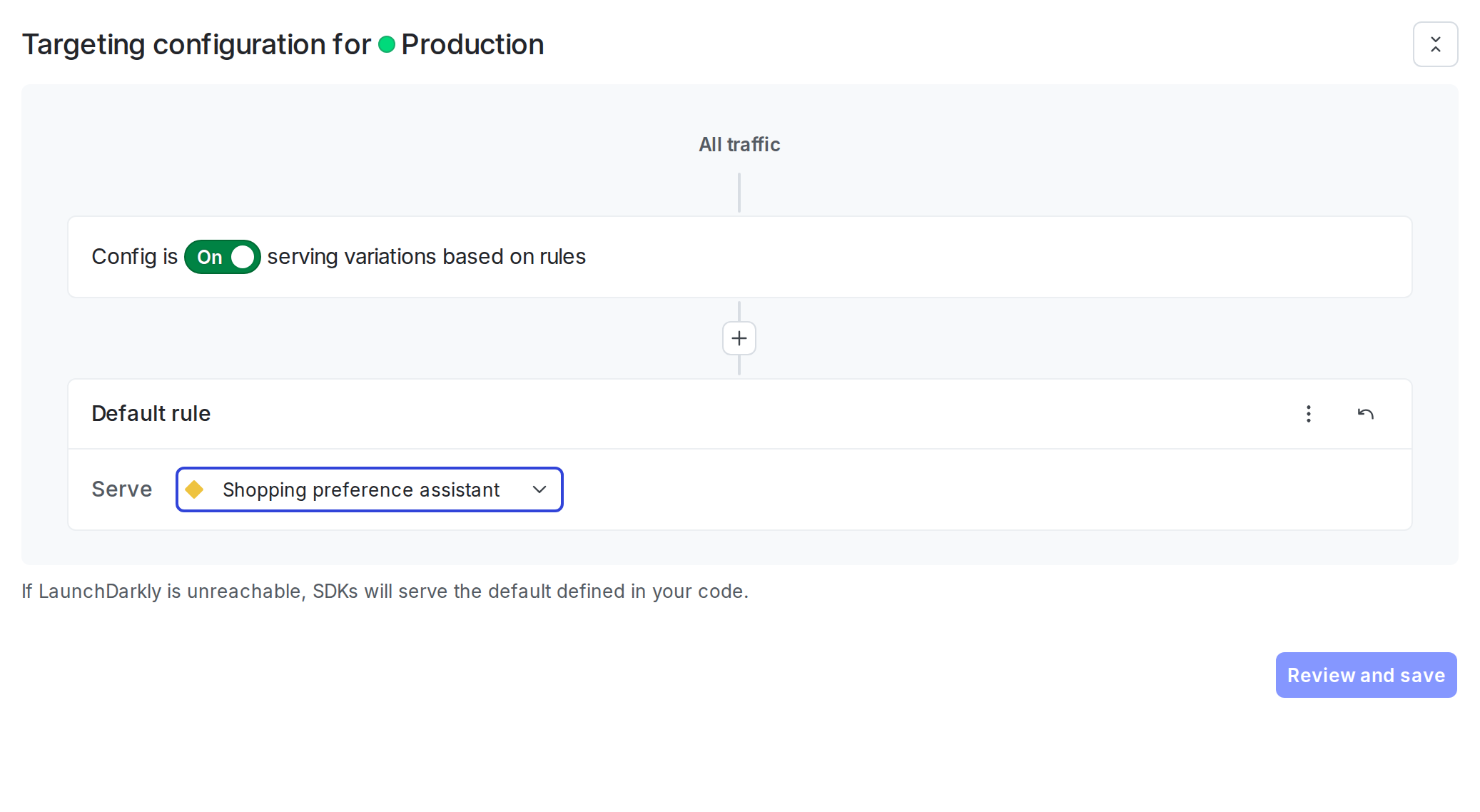
- Select the Targeting tab.
- In the “Default rule” section, click Edit.
- Set the default rule to serve your variation.
- Click Review and save.
Step 4: Get the AgentControl config in your application
Retrieve the AgentControl config from LaunchDarkly by calling the completion config function. Pass a context that represents the current user and a fallback configuration.
Here is how to get the AgentControl config:
The SDK uses the fallback configuration when LaunchDarkly is unreachable. Check the enabled property and handle the disabled case in your application.
For production use:
- Retrieve the AgentControl config each time you generate content so LaunchDarkly can evaluate the latest targeting rules and prompt changes.
- Provide a fallback configuration when possible so your application can fail gracefully if LaunchDarkly is unavailable.
- Avoid sending personally identifiable information in contexts unless you have a specific need and an approved handling pattern. To learn more, read Privacy in AgentControl.
Step 5: Call Gemini and track metrics
Google’s GenAI SDK treats system_instruction as a top-level config field on GenerateContentConfig, separate from the contents array. Define a helper to split LaunchDarkly messages into a (system_instruction, contents) tuple: system messages are concatenated into a single string, user messages become role: "user" content items, and assistant messages become role: "model" content items. Append the user’s question to the contents list, then call generate_content directly instead of creating a chat session.
Gemini’s parameter names differ slightly from the LaunchDarkly AgentControl config field names. The max_tokens parameter stored in a variation becomes max_output_tokens in the Gemini SDK. Define a mapping helper to handle this rename, then define a converter function that translates a Gemini response into an LDAIMetrics object. Pass the converter to the tracker’s generic wrapper, which handles duration, success, and error tracking automatically:
Then call Gemini with the config. Use map_to_google_ai_messages / mapToGoogleAIMessages to split the LaunchDarkly messages into a system instruction and a contents array, append the user’s question, then call generate_content / generateContent directly through the tracker wrapper:
Step 6: (optional): Use agent mode with tool calling
Agent-mode AgentControl configs return a single instructions string instead of a message list, and they let you attach reusable tools from the LaunchDarkly tools library. With Gemini, the instructions map to the system_instruction field on GenerateContentConfig and tools pass through as a functionDeclarations array.
Create the tool in the tools library
First, define the tool in LaunchDarkly so the AgentControl config variation can reference it:
- In the left sidebar, click Library, then select the Tools tab.
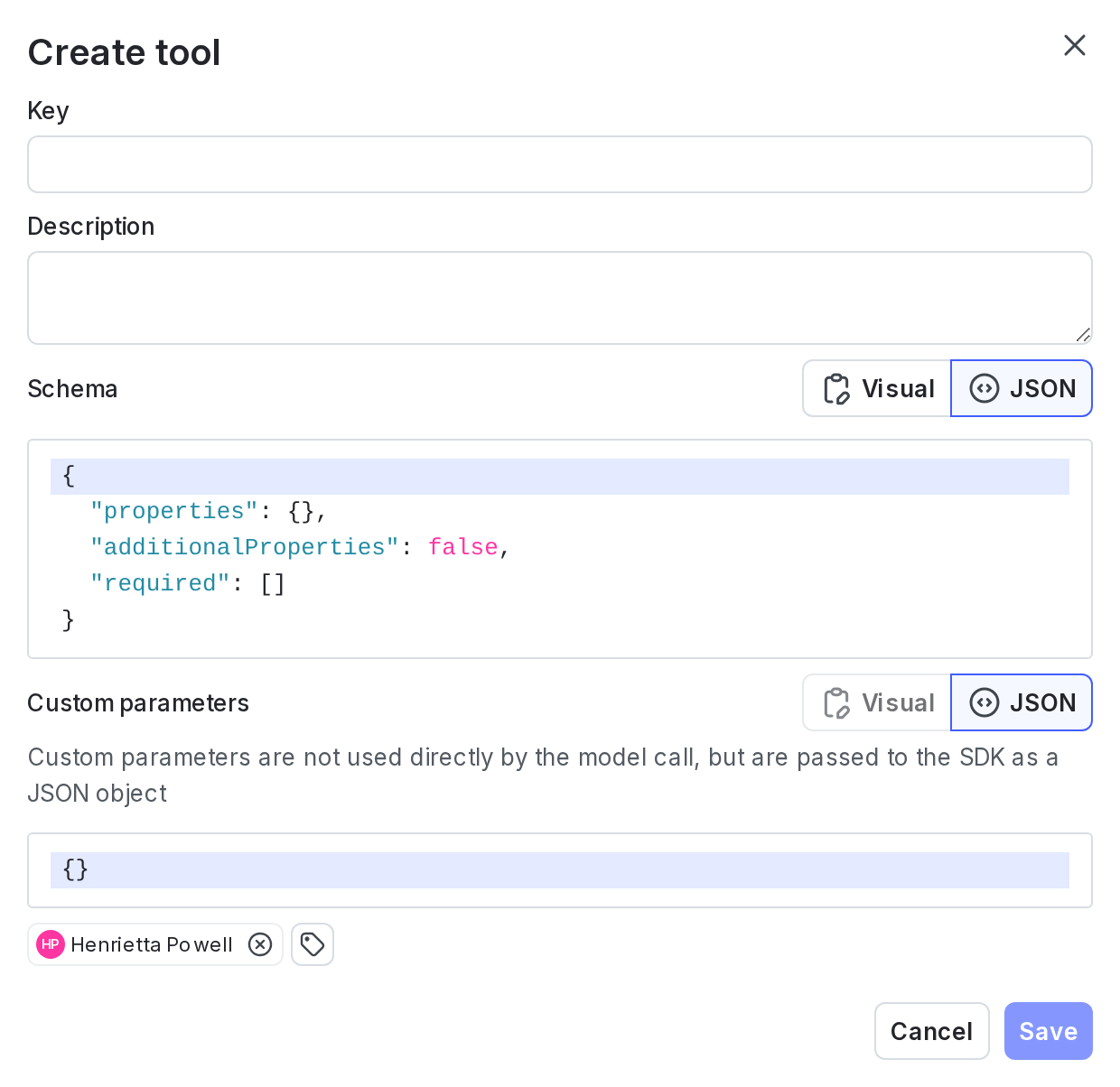
- Click Add tool.
- Enter
get_order_statusas the Key. - Enter “Look up the status of a customer order by order ID” as the Description.
- Define the schema using the JSON editor:
- Click Save.
Create the agent AgentControl config
- Click Create and select Config.
- Select Agent mode.
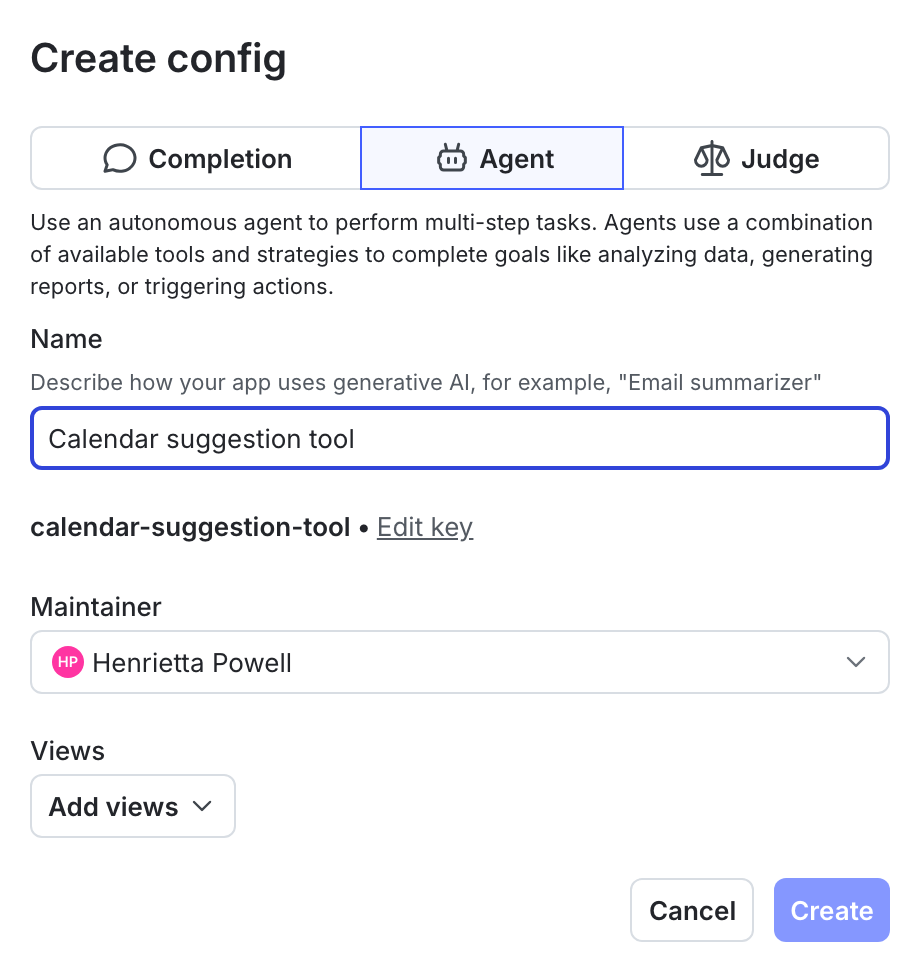
- Enter a name:
- Click Create.
- On the Variations tab, name the variation (for example, “Gemini 2.0 Flash agent”).
- Click Select a model and choose
gemini-2.0-flash. - Click Parameters and set
max_tokensto1024. - Add the agent instructions:
- Click + Attach tools and select
get_order_status.
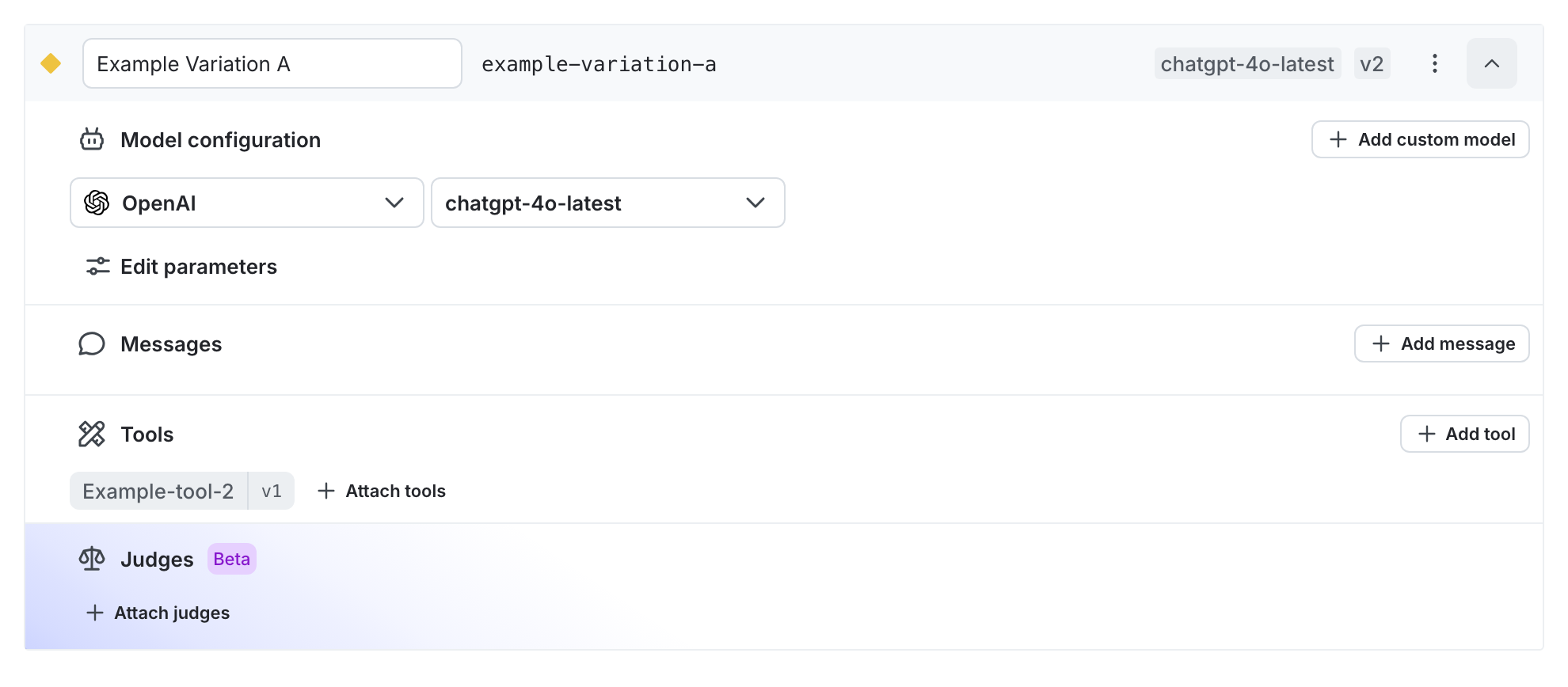
- Click Review and save.
- On the Targeting tab, set the default rule to serve your variation and save.
To learn more about managing tools, read Tools in AgentControl.
Retrieve the agent config and run the tool loop
Use agent_config() instead of completion_config(). The SDK returns the attached tools under parameters.tools in OpenAI’s type=function shape, so convert them to Gemini’s {functionDeclarations: [{name, description, parameters}]} shape and pass them on the tools field of GenerateContentConfig. Tool handler functions stay in your application code — LaunchDarkly stores the schema, your application owns the behavior.
In completion mode, you can attach judges to variations in the LaunchDarkly UI for automatic evaluation. In agent mode, invoke judges programmatically through the AI SDK.
To learn more, read When to use completion mode vs agent mode and Agents in AgentControl.
Step 7: Monitor your AgentControl config
Use the LaunchDarkly UI to monitor how your applications are performing across all AgentControl configs and for individual configs.
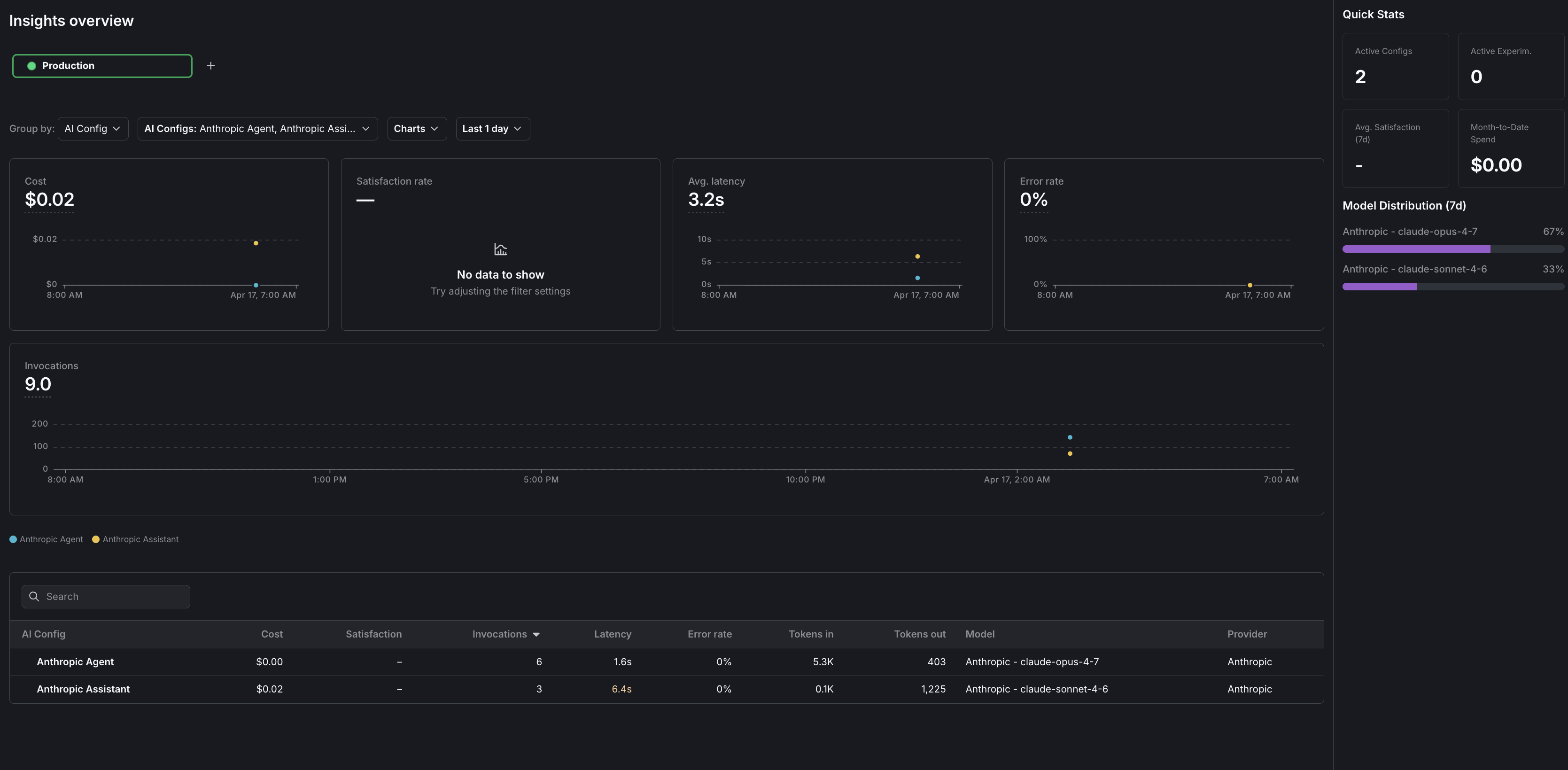
To view aggregated metrics across all your AgentControl configs, navigate to Insights in the left sidebar under the AI section. The Insights overview page displays cost, latency, error rate, invocation counts, and model distribution across your organization. To learn more, read AI Insights.
To view metrics for a specific AgentControl config:
- Navigate to your AgentControl config.
- Select the Monitoring tab.
The dashboard displays the following metrics:
- Generation count: The total number of AI generation calls tracked for this config.
- Input and output tokens: Token consumption broken down by prompt tokens sent and completion tokens received.
- Latency: The time taken for each generation call, shown as percentiles (p50, p95).
- Success and error rates: The proportion of successful versus failed generation calls.
Metrics update approximately every minute. Use these metrics to compare variations and optimize your prompts. To learn more, read Monitor AgentControl configs.
The AI SDKs emit OpenTelemetry-compatible spans for each generation call. You can forward these spans to your existing observability stack for deeper analysis. To learn more, read Observability and LLM observability.
Step 8: Close the client
Close the LaunchDarkly client when your application shuts down to flush pending events.
Here is how to close the client:
Always flush events before closing. Trailing events are at risk of being lost otherwise, in short-lived scripts and long-running services alike.
Here is how to flush events:
Complete example
Here is a complete working example that combines all the steps.
Click to expand full example code
What to explore next
After you have the basic integration working, you can extend it with:
- Tools for calling external functions from your workflows
- Online evaluations to score response quality automatically
- Experiments to compare AgentControl config variations statistically
- Agents for multi-step workflows
For more AgentControl guides, read the other guides in the AgentControl guides section.
Troubleshooting
If you are experiencing problems with your configuration, this section lists common errors and solutions.
Metrics not appearing
If metrics do not appear on the AI Insights dashboard:
- Verify that you are calling
tracker.track_metrics_of()(Python) ortracker.trackMetricsOf()(Node.js) with the correct metrics converter. - Ensure you call
flush()before closing the client, especially for short-lived scripts. - Wait at least one minute for metrics to process.
SDK initialization failures
If the LaunchDarkly SDK fails to initialize:
- Verify your SDK key is correct and matches the environment you are targeting.
- Check that your network can reach LaunchDarkly servers.
- Review the SDK logs for specific error messages.
Config returns fallback value
If you always receive the fallback configuration:
- Verify targeting is enabled for your AgentControl config.
- Check that the AgentControl config key in your code matches the key in LaunchDarkly.
- Ensure your context matches the targeting rules.
Google API errors
If you receive Google API errors:
- Verify your GEMINI_API_KEY or GOOGLE_API_KEY is set correctly.
- Check that the Gemini API is enabled for your API key.
- Ensure the model name in your AgentControl config matches an available Gemini model.
Conclusion
In this guide, you connected a Google Gemini-powered application to LaunchDarkly AgentControl. You can now:
- Manage prompts and model settings in LaunchDarkly without code changes
- Track token usage, latency, and success rates automatically
- Use template variables to customize prompts per user
Your 14-day trial begins as soon as you sign up. Get started in minutes using the in-app Quickstart. You’ll discover how easy it is to release, monitor, and optimize your software.
Want to try it out? Start a trial.