

- serve different models or messages to different customers, based on attributes of those customers. You can configure this targeting in LaunchDarkly, and update it without redeploying your application.
- compare variations and determine which one performs better, based on satisfaction, cost, or other metrics.
Prerequisites
To complete this guide, you must have the following prerequisites:- a LaunchDarkly account, including
- a LaunchDarkly SDK key for your environment.
- a role that allows AgentControl actions. The LaunchDarkly Project Admin, Maintainer, and Developer project roles, as well as the Admin and Owner base roles, all include this ability.
- a Python development environment. The LaunchDarkly Python AI SDK is compatible with Python 3.8.0 and higher.
- an OpenAI API key. The LaunchDarkly AI SDKs provide specific functions for completions for several common AI model families, and an option to record this information yourself. This guide uses OpenAI.
Example scenario
In this example, you have an application that provides chat support. When creating your generated content, you want to use one AI model for the content you provide to the customers who are paying you, and a different AI model for the content you provide to the customers on your free tier. You also want to understand whether your paying customers are getting a better experience.Step 1: Prepare your development environment
First, install the Python AI SDK:$Environment_SDK_KEY and $Environment_OPENAI_KEY to refer to an active LaunchDarkly SDK key and your OpenAI key, respectively.
You can find your SDK keys on the SDK keys page under Settings. To learn more, read SDK credentials.
Step 2: Initialize LaunchDarkly SDK clients
Next, import the LaunchDarklyLDAIClient into your application code and initialize it:
Step 3: Set up AgentControl configs in LaunchDarkly
Next, create an AgentControl config in the LaunchDarkly UI. AgentControl configs are the LaunchDarkly resources that manage model configurations and messages for your generative AI applications. To create an AgentControl config:- In LaunchDarkly, click Create and choose Config.
- In the “Create AgentControl config” dialog, enter a human-readable Name for your AgentControl config, for example, “Chat bot summarizer.”
- Click Create.
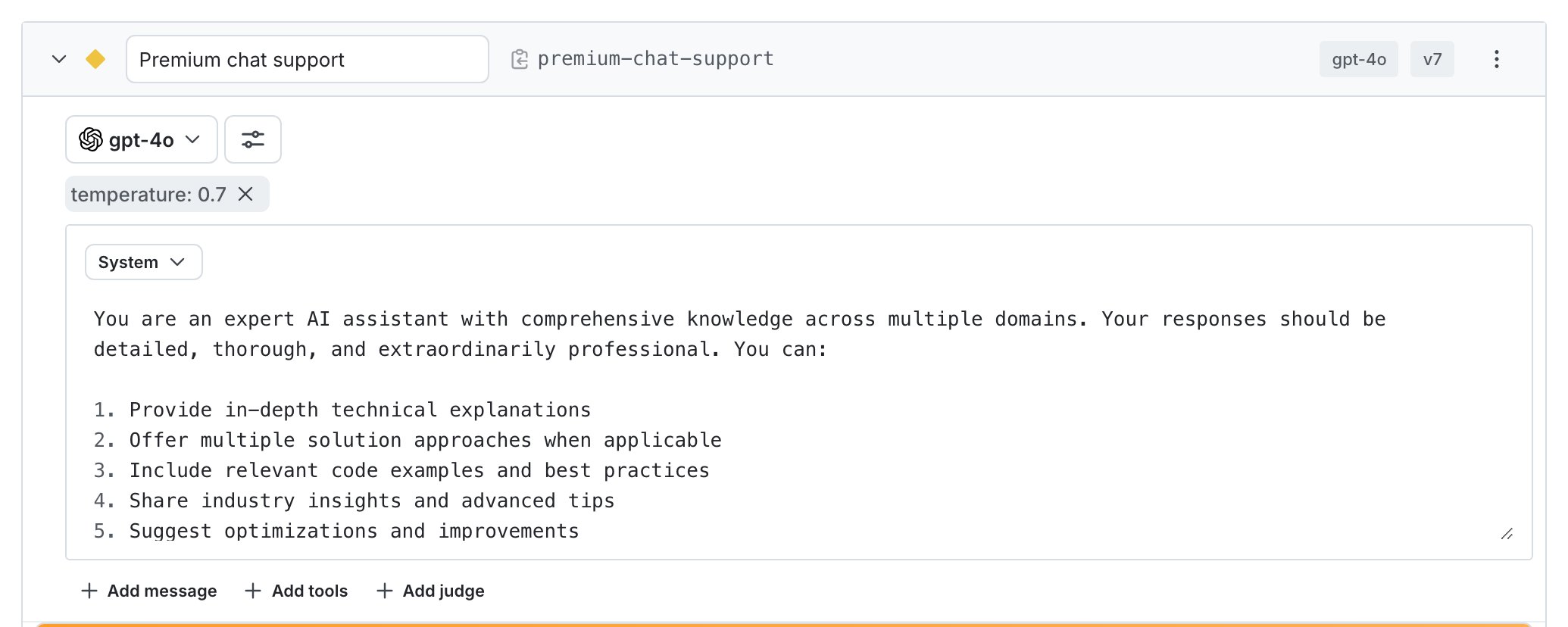
- On the Variations tab of your newly created AgentControl config, replace “Untitled variation” with a variation Name in the create panel. You’ll use this name to refer to the variation when you set up targeting rules, below. For example, you can use “Premium chat support” for one variation and “Free chat support” for the other variation.
- Click Select a model and select a supported OpenAI model. For example, you can use “gpt-4o” for your premium variation and “gpt-4-turbo” for your free variation.
- Optionally, adjust the model parameters: click Parameters to view and update model parameters. In the dialog, adjust the model parameters as needed. The Base value of each parameter is from the model settings. You can choose different values for this variation if you prefer.
- Add system, user, or assistant messages to define your prompt. For this example, enter a system message for each variation:
- Click Save changes after you create each variation.
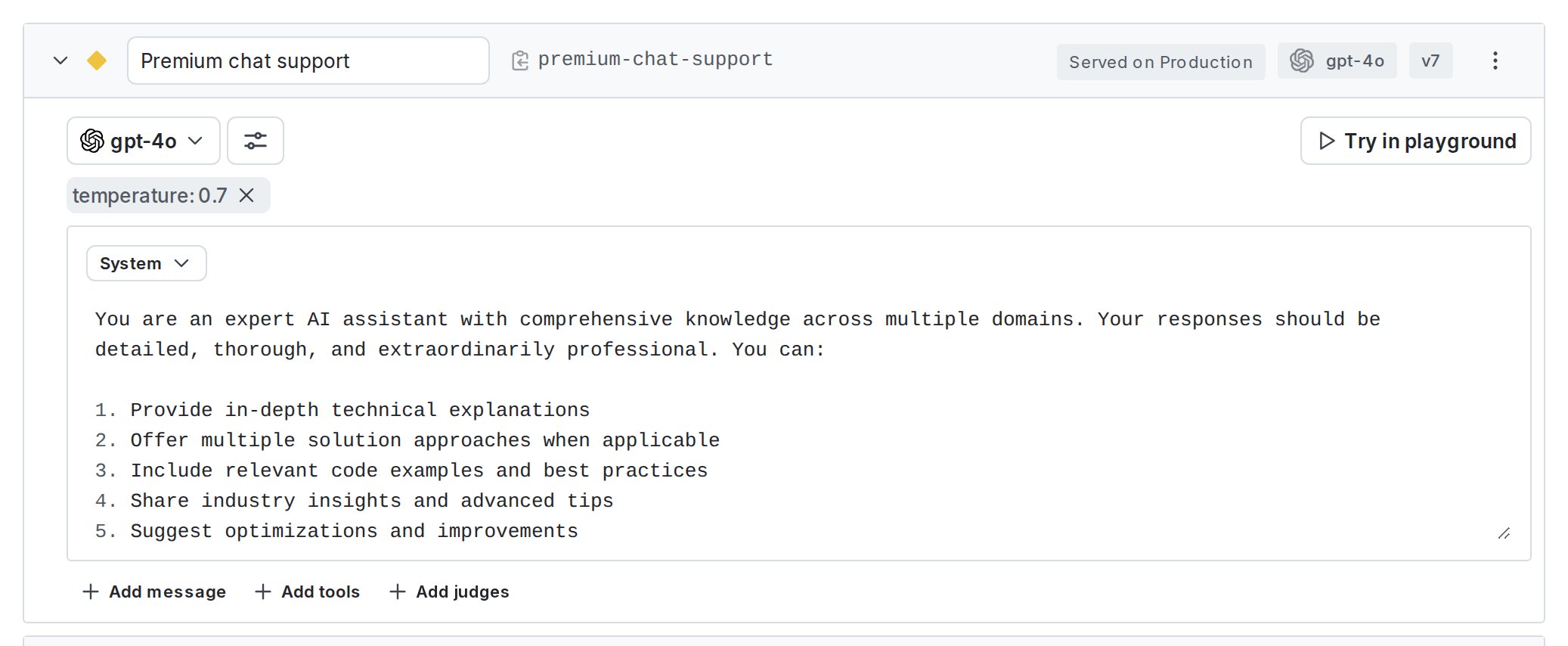
The "Premium chat support" variation.
The "Free chat support" variation.
Step 4: Set up targeting rules and enable your AgentControl config
Next, set up targeting rules for your AgentControl config. These rules determine which of your customers receives which variation of your AgentControl config. To specify the AgentControl config variation to use by default when the AgentControl config is toggled on:- Select the Targeting tab for your AgentControl config.
- In the “Default rule” section, click Edit.
- Configure the default rule to serve the “Free chat support” variation.
- Click Review and save.
- Select the Targeting tab for your AgentControl config.
- If the AgentControl config is off and the rules are hidden, click View targeting rules.
- Click the + button between existing rules, and select Build a custom rule.
- Optionally, enter a name for the rule.
- Leave the Context kind menu set to “user.”
- In the Attribute menu, type in
customer_type. You’ll set this attribute in your code later. - Leave the Operator menu set to “is one of.”
- In the Values menu, type in
premium. You’ll set this value in your code later. - From the Select… menu, choose the “Premium chat support” variation.
- Click Review and save.
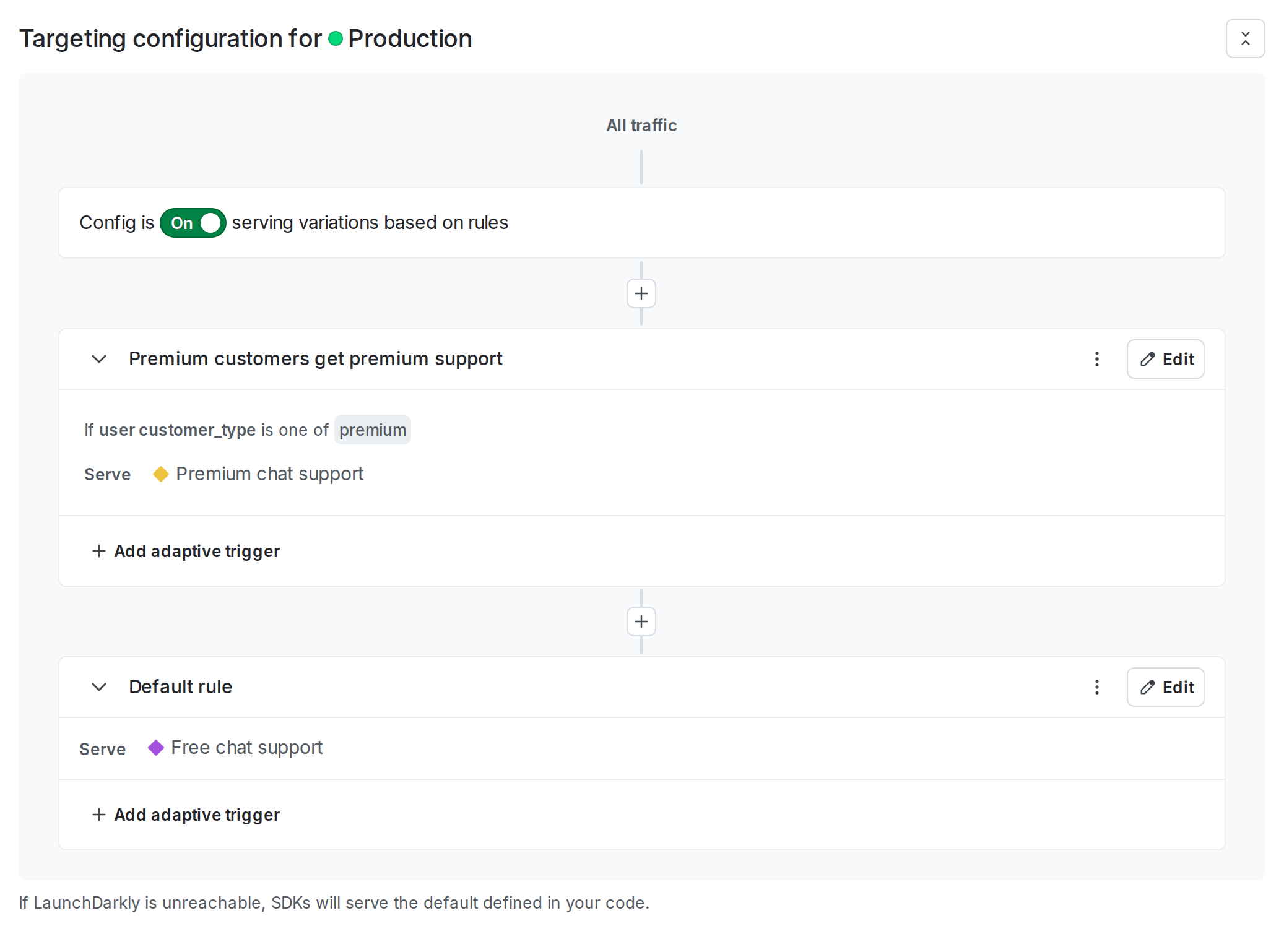
The "Targeting" tab of your AgentControl config.
Step 5: Customize the AgentControl config
In your code, use thecompletion_config function in the LaunchDarkly AI SDK to customize the config. You need to call completion_config each time you generate content from your AI model.
The completion_config function returns the customized config, which includes the messages and model configuration for the variation that the end user should receive. Customization is what happens when your application’s code sends the LaunchDarkly AI SDK information about a particular config and the end user that has encountered it in your app, and the SDK sends back the value of the variation that end user should receive.
To call the completion_config function, you need to provide information about the end user who is working in your application. For example, you may have this information in a user profile within your app.
Create a tracker for each generation by calling config.create_tracker(), then wrap your chat completion call with tracker.track_metrics_of. The track_metrics_of method runs the wrapped function, then uses the extractor (get_ai_metrics_from_response) to record duration, token usage, and success or error for that generation.
Here’s how:
Step 6: Monitor results
As customers encounter chat support in your application, LaunchDarkly monitors the performance of your AgentControl config: the tracker created from the result of thecompletion_config function automatically records various metrics. To view them, select the Monitoring tab for your config in LaunchDarkly.
In this example, you can review the results to determine:
- which support option provides higher satisfaction for customers
- which support option uses more tokens
Conclusion
In this guide, you learned how to manage AI model usage by customer tier in an OpenAI-powered application, and how to review the performance of those models based on customer feedback and token usage. For additional examples, read the other AgentControl guides in this section. To learn more, read AgentControl and AI SDKs.Want to know more? Start a trial.Your 14-day trial begins as soon as you sign up. Get started in minutes using the in-app Quickstart. You’ll discover how easy it is to release, monitor, and optimize your software.
Want to try it out? Start a trial.
Want to try it out? Start a trial.