

- Created your first agent-based config
- Deployed your config and called it from your application
- Made a change to your prompt or model without redeploying
Scope of this quickstartThis quickstart focuses on AgentControl configs in completion mode, which lets you configure prompts with messages and roles for single-step model responses. Completion mode supports multi-message prompts, including chat-style prompts. Completion mode does not map to a specific provider API, so you can use it with any provider LaunchDarkly supports.AgentControl configs can also be created in agent mode, which uses instructions to define multi-step workflows. Agent mode is documented separately in Agents.
Prerequisites
To complete this quickstart, you need the following:- A LaunchDarkly account and a server-side SDK key for your environment. To find your SDK key, read SDK credentials. If you haven’t installed a LaunchDarkly SDK yet, continue reading. This topic explains how to install a supported SDK.
- A LaunchDarkly role that allows AgentControl config actions. The LaunchDarkly Project Admin, Maintainer, and Developer project roles, as well as the Admin and Owner base roles, include this permission.
- An API key for your model provider, such as OpenAI or Anthropic, made available to your application as an environment variable.
Complete the in-app quickstart
There are several options for completing the in-app quickstart. You can set up with an AI coding assistant, install the SDK manually with your own app, or install it manually using a sample app we provide. This procedure documents the process of installation through the built-in onboarding experience. You can connect your app to LaunchDarkly with an AI agent or with a manual installation process. The procedure below explains how to connect to LaunchDarkly manually.Step 1: Install the SDK
First, install the LaunchDarkly server-side SDK and AI SDK, as well as the agent framework you want to use.Installing manually
- In the in-app quickstart, click Install manually to reveal the SDK configuration instructions.
- Choose between using your existing app or a sample app.
- Click to select your SDK language. The instructions for installation update based on which language you choose. In this example, we use Python and LangChain.
Step 2: Initialize the client
Initialize the client to connect LaunchDarkly to your app. To do this, you must have your LaunchDarkly SDK key. To find your SDK key, read SDK credentials.Step 3: Create an agent-based config in LaunchDarkly
Create an agent-based config to store your model settings and instructions. You can do this through the LaunchDarkly UI, or agentically using the LaunchDarkly MCP server from your AI coding assistant. For example, Claude Code and Cursor can both perform this task. To create the config in the UI:- In the left sidebar, click Agents. The AgentControl menu appears.
- Click Configs.
-
Click Create config. The “Create config” dialog opens, with Completion selected by default.
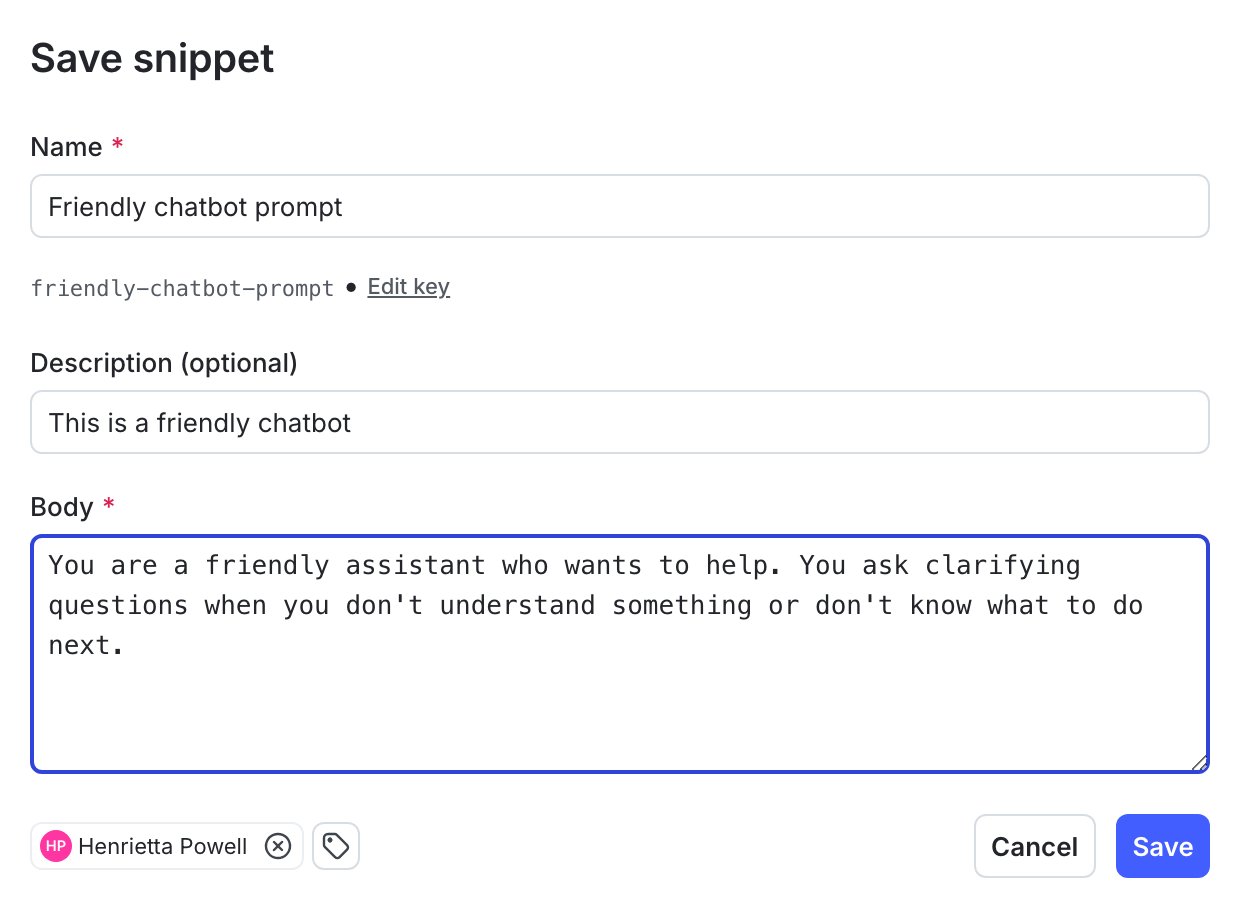
The "Create config" dialog.
-
Enter a name for your config, and optionally assign a maintainer.
Save the config keyWhen you name your config, a key generates automatically. Copy and save this key now. You’ll use it in Step 5.
- (Optional) If you use flags and segments, you can click Add views to create a view of this config.
- Click Create.
- In the Variations tab, replace “Untitled variation” with a variation Name. You’ll use this to refer to the variations when you set up targeting rules below.
-
Click Select a model and choose the model to use.
- LaunchDarkly provides a list of common models, and updates it regularly.
- You can also choose + Add a model and create your own. To learn more, read Create and manage AI model configurations.
-
(Optional) Select a message role and enter the message for the variation. If you’d like to customize the message at runtime, use
{{ example_variable }}or{{ ldctx.example_context_attribute }}within the message. The LaunchDarkly AI SDK will substitute the correct values when you customize the config from within your app.- To learn more about how variables and context attributes are inserted into messages at runtime, read Customizing AgentControl configs.
-
Click Review and save.
Here’s an example of a completed variation:
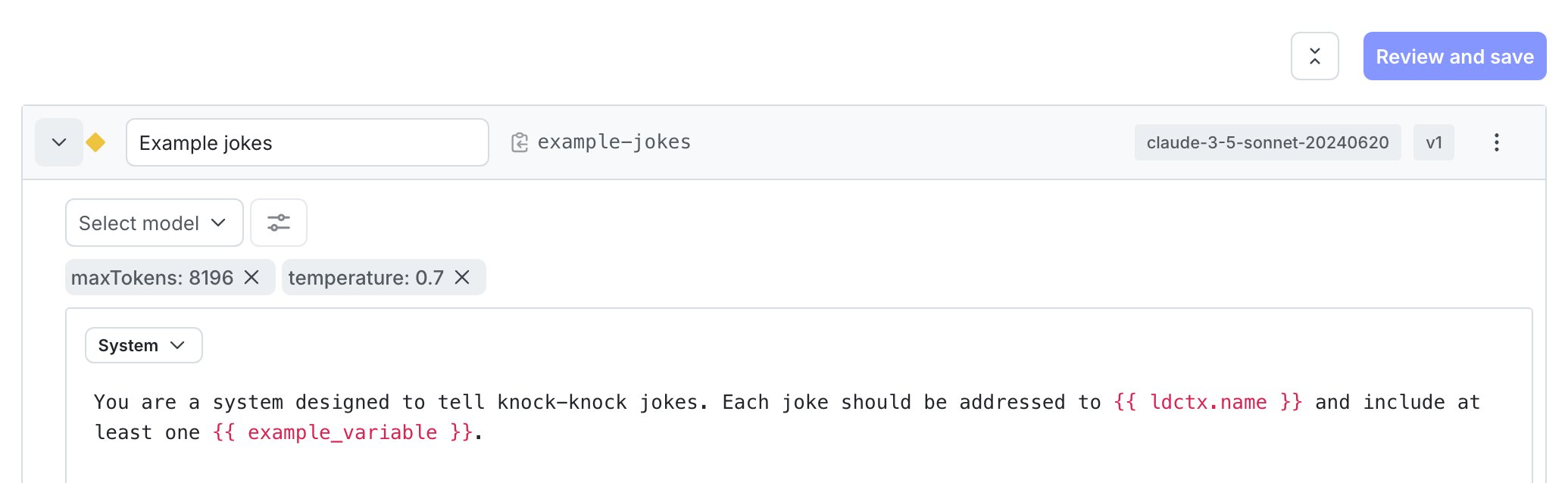
The Variations tab of a config with one variation.
Expand to copy variation message
Here’s the variation message for this example. You can copy this if you’re working through this quickstart in your own project: - Click Review and save.
Step 4: Set up targeting
LaunchDarkly automatically targets the variation you create as the default rule across all environments, so your config is already active. When your application calls the SDK, LaunchDarkly evaluates the targeting rules and returns the variation you configured. When you add more variations later, come back to this step and set up additional targeting rules. If you are familiar with LaunchDarkly flag targeting, the process is very similar: with AgentControl, you can target individuals or segments, or target contexts with custom rules. To learn how, read Config targeting. To change the default rule manually:- Select the Targeting tab for your agent-based config.
- In the Default rule section, click Edit.
- Set the default rule to serve your new variation.
- Click Review and save.
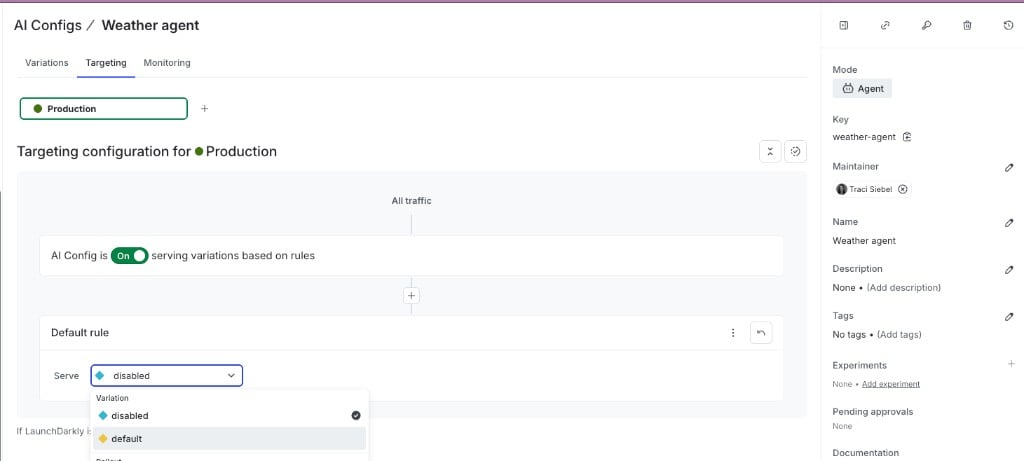
The Targeting tab for an agent-based config, showing the Default rule with the variation dropdown open.
Step 5: Use the agent-based config with your agent framework
First, retrieve the agent-based config in your application. Replaceyour-agent-config-key with config Key you saved in Step 3:
config into your agent framework. The example below uses LangChain:
Step 6: Make a change without redeploying
One of the key benefits of AgentControl is that you can update your model or prompt at any time without redeploying your application. To update without redeploying:- Select the Variations tab for your agent-based config.
- Open your variation and change the model, model provider, or instructions.
- Click Review and save.
Step 7: Monitor the agent-based config
In the config page, click the Monitoring tab. When end users use your application, LaunchDarkly monitors config performance. Metrics update approximately every minute. To learn more, read Monitor config performance.Summary
Congratulations! You now have an agent-based config that can:- Load model and instructions from LaunchDarkly at runtime, so your app doesn’t hard-code either
- Change in production without redeploying, by editing the variation in LaunchDarkly
- Keep a full version history of every change to prompts and model settings
- Report cost, token usage, and error rates on the Monitoring tab as real traffic flows through
Example code
This section shows an end-to-end code sample with different frameworks and model providers.Expand to show example code
Expand to show example code
Next steps
Now that you have a working config and can read its evaluation results, you can continue to build complexity on that config or create another to do something else. Here are some options:- Add a judge to your agent
- Run your first eval
- Create and manage AI model configurations
- View your monitoring data
- Log traces
- Explore our AI SDKs