

Archived metrics are hiddenBy default, LaunchDarkly hides archived metrics from the Metrics list, experiment setup screens, and metric selection menus. To view them, turn on the Show archived filter in the Metrics list.
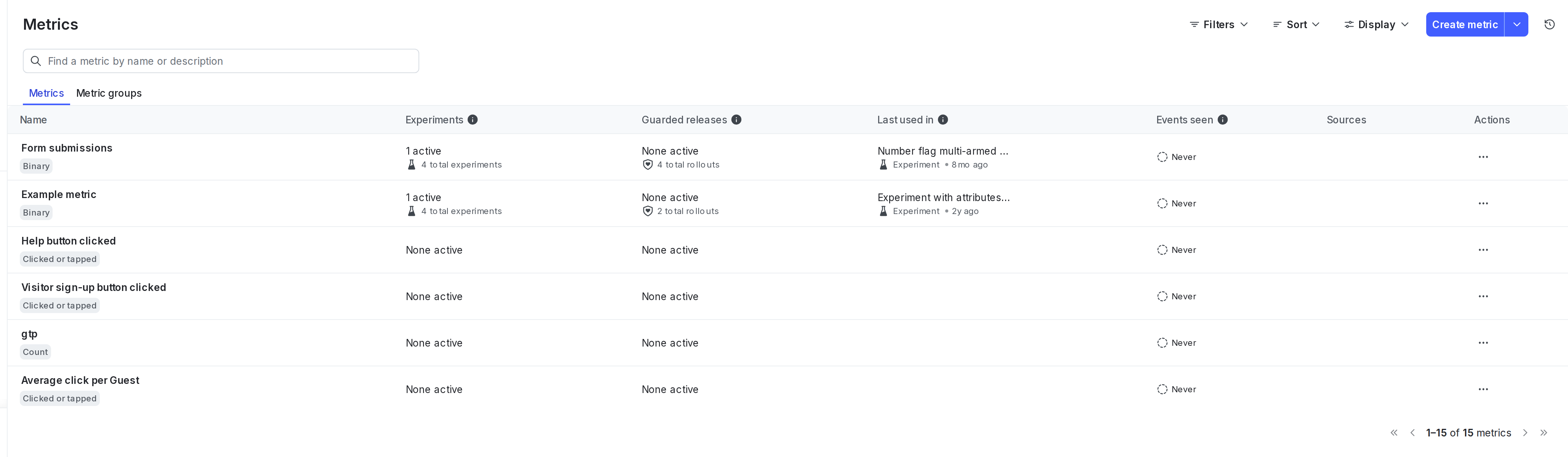
The Metrics list.
Table columns
By default, the table displays the following columns for both individual metrics and metric groups:- Experiments: summarizes the number of experiments that use the metric.
- Guarded releases: summarizes the number of guarded rollouts that use the metric.
- Last used in: shows the most recent experiment or guarded rollout that used the metric.
- Events seen: shows when LaunchDarkly last received an event for the metric. Metrics that have not received events recently may be inactive or misconfigured.
- Sources: the SDK or data source that instruments events for the metric. For example, metrics created from OpenTelemetry traces show “Traces” in this column.
- Actions: A menu that allows you to copy the metric’s key, or to clone or archive the metric.
- Total connections: the total number of connections this metric has to metric groups, multi-armed bandits, experiments, guarded releases, and release policies.
- Created on: the creation date for the metric.
Accessing the Metrics list
Open the Metrics list from the left sidebar under Data.Using the list
You can use the Metrics list to search, filter, sort, and customize how metrics appear in your project.Search and browse metrics
You can search for metrics by any of the following attributes:- Metric name
- Description
- Metric key
Filter metrics
Filters help you focus the list on metrics most relevant to your work. You can apply multiple filters at the same time. Available filters include:- Tags: limit the list to metrics with specific tags.
- Metric used in: filter by where a metric is used:
- Any: metrics used in experiments or guarded rollouts.
- Experiments: metrics connected only to experiments.
- Guarded rollouts: metrics connected only to guarded rollouts.
- None: metrics not connected to any feature.
- Maintainer: show metrics maintained by a specific team member.
- Type: filter by metric kind, such as “Clicked or tapped”, “Page view”, or custom “Count”, “Binary”, or “Numeric” metrics.
- Has connections: show metrics based on whether they have active connections.
- Archived: show archived metrics if archiving is enabled.
Sort metrics
Sorting helps you prioritize metrics based on activity and usage. By default, the list sorts metrics by Most active connections, which ranks metrics according to how many active experiments or guarded rollouts they are part of. You can also sort metrics by:- Newest or Oldest: sorts by the metric creation date.
- Name A-Z or Name Z-A: sorts by the metric name.
- Most connections or Fewest connections: sorts by the most or fewest total connections.
Show or hide columns
Use options in the Display menu to customize columns to show or hide in the table for both metrics and metric groups. By default, the table displays Experiments, Guarded releases, Last used in, Events seen, and Sources. You can also display Total connections and Created on. Your selections are stored in your browser’s local storage and persist between sessions. This lets you tailor the list to focus on the information that matters most to your role or workflow.Understanding metric details and actions
The Metrics list provides rich information at a glance to help you understand each metric’s activity and connections across your project. Tooltips for column values provide additional details about metrics and their use in LaunchDarkly features. You can also perform quick actions with metrics that you discover in the Metrics list.Metric definition
Entries in the “Name” column show the metric name and type, as well as any tags associated with the metric. Clicking a tag automatically filters the metric list by that tag. Tooltips show the complete definition for the metric.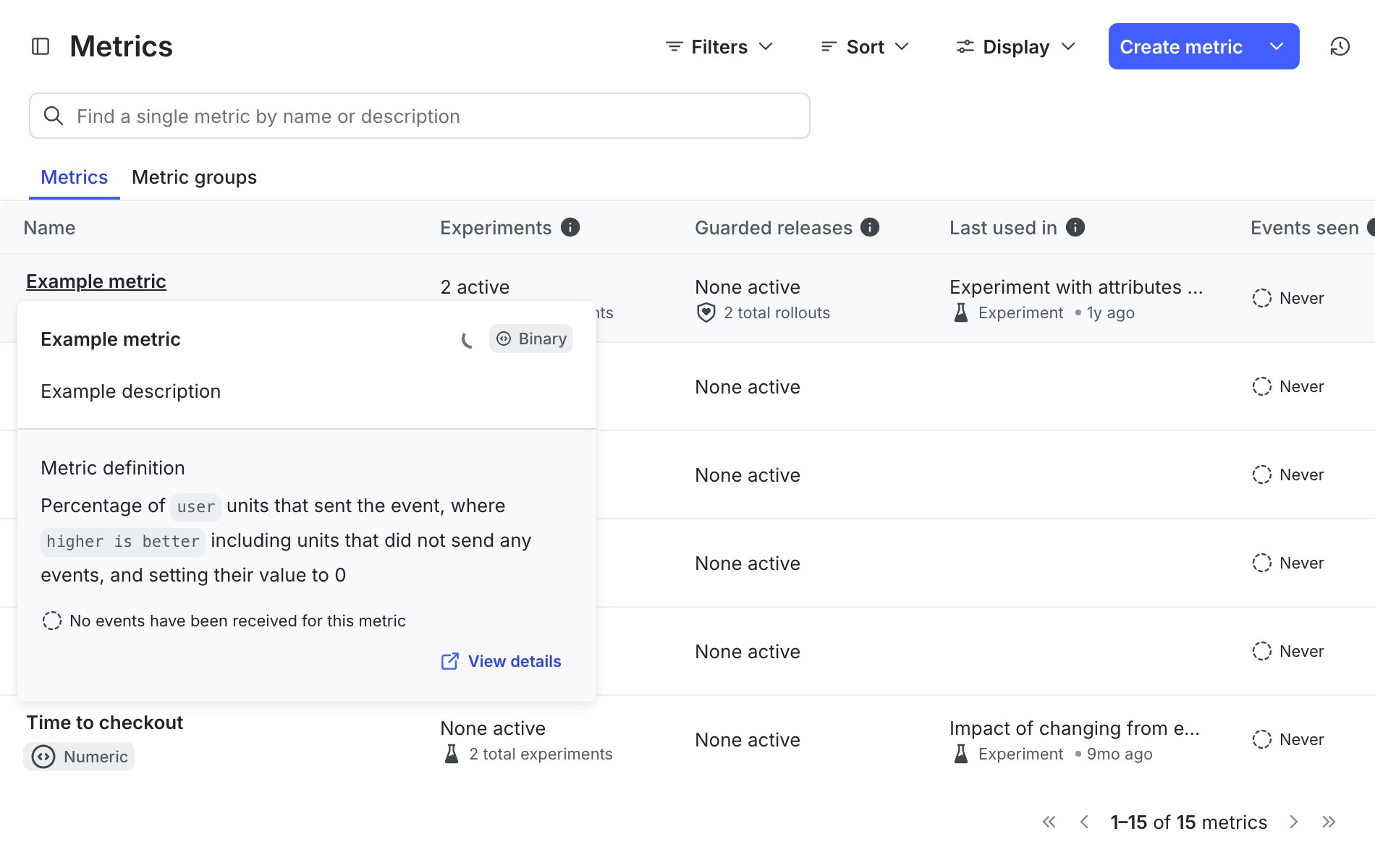
The Metrics name tooltip.
Metric usage
Entries in the “Experiments” and “Guarded releases” columns highlight the metric’s use and activity in LaunchDarkly features, to promote discoverability and trust. Tooltips show the environment(s) where the metric is active in an experiment or guarded rollout.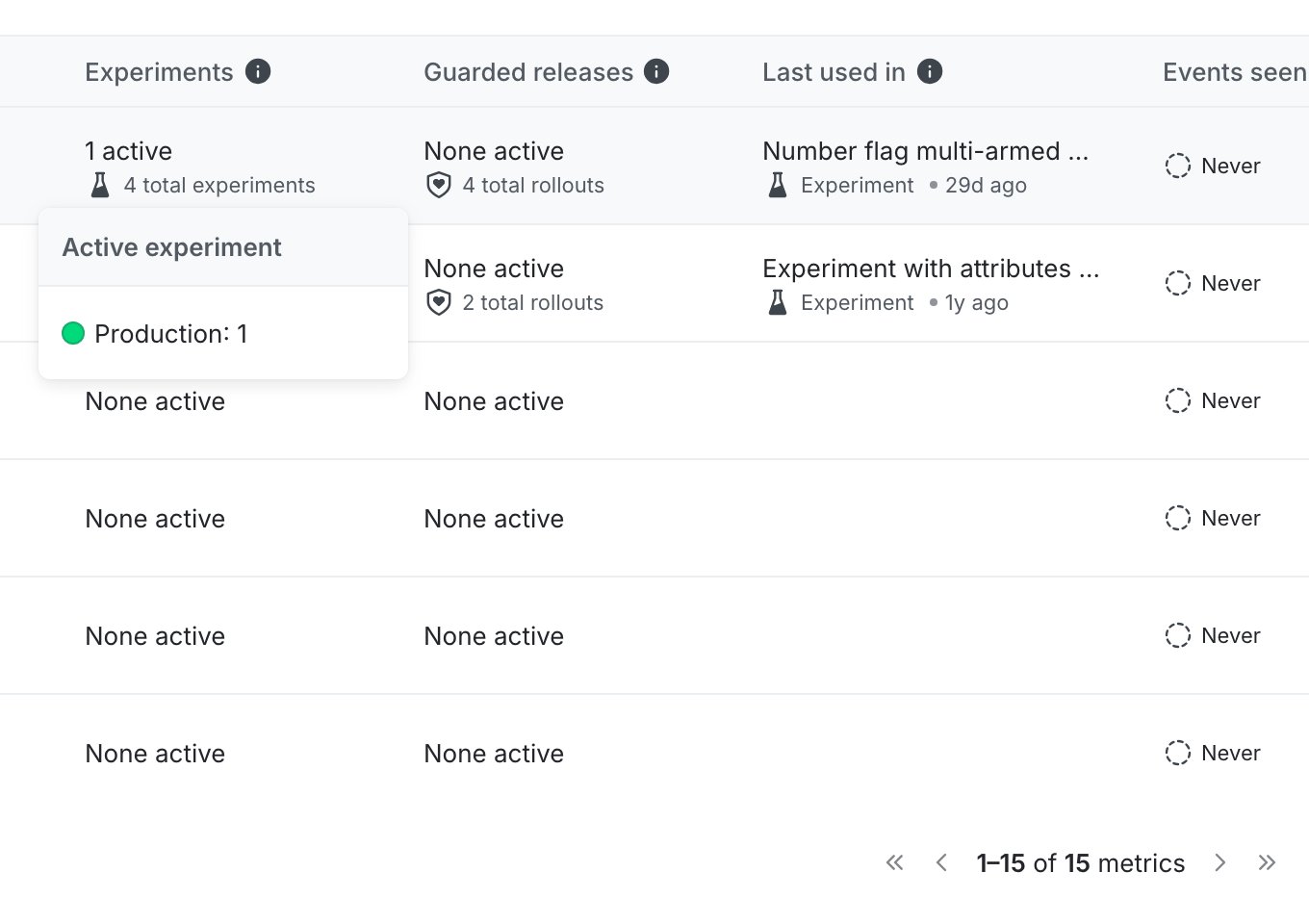
The Metrics experiment tooltip.
Actions
You can use the drop-down menu in the “Actions” column to copy a metric’s key or clone the metric definition, creating a new metric. You can archive the metric if was never connected to an experiment or guarded rollout. Active, event-rich metrics are generally safer to reuse across teams.Tabs in the metrics section
The metrics section includes several tabs for viewing related resources:- Metrics is the default list of individual metrics.
- Metric groups are reusable collections of metrics that standardize measurement across teams. To learn more, read Metric groups.